
Blur, Pixelate or Black Box? Hiding Private Details in Images
How blur and pixelation work, why pixelated text can sometimes be recovered, when only a solid box is safe, plus EXIF location data and the other ways screenshots leak information.
· 10 min read
Before you post a street photo, attach a screenshot to a bug report or list something for sale, there is usually something in the picture that should not be there: a face, a number plate, an address label, an email in a sidebar. The usual reflex is to blur or pixelate it. That is often fine, sometimes not, and occasionally reversible. This guide explains how each method works, which ones hold up for faces and which for text, and the other ways an image leaks information even after the obvious detail is hidden. The Blur and Pixelate Image tool offers all three methods, applied in your browser.
Three ways to hide part of an image
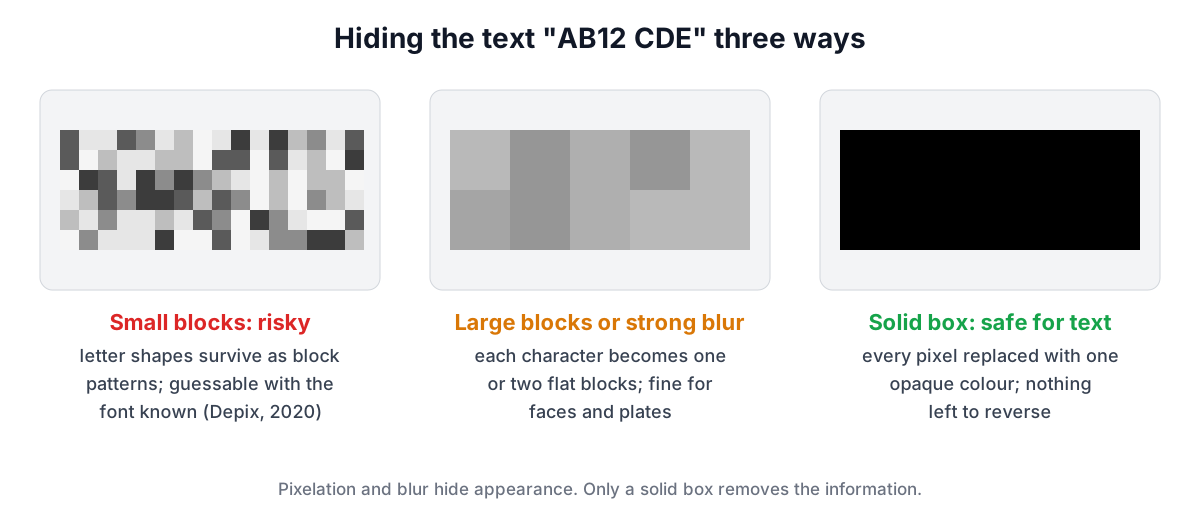
Pixelation (a mosaic) divides the area into square blocks and paints each block with the average colour of the pixels inside it. A 75 px block over a number plate turns each character into one or two flat squares.
Blur replaces every pixel with a weighted average of its neighbours. The tool runs three passes of a box blur, which closely approximates a Gaussian blur, with a radius you choose. Larger radii average over more pixels and erase more detail.
Solid fill (redaction) replaces every pixel in the area with one opaque colour. Nothing of the original remains.
| Method | Looks | Information left | Good for |
|---|---|---|---|
| Pixelate | Blocky, clearly censored | Block averages | Faces, plates, logos, scenery |
| Blur | Soft, less obtrusive | Low-frequency shapes and colours | Faces, backgrounds, bystanders |
| Solid box | Black or coloured bar | None | Text: passwords, numbers, names, addresses |
Pixelation and blur both keep a summary of what was underneath. For a face that summary is usually harmless if the effect is strong. For text it can be enough to rebuild the original, as the next section shows.
Why pixelated text can be recovered
Text is a worst case for pixelation because the possibilities are limited. A screenshot uses one known font at one size, and each character comes from a small alphabet. An attacker can render every candidate string the same way, pixelate it with the same block grid and compare the blocks with the redacted image. Where the blocks match, the guess is right.
That is what Depix, an open-source tool published in December 2020 by Sipke Mellema, demonstrated on pixelated passwords in screenshots. It works best when blocks are small relative to the characters and the font is known, which is exactly the situation in a screenshot of a login page or a terminal. Earlier, in 2016, researchers at Cornell Tech showed that neural networks could recognise faces and handwritten digits through mosaic and blur at rates far above chance (McPherson, Shokri and Shmatikov, "Defeating Image Obfuscation with Deep Learning"). Blur is attackable in a similar way when it is weak: a small radius behaves like a known filter that can be partly reversed.
The conclusion is not that blur and pixelation are useless. It is that they hide appearance, not information. For a face in a crowd, hiding appearance is the goal. For a credit card number, the information is the goal, and only a solid box removes it.
How strong is strong enough
If you do use pixelation or blur, size it to the detail you are hiding.
- A pixel block should be at least as large as the features that identify the subject: a whole character for text, an eye or a mouth for a face. The tool's default is 1/40 of the image's shorter side, so 75 px on a 4000 x 3000 photo; raise it until nothing can be read.
- A blur radius of a few percent of the face width is a minimum. If you can still make out where the eyes and mouth are, increase it.
- Cover more than the detail. Make the area a little larger than the plate or face so edges and outlines do not peek out.
- Use ovals for faces. An oval follows the head and softens less of the background, which looks more natural in group shots.
The tool reads only pixels inside each area when it blurs or pixelates, so the effect cannot pull detail in from outside, and the hidden content does not smear beyond the box edge.
Redaction failures that have nothing to do with blur
Most real leaks happen around the obvious redaction, not through it.
Layers and editable files. Drawing a black rectangle in a PDF annotation, a slide or a layered image file often leaves the original underneath. Removing the rectangle, or copying the text below it, reveals everything. The output of this tool is always a flat image: the pixels under the box are replaced before saving.
Semi-transparent markers. A highlighter tool at 80% opacity looks black on screen but can be brightened back into readable text. A solid box in the tool is fully opaque.
Metadata. Photos from phones often contain Exif GPS tags (GPSLatitude, GPSLongitude and others in the GPS IFD), the camera model and serial number, and the exact capture time. A blurred house number does not help if the file records the coordinates of the house. Images saved from this tool are re-encoded from a canvas and carry no Exif data. To check any file, open it in the Image Metadata Viewer.
Second copies. Screenshots repeat information: the email address in a header and again in a signature, a name in a tab title, a phone number in a notification banner. Search the whole picture.
Reflections and context. Sunglasses, windows, monitors and glossy surfaces reflect what you thought was out of frame. People can also be recognised by clothing, tattoos, a car or the background, even with a perfectly blurred face.
A checklist before sharing
- Crop out anything irrelevant first with Crop Image; what is not in the frame cannot leak.
- Hide text (passwords, card numbers, account numbers, addresses, names, emails, tokens, QR codes) with a solid box.
- Hide faces, number plates and house numbers with strong pixelation or blur, using ovals for faces.
- Look for reflections, notification previews, browser tabs and duplicate details.
- Save as a new flat file and check that it has no metadata.
- View the result at full size before posting, not just as a thumbnail.
Worked example: a support screenshot
You need to send a screenshot of a billing page to a vendor. It shows your name, email, the last four digits of a card, an invoice number the vendor needs, and an API key in a side panel.
- Load the screenshot in the Blur and Pixelate Image tool.
- Select Solid box, keep black, and drag over the API key, the email and the card digits. Each becomes an area in the list.
- Leave the invoice number visible, since the vendor needs it.
- Your profile photo appears in the corner: switch to Pixelate, choose Oval and drag over it.
- Turn off Show outlines to check the final look; the dashed guides are never saved anyway.
- Choose PNG, which keeps text and solid boxes crisp, and download. The file is named
screenshot_redacted.png.
If the screenshot is also going into public documentation, consider adding a small credit with the Watermark Image tool after redacting.
Sources
- Sipke Mellema, Depix: recovering passwords from pixelized screenshots (open-source release, December 2020).
- R. McPherson, R. Shokri, V. Shmatikov, "Defeating Image Obfuscation with Deep Learning", arXiv:1609.00408 (2016).
- CIPA DC-008 (Exif), GPS attribute information (GPS IFD tags).
- US National Security Agency, "Redacting with Confidence: How to Safely Publish Sanitized Reports Converted From Word to PDF" (guidance on hidden content in documents).
Related searches
- blur face in photo online
- pixelate license plate before posting
- can pixelated text be recovered
- blur vs pixelate for privacy
- redact screenshot safely
- remove gps location from photo
- hide personal information in screenshot
- depix pixelated password