
Browser Reminders and Notes: What Survives a Closed Tab
Why a browser reminder stays silent after you close the tab, how notification permission and background-tab throttling work, and which notes survive a refresh.
· 6 min read
You set a browser reminder for 3 pm, close the laptop lid at 2:40 to walk to a meeting, and 3 pm comes and goes in silence. Nothing broke. A web page can only run code while it is open, and a closed tab is not open. Most surprises with browser reminders and browser notes come from that one fact, plus a few rules browsers add on top for battery life and privacy.
This guide explains what the Reminder Tool and the Note Taker do in your browser, what survives a refresh or a closed tab, and how to set them up so they do what you expect.
How a browser reminder actually fires
The Reminder Tool has no server and no background service worker. While the page is open, it checks your list every 5 seconds. When a reminder's time has passed, it plays the alarm sound you picked, shows a notification, and either marks the reminder completed or schedules the next attempt if it repeats.
That gives three cases:
- Tab open and visible. The reminder fires within about 5 seconds of its time.
- Tab open but in the background. Browsers slow down timers in hidden tabs to save power. Chrome limits timers in a hidden tab to about once per second, and since Chrome 88 it applies "intensive throttling" to tabs that have been hidden for five minutes or more, running chained timers about once a minute. A reminder in a long-hidden tab can therefore fire up to a minute late. Firefox and Safari have their own, similar policies.
- Tab closed, browser quit or laptop asleep. Nothing runs. When you open the page again, any reminder whose time has passed fires once, straight away. A repeating reminder then schedules its next attempt from that moment, not from the original time.
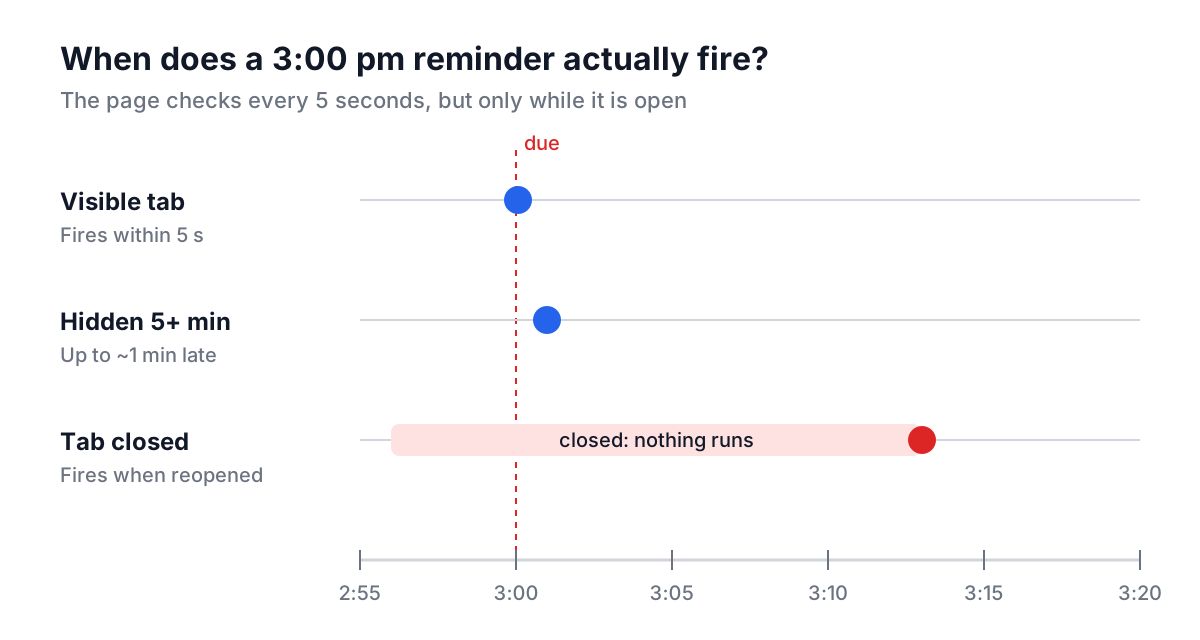
The practical rule: for reminders that matter, keep the page open in a pinned tab and keep the computer awake. For anything that must fire when your laptop is shut, use your phone's alarm or a calendar that syncs to it.
Notifications, permission and sound
The page uses the browser's Notification API. Every site starts in one of three permission states:
| State | What it means | What the Reminder Tool does |
|---|---|---|
| default | You have not been asked yet | Asks the first time you add a reminder |
| granted | You clicked Allow | Shows a system notification with the title and attempt number |
| denied | You clicked Block | Falls back to a blocking alert() dialog in the page |
Two details catch people. First, once you block notifications, a site cannot ask again. You have to reset the permission yourself, usually by clicking the icon at the left of the address bar and opening site settings. Second, a granted permission does not guarantee you see anything. macOS Focus, Windows Focus Assist and Do Not Disturb modes silence notifications at the operating system level, and the browser itself needs notification permission in the OS settings.
The fallback alert() has its own catch: it is modal. It stops the page until you click OK, and if the tab is in the background you may not see it until you switch back.
Sound is generated with the Web Audio API, so there are no audio files to download. You can choose from six tones: Default Beep, Urgent Alert, Gentle Chime, Classic Alarm, Big Alarm and Emergency Alert. Use Test Sound to hear one before you commit. Browser autoplay policies may block audio on a page you have not interacted with, so clicking anything on the page once after opening it, such as Test Sound, makes it more likely the alarm will play.
Setting up reminders that repeat
The tool has two ways to set the time:
- Specific Time uses a date and time picker in your local time zone. It fires once.
- In X Time takes a number and a unit (minutes, hours or days) counted from the moment you click Add Reminder.
Repeating is available only in In X Time mode. Turn on Repeat this reminder and enter how many times in total, up to 50. The interval between attempts is the same amount you entered.
Worked example: a stretch break
Title "Stand up and stretch", In X Time, 45 minutes, Repeat on, 4 times in total, added at 9:00:
Attempt 1  09:45
Attempt 2  10:30
Attempt 3  11:15
Attempt 4  12:00   then moves to Completed Reminders
That schedule holds only while the tab stays open. Close the tab at 10:00 and reopen it at 11:40, and attempt 2 fires at 11:40, with attempt 3 scheduled 45 minutes later at 12:25. The active list shows a live countdown and "Attempt 2 of 4" so you can see where you are.
Where your reminders and notes are stored
Reminders are saved in the browser's localStorage. They survive a refresh and a browser restart, but they belong to that browser profile on that device. They do not sync to your phone or another browser, and clearing site data or using a private window removes them. The page also mirrors its form state into the address bar's query string, so a copied URL can carry that state; be aware of that before pasting the link somewhere public.
The Note Taker is simpler and stricter. It is a plain-text box with word, character and line counts, a Copy button, a Download button that saves notes-YYYY-MM-DD.txt, a Clear button and an in-page fullscreen mode for writing without distractions. It saves nothing. Refresh the page or close the tab and the text is gone.
| Event | Reminder Tool | Note Taker |
|---|---|---|
| Switch to another tab | Kept, may fire late | Kept |
| Refresh the page | Kept (localStorage) | Lost |
| Close the tab | Kept, but nothing fires | Lost |
| Restart the browser | Kept | Lost |
| Open on another device | Not there | Not there |
| Clear site data | Deleted | Not applicable |
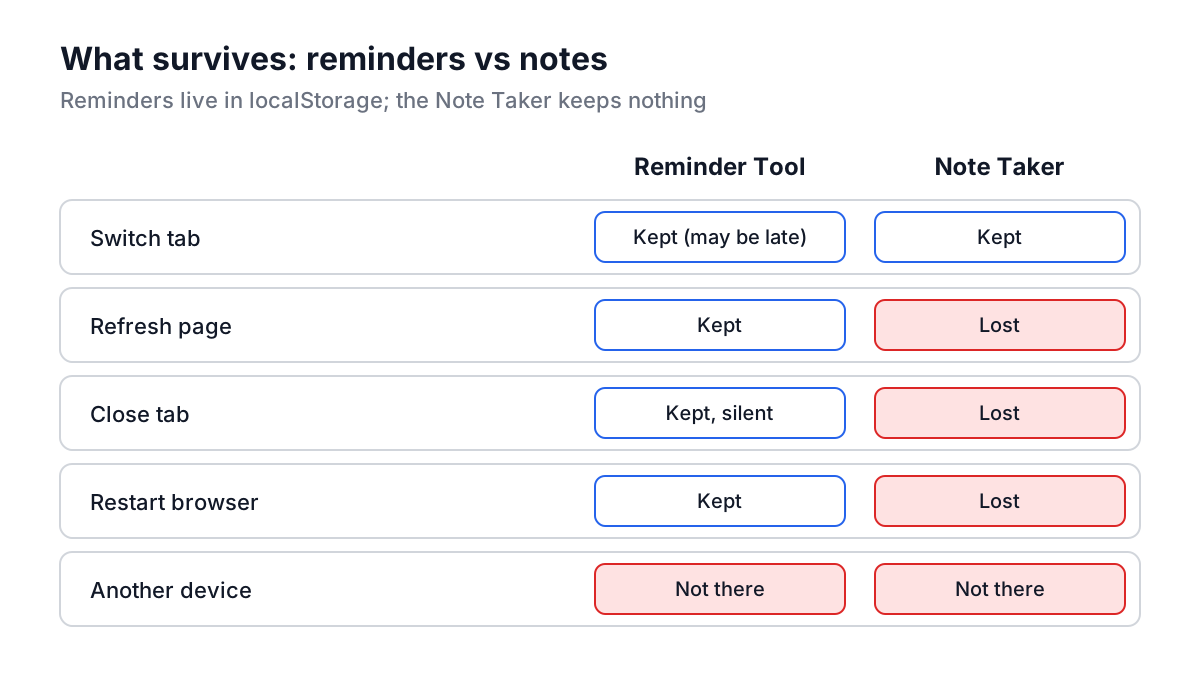
That difference is deliberate for a scratchpad. The Note Taker is for meeting notes you will paste into a ticket, a draft message, or a list you need for the next ten minutes. If the text matters beyond that, download it. If you want formatting, write in Markdown and preview it in the Markdown Viewer, which also has upload and download.
Common mistakes
- Trusting a background tab for a time-critical alarm. Pin the tab and keep it visible, or use a phone alarm.
- Blocking notifications by reflex. The site cannot ask twice. Reset it in site settings if you clicked Block.
- Expecting repeat in Specific Time mode. Repeat lives in In X Time mode only.
- Writing long notes in the Note Taker without saving. A stray refresh or a crashed tab loses everything. Download every so often.
- Assuming reminders follow you. localStorage is per browser and per device. A reminder set on a work laptop will not appear at home.
- Muted system sound. Web Audio plays through the system output, so a muted laptop means a silent alarm.
For recurring jobs that must run on a server whether or not anyone has a browser open, a cron schedule is the right tool, and the crontab syntax guide covers how to write one. For timing people in a meeting rather than reminding yourself, the Daily Standup Timer gives each speaker a countdown.
Set one reminder now for something later today, allow notifications when asked, and click Test Sound once. If it fires on time with sound, your setup works; if it does not, check site permission and your OS focus mode before you rely on it for anything that matters.