
Pulling Colours and Fonts Out of an Image: What Works and What Does Not
How an image eyedropper finds the right pixel, why picked colours drift, and how font matching from a screenshot really works, including its limits.
· 7 min read
A client sends a screenshot of their old website and says "make the new one look like this". There is no style guide, no Figma file, and the person who built the old site left years ago. Everything you need is in that screenshot, as pixels: the brand blue, the grey of the body text, the headline typeface. Getting the colours out is precise work you can do in seconds. Getting the font out is detective work, and any tool that promises otherwise is overselling.
This guide covers both jobs: how an image eyedropper finds the exact pixel and why its numbers sometimes drift, and how font matching from an image works, what it can tell you, and where it runs out.
Colours: what an eyedropper actually reads
An image on a web page is almost never shown at its real size. A 3000 px wide photo squeezed into an 800 px box means each screen pixel covers almost four image pixels in each direction. When you click, the picker has to turn the click position into a position in the original image.
The Color Picker from Image does that in three steps. It measures the box the image is drawn in, works out the scale that fits the image inside that box without distortion, and subtracts any empty bars. Those bars appear whenever the image and the box have different shapes: a tall portrait shown in a wide box gets bars left and right. A click on a bar is ignored instead of quietly sampling the wrong pixel, which was a real bug in an earlier version of this tool.
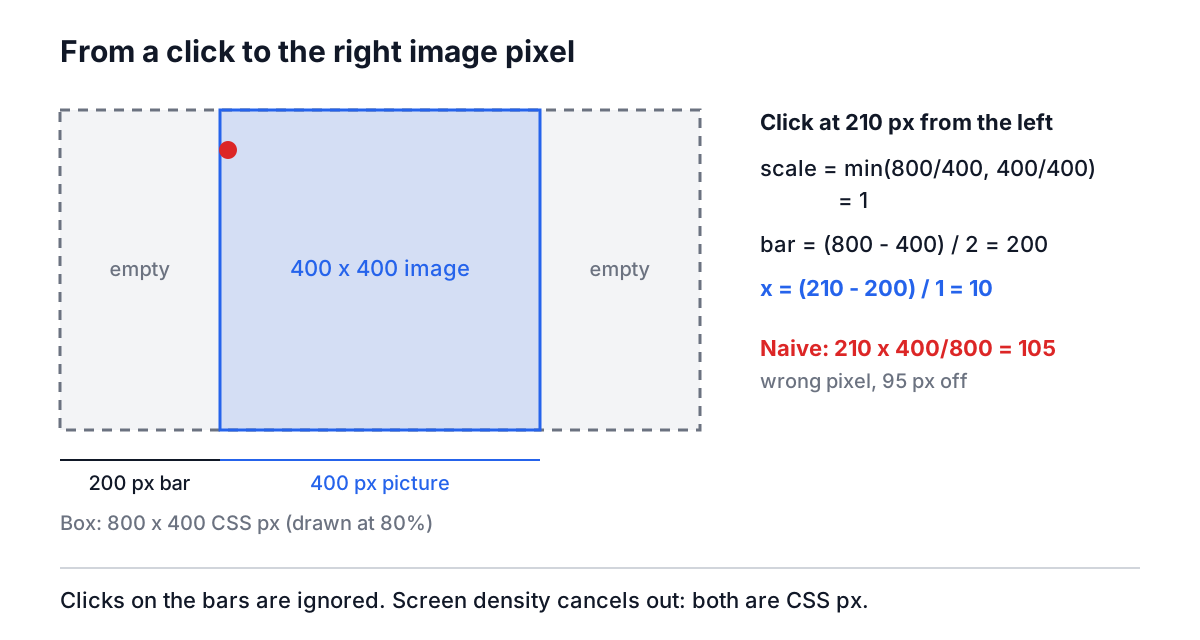
The worked numbers in the diagram: the box is 800 x 400 CSS pixels and the image is 400 x 400. The fitted scale is min(800/400, 400/400) = 1, so the picture is drawn 400 px wide with 200 px of empty space on each side. A click 210 px from the left of the box is 10 px into the picture, so it reads image pixel 10. A naive mapping that divides by the whole box width would send the same click to pixel 105.
Screen density does not enter into it. Both the click coordinates and the box size are measured in CSS pixels, so a 2x Retina display and a 1x office monitor give the same answer.
Once it has the position, the picker reads that one pixel from a hidden canvas holding the full-resolution image and shows it three ways:
| Format | Example | Good for |
|---|---|---|
| HEX | #3366cc | CSS, design tokens, sharing in chat |
| RGB | rgb(51, 102, 204) | Code that computes with channels |
| HSL | hsl(220, 60%, 50%) | Making lighter or darker variants by hand |
The colour formats guide explains the maths behind each, including why HSL lightness does not match how bright a colour looks.
Why a picked colour can be a few units off
JPEG noise. JPEG stores 8 x 8 blocks with rounded frequencies, so a button that was one flat colour in the design comes back as a speckle of values within a few units of each other. Sample from the middle of the shape, or ask for a PNG screenshot.
Anti-aliasing. Edges of text and shapes are blended with the background. A pixel on the edge of a blue letter on white might be #8aa6e0, a mix that appears nowhere in the design.
Colour profiles. Photos from recent phones are often tagged Display P3. Browsers convert them to sRGB before a canvas sees the pixels, so values can differ slightly from what a desktop editor reports for the raw file. For web work, the sRGB number is the one you want anyway.
Transparency. A fully transparent pixel reads as 0, 0, 0 with alpha 0, which looks like black if you ignore the alpha. The picker shows alpha whenever a pixel is not fully opaque.
Rounding. HSL is shown in whole degrees and percentages. Converting the rounded HSL back to RGB can be one unit off in a channel. Keep HEX or RGB as the source of truth.
A practical routine for a brand colour: take a PNG screenshot at 100% zoom, pick three points well inside the coloured area, and if they differ, take the most common value. Then paste foreground and background into the Contrast Checker before reusing the pair for text.
Fonts: matching shapes, not reading names
There is no font name stored in a picture. Once text has been rendered to pixels, all that is left is shapes. Identifying the typeface means comparing those shapes with the shapes of known fonts, and the quality of the answer depends on two things: how clean the sample is and how many fonts you compare against.
Commercial services such as WhatTheFont run on servers with databases of hundreds of thousands of fonts and trained models that segment and classify individual glyphs. A browser page cannot download a database that size. So the Font Finder from Image does something smaller and more transparent: it compares your sample against 33 fonts it can render locally, 26 Google Fonts families plus common system fonts such as Arial, Georgia and Times New Roman, and ranks them.
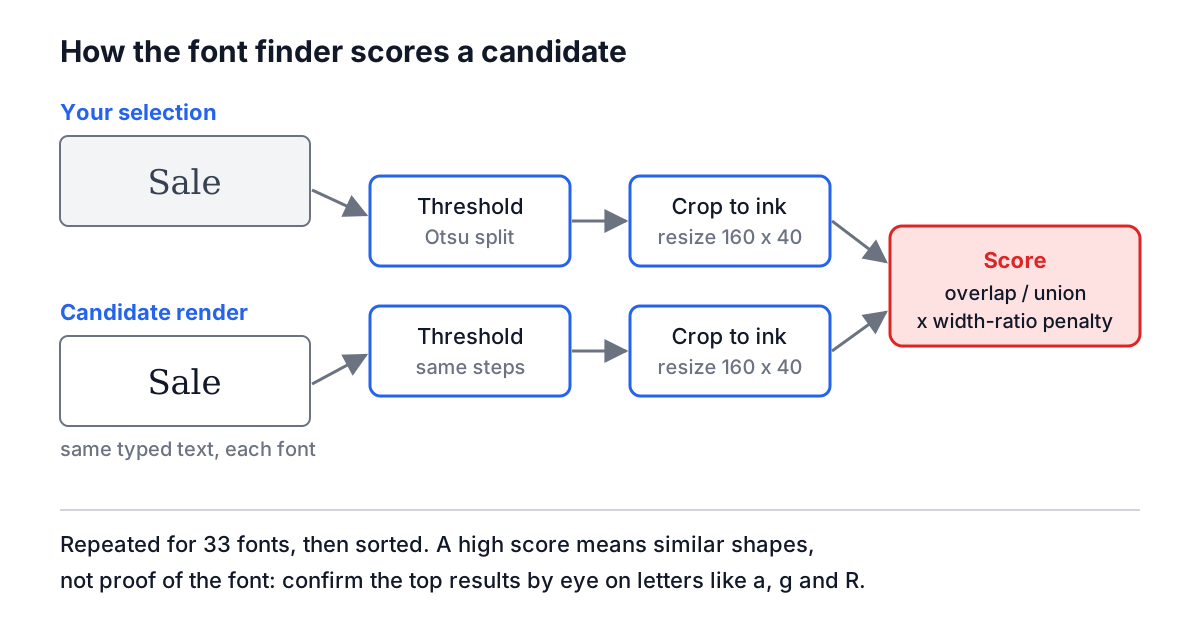
The steps:
- You select one line of text and type what it says. Typing avoids OCR mistakes. If the tool misread "rn" as "m", it would compare the wrong shapes.
- The selection becomes black and white. Otsu's method picks the grey level that best splits the pixels into two groups. Whichever group covers less area is treated as ink, so white text on a dark banner works as well as dark text on paper.
- The ink is cropped and resized to a 160 x 40 grid.
- Each candidate font renders your text on a canvas, and goes through the same threshold, crop and resize.
- The score is the overlap between the two grids (intersection over union), reduced when the overall width-to-height ratio differs, because a wide font at the right height is still the wrong font.
Reading the results honestly
A score of 100 means the two shapes are identical on that grid. Real samples rarely get near it: compression, blur and slight rotation all lower every candidate. What matters is the order and the gap. If the top result is well clear of the rest and the letters match by eye, you have a good substitute. If the top five are within a few points of each other, the sample cannot separate them, and you should compare distinctive letters yourself.
Some pairs are close by design. Arial was drawn in 1982 to match Helvetica's widths, so on short words they tie; the tells are the R leg, the G spur and the ends of t and a. Many geometric sans fonts share a circular o and differ mainly in a, g and y. Pick a sample word that includes those letters if you can.
When font matching will not work
- The real font is not in the list. The tool then returns the closest look-alikes it has, which is often fine for a mockup and wrong for a brand rebuild.
- The text is italic, condensed, outlined or letter-spaced. Candidates are rendered upright at default spacing, so every score drops.
- The photo is in perspective. Straighten and crop it first.
- The sample is one or two letters. Too few shapes to separate similar fonts.
- It is lettering, not a font. Hand-drawn logos and custom wordmarks are not typefaces at all.
In those cases the ranking still narrows the search to a style: humanist sans, geometric sans, transitional serif, slab or script. Take that to a foundry catalogue or a dedicated identification service.
A combined worked example
Back to the client screenshot. It is a 1440 px wide PNG of their old homepage.
- In the Color Picker from Image, pick the header background, the body text and the button. Say they come out as #1e3a5f, #374151 and #e4572e. Copy each HEX.
- Check #374151 on white in the Contrast Checker. It passes for body text.
- In the Font Finder from Image, drag a box around the headline "Built for small teams", type it exactly, choose Bold, and compare. Suppose Montserrat and Poppins lead with a clear gap over the serifs and condensed fonts.
- Compare the a and t of both against the screenshot, choose the one that matches, and use Copy CSS for the font-family rule.
Twenty minutes, and the new design starts from the old one's real values instead of guesses. For decorative script lettering, the Calligraphy Font Generator lets you try many of the same Google script fonts on your own text, and the Color Picker helps build lighter and darker steps from the colours you extracted.
The habit worth keeping: trust the eyedropper's numbers after a quick sanity check, and treat any font answer as a shortlist to confirm by eye.