
Checksums vs Digital Signatures: How to Verify What You Download
A checksum proves a file arrived intact; a signature proves who published it. How each works, how to verify both, and the mistakes that make verification meaningless.
· 7 min read
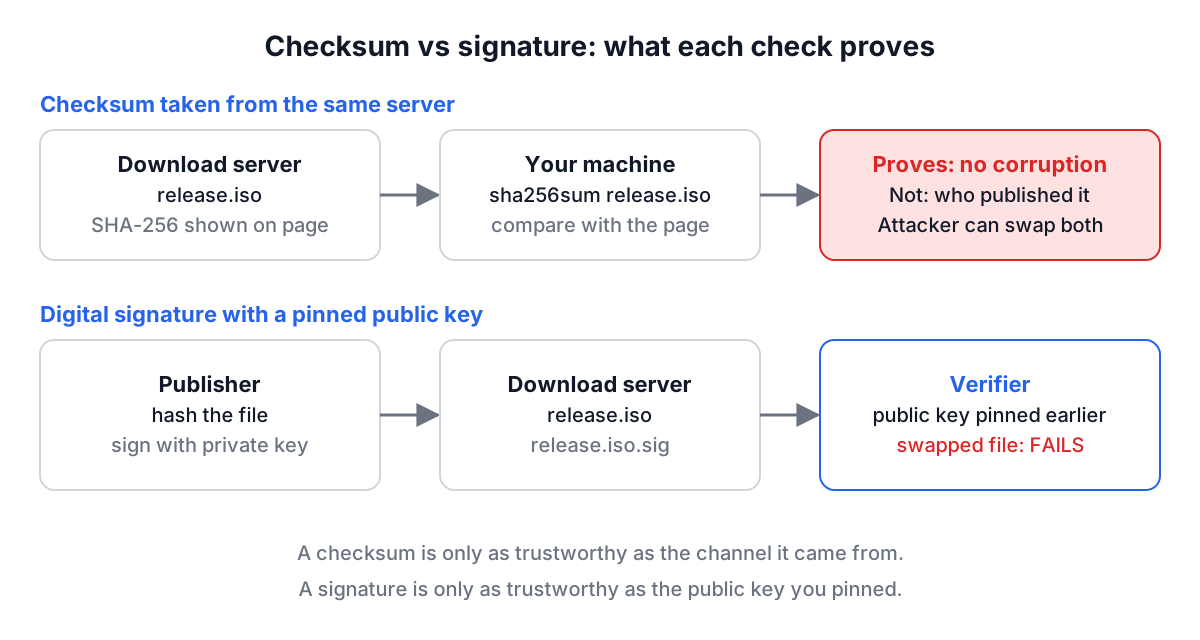
You download a 4 GB Linux ISO, the release page lists a SHA-256 value next to the link, and you paste both into a checker. The hashes match. That tells you the file arrived intact. It does not tell you the file is the one the project published, because whoever could swap the ISO on that server could also swap the hash printed beside it. Closing that gap is the job of a digital signature, and knowing which of the two you actually have saves you from trusting a check that proves less than you think.
This guide covers both: what a checksum proves, what a signature adds, how to verify each with the Hash File Verifier and the Digital Signature Validator, and the small byte-level mistakes that make a valid signature fail.
Checksums prove integrity, signatures prove origin
A checksum is a hash of the file's bytes. Anyone can compute one, including an attacker. If the expected value travels on a different channel than the file (a signed release email, a package manifest you already trust, a colleague reading it out over a call), a match is strong evidence the bytes are unchanged. If the value sits on the same web page as the download, a match only rules out accidental corruption: a truncated transfer, a flaky disk, a proxy that mangled the stream.
A digital signature binds the bytes to a private key. The publisher hashes the file and signs the hash with a private key only they hold. You verify with the matching public key. An attacker who replaces the file cannot produce a new valid signature without that private key, so the question moves from "do I trust this web page" to "do I trust this public key", which you can answer once and reuse for every release.
| Checksum | Digital signature | |
|---|---|---|
| Detects accidental corruption | Yes | Yes |
| Detects deliberate tampering | Only if the hash came from a trusted channel | Yes, if the public key is trusted |
| Proves who published it | No | Yes |
| Needs a key | No | Public key to verify, private key to sign |
| Typical form | sha256sum line, SRI string | .sig or .asc file, Base64 blob, JWS |
Choosing a hash algorithm
Both checks start with a hash, so the algorithm matters. MD5 (1992) and SHA-1 (1995) are broken for collision resistance: researchers can build two different files with the same digest. That rules them out for anything an attacker controls, including signatures. They still catch random corruption, which is why you will see MD5 sums on old mirrors. SHA-256 is the sensible default, and SHA-384 and SHA-512 are fine too. The Hash Generator guide covers the history in more depth.
The Hash File Verifier reads the expected value in the formats people actually paste and picks the algorithm from its length when you leave it on auto-detect:
| Hex length | Algorithm |
|---|---|
| 32 | MD5 |
| 40 | SHA-1 |
| 64 | SHA-256 |
| 96 | SHA-384 |
| 128 | SHA-512 |
It accepts a bare hex string in any case, a coreutils line such as efc9...c8c5 release.tar.gz or the binary-mode form with *release.tar.gz, the BSD and OpenSSL style SHA256 (release.tar.gz) = efc9..., colon-separated bytes, and Subresource Integrity values like sha384-8z7nyK.... The comparison ignores case and separators, so an uppercase value copied from PowerShell matches a lowercase one from Linux.
Verifying a checksum, step by step
Take a small file containing exactly the text Release 4.2.0 approved for production. with no trailing newline. Its digests are:
SHA-256  efc9197ad2d06ab99b50a13539f765a35877c49c396772e936f4e56121e1c8c5
MD5      5425028af4415088eb2b76df468033e7
In the Hash File Verifier, pick the file, paste the SHA-256 line and click Verify File. The tool reports SHA-256 as the detected algorithm and shows the calculated hash next to the verdict. Paste the MD5 value instead and it switches to MD5 on its own. Change one byte of the file and the result turns to a mismatch.
The same check on the command line:
sha256sum release.tar.gz                    # Linux
shasum -a 256 release.tar.gz                # macOS
certutil -hashfile release.tar.gz SHA256    # Windows cmd
Get-FileHash release.tar.gz -Algorithm SHA256   # PowerShell
sha256sum -c SHA256SUMS                     # check a whole list
The browser tool hashes the file locally and never uploads it. One practical limit: it reads the whole file into memory before hashing, so files of several gigabytes can exceed what a browser tab is allowed to allocate. For those, use the command line.
How signature schemes differ
Four families cover almost everything you will meet:
| Scheme | Standard | Signature size | Notes |
|---|---|---|---|
| RSA PKCS#1 v1.5 | RFC 8017 | Key size (256 bytes for RSA-2048) | Deterministic. JWS name RS256 for SHA-256 |
| RSA-PSS | RFC 8017 | Key size | Randomised salt. JWS name PS256 |
| ECDSA P-256/384/521 | FIPS 186, RFC 7518 for JWS | 64, 96 or 132 bytes raw | Two encodings in the wild |
| Ed25519 | RFC 8032 | 64 bytes | Deterministic, no parameters to choose |
The ECDSA encoding trips people up. A signature is two integers, r and s. OpenSSL writes them as a DER SEQUENCE of two INTEGERs, which is 70 to 72 bytes for P-256 and starts with 0x30. JWS (RFC 7518) writes them as fixed-width r followed by s, exactly 64 bytes for P-256. Web Crypto expects the raw form. The Digital Signature Validator detects which one you pasted and converts DER to raw before verifying, so an OpenSSL signature and a JWT signature both work.
RSA-PSS has a parameter of its own, the salt length. The common choice is the hash length (32 bytes for SHA-256), which JWA requires for PS256. Some tools use the maximum salt that fits the key. The validator tries the hash length first and then the maximum.
Verifying a signature with the validator
Click Load Sample in the Digital Signature Validator. It fills in the same message as above, an RSA-2048 public key and a Base64 signature made with:
printf 'Release 4.2.0 approved for production.' > msg.txt
openssl dgst -sha256 -sign key.pem msg.txt | base64
Click Validate Signature with the algorithm on Auto-detect. For an RSA key the tool tries RS256, RS384 and RS512, then PS256, PS384 and PS512, then legacy SHA-1, and stops at the first that verifies. Here it reports RS256, lists what it tried, and shows the key as RSA, 2048 bits. For an EC key it starts with the hash that matches the curve (ES256 for P-256), and for an Ed25519 key there is only one option.
The key can be a BEGIN PUBLIC KEY PEM, a PKCS#1 BEGIN RSA PUBLIC KEY, an X.509 certificate (the key is read from it; the certificate itself is not validated), or a JWK. The signature can be Base64, Base64url or hex. The OpenSSL equivalent of the check is:
openssl pkey -in key.pem -pubout -out pub.pem
base64 -d sig.b64 > sig.bin
openssl dgst -sha256 -verify pub.pem -signature sig.bin msg.txt
Verification is done by your browser's Web Crypto API, and nothing is sent anywhere.
Software projects usually wrap signatures in a tool of their own. GnuPG (gpg --verify file.asc file) is the traditional choice for Linux distributions, minisign uses Ed25519 with a very small key format, and Sigstore's cosign signs container images and other artifacts. The underlying idea is the same: a public key you trust and a signature over exact bytes.
Common mistakes
Checking a hash fetched from the same place as the file. It proves the download was not corrupted, nothing more. Get the hash from a signed manifest or another channel, or verify the signature.
A trailing newline. echo "text" | openssl dgst -sign ... signs text\n. Paste text into a verifier and the signature fails, correctly. Use printf or echo -n when creating test signatures, and keep in mind that the validator signs and verifies UTF-8 text exactly as typed.
CRLF line endings. A file signed on Linux and opened in a Windows editor may gain \r\n line endings. To a hash or signature that is a different file.
Signing the hash instead of the data. openssl dgst -sign hashes the input for you. If someone hashed the file first and then signed the hex digest as text, you need to verify against that hex string, not the original file.
Mixing up ECDSA encodings or PSS salt lengths. If a library rejects a signature that another accepts, check DER versus raw r||s and the salt length before assuming the key is wrong.
Trusting a public key from the download page. A key served next to the file has the same problem as a checksum served next to the file. Pin the key once from a source you trust, such as the project's keyserver entry, a signed commit, or a previous release you already verified.
Using MD5 or SHA-1 for signatures. Fine for spotting a corrupted copy, not for anything an attacker could forge. If a vendor only publishes MD5, ask for SHA-256.
Putting it together
For a quick integrity check, compute the file's SHA-256 with the Hash File Verifier or sha256sum and compare it with a value you got from somewhere other than the download server. For anything you will run with privileges, verify the publisher's signature with a public key you pinned in advance. If a signature fails, check the bytes before the cryptography: newlines, encodings and the algorithm name explain most failures. The Hash Generator is handy for hashing short strings, and the JWK Converter turns a JWK into the PEM most command-line tools expect.