
Sketching and Diagramming in the Browser: Canvas, Excalidraw and When to Use Each
How browser drawing tools store shapes, when a quick sketch beats a formal diagram, and how to export, save and keep diagrams that teammates can edit later.
· 7 min read
Twenty minutes into an incident review, someone says "wait, which service talks to the queue?" and four people describe the same system four different ways. Then someone shares a screen and draws three boxes and two arrows, and the argument ends. A rough picture is often the fastest route to agreement, and the tool you draw it in matters less than whether you can draw it in under a minute and keep it afterwards.
RedBison has two browser tools for this. The Drawing Tool is a small sketchpad for freehand marks, shapes, text and annotated screenshots. The Diagram Tool runs Excalidraw, a whiteboard built for boxes-and-arrows diagrams on an infinite canvas. This guide explains how each works underneath, which one to reach for, and how to save and export work so it is still useful next month.
How browser drawing tools store what you draw
Every drawing app in a browser ends up painting pixels into an HTML <canvas>. The difference is what it remembers.
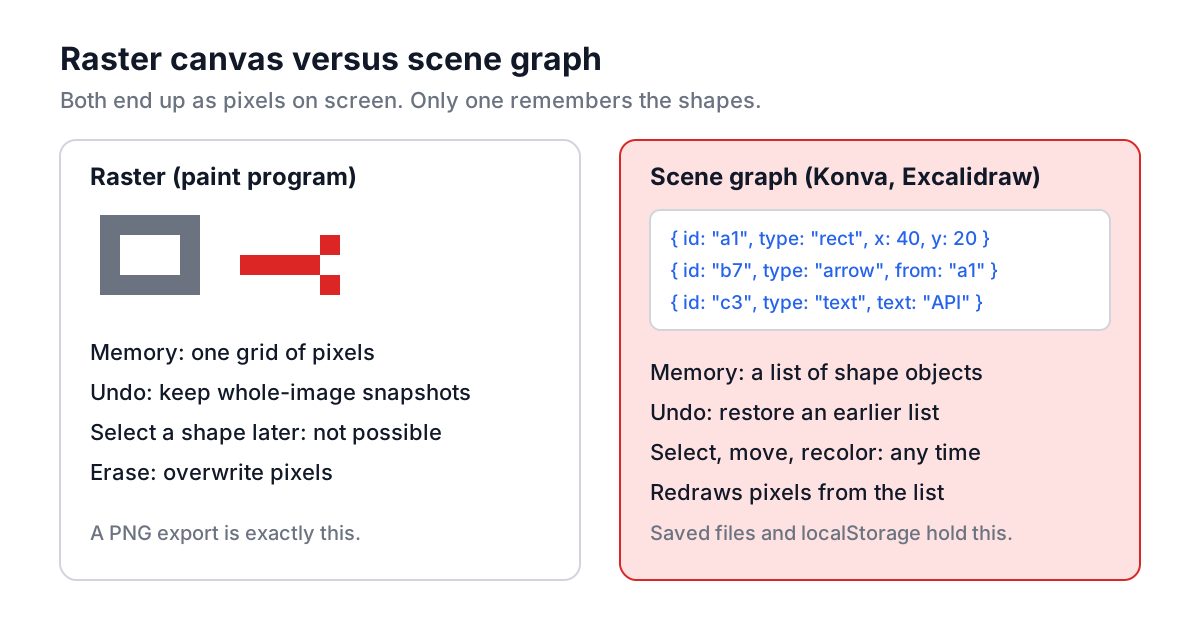
A pure raster tool, like a basic paint program, writes each stroke straight into the pixel buffer and forgets it. That is simple and fast, but nothing can be selected afterwards. Undo means keeping snapshots of the whole image.
A scene-graph tool keeps a list of objects (this line with these points, that rectangle at this position with this fill) and redraws the canvas from the list whenever something changes. Selecting, moving, recoloring and deleting individual shapes all become possible, and undo is just restoring an earlier version of the list. Both RedBison tools work this way. The Drawing Tool uses the Konva library; Excalidraw uses its own renderer with Rough.js for the hand-drawn look.
Knowing this explains a few behaviours. Exporting a PNG flattens the list into pixels, so the PNG is no longer editable. The editable form is the list itself: localStorage in your browser, or an .excalidraw file.
The Drawing Tool: a sketchpad with export
The Drawing Tool gives you an 800 by 600 pixel canvas and a toolbar: Select, Brush, Eraser, Paint Fill, Rectangle, Circle, Line, Arrow, Text and Upload Image. You set a stroke Color, a Fill color for shapes, a size, and Solid, Dashed or Dotted lines. The Canvas color sets the background.
Shapes and text drop in where you click at a default size. Switch to the Select tool to drag them, pull the handles to resize or rotate, double-click text to edit it, and press Delete to remove the selected item. Undo and Redo go back up to 100 steps.
Worked example: annotating a screenshot for a bug report
- Click Upload Image and choose a screenshot. It is placed on the canvas scaled to fit inside 200 by 200 pixels with its aspect ratio kept; drag a corner handle to enlarge it.
- Pick red as the Color, choose the Arrow tool and click near the broken button. Drag the arrow into position with Select.
- Choose Text, click beside the arrow, then double-click the placeholder and type "Save does nothing on Safari 17".
- Open Download and pick PNG. You get a 1600 by 1200 image, twice the canvas resolution, ready to paste into the ticket. Or click Copy to Clipboard and paste straight into chat.
Your drawing is saved to localStorage after every change, including the uploaded image as a data URL, so a reload brings everything back. Very large images can exceed the browser's storage quota (usually around 5 MB per site); the drawing keeps working, but it will not survive a reload, so download it.
Two quirks are worth knowing. The Eraser is a brush that paints in the current background color, so it hides strokes rather than deleting them; change the background later and old erasures show up in the previous color. Use Select and Delete for clean removal. And the canvas is a fixed 800 pixels wide, so on a phone part of it is off screen even though touch drawing works.
The Diagram Tool: Excalidraw for boxes and arrows
The Diagram Tool embeds Excalidraw, an open-source whiteboard that Christopher Chedeau started in 2020. It is built for structured sketches: rectangles, diamonds, ellipses, arrows and lines, plus freehand, text and images, on a canvas that pans and zooms without limit.
The feature that matters most for diagrams is binding. Draw an arrow from the edge of one shape to another and both ends attach. Move a box and its arrows follow. That is what makes reorganising a diagram quick, and it is the main thing the simpler Drawing Tool does not do.
Worked example: a request flow for a design doc
- Press 2 (rectangle) and draw three boxes. Double-click each and type Browser, API and Postgres.
- Press 5 (arrow) and drag from Browser to API, then API to Postgres. Double-click an arrow to label it, for example "HTTPS" and "SQL".
- Select everything and set Sloppiness to Architect and the font to Normal if the doc wants a neater look.
- Open the main menu, choose Export image, select SVG and tick Embed scene. Commit the SVG next to the design doc.
Because the scene is embedded, anyone can drag that SVG back into Excalidraw later and keep editing, instead of redrawing from scratch.
Saving, files and libraries
Your current scene is written to localStorage on every change. That is one scene per browser, so start a second diagram and the first is replaced. Use Save to in the main menu to download an .excalidraw file first. The file is JSON: an array of elements with ids, types, coordinates, styles and, for arrows, the ids of the shapes they bind to. It diffs reasonably well in Git.
The library panel holds reusable groups of shapes. Browse libraries opens Excalidraw's public library site; choosing a library there sends you back to the tool with its address, and the tool fetches the file and merges the items into your panel. The tool reads both the older and the current library file formats.
Which tool, and which export
| You want to | Use | Export as |
|---|---|---|
| Circle or arrow something on a screenshot | Drawing Tool | PNG, or Copy to Clipboard |
| Freehand sketch or quick doodle | Drawing Tool | PNG |
| Architecture or sequence sketch for a doc | Diagram Tool | SVG with Embed scene |
| Flowchart you will keep editing | Diagram Tool | .excalidraw file |
| Image for slides | Either | PNG (2x from the Drawing Tool) |
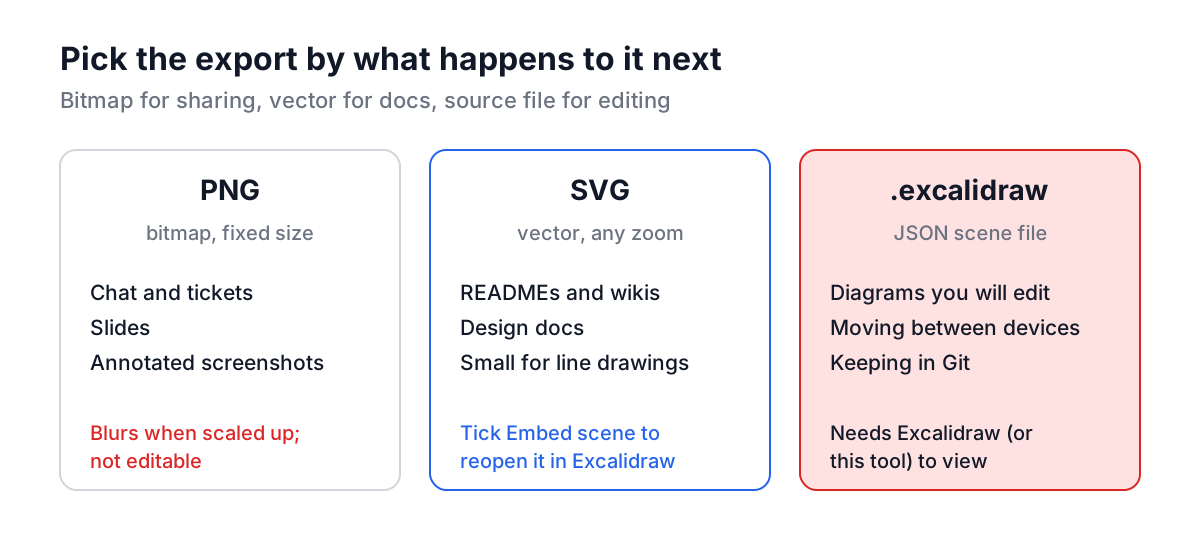
PNG is a bitmap: sharp at the size it was exported, blurry when scaled up, and universally supported. JPEG makes line art and text smudgy, so pick it only when a file size limit forces you to. SVG is vector, stays sharp at any zoom, and for line diagrams is usually smaller than PNG. Most documentation platforms render SVG, though some chat apps only preview PNG.
If your diagrams need to live in version control and be reviewed like code, consider text-based tools such as Mermaid or PlantUML for the stable reference diagrams, and keep sketches for discussions. The Database ERD Generator does the same for schemas, and the Design Document Generator gives you somewhere to put the diagram once it is drawn.
Common mistakes
- Trusting localStorage as the only copy. Clearing site data, a private window or a different laptop starts empty. Download a file for anything you want to keep.
- Exporting PNG for documentation. It blurs on high-DPI screens and cannot be edited. Use SVG with the scene embedded.
- Drawing arrows that are not bound. In Excalidraw, start and end an arrow on a shape's edge so it attaches; a loose arrow stays behind when you move the box.
- Too much detail. A diagram with 40 boxes is a map, not an explanation. Draw the five components that matter for the point you are making, and put the rest in a second diagram.
- Uploading huge screenshots into the Drawing Tool. They make saves slow and can exceed storage. Crop first with the Image Resizer.
Open the right tool before the meeting starts, and you can draw while people talk. Spend thirty seconds afterwards exporting a PNG for the chat and saving the editable file next to the notes, and the picture outlives the meeting.