
EXIF Data in Photos: What It Reveals and How to Remove It
What EXIF stores, where it hides inside a JPEG, how GPS coordinates are encoded, which sharing routes keep it, and four ways to strip location before you post.
· 7 min read
A photo of a sofa listed on a marketplace can tell a stranger which building the sofa is in. Not through anything visible in the picture, but through three numbers hidden in the file: a latitude, a longitude and an altitude, written by the phone at the moment the shutter fired. The same file usually also says which phone took it, when, and with what settings.
That hidden layer is EXIF metadata. It is genuinely useful to photographers and a quiet privacy leak for everyone else. This guide explains what is in it, where it lives inside the file, which sharing routes keep it, and how to remove it. You can check any photo as you read with the EXIF Metadata Viewer, which reads files in your browser without uploading them.
What EXIF actually stores
EXIF (Exchangeable image file format) started in 1995 as a standard from the Japanese electronics body JEIDA. It is now maintained jointly by CIPA and JEITA, with version 2.3 published in 2010 and 3.0 in 2023. Under the hood it reuses the tag structure of TIFF: each piece of information is a numbered tag with a type and a value.
The tags fall into a few groups:
| Group | Example tags | What they reveal |
|---|---|---|
| Device | Make, Model, LensModel, Software | Phone or camera model, lens, editing app |
| Exposure | ExposureTime, FNumber, ISO, FocalLength, Flash | How the shot was taken |
| Time | DateTimeOriginal, CreateDate, ModifyDate, OffsetTime | When it was taken and last edited |
| Location | GPSLatitude, GPSLongitude, GPSAltitude, GPSAltitudeRef | Where it was taken |
| Image | Orientation, ColorSpace, ExifImageWidth | How to display it |
| People | Artist, Copyright | Who claims it |
Some cameras also write a serial number (BodySerialNumber) and a large MakerNote block in a vendor-specific format. Next to EXIF, a file may carry XMP (Adobe's XML metadata used by Lightroom and most editors), IPTC (captions, credits and copyright fields used in news photography) and an ICC colour profile.
Where it sits inside the file
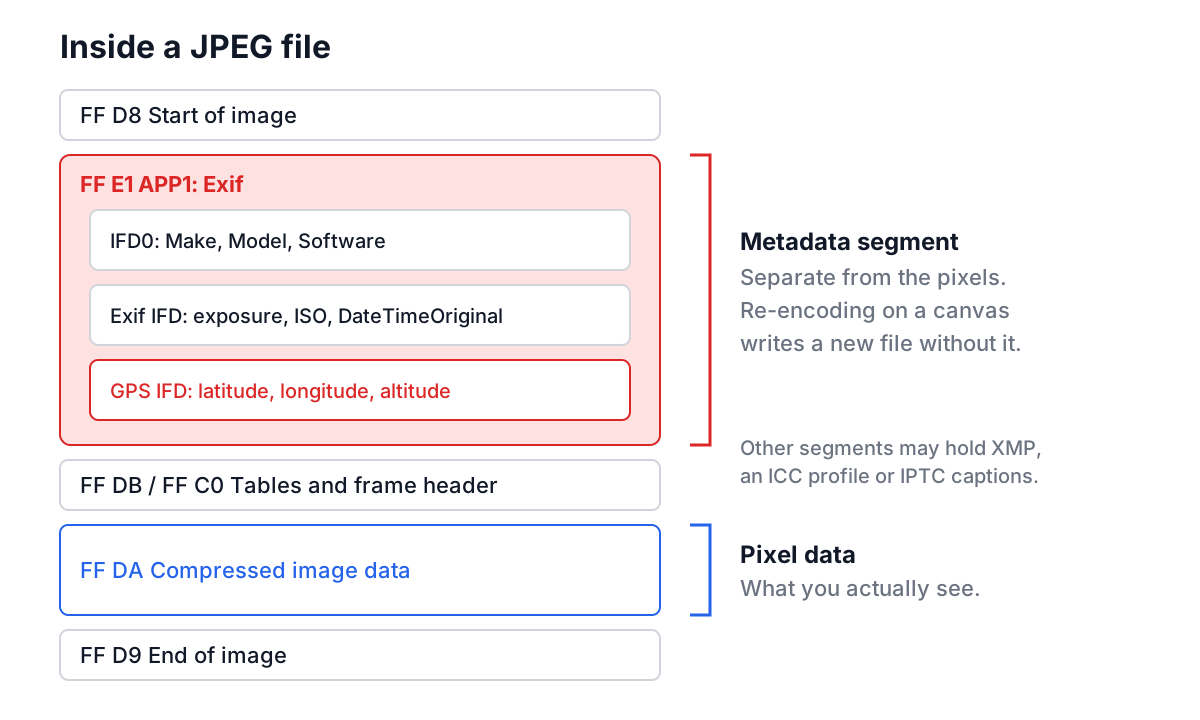
In a JPEG, metadata lives in application segments near the start of the file, before the compressed image data. EXIF uses the APP1 segment, which begins with the ASCII text Exif followed by a small TIFF header. Inside are linked directories (IFDs): IFD0 for the basic device tags, an Exif sub-IFD for exposure and time, and a GPS sub-IFD for location.
Other formats use their own containers for the same tags. HEIC, the default on iPhones since iOS 11, stores EXIF in an Exif item inside the HEIF box structure. PNG added an eXIf chunk in 2017, although many PNGs have none. WebP can hold EXIF in a RIFF chunk, though plenty of tools ignore it.
The position matters for one practical reason: the metadata is separate from the pixels. Removing it does not touch image quality, and re-encoding the pixels without copying the segment removes it completely.
Reading GPS coordinates
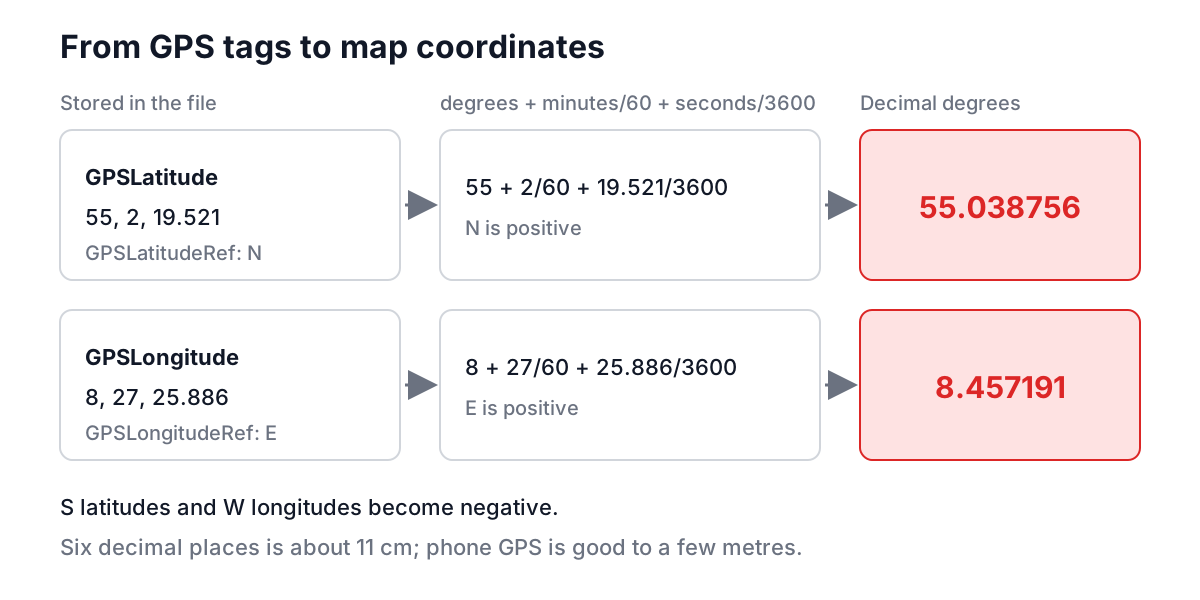
GPS tags are stored the way a navigator would write them: degrees, minutes and seconds as three rational numbers, plus a reference letter for the hemisphere. To turn them into the decimal form that maps use:
decimal = degrees + minutes / 60 + seconds / 3600
negate it for S latitudes and W longitudes
Altitude has its own reference tag. GPSAltitudeRef 0 means above sea level and 1 means below, so a reading of 12 metres with reference 1 is 12 metres under sea level. The viewer applies that sign for you.
Precision deserves a sentence. Six decimal places of a degree is about 11 centimetres at the equator. A phone's GPS is rarely better than a few metres, but a few metres is already enough to tell which house, which floor of a small building, or which corner of a park.
A worked example
Here is what the viewer shows for a test JPEG taken with a Nokia Lumia 820:
Camera     Make: Nokia   Model: Lumia 820   Software: Windows Phone
Settings   ISO: 100   Aperture: f/2.2   Shutter: 1/319 s
           Flash: Flash did not fire, auto mode
Location   Latitude: 55.038756°   Longitude: 8.457191°   Altitude: 0.1 m
Technical  Date Taken: 2013-05-10 15:21:35
           Orientation: Horizontal (normal)   Color Space: sRGB
Three details are worth noticing. The shutter speed is stored as 0.003139 seconds and displayed as the nearest fraction. The coordinates point to a specific spot in southern Denmark. And the timestamp has no time zone: EXIF dates are written as plain local time, like 2013:05:10 15:21:35. Newer cameras add OffsetTimeOriginal (for example +02:00), but older files and many apps leave it out, so a photo taken on holiday shows whatever clock the camera was set to.
Timestamps can also simply be wrong. Another test file in the same set has ModifyDate 2013:05:26 16:05:92, with 92 seconds, which no clock produces. Parsers normalise it to 16:06:32. It is a good reminder that EXIF is just bytes that software wrote, not a tamper-proof record.
Which sharing routes keep metadata
Whether EXIF survives depends on the path the file takes, not on the photo. Behaviour changes over time, so test your own route, but the general pattern is stable:
| Route | Typical behaviour |
|---|---|
| Email attachment | Original file, metadata intact |
| Cloud drive or file-sharing link | Original file, metadata intact |
| AirDrop, USB, file transfer | Original file, metadata intact |
| Messaging app, normal send | Often recompressed and stripped |
| Messaging app, "send as file" or original quality | Original file, metadata intact |
| Large social networks (Facebook, Instagram, X) | Stripped from the public copy on upload |
| Forums, marketplaces, small CMS sites | Varies; many serve the uploaded file unchanged |
The risky cases are the ones that feel private (email, a shared folder) and the small sites that do no processing at all. A listing photo uploaded to a site that serves the original file is effectively a published address.
How to strip EXIF before you share
There are four practical approaches, from least to most effort.
Turn it off at the source. On iPhone, Settings > Privacy & Security > Location Services > Camera > Never stops new photos getting coordinates. When sharing a single photo, tap Options at the top of the share sheet and switch off Location. On Android, the camera app's settings have a location tags or save location toggle.
Re-encode the image. Drawing a picture onto a canvas and saving it writes a brand-new file with no metadata segments. The Image Compressor and the Image Format Converter both work this way, so their output has no EXIF, XMP or GPS at all. Open the result in the EXIF Metadata Viewer and the Location tab will be empty. The cost is one round of lossy compression if you save as JPEG; at quality 80 to 90 that is rarely visible.
Use your operating system. On Windows, the file's Properties > Details tab has a Remove Properties and Personal Information link. On macOS, Preview's Inspector shows GPS on the info tab with a Remove Location Info button.
Use a command-line tool for batches. exiftool is the standard. The first command removes every tag and keeps a backup named photo.jpg_original; the second removes only the GPS tags from a whole folder, in place:
exiftool -all= photo.jpg
exiftool -gps:all= -overwrite_original ./holiday/
One caution with stripping everything: the Orientation tag tells viewers to rotate the image. Modern browsers apply it when drawing to a canvas, so re-encoded output comes out the right way up, but stripping tags with a tool that does not rotate the pixels can leave a portrait photo lying on its side.
Common mistakes
- Assuming a screenshot is safe because a photo was not. Screenshots carry no camera or GPS data, but the photo you screenshotted from may still be attached elsewhere.
- Trusting EXIF as evidence. Every field can be edited with a single command. Use dates and camera models as clues to cross-check, never as proof.
- Checking one photo and assuming the rest match. Location permission, apps and sharing paths vary. Check the files you actually send.
- Forgetting the thumbnail. Some cameras embed a small preview image in the EXIF block. Editing the main image without updating metadata can leave an older thumbnail behind, which has caused embarrassing leaks of cropped-out details.
- Stripping copyright you wanted to keep. Removing all tags also removes Artist and Copyright. Photographers who rely on them should remove GPS selectively instead.
Making it a habit
Before a photo leaves your device for a public place, open it in the EXIF Metadata Viewer and look at the Location tab. If there are coordinates you do not want to share, run it through the Image Compressor and send the compressed copy. If you are resizing for the web anyway, the Image Resizer has the same side effect. And if you scan QR codes from photos people send you, the QR Code Reader shows the content before you open anything. Ten seconds per photo is a small price for not publishing your front door.