
ASCII Art Text with FIGlet: Fonts, Smushing and Where to Use It
How FIGlet turns text into banner letters, what is inside an .flf font file, the smushing rules, choosing fonts for code and terminals, and pasting banners without breaking them.
· 9 min read

Big letters drawn with keyboard characters have been part of computing culture since line printers. Today they greet you when a command-line tool starts, mark sections in long configuration files, and sit at the top of README files. Most of them come from one program and its font format: FIGlet. This guide explains how FIGlet builds a banner, what is inside a font file, how the layout and smushing rules work, how to choose a font, and how to paste the result without breaking it. You can try everything in the ASCII Art Text Generator.
A short history
FIGlet was written in 1991 by Glenn Chappell and Ian Chai. It grew out of a small program by Frank Sheeran that printed large letters for email signatures, and the name stands for "Frank, Ian and Glenn's letters". The C version reached 2.2.5 and is still packaged by most Linux distributions as figlet, alongside the related toilet program that adds colour.
The real legacy is the font format. FIGlet fonts are plain text files with the .flf extension, so anyone could draw one in an editor. Hundreds were contributed in the 1990s, and the format has been reimplemented in most languages. The generator on this site uses figlet.js by Patrick Gillespie, the author of the well-known "Text to ASCII Art Generator" web page, which bundles around 300 fonts; the tool offers a curated set of 47 that render cleanly.
Inside an .flf font file
A FIGlet font starts with a header line, then comment lines, then the drawing of each character. Here is the header of the Standard font:
flf2a$ 6 5 16 15 13 0 24463 229
| Field | Value | Meaning |
|---|---|---|
| Signature and hardblank | flf2a$ | Format version 2a; $ is the hardblank character |
| Height | 6 | Every character is 6 rows tall |
| Baseline | 5 | Row 5 is the baseline (descenders go below it) |
| Max length | 16 | Longest line in the file, including end marks |
| Old layout | 15 | Horizontal smushing rules, old encoding |
| Comment lines | 13 | Lines of credits and licence text to skip |
| Print direction | 0 | Left to right |
| Full layout | 24463 | Horizontal and vertical rules, new encoding |
| Code-tagged count | 229 | Extra characters beyond ASCII (Latin-1 letters and more) |
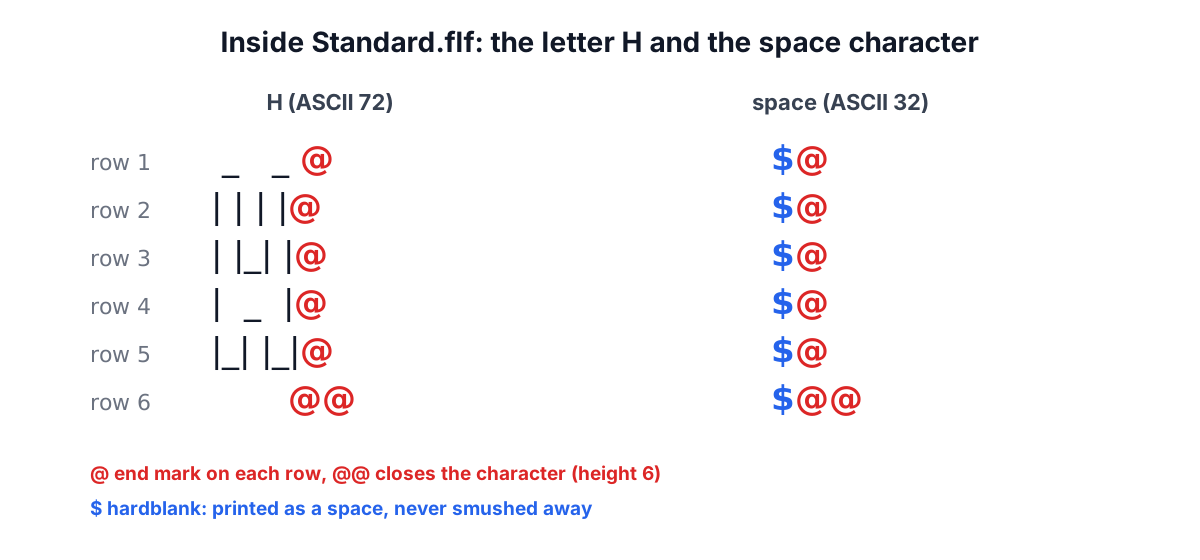
After the comments come the characters from ASCII 32 (space) to 126 (tilde), then seven German letters (Ä Ö Ü ä ö ü ß), then any code-tagged extras. Each character is drawn as height lines, and each line ends with an end mark, usually @, with @@ on the last line of the character. The $ hardblank is a space that must stay a space: smushing never merges it away. Standard draws its space character as a blank plus a hardblank ( $@ on each row), so words never get squeezed together.
How letters are joined: full width, fitting and smushing
Putting letters side by side at full width wastes space and looks loose. FIGlet offers three horizontal layouts, and each font chooses a default:
- Full width: each letter keeps its full drawn width.
- Fitting (kerning): each letter slides left until it touches the previous one, but nothing overlaps.
- Smushing: the letter slides one column further, so the touching characters occupy the same column, and a rule decides which character survives.
In controlled smushing there are six numbered rules a font can switch on:
| Rule | Name | What happens |
|---|---|---|
| 1 | Equal character | Two identical characters become one (| and | give |) |
| 2 | Underscore | _ is replaced by a border character such as | / \\ [ ] { } ( ) < > |
| 3 | Hierarchy | Of two characters from different classes (|, /\, [], {}, (), <>), the later class wins |
| 4 | Opposite pair | [], {} or () facing each other become | |
| 5 | Big X | /\ becomes |, \/ becomes Y, >< becomes X |
| 6 | Hardblank | Two hardblanks become one |
Universal smushing ignores the rules: the later character simply overwrites the earlier one, which is compact but can damage letters. The generator's "Letter spacing" setting maps to these modes, with "Font default" using whatever the designer encoded in the header.
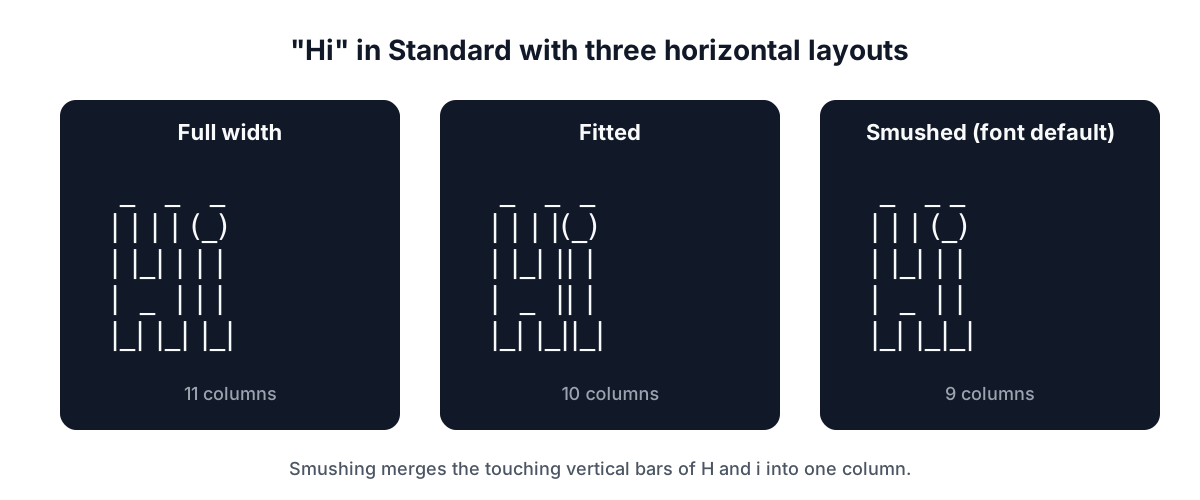
The difference is easy to see with Hi in Standard. At full width the H and the i sit apart; fitted, they touch; smushed, the right bar of the H and the left bar of the i share a column, which is why the familiar FIGlet output is so tight:
 _   _ _
| | | (_)
| |_| | |
|  _  | |
|_| |_|_|
Vertical layout works the same way when text wraps to a second row of banners. The generator uses full vertical spacing so that wrapped rows never run into each other.
Choosing a font
Fonts differ in height, width and the characters they use. Some practical picks:
| Use | Good fonts | Why |
|---|---|---|
| Code comments, config files | Standard, Slant, Small | Plain ASCII, 4 to 6 rows, easy to read |
| Long names, narrow spaces | Small, Mini, Small Slant | 3 to 4 rows, narrow letters |
| Terminal splash screens | ANSI Shadow, Big, Doom | Bold and readable at a glance |
| Retro or decorative | Larry 3D, Star Wars, Graffiti, Gothic | Distinctive, but wide and tall |
| Strict 7-bit ASCII required | Standard, Big, Banner, Doom | No Unicode at all |
ANSI Shadow and ANSI Regular are worth a special mention. They are drawn with Unicode block and box-drawing characters (█, ╗, ═), so they look solid in modern terminals and editors, but they are not ASCII. If the banner goes into a file that must be pure ASCII, an old terminal or a system with an unusual code page, pick a classic font.
Width is the other constraint. Terminals and many code style guides assume 80 columns, and chat apps on phones show far fewer. Wide fonts like Banner or Colossal fit only a few letters per row. The generator's wrap width breaks text at spaces when a line would exceed the limit and shows the final size in lines and columns.
Using banners in code and documents
Comments. Wrapping the banner in comment markers lets it sit in source code without affecting the program. The generator can prefix each line with // (C, C++, Java, JavaScript, Go, Rust), # (Python, shell, Ruby, YAML, TOML) or -- (SQL, Lua, Haskell), or wrap it in a /* */ block or an HTML comment. HTML comments may not contain --, so the HTML option breaks runs of hyphens.
Markdown and README files. Put the banner inside a fenced code block (three backticks) so it renders in a monospaced font and spaces are preserved. Add the plain project name as a heading too; search engines and screen readers cannot read ASCII art.
Chat. Slack, Discord, Teams and most forums support code blocks. Without one, proportional fonts and collapsed spaces will scramble the art.
Terminals. Print the banner from a file or a string constant at startup. Keep it under 80 columns and a handful of rows so it does not push useful output off the screen.
Accessibility and limits
ASCII art is decoration. A screen reader announces it as a long string of punctuation, so in HTML mark the <pre> with aria-hidden="true" or give it a role of image with a text label, and always repeat the real text nearby. FIGlet fonts only define printable ASCII plus a few Latin-1 letters, so emoji, CJK characters and most accented letters are skipped; the generator lists any characters it could not draw.
On licensing: FIGlet fonts were contributed for free use and redistribution, and many ask that the credits inside the font file be kept if the font is modified or redistributed. A banner you render is your text drawn with the font, not a copy of the font file.
Make your own banner
Open the ASCII Art Text Generator, type your text, and use Preview all fonts to compare styles. Set the wrap width and comment style for where the banner will live, then copy it or download a .txt file. For pictures rather than text, the Image to ASCII Art tool converts photos into character art, and the Markdown viewer shows how a banner looks in a README before you commit it.
Sources
- FIGlet and FIGfont Version 2 specification (figfont.txt), Glenn Chappell, Ian Chai and John Cowan, figlet.org.
- figlet.js by Patrick Gillespie, github.com/patorjk/figlet.js (version 1.8 used by this tool).
- Font credits as recorded in each .flf file's comment section.
Related searches
- figlet fonts
- ascii art text generator
- ascii banner for code comments
- figlet flf font format
- figlet smushing rules
- ascii art in readme
- terminal banner text
- ansi shadow font
- paste ascii art in slack