
How Image to ASCII Art Conversion Works
From pixels to characters: brightness, character ramps, why rows must be squashed for tall monospace cells, choosing a width, and how to paste ASCII art so it keeps its shape.
· 8 min read

ASCII art is a picture drawn with text characters. Typists made it on teleprinters, early computer users printed it on line printers, and it still shows up in README files, terminal banners and chat messages. Converting a photo into ASCII art is a small image-processing pipeline: measure brightness, divide the picture into character cells, average each cell and pick a character of matching density. This guide walks through each step, explains the settings that matter, and shows how to paste the result so it keeps its shape. The Image to ASCII Art converter follows exactly these steps.
Step 1: brightness from colour
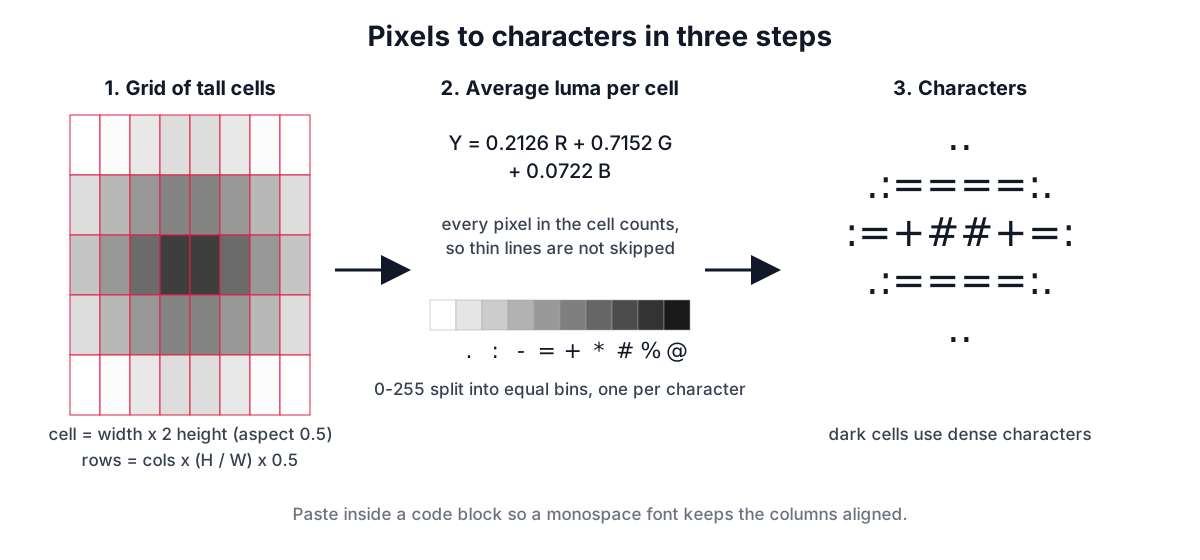
Characters carry no colour, only density, so the first step reduces each pixel to one brightness value. Averaging red, green and blue equally gives poor results, because the eye is far more sensitive to green than to blue. The converter uses the luma weights from ITU-R BT.709, the HDTV standard that also defines sRGB's primaries:
Y = 0.2126 R + 0.7152 G + 0.0722 B
Pure green (0, 255, 0) gets a luma of 182, pure red 54 and pure blue only 18, which matches how bright those colours look. The weights are applied to the 8-bit values directly, without converting to linear light, as most ASCII converters and video systems do. Transparent pixels are blended with the background first: white for normal art, black when you choose light text on a dark background.
Step 2: cells and the aspect correction
Next the image is divided into a grid, one cell per character. You choose the number of columns; the number of rows follows from the picture's shape. But a character in a monospace font is not square. A typical cell is about half as wide as it is tall, so a grid of square cells drawn as text would come out stretched vertically, with circles turning into tall ovals.
The converter corrects for this by using fewer rows:
rows = columns x (image height / image width) x character aspect
with a default character aspect of 0.5. An 80-column conversion of a 1200 x 800 photo has 80 x (800 / 1200) x 0.5 = 26.7, so 27 rows. A square logo at 60 columns has 30 rows.
Fonts differ. Consolas, Menlo and SF Mono are around 0.55 to 0.6 wide-to-tall including line spacing; some terminal fonts are narrower. If your art looks squashed or stretched where you paste it, move the Character width / height slider until a circle in the picture looks round.
Step 3: averaging each cell
Each cell covers a block of pixels. A careless converter samples one pixel per cell, usually the centre one. That is fast but misses thin lines entirely when they fall between samples, and it turns fine texture into random noise. The converter instead averages the luma of every pixel the cell covers (area sampling), so a one-pixel line inside a cell darkens that cell slightly instead of disappearing.
To keep large photos fast, the image is first scaled down so there are about four pixels per character horizontally, using the browser's high-quality smoothing, and then cells are averaged. A 12-megapixel photo converts as quickly as a small one.
Step 4: the character ramp
The averaged brightness picks a character from a ramp, a string ordered from lightest (least ink) to darkest (most ink). The 0 to 255 range is split into equal bins, one per character. With the 10-character ramp, brightness 230 to 255 becomes a space and 0 to 25 becomes @.
| Ramp | Characters (light to dark) | Levels | Best for |
|---|---|---|---|
| Standard | " .:-=+*#%@" | 10 | General use, chat, READMEs |
| Detailed | 70 characters from a space through ., :, letters and digits to B@$ | 70 | Wide art with smooth gradients |
| Simple | " .oO@" | 5 | Small sizes, bold shapes |
| Blocks | " ░▒▓█" | 5 | Solid-looking art in modern apps |
| Two-tone | " #" | 2 | Logos, silhouettes, text |
The standard and detailed ramps are the ones popularised by Paul Bourke's notes on character representation of grey scale images. More levels give smoother tones but only pay off at large widths; at 40 columns a 70-level ramp mostly adds noise. Short ramps and two-tone output give clean, graphic results that survive any font.
The block characters are Unicode (U+2591 to U+2588), not ASCII. They render in modern browsers, chat apps and terminals, but use a classic ramp where only 7-bit ASCII is safe, such as source code comments in older toolchains or email that might be converted. You can also type your own ramp, lightest to darkest.
Brightness, contrast and inversion
Photos rarely use the full brightness range, and a converted face often comes out as a muddy middle grey. Two sliders help:
- Brightness shifts every value up or down.
- Contrast stretches values away from the middle grey (128), using the common contrast-correction factor F = 259(C + 255) / (255(259 - C)) with C from -255 to 255. A small boost, the default is 10, makes edges and features stand out.
Light text on a dark background reverses the mapping. On a dark terminal the characters are the bright part of the picture, so bright areas need dense characters and dark areas need spaces. Use it for login banners and dark-mode pages; without it, art designed for white paper looks like a negative on a dark screen.
Choosing a width
Width is the most important setting. Too narrow and the subject dissolves; too wide and the art will not fit where it is going.
| Destination | Practical width |
|---|---|
| Chat message (Discord, Slack) | 30 to 50 columns |
| Terminal banner, CLI help | up to 80 columns (classic terminal width) |
| GitHub README code block | 60 to 100 columns |
| Printed poster or PNG | 150 to 240 columns |
Discord limits regular messages to 2,000 characters, so a 40 x 25 block (about 1,000 characters plus line breaks) fits easily while 80 x 40 does not. The converter shows the character count next to the size.
Pasting so it keeps its shape
ASCII art relies on every character having the same width. In a proportional font, a space is much narrower than @, so columns drift and the picture falls apart. Always paste into something that uses a monospace font:
- In Markdown, GitHub, Discord, Slack and Reddit, put three backticks on a line before and after the art to make a code block.
- In HTML, wrap it in
<pre>. - In a terminal or text editor, it already is monospace.
The converter trims trailing spaces from each line, which makes the text smaller and does not change how it looks in a monospace font. If you need a picture rather than text, Download PNG renders the art in a monospace font on a white or dark background.
Worked example: a README banner
- Crop your logo tightly with Crop Image so no characters are wasted on empty margins.
- Open it in Image to ASCII Art, set the width to 60 and choose Two-tone.
- If thin parts of the logo vanish, lower the brightness a little; if the background shows speckles, raise it.
- Copy the text and paste it into your README between triple backticks.
For a photo, use the standard ramp at 80 to 100 columns with contrast around 20, and pick subjects with clear shapes against plain backgrounds; a portrait against a wall converts far better than a crowd scene. If you want a vector version of a logo rather than text, try Image to SVG.
Sources
- ITU-R Recommendation BT.709-6, parameter values for HDTV (luma coefficients).
- Paul Bourke, "Character representation of grey scale images" (character ramps).
- Unicode Standard, Block Elements (U+2580 to U+259F).
- Discord Support, message character limits.
Related searches
- convert image to ascii art
- ascii art character ramp
- why does my ascii art look stretched
- paste ascii art in discord
- ascii art for readme or terminal
- best width for ascii art
- ascii art from logo
- luminance formula for ascii art