
How to Embed a Calculator in WordPress, Wix, Squarespace and More
Paste-ready steps for putting a free calculator or converter into WordPress, Wix, Squarespace, Shopify, Ghost, Webflow, Notion and static sites, including what to do when a platform strips scripts.
By Redbison Dev · · 9 min read

A mortgage post that makes the reader open a second tab to work out their payment loses a lot of those readers. A mortgage post with the calculator sitting in the middle of it does not. Every tool on RedBison can be embedded in someone else's page, free, with no account and no API key, and the embed code is generated for you from the tool's own Share button.
The mechanics are the same everywhere: you are pasting a small block of HTML into a place where your platform allows raw HTML. What differs is where that place is, and whether the platform lets a <script> tag through. This walks through the platforms people actually ask about, and what to do when one of them fights you.
Getting the code
Open any tool, click Share in the bar under it, and choose the Embed tab. Before copying, open What to include and how big to decide what the frame shows:
- Description puts the tool's one-line explanation under its title, or leaves it out when your own page already explains what the thing does.
- Worked steps keeps the step-by-step working under the result. Useful on a teaching page, noise on a product page.
- Copy and download bar gives readers the tool's copy, CSV and PDF buttons inside your page.
- Width is 640, 860 or 1024 pixels, or full width so the frame fills whatever column you drop it into.
- Height either adapts to the tool as the reader uses it, or stays fixed at a size you pick.
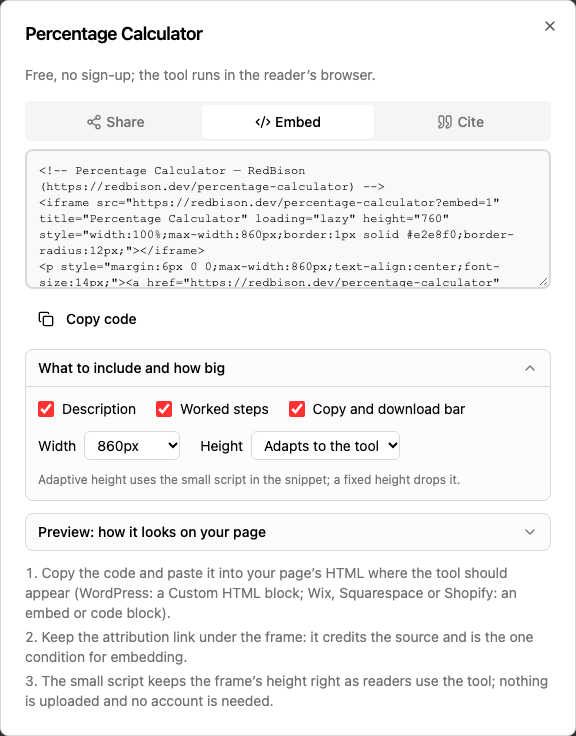
The preview underneath loads the same URL the snippet points at, so what you see there is what your readers get. The code block updates as you change the options.
What you copy is three things: an <iframe> holding the tool, a centred "Powered by RedBison" line under it, and a small <script> that listens for a height message from the frame and resizes it as the tool grows. Choose a fixed height and the script is left out, because nothing needs it.
The attribution link is the one condition for embedding. It sits outside the frame on purpose, so it is a real link that search engines count, and it must stay.
WordPress
Block editor (Gutenberg). Add a block, search for Custom HTML, and paste the snippet. Click Preview inside the block to check it before publishing. The visual editor shows the raw code while you work; the live page shows the tool.
Classic editor. Switch from the Visual tab to the Text tab and paste there. Switching back to Visual can mangle the script tag, so paste last, or stay in Text.
Theme files or a sidebar. A Custom HTML widget under Appearance then Widgets takes the same snippet, which is how you put a converter in a sidebar on every post at once.
One trap catches people on WordPress.com rather than self-hosted WordPress: the free and Personal plans strip custom HTML and iframes. You need the Premium plan or higher there. Self-hosted WordPress has no such limit.
Wix
Add an element, pick Embed Code, then Embed HTML. A box appears on the canvas; click Enter Code and paste the snippet. Wix puts your HTML inside its own nested frame, which has two consequences worth knowing: the auto-resize script cannot measure through Wix's wrapper, and the box keeps whatever size you drag it to. Pick a fixed height in the embed options that comfortably fits the tool, then size the Wix box to match.
Squarespace
Add a block and choose Code. Set the block's language to HTML, clear the placeholder, paste the snippet, and turn Display Source off so the page renders the tool rather than the code. Code blocks need a paid plan; on a plan without them, an Embed block pointed at the tool's page URL gives you a link card instead of the live tool.
Shopify
In the page editor, click the Show HTML button (<>) in the rich text toolbar and paste there. For a tool you want on a template rather than a single page, add a Custom Liquid section in the theme editor and paste the snippet into it. Shopify does not strip the script, so adaptive height works.
Ghost
In the post editor, press / and choose the HTML card, then paste. Ghost renders HTML cards as-is, scripts included.
Webflow
Drag an Embed element into place and paste the snippet into the code dialog. The Designer canvas shows a placeholder; use Preview or the published site to see the tool. Embed elements require a paid site plan.
Notion, Confluence and other wikis
Notion takes a URL rather than HTML. Type /embed, press Enter, and paste the tool URL with the embed flag on it:
https://www.redbison.dev/percentage-calculator?embed=1
Add &d=0 to drop the description, &w=0 to drop the worked steps, &c=0 to drop the copy and download bar, or combine them. Drag the block's bottom edge to set its height, since no script runs here to do it for you.
Confluence works the same way through its Iframe macro, where available. Many internal wikis block third-party frames entirely by policy, in which case link to the tool rather than fighting the sanitizer.
Google Sites
Insert, then Embed, then the Embed code tab. Paste the snippet and resize the resulting box on the canvas. Google Sites strips the resize script, so set a fixed height before copying.
Blogger
Switch the post editor from Compose to HTML view and paste. Blogger keeps iframes and scripts in post bodies.
Drupal and Joomla
Drupal. Paste into a body field whose text format is Full HTML. The default Basic HTML format filters iframes out, and the symptom is a page that silently shows nothing where the tool should be. Either switch the field's format or add iframe to the allowed tags of the format you use.
Joomla. In TinyMCE, use Toggle Editor (or the Source Code button) and paste into the raw view. Joomla's default text filtering strips iframes for every group except Super Users, so set Text Filters to No Filtering for the group that publishes the page, or the tool will vanish on save.
HubSpot
In a rich text module, open the Source code view (</>) and paste. For a tool that should appear across a template, a custom module with an HTML field is the tidier home.
Static sites: Hugo, Jekyll, Astro, Next.js and Docusaurus
Markdown files pass HTML through, so pasting the snippet straight into a .md file works in Hugo, Jekyll and Astro.
MDX, which Docusaurus and Next.js use, parses the file as JSX, and JSX is stricter than HTML. Two changes make the snippet valid: write style as an object rather than a string, or move it to a CSS class, and put the resize script in a <script dangerouslySetInnerHTML={{ __html: '...' }} /> or a component rather than inline. If that is more friction than you want, pick a fixed height and paste only the iframe and the attribution line, both of which are valid JSX once the inline styles are converted.
When the platform strips scripts
Several platforms remove <script> from user content: Notion, Google Sites, many wiki sanitizers, and any CMS running a strict HTML filter. The visible symptom is a tool that renders fine but sits in a frame that is too short, with its lower half cut off.
The fix is to stop depending on the script. Set Height to a fixed value in the embed options, pick something generous for the tool you chose, and copy the snippet again. Without the script in it, there is nothing left for a sanitizer to remove.
When the platform allows no embeds at all
Medium, Substack and LinkedIn articles do not run third-party iframes. Neither do most email newsletters, where the HTML is sanitized by the recipient's mail client rather than by the publisher. Link to the tool page instead. The tool's Share tab has a ready citation for that, and a plain link costs you nothing in those contexts because the reader is leaving the page to use the tool either way.
Content Security Policy
A site that sends a Content-Security-Policy header needs to allow the frame explicitly, or the browser blocks it and logs a console error naming the directive:
Content-Security-Policy: frame-src https://www.redbison.dev;
If you also keep the resize script inline rather than in a file, script-src needs to permit it. Moving that snippet into your own JavaScript file is usually cleaner than loosening the policy.
Checking it worked
Four things worth confirming on the published page, not the editor preview:
- The tool renders and responds to typing, rather than showing a blank box.
- The frame is tall enough that the result is visible without scrolling inside it.
- The "Powered by RedBison" link is present under the frame and clickable.
- The page still works on a phone. A fixed width of 1024 pixels inside a 390-pixel screen causes sideways scrolling; full width avoids it.
If the frame is blank, the usual cause is an HTML filter that removed the iframe, which Drupal and Joomla do by default. If the frame loads but is cut off, the resize script was removed and a fixed height will fix it.
Frequently asked questions
Does embedding a RedBison tool cost anything?
No. Embedding is free, needs no account, no API key and no sign-up, and there is no limit on page views or on how many tools one site embeds. The single condition is keeping the "Powered by RedBison" attribution link under the frame, where it sits outside the iframe so it works as a normal link.
Why is my embedded tool cut off at the bottom?
The frame is set to adaptive height but the platform removed the small resize script that measures the tool. Notion, Google Sites and strict HTML filters all do this. Reopen the Share dialog, set Height to a fixed value large enough for the tool, and copy the snippet again; without a script it has nothing left to strip.
Can I hide parts of the tool inside the frame?
Yes. The embed options switch off the description, the worked steps and the copy and download bar independently, so the frame can show the calculator alone. The same choices work as query flags on the URL for platforms that accept a link rather than HTML, using d, w and c set to zero.
Will an embedded calculator slow my page down?
Not measurably at first paint. The iframe loads lazily, so a browser fetches it only as the reader approaches it, and it runs in its own process rather than blocking your page's own scripts. The tool itself computes in the reader's browser with no server round trip.
Does the embedded tool send my readers' data anywhere?
No. The calculations run in the reader's own browser inside the frame, and the numbers they type are not transmitted to a server or stored. That holds for the embedded copy exactly as it does on the tool's own page, which is why embedding needs no privacy arrangement between your site and ours.
Sources and further reading
- Custom HTML, WordPress. The block that accepts raw HTML in the WordPress editor, with its preview toggle.
- Embedding Custom Code on Your Site, Wix. Wix's own instructions for the Embed HTML element and its sizing behaviour.
- Add custom code to a page with code blocks, Squarespace. Code block setup, the Display Source toggle and which plans include it.
- Text Filter settings, Joomla. Why iframes disappear on save for non-administrator groups and how to change it.
- The iframe element, MDN Web Docs. Reference for the attributes used in the snippet, including lazy loading.
- CSP: frame-src, MDN Web Docs. The directive that must list a domain before a page may frame it.