
How to Split a PDF by Page Ranges, Every N Pages or Per Page
Four ways to cut up a PDF, how page-range syntax works, why the parts can add up to more than the original size, and splitting a batch scan back into separate documents.
· 9 min read
Splitting a PDF is the everyday fix for files that are too big, too long or hold several documents at once: a scanned stack of invoices, a 300-page manual of which you need one chapter, a contract with an annex that should go to a different person. This guide covers the four ways to split, the page-range syntax that drives them, how the output files are named and why their sizes can surprise you. The examples use the Split PDF tool, which does the work in your browser with pdf-lib, so the document is never uploaded.
Four ways to split
The tool offers four modes. They all produce new PDFs that contain copies of the chosen pages; your original file is not changed.
| Mode | What you type | Result for a 10-page PDF |
|---|---|---|
| Every N pages | A number, such as 3 | 4 files: pages 1-3, 4-6, 7-9 and 10 |
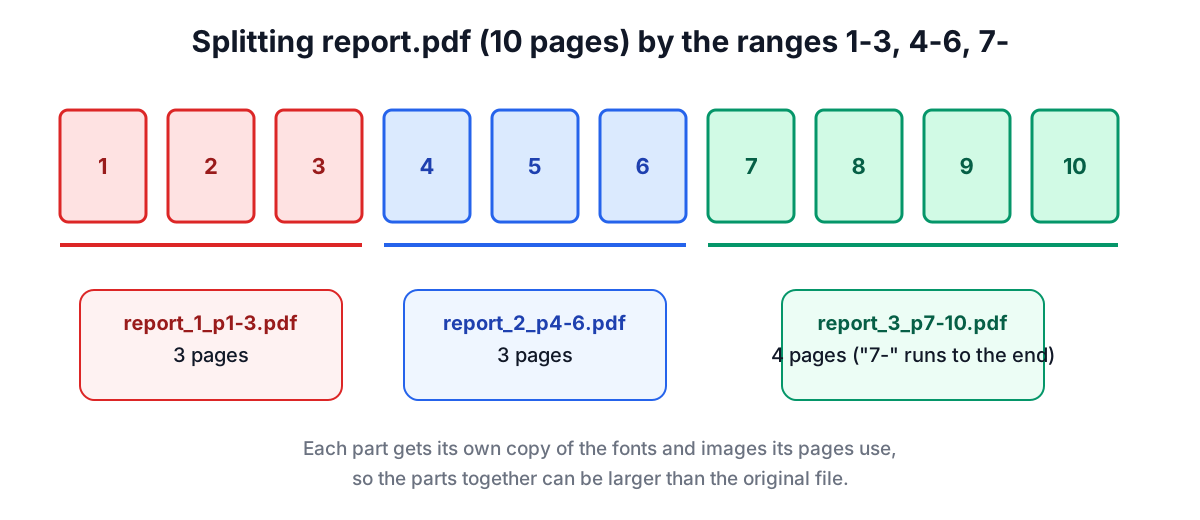
| By ranges | Groups such as 1-3, 4-6, 7- | One file per group: 1-3, 4-6, 7-10 |
| Each page | Nothing | 10 single-page files |
| Extract pages | A selection such as 1, 3, 5-7 | One file with pages 1, 3, 5, 6, 7 |
Every N pages suits uniform batches: a scanner run of two-page forms, a stack of one-page receipts, or a long file that an upload portal limits to 20 pages per document. The last part simply holds whatever is left over.
By ranges is for documents of different lengths. Each comma or semicolon starts a new output file, and an open-ended range such as 7- runs to the last page.
Each page is the extreme case of every N pages with N = 1, handy when each page goes into a different case file or record.
Extract pages is the opposite of splitting into many: it gathers the pages you list into a single new file, which is the quickest way to send someone pages 4 and 9 of a report without the rest.
The page-range syntax
Ranges are written the way print dialogs accept them, with a few extras:
5is a single page.2-4is pages 2, 3 and 4. An en dash or spaces around the hyphen are accepted too.8-is page 8 to the end, and-3is pages 1 to 3.- In By ranges mode,
,,;or a new line separates output files. - Also in By ranges mode,
+joins pieces into one file:1+5+9makes a single file with pages 1, 5 and 9, and9+1puts page 9 first.
Mistakes are caught before anything is written. A page past the end (12 in a 10-page file) gives "Page 12 is past the end (the PDF has 10 pages)". A backwards range such as 6-4 is rejected rather than silently reversed, because it is usually a typo; if you really want reverse order, write it with + or rearrange the pages in Organize PDF Pages.
As you type, the page thumbnails are coloured by the output file each page will land in, and pages that are not in any file are dimmed. That visual check catches the classic off-by-one mistake of a range that should have been 1-4 but was typed 1-3.
How the files are named
Each output is named from the original file name, a sequence number and the pages it holds:
report_1_p1-3.pdf
report_2_p4-6.pdf
report_3_p7-10.pdf
The sequence number is zero-padded to the width of the file count, so a split into 12 parts gives report_01_p1-3.pdf up to report_12_p...pdf, and the files sort in order in every file manager. For a group of separate pages, commas in the label become underscores: pages 2 and 4 joined with 2+4 become report_1_p2_4.pdf.
When there is more than one part, Download all (ZIP) packs them into report_split.zip. The ZIP uses no compression (stored entries), because PDF content is already compressed and deflating it again would only cost time.
Why the parts can add up to more than the original
People are often surprised that splitting a 2 MB PDF into five parts gives five files totalling 3 MB. The reason is shared resources.
In a PDF, a font or a logo image is stored once and every page that uses it refers to the same object. When pages are copied into separate files, each new file needs its own copy of every font and image its pages use. A document that embeds a 300 KB font subset and a 200 KB letterhead image carries those 500 KB in each part.
A worked example: a 40-page report of 2.4 MB, of which 0.6 MB is two embedded fonts and the rest is page content averaging 45 KB a page (40 × 45 KB = 1.8 MB). Split every 10 pages, each part holds about 10 × 45 KB = 450 KB of content plus the 0.6 MB of fonts, about 1.05 MB, and the four parts total about 4.2 MB. Each file is still smaller than the original, which is usually what matters for an email limit, but the sum is larger.
If one part is still too big, run it through Compress PDF. The output parts are also written with compressed object streams (ISO 32000-1, 7.5.7), which sometimes makes them smaller than you would expect from the arithmetic.
What each part keeps
The split copies pages with pdf-lib's copyPages, the same mechanism used for merging, so the same rules apply:
- Kept: page content, images, fonts, page size, crop box and rotation, comments and web links. The original's title and author are copied into every part.
- Not kept: bookmarks (they belong to the whole document, ISO 32000-1, 12.3.3), links that jump to a page in another part, and the document-level form dictionary, so fillable fields may become static.
Encrypted PDFs, including ones that open without a password but restrict editing, cannot be split here because pdf-lib does not decrypt. Print such a file to a new PDF in your reader first.
Practical recipes
Separate a batch scan of invoices. If every invoice is one page, choose Each page. If they vary, page through the thumbnails, note where each one starts, and type ranges such as 1-2, 3, 4-6, 7.
Send one chapter. Look up the chapter's pages in the table of contents, remembering that printed page numbers often differ from PDF page numbers because of the cover and front matter. Use Extract pages with the PDF page numbers shown under the thumbnails.
Meet an upload limit of 10 pages per file. Choose Every N pages with 10.
Remove a page. Splitting with Extract 1-4, 6- drops page 5, but Organize PDF Pages does it with one click and keeps the result in a single file.
Privacy
The PDF is read with the browser's File API, split by JavaScript running in the page, and each part is handed to you as a download created on your own device. Nothing is sent to a server, which matters for the documents people most often split: scanned payslips, bank statements, medical letters and contracts.
Sources
- ISO 32000-1:2008, Portable document format, Part 1: PDF 1.7, sections 7.5.7 (object streams), 7.7.3 (page tree), 9.9 (embedded font programs) and 12.3.3 (document outline). ISO 32000-2:2020 keeps the same structures.
- pdf-lib documentation,
PDFDocument.copyPages(pdf-lib.js.org). - PKWARE, APPNOTE.TXT: .ZIP File Format Specification, section 4.4.5 (compression method 0, stored).
Related searches
- split pdf
- split pdf every 2 pages
- extract pages from pdf
- split pdf into single pages
- pdf page range syntax
- separate batch scanned pdf
- why split pdf files are bigger
- save one page of a pdf
- split pdf by chapters