
Markdown Syntax That Renders Everywhere: CommonMark, GFM Tables and Task Lists
The Markdown syntax you use daily, the GitHub extensions people assume are standard, and the blank-line and indentation mistakes behind most broken tables and lists.
· 7 min read
You paste a README into a pull request description, hit preview, and the table you carefully lined up comes out as one long line of pipes. Nothing is wrong with your table. You forgot the blank line above it. Markdown is easy to write and easy to get slightly wrong, and the slightly wrong version often looks fine in your editor and broken everywhere else.
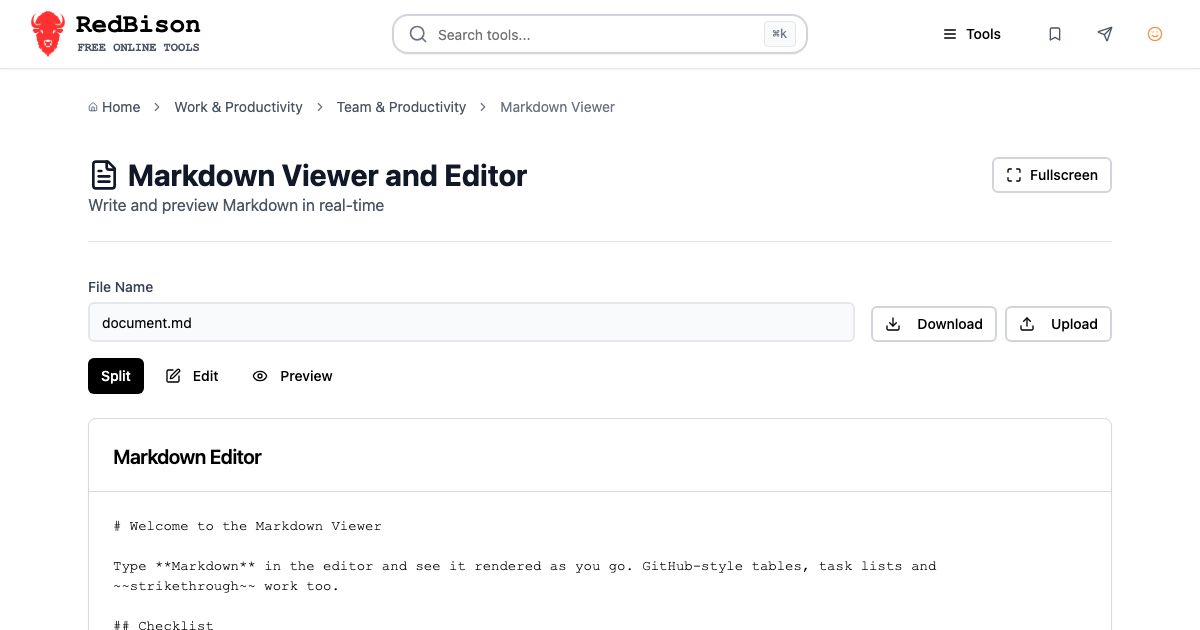
This guide covers the syntax you use every day, the GitHub extensions that most people assume are standard, and the handful of mistakes behind nearly every "why won't this render" moment. You can try every example in the Markdown Viewer, which shows the source and the rendered result side by side.
Where Markdown came from, and why there are flavours
John Gruber released Markdown in 2004, with Aaron Swartz as a close collaborator on the syntax. The goal was text that reads naturally as plain text and converts cleanly to HTML. Gruber's original description was a Perl script plus a syntax page, and it left many edge cases undefined: how much indentation a nested list needs, whether a blank line is required before a heading, what happens when emphasis markers overlap.
Every implementation answered those questions differently, so the same file rendered differently on different sites. CommonMark, started in 2014 by a group including John MacFarlane, wrote down an unambiguous specification with hundreds of test cases. In 2017 GitHub published GitHub Flavored Markdown (GFM) as a strict superset of CommonMark, adding tables, task lists, strikethrough and automatic links.
When people say "Markdown" today they almost always mean CommonMark plus the GFM extensions. That is what the Markdown Viewer renders: it uses the react-markdown library with the remark-gfm plugin.
The syntax you use every day
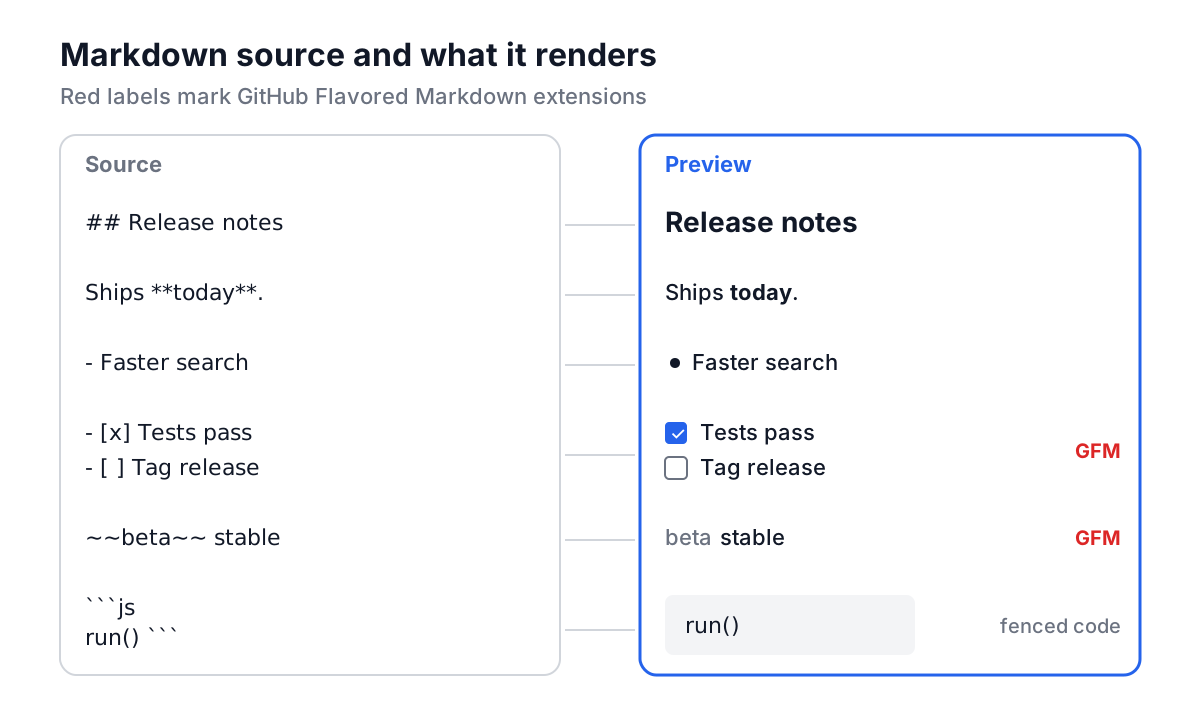
| You type | You get | Notes |
|---|---|---|
# Title to ###### Title | Headings, levels 1 to 6 | Space after the # is required |
**bold** | bold | __bold__ also works |
*italic* | italic | _italic_ also works |
~~old~~ | GFM extension | |
`code` | code | Inline code, no formatting inside |
[text](https://example.com) | A link | Bare URLs also link in GFM |
 | An image | Alt text matters for accessibility |
- item or 1. item | Bullet or numbered list | Indent nested items under the text |
> quote | Blockquote | Can contain other blocks |
- [ ] todo / - [x] done | Task list checkboxes | GFM extension |
``` fence | Code block | Add a language after the opening fence |
--- on its own line | Horizontal rule | Needs a blank line above it |
Code fences deserve a note. Three backticks open the block and three close it, and you can name the language after the opening fence:
```js
const total = items.reduce((sum, i) => sum + i.price, 0);
```
The language label is how renderers on GitHub and in documentation sites pick syntax highlighting. It costs nothing to add and makes the source clearer.
Tables and task lists, worked through
Tables and task lists are the two GFM features people use most and break most often. Paste this into the editor pane of the Markdown Viewer:
Release checklist for v2.4:

| Step | Owner | Status |
| :--- | :---: | ---: |
| Changelog | Priya | done |
| Migration test | Sam | blocked |
| Tag release | Priya | todo |

- [x] Freeze main
- [ ] Run migration on staging
- [ ] Announce in #releases
The preview shows a sentence, a three-column table and a list with one ticked and two empty checkboxes. Three details make it work:
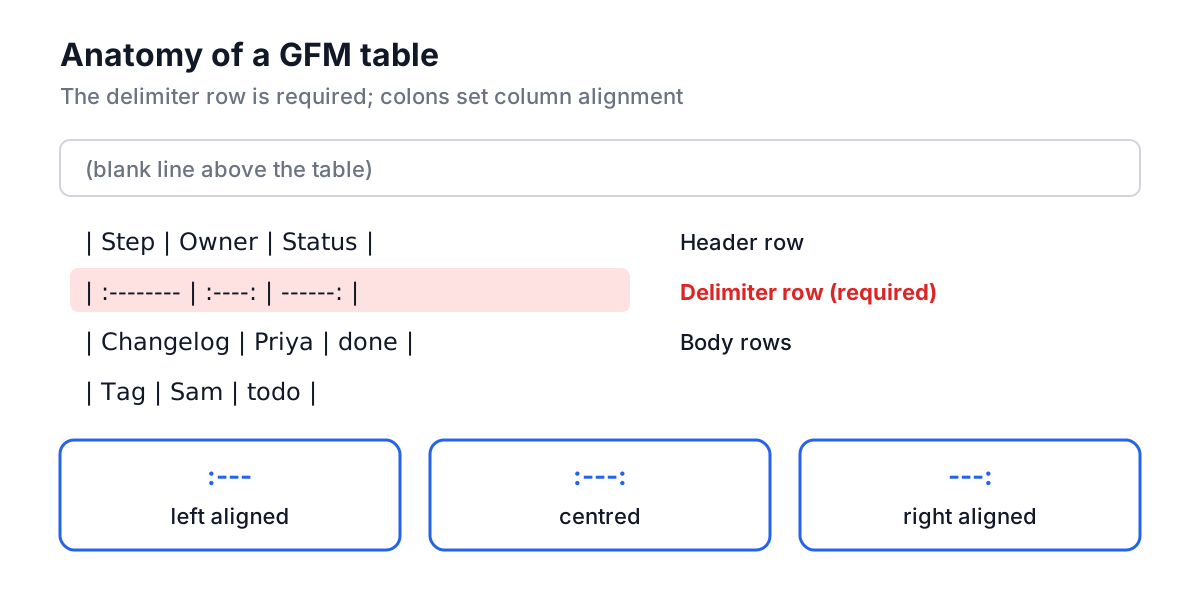
- The blank line after the opening sentence. Without it, the table rows are treated as a continuation of the paragraph.
- The delimiter row (
| :--- | :---: | ---: |). A table is not a table without it. The colons set alignment: left, centre and right in this example. The number of dashes doesn't matter, and the columns don't need to line up in the source. - The space inside the brackets.
- [ ]is an empty task,- [x]is a done one.- []with no space is just text.
Task list checkboxes render as read-only. On GitHub you can click them in issues because GitHub edits the source for you; in a static render, including this viewer, you change the state by editing the [ ] to [x].
Common mistakes and how to spot them
No blank line before a list or table. CommonMark lets a list interrupt a paragraph in some cases, but tables and many renderers are stricter. Put a blank line before every block element and you will never think about it again.
Indented code instead of fenced code. Four leading spaces make a code block in Markdown. That surprises people who indent a paragraph for visual reasons and get a grey monospace box. It also breaks inside lists, where the indentation is already doing something else. Use fences and avoid indenting prose.
Expecting a single newline to break a line. One newline inside a paragraph is treated as a space. For a hard line break, end the line with two spaces or a backslash, or start a new paragraph with a blank line. Two trailing spaces are invisible in most editors and get stripped by some, so the backslash is the safer habit.
Unescaped special characters. An asterisk in 5 * 3 * 2 can start italics, and an underscore inside a word is usually fine in CommonMark but not in older renderers. Escape with a backslash (\*) or wrap the expression in backticks.
Nested list indentation. A nested item must be indented to line up with the text of its parent, not just "a bit". For - item, that means two spaces; for 1. item, three.
Relying on raw HTML. Markdown allows inline HTML, and GitHub keeps a safe subset of it. Many renderers strip it entirely. The Markdown Viewer shows raw HTML as literal text instead of rendering it, which is covered in the next section. If a document only looks right because of a <div> or <br>, it won't travel well.
Using the Markdown Viewer
The Markdown Viewer is built for checking a document before it goes somewhere that matters: a README, a pull request, a wiki page.
- Split shows the editor and the preview stacked, updating as you type. Edit and Preview give either pane the full height.
- Upload opens a
.mdor.txtfile from your machine. The file is read in the browser; it is not sent anywhere. - File Name sets the name for Download, which saves the current text as a
.mdfile. If you leave off the extension,.mdis added. - Fullscreen uses the browser's fullscreen mode, which is handy for long documents.
Two limits are worth knowing. First, the text is not saved between visits. It lives in the page's memory, so a reload or a closed tab loses it. Download the file when you are done. Second, the preview is safe by design. Raw HTML in the input is shown as plain text rather than rendered, and links using the javascript: scheme are stripped. You can paste Markdown from an untrusted source, such as a third-party README, without any script in it running in your browser.
Headings in the preview are rendered one level lower than you wrote them, so a # Title doesn't compete with the page's own heading. The source and the downloaded file are untouched.
Related tools
For quick text that doesn't need formatting, the Note Taker is a lighter scratchpad with word and line counts. When two versions of a document disagree, the text diff guide explains how to compare them line by line. And if your Markdown contains JSON examples, the JSON formatter guide covers how to keep those blocks valid.
A good routine for any README: write it, paste it into the viewer, check that every table has its delimiter row and every list has a blank line above it, then download and commit. It takes a minute, and it saves the "fix formatting" commit that follows so many first pushes.