
SVG viewBox, Sizing and Script Safety for Developers
How the viewBox maps onto the viewport, why icons refuse to scale, how SVG files carry scripts, and which embedding methods keep untrusted SVG from running code.
· 6 min read
Two SVG bugs reach production more often than any others. The first is an icon that refuses to resize: you set width: 48px in CSS and it stays 24 pixels, or it grows but gets clipped. The second is quieter and far worse: a user uploads an "avatar" that is really an SVG with an onload handler, and the page that displays it runs that code with the viewer's session.
Both come from the same fact. An SVG is not a picture format in the way PNG is. It is an XML document that describes a drawing, with its own coordinate system and the ability to carry scripts. This guide covers the sizing model, the security model, and how to check a file before you ship it, using the SVG Viewer as the inspection tool.
Two sizes: the viewport and the viewBox
Every SVG has two independent sets of dimensions.
The viewport is how big the SVG is on the page. It comes from the width and height attributes on the root svg element, or from CSS, which overrides them.
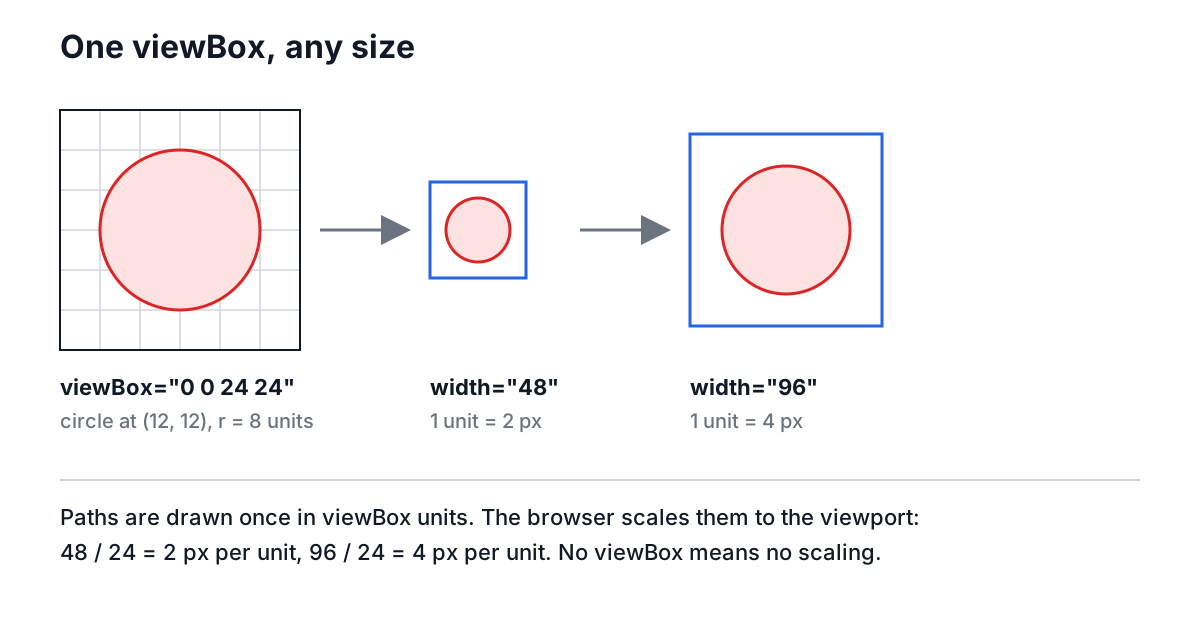
The viewBox is the coordinate system the drawing uses inside. It has four numbers: min-x, min-y, width and height. A typical icon set uses viewBox="0 0 24 24", meaning every path is drawn on a 24 × 24 grid, regardless of how big the icon appears.
The browser maps the viewBox onto the viewport. If the viewBox is 24 units wide and the viewport is 48 pixels wide, every unit becomes 2 pixels. That mapping is what makes SVG scale cleanly.
The usual failures follow directly:
| Markup | What happens |
|---|---|
| viewBox set, no width or height | Scales to whatever CSS or the container says. The ideal for icons. |
| viewBox set, width="24" height="24" | Renders at 24 px unless CSS sets a size. Fine, but surprises people. |
| No viewBox, width="24" height="24" | Fixed at 24 px. Set CSS width to 48 px and the drawing stays 24 units, clipped or with empty space. |
| No viewBox, no width or height | Falls back to the browser default (300 × 150 for inline SVG). Rarely what you want. |
When the viewBox and viewport have different aspect ratios, the preserveAspectRatio attribute decides what happens. The default, xMidYMid meet, scales uniformly so the whole drawing fits and centres it, which is the SVG equivalent of object-fit: contain. Setting it to none stretches the drawing to fill both dimensions.
Reading a file before you use it
Open the file in the SVG Viewer, or paste the markup. The information panel shows Width, Height, ViewBox and the number of elements. For an icon from a typical set you would see:
Width:    24
Height:   24
ViewBox:  0 0 24 24
Elements: 1
If ViewBox says "not set", that file will not scale. The fix is to add a viewBox matching the original drawing size, so width="120" height="40" becomes viewBox="0 0 120 40", then remove the fixed width and height and size it with CSS.
The element count is a rough proxy for complexity. A hand-written icon has a handful of elements. A logo exported from a design tool can have hundreds of groups, masks and redundant transforms. An optimiser such as SVGO can usually remove a large share of that without changing the drawing.
Why SVG can run code
Because SVG is XML in the same family as HTML, it can contain:
- script elements with JavaScript,
- event handler attributes such as onload, onclick and onmouseover,
- links with javascript: URLs,
- foreignObject, which embeds arbitrary HTML,
- references to external stylesheets, fonts and images.
Whether any of that runs depends entirely on how the SVG is placed on the page.
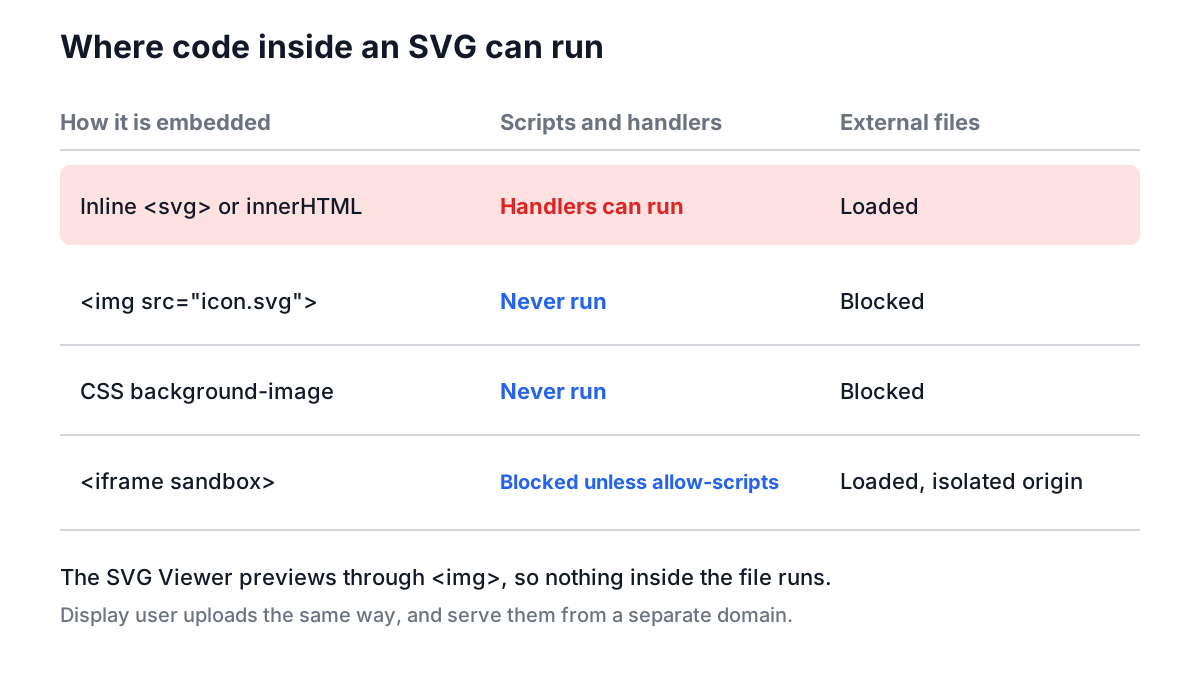
Inline markup, whether written into a template or inserted with innerHTML (or React's dangerouslySetInnerHTML), becomes part of the page's DOM. Script elements inserted through innerHTML do not execute, which gives people false confidence, but event handler attributes can still fire. This is the classic payload:
<svg xmlns="http://www.w3.org/2000/svg" onload="fetch('/api/me').then(r => r.text()).then(steal)">
  <rect width="10" height="10"/>
</svg>
An img element or a CSS background-image treats the same file as a static picture. Browsers run no scripts, fire no handlers and fetch no external resources for SVG in image mode. That is why the SVG Viewer renders its preview through an img tag with a data: URL: open the payload above in it and you get a blank square and a note in the information panel listing the onload handler, but nothing runs.
Handling SVG uploads safely
If users can upload SVG, a few rules cover most of the risk:
- Display uploads with img or CSS backgrounds, never by injecting their markup into your pages.
- Serve them from a separate origin, such as a dedicated user-content domain, so that if someone opens the file URL directly in a tab, any script runs away from your cookies and storage.
- Send a restrictive Content-Security-Policy on those responses, for example default-src 'none'; style-src 'unsafe-inline', which blocks scripts even when the file is opened directly.
- Sanitise if you must inline. Use a maintained sanitiser such as DOMPurify configured for SVG, not a hand-written regular expression. Attribute names, namespaces and entity tricks make DIY filtering a losing game.
- Or convert to a raster. If you only need a picture, rasterising to PNG with the Image Format Converter removes everything except pixels.
Check files from icon sites and designers too. A script in an SVG is rarely malicious there, but tracking pixels, external font links and leftover editor metadata are common and worth removing.
Side effects of image mode
Rendering as an image is safe, but it has consequences you should expect:
- External resources do not load. A linked web font falls back to a system font and linked raster images disappear. Embed images as data URIs (the Base64 Image Converter produces them) and convert text to outlines for logos.
- No interaction. Hover styles, links and animations driven by script do not work. CSS animations and SMIL animation inside the file do still play.
- currentColor comes from the SVG itself, not from your page's CSS, so you cannot recolour an img-embedded icon with color. Use inline SVG from trusted sources, or a CSS mask, when you need theming.
Common mistakes
- Deleting the viewBox to "fix" sizing. It makes scaling worse. Delete the fixed width and height instead.
- Trusting a file because it came from a designer. Exports can still reference external fonts or include editor data.
- Using innerHTML for user content because script tags do not run. Event handlers still can.
- Mixing up units. viewBox numbers are user units, not pixels. A viewBox of 0 0 1000 1000 is fine for an icon shown at 16 pixels.
- Shipping design-tool exports unoptimised. Hundreds of nested groups cost bytes and slow rendering.
A quick pre-merge check
Before an SVG goes into a product, paste it into the SVG Viewer. Confirm the viewBox is set, that width and height are what you intend, and that the active content line is absent. If you need a raster version for an app store or an email, convert it with the Image Format Converter, and if you are building a site icon from it, the Favicon Generator takes it from there. Thirty seconds of inspection is cheaper than a stored XSS report.