
Cleaning Up Text Lists: Spaces, Blank Lines, Duplicates and Commas
Pasted lists are never clean. The order of operations that fixes them, why duplicates survive deduplication, and how to reshape a column into a comma list and back.
· 7 min read
Someone sends you 400 email addresses pasted out of a spreadsheet, a PDF and a Slack thread. Some have trailing spaces, a few are in capitals, there are blank lines between the blocks, and at least one person is on the list three times. You need a clean, comma-separated list for a BCC field by lunchtime.
None of the fixes is hard. The trouble is that they interact. Run them in the wrong order and duplicates survive, blank entries sneak into your comma list, or a name with a comma in it splits in two. This guide walks through each cleanup step, the order that works, and the traps in each one.
The order of operations
Whitespace first, then blank lines, then duplicates, then reshaping. Each step makes the next one more accurate.
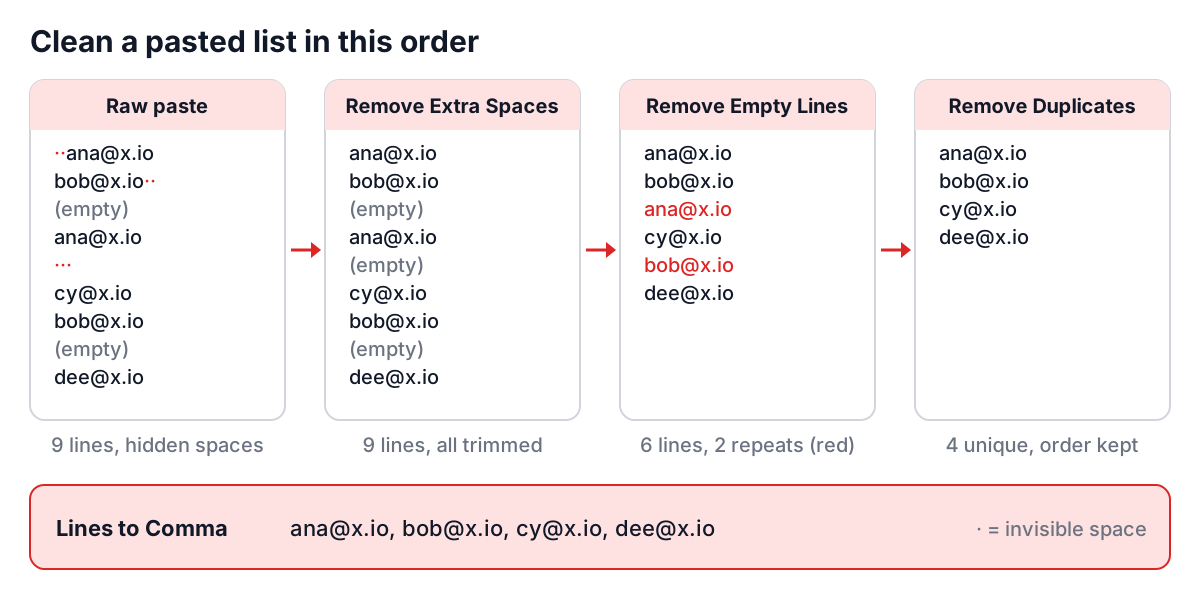
The reason is simple. Deduplication compares lines exactly, so "ana@example.com" and "ana@example.com " (with a trailing space) are different until the space is gone. Blank lines are also values, so if you deduplicate before removing them, one blank line survives. And once you join a list with commas, it is much harder to clean anything inside it.
All of these steps are available as buttons in the Online Text Processor, which rewrites the text in place so you can chain them, with undo if a step goes wrong. Each also has a single-purpose page, covered below.
Remove extra spaces before anything else
Text copied from PDFs, web pages and Word documents carries more kinds of space than you can see. Doubled spaces, tabs used for alignment, and the non-breaking space (U+00A0, the character) all look like a normal space on screen. A non-breaking space is the classic cause of a VLOOKUP or a search failing on two strings that look identical.
Remove Extra Spaces collapses any run of spaces, tabs or non-breaking spaces to a single space and trims the start and end of every line. It keeps line breaks, so a list of 400 lines is still 400 lines afterwards.
Two cautions. It strips indentation, so never run it over Python, YAML or a Makefile. And it turns tabs into spaces, which flattens tab-separated data into one column.
Remove empty lines
Copying from emails and chat tools leaves gaps. Remove Empty Lines deletes every line that is empty or contains only whitespace. The "only whitespace" part matters: a naive filter for ^$ misses lines that hold a single stray space, which is exactly the kind of line a paste produces.
The shell equivalent, for files:
grep -v '^[[:space:]]*#x27; list.txt
Do not run this on Markdown or prose you want to keep formatted. Blank lines separate paragraphs, and removing them merges everything into one block.
Remove duplicate lines, and keep the order
The shell reflex is sort -u or sort | uniq. Both work, and both sort your list as a side effect. When order carries meaning (a ranked list, a queue of URLs, a log), that is a problem. uniq on its own is worse: it only removes duplicates that sit next to each other.
The order-preserving idiom is an awk one-liner that prints a line only the first time it sees it:
awk '!seen[$0]++' list.txt
Remove Duplicate Lines does exactly that. The first copy of each line stays where it was; later copies go. Matching is exact and case-sensitive, so "Ana@example.com" and "ana@example.com" are kept as two lines. That is the safe default for file paths and tokens. For emails, lower-case the list first (the Case tab in the Online Text Processor) or use the next tool, which has a case switch.
Find duplicates before you delete them
Deleting duplicates hides the evidence. Before cleaning a sign-up list or an import file, it is often worth knowing which entries repeat and how many times. Find Duplicate Entries reports each repeated line with its count and four totals: total lines, unique lines, duplicate types and extra duplicates.
The switches decide what "the same" means. Case sensitive is off by default, Trim spaces is on, and Remove extra spaces is optional. Turn off Only duplicates and you get a frequency table of every distinct line.
| Question | Setting |
|---|---|
| Which emails were entered twice? | Case sensitive off, Trim spaces on |
| Are these IDs unique before import? | Case sensitive on, Only duplicates on |
| How often does each log message appear? | Only duplicates off, Show count on |
| Did a form add double spaces to names? | Remove extra spaces on |
The difference between the two duplicate totals trips people up. If one address appears five times, it adds 1 to Duplicate Types and 4 to Extra Duplicates. Extra Duplicates always equals total lines minus unique lines, which makes it the number of rows you will delete.
Reshape: lines to commas and back
Most cleanup ends with a reshape. A column of IDs becomes the inside of a SQL IN (...); a comma-separated tag field becomes a column you can sort.
Lines to Comma trims each line, skips blank ones and joins the rest with a comma and a space. Comma to Lines does the reverse, splitting at every comma, trimming each item and dropping empty items left by doubled or trailing commas.
A worked example, starting from a messy column pasted from a spreadsheet:
  1001
1002

1003
Lines to Comma gives 1001, 1002, 1003. For string values in SQL, quote them first: in the Online Text Processor, choose Single under Quote type, click Add Quotes to Lines, then Lines to Comma, and you get 'red', 'green', 'blue'.
The trap is commas inside values. A plain split cannot tell a separator from a comma inside quotes:
"Smith, John", Jane
Comma to Lines turns that into three lines: "Smith, John" and Jane. Real CSV (RFC 4180) wraps such values in double quotes and a CSV parser respects them. If your list came from a CSV file, use the CSV to JSON converter instead of a text split.
Also watch database limits on the joined side. Oracle rejects more than 1,000 literal values in one IN list, and SQL Server's documentation warns that lists of many thousands of values can fail with resource errors. Past a few thousand IDs, a temporary table is the better design.
Compare two lists
The last common job is reconciliation: which invoice numbers are in the finance export but not in the CRM, which users have access but are no longer on the staff list. That is set algebra, and the Unix tool for it is comm, which needs both inputs sorted first:
comm -12 <(sort a.txt) <(sort b.txt)   # in both
comm -23 <(sort a.txt) <(sort b.txt)   # only in a
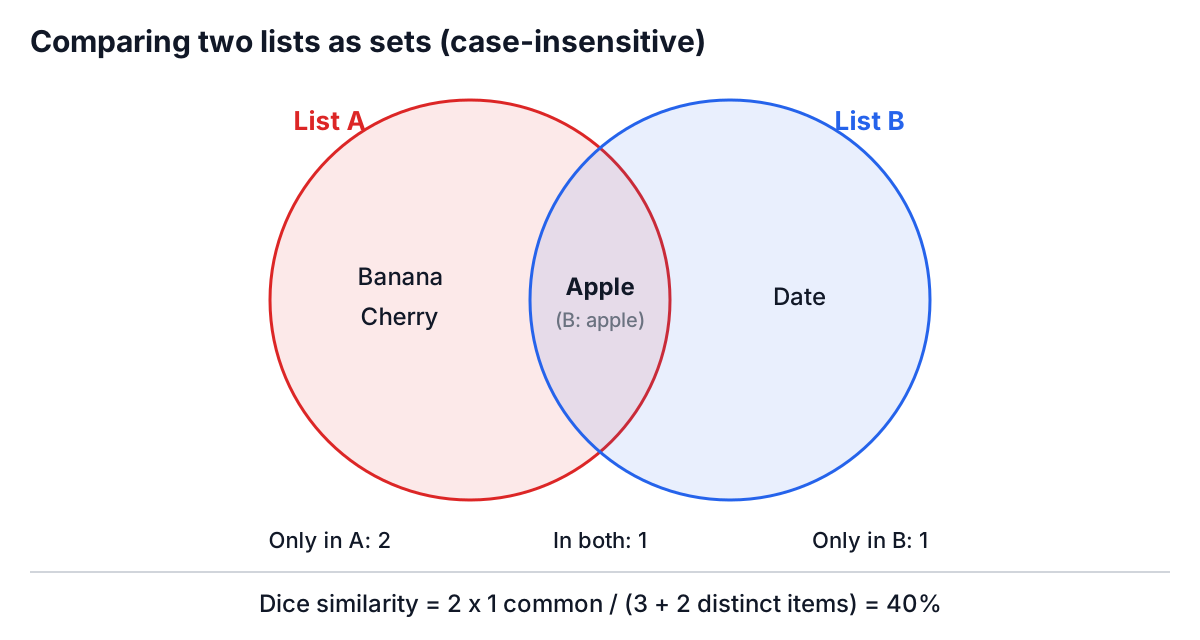
Compare Two Lists does the same without sorting or a terminal. Paste one list on each side and it shows items in both, only in A and only in B, updated as you type. Matching ignores case and surrounding spaces by default, and the results keep the spelling from your input. The similarity score is the Dice coefficient: twice the common count divided by the total distinct items in both lists. Lists {Apple, Banana, Cherry} and {apple, Date} share one item, so similarity is 2 x 1 / (3 + 2) = 40%.
Because lists are compared as sets, order and repeats are ignored. If order matters, as in two versions of a config file, use the Online Diff Tool instead; the text diff guide explains how line diffs work.
Common mistakes
- Deduplicating before trimming. Trailing spaces make "duplicates" unique. Clean whitespace first.
- Using
sort -uwhen order matters. It removes duplicates and reorders everything. Use the awk idiom or Remove Duplicate Lines. - Case-sensitive matching on emails. Most mail providers treat the part before the @ case-insensitively, so "Ana@" and "ana@" are usually the same person.
- Splitting real CSV on commas. Quoted fields contain commas. Parse CSV as CSV.
- Sorting numbers as text. Alphabetical order puts item10 before item2. Pad with zeros or sort numerically in a spreadsheet.
- Running whitespace cleanup on code. Indentation is syntax in Python and YAML.
A routine that works
For a pasted list of anything: Remove Extra Spaces, Remove Empty Lines, Find Duplicate Entries to see what you are about to lose, Remove Duplicate Lines, then reshape with Lines to Comma if the destination wants a single line. Keep the original paste somewhere until the result has been used; every one of these steps throws information away, and it is much easier to rerun the chain than to reconstruct what a blank line or a capital letter used to mean.