
WCAG Color Contrast: How the Ratio Works and How to Pass AA
Where 4.5:1 comes from, how relative luminance is calculated, what counts as large text in CSS pixels, and the contrast mistakes that fail audits most often.
· 7 min read
A designer hands over a palette with a soft grey for body text, #777777 on white. It looks fine on a calibrated monitor. The accessibility audit flags every paragraph on the site, because that grey comes out at 4.48:1 and the bar is 4.5:1. One step darker, #767676, passes at 4.54:1. Nobody can see the difference between those two greys, but the formula can, and so can the auditor.
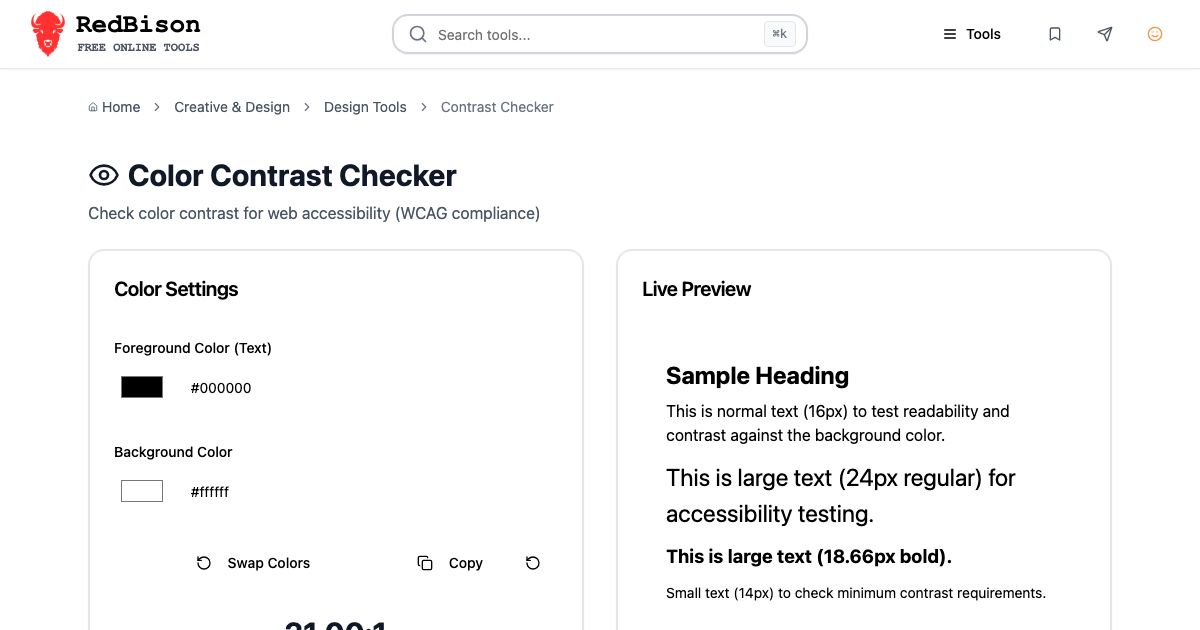
Contrast is the most commonly failed WCAG check, and most failures are not about ugly color choices. They come from misreading what "large text" means, trusting a rounded number, or checking the wrong pair of colors. Here is how the ratio actually works and how to use the Color Contrast Checker to get it right the first time.
Where the 4.5:1 number comes from
WCAG 2.0 was published by the W3C in December 2008, and its contrast rules are unchanged in WCAG 2.1 (2018) and 2.2 (2023). Two success criteria matter for text:
| Criterion | Level | Normal text | Large text |
|---|---|---|---|
| 1.4.3 Contrast (Minimum) | AA | 4.5:1 | 3:1 |
| 1.4.6 Contrast (Enhanced) | AAA | 7:1 | 4.5:1 |
| 1.4.11 Non-text Contrast | AA | 3:1 for UI parts and graphics |
The 4.5:1 figure was chosen to compensate for the contrast loss that comes with roughly 20/40 vision, the acuity typical of people around age 80. 7:1 does the same for about 20/80 vision. So the thresholds are not arbitrary taste. They are an estimate of what people with common, uncorrected vision loss need to read comfortably.
AA is the level that laws and procurement rules point at. The EU's EN 301 549 standard references WCAG AA, and US accessibility lawsuits are judged against it in practice. AAA is a stretch goal; WCAG itself says it is not recommended as a blanket requirement for whole sites.
How the ratio is calculated
The ratio compares the relative luminance of the two colors, which is their perceived brightness on a scale from 0 (black) to 1 (white). Getting there takes three steps.
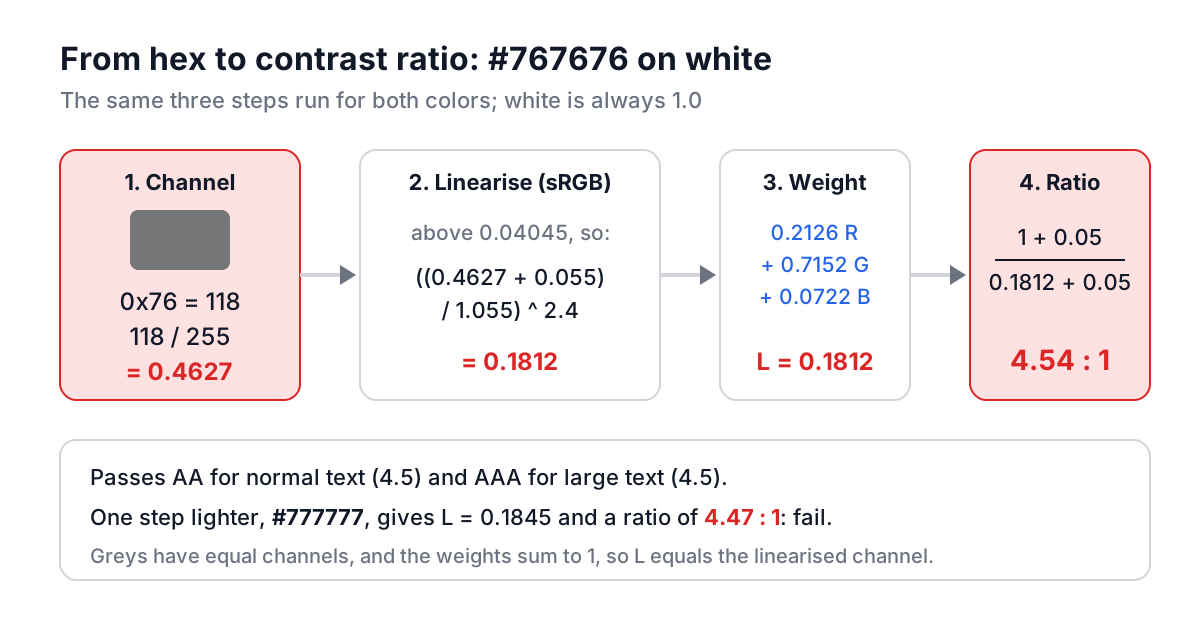
First, each 8-bit channel is divided by 255 and linearised. Screens store color with a gamma curve, so the value 128 is not half as bright as 255. The sRGB standard (IEC 61966-2-1) undoes the curve like this:
function linearize(c8) {
  const c = c8 / 255;
  return c <= 0.04045 ? c / 12.92 : Math.pow((c + 0.055) / 1.055, 2.4);
}

function luminance([r, g, b]) {
  return 0.2126 * linearize(r) + 0.7152 * linearize(g) + 0.0722 * linearize(b);
}

function contrast(a, b) {
  const [hi, lo] = [luminance(a), luminance(b)].sort((x, y) => y - x);
  return (hi + 0.05) / (lo + 0.05);
}
You may see 0.03928 instead of 0.04045 in older copies of WCAG. That number came from an early draft of the sRGB spec. For 8-bit colors the two give identical results, because no channel value falls between them (10/255 is 0.0392 and 11/255 is 0.0431).
Second, the three linear channels are weighted: 0.2126 for red, 0.7152 for green and 0.0722 for blue. Green dominates because our eyes are most sensitive to it. That is why pure blue (#0000ff) on black is only 2.44:1 while pure green (#00ff00) on black reaches 15.3:1.
Third, the ratio adds 0.05 to both luminances and divides the lighter by the darker. The 0.05 models the ambient light reflecting off a real screen, and it caps the range at 21:1 for black on white.
Worked example: the #767676 limit
Put #767676 in Foreground Color (Text) and #ffffff in Background Color in the checker.
- 0x76 is 118, and 118 / 255 is 0.4627.
- That is above 0.04045, so linearise: ((0.4627 + 0.055) / 1.055) to the power 2.4 is 0.1812.
- All three channels are equal for a grey, and the weights add up to 1, so the luminance is 0.1812.
- White has luminance 1. The ratio is (1 + 0.05) / (0.1812 + 0.05) = 4.54.
The checker reports 4.54:1, AA for normal text and AAA for large text. Change the foreground to #777777 and it drops to 4.47:1 and fails for normal text. That single step in hex is the boundary that the opening story was about.
What counts as large text, in pixels
WCAG defines large text as at least 18 point, or 14 point bold. Points are a print unit, and this is where most mistakes happen. CSS fixes 1 inch at 96px and at 72pt, so 1pt is 1.333px.
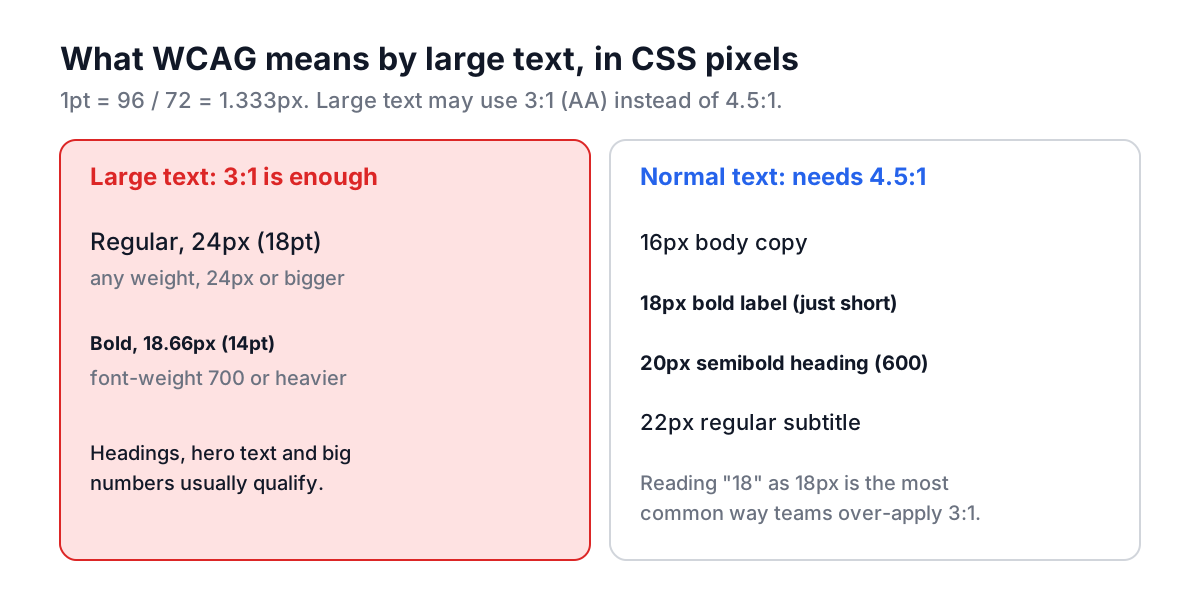
- 18pt regular is 24px.
- 14pt bold is about 18.66px, and bold means font-weight 700 or heavier.
- An 18px bold label is normal text. So is a 20px semibold (600) heading.
Getting this wrong in the generous direction is common: a team reads "18" as 18px, applies the 3:1 large text rule to 18px subheadings, and ships failures. The checker's preview shows a 24px line and an 18.66px bold line, which are the smallest sizes allowed to use the large text threshold.
Why the ratio must not be rounded
WCAG's understanding document is explicit: the thresholds are exact. A ratio of 4.499:1 does not meet 4.5:1. Plenty of tools display two decimals with normal rounding, and some round to one decimal, which turns a failing color into a passing one on screen.
Try #006ffb on white. The exact ratio is 4.49989. Rounded to one decimal that is 4.5, and a careless check passes it. The Color Contrast Checker decides pass or fail on the unrounded value and truncates the display, so it shows 4.49:1 and Fail for normal text. If you compare against another tool and see 4.5 there, this is why.
Common mistakes that fail audits
Checking the design token, not the rendered color. Text with opacity: 0.6, or a color like rgba(0, 0, 0, 0.5), renders as a blend with whatever is behind it. Work out the blended color first (browser developer tools show it when you inspect contrast), then check that hex value. Read the color formats guide if you need to convert between rgba, HSL and hex.
Forgetting placeholder and helper text. The grey hint inside an input and the small print under it are still text, and both are usually the lightest text on the page. Only text in disabled controls, pure decoration and logos are exempt.
Testing text on a gradient or photo at one point. Text over a background made with the CSS Gradient Generator has a different ratio at each end. Check the text against the lightest and darkest parts it overlaps, and add a scrim or text shadow if one end fails.
Ignoring non-text contrast. Input borders, focus rings, toggle tracks and the lines in a chart need 3:1 against their surroundings under 1.4.11. A pale #e5e7eb input border on white is about 1.2:1, so the field edge is effectively invisible to many users.
Only testing light mode. Use Swap Colors to test the reversed pair, then check your dark palette separately. Mid-grey text on a near-black surface is a frequent failure.
A quick workflow for a whole palette
- List every real text and background pair in the interface, including buttons, links in body copy, badges, table stripes and error messages.
- Run each through the checker and note the ratio. Use Copy to paste the result into the design ticket.
- For failures, adjust lightness only, keeping hue and saturation, until the pair passes. The Color Picker makes it easy to nudge lightness in HSL.
- Re-check the brand color with white text. Mid-range blues like #3b82f6 manage 3.67:1, enough for 24px headings but not for a 16px button label. #2563eb reaches 5.16:1.
What about APCA and WCAG 3?
WCAG 3 is a working draft, and the contrast method proposed for it, APCA, scores contrast differently. It takes font size and weight into account and treats dark text on light backgrounds differently from light text on dark. It often disagrees with WCAG 2, especially for orange and mid-tone pairs and for dark mode. It is worth reading about, but conformance claims and legal requirements today still reference the WCAG 2 ratio described here.
Start with the pairs your users read the most, body text and primary buttons, and get them to 4.5:1 with a little room to spare. A ratio of 4.6:1 survives a slight palette tweak; 4.51:1 does not.