
Word Clouds: How Word Frequency Becomes a Picture, and When It Misleads
What a word cloud actually computes, why stop words matter so much, how counts become font sizes, and when to reach for a frequency table instead.
· 6 min read
Five lines of customer feedback go into a word cloud, and three words come out biggest: "checkout", "slow" and "not". It looks like a clear message about a slow checkout. Read the source, though, and one of those three "slow"s is "checkout is not slow anymore". The cloud counted the word and threw away the sentence.
That is the whole story of word clouds in miniature. They are quick, they are good at showing which words dominate a text, and they are bad at telling you what the text says. This guide explains what a word cloud actually computes, the choices hidden in that computation, and how to use one without fooling yourself or your audience.
What a word cloud computes
A word cloud is a frequency table drawn as a picture. The Word Cloud Generator does it in five steps, and almost every other generator does something similar.
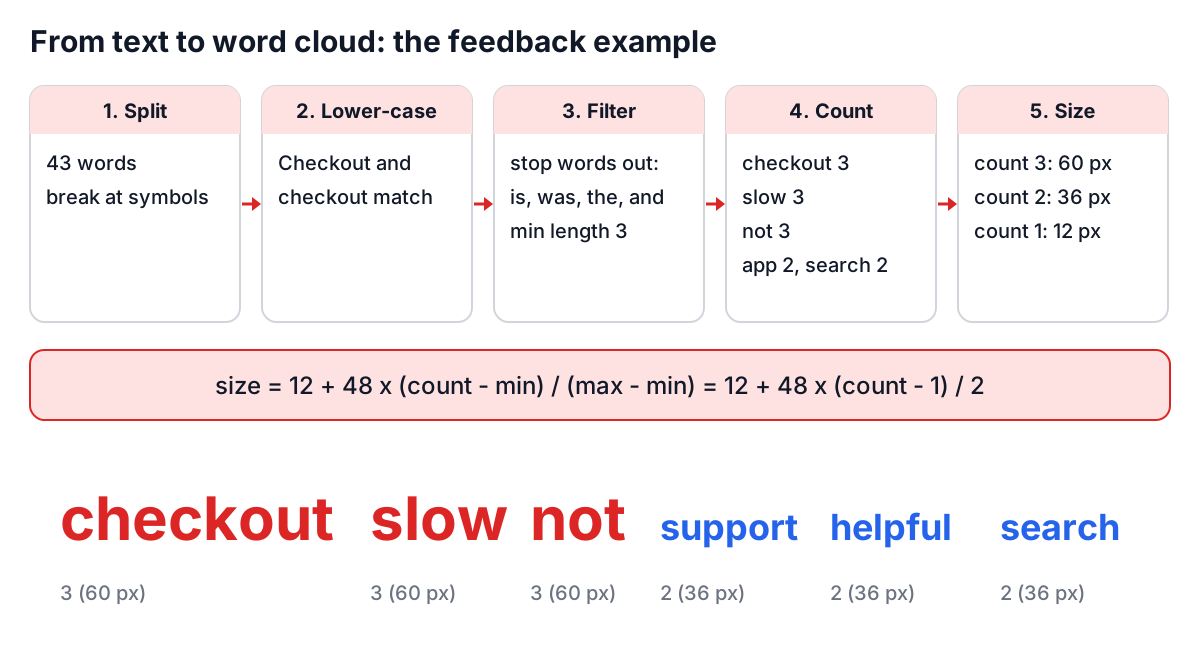
- Split into words. Anything that is not a letter, digit or underscore becomes a break. Letters from any script count, so "café" and "Москва" stay whole, but "don't" becomes "don" and "t".
- Normalise case. By default "Checkout" and "checkout" are the same word. The Case sensitive switch turns this off.
- Filter. Words shorter than the Minimum Word Length (3 by default) are dropped, and so are stop words such as "the", "is" and "was" when Remove stop words is on.
- Count and rank. Each remaining word gets a count, and the top N (Maximum Words, 50 by default) are kept. Ties keep the order in which words first appeared.
- Size. Counts are mapped to font sizes, then the words are placed on the canvas according to the chosen layout.
Here is the feedback used above:
Checkout was slow and the app crashed twice.
Support was helpful but checkout is still slow.
Love the new design, but search is not helpful.
The app is fast now, checkout is not slow anymore.
Search results are not relevant. Support was quick.
That is 43 words. Without any filtering, the most frequent word is "is", with 4. With the default settings, the top of the table reads checkout 3, slow 3, not 3, then app, support, helpful and search with 2 each, and twelve words with 1.
Stop words decide what you see
Natural language follows Zipf's law closely: a word's frequency is roughly inversely proportional to its rank. The top handful of words in English, "the", "of", "and", "to", "a", make up a large share of any text, and they say nothing about the topic. Without a stop-word list, every English word cloud is mostly the same cloud.
| Setting | Effect on the feedback example |
|---|---|
| Stop words on, min length 3 (default) | checkout, slow and not lead |
| Stop words off, min length 1 | "is" leads with 4; "was" and "the" tie with checkout |
| Min length 5 | "not", "slow", "app" and "now" vanish; checkout leads alone |
| Case sensitive on | "Checkout" and "checkout" are counted separately |
Two things are worth knowing about the built-in list. It is short and English-only, so French or German text will still show "les" or "und". And "not" is deliberately not on it, because negation matters, as the example shows. Some published stop-word lists do include "not", which silently turns "not helpful" into "helpful".
From counts to font sizes
The generator maps counts to sizes linearly:
size = 12 + 48 x (count - min) / (max - min) pixels
min and max are the smallest and largest counts among the words shown. In the example, max is 3 and min is 1, so checkout, slow and not are drawn at 60 px, the four words with a count of 2 at 12 + 48 x 0.5 = 36 px, and everything else at 12 px. If every word has the same count, they are all drawn at the largest size.
That formula hides a perception problem. People judge a word by the area it covers, and area grows with the square of font size and with the number of letters. A word at 60 px covers about 25 times the area of the same word at 12 px, even though the count is only three times higher. "Checkout" also looks more important than "not" at the same size, simply because it is longer. Some generators scale by the square root of the count to soften this; none can fix the word-length effect. Treat size as a rough rank, never as a measurement.
Where word clouds mislead
- Negation and context disappear. "Not slow" adds to "slow". "Not helpful" adds to "helpful". A cloud of reviews can make a complaint look like praise.
- Variants are split. There is no stemming, so "crash", "crashed" and "crashes" are three small words instead of one big one. Merge them in the text first if they matter.
- Phrases are broken up. "Customer support" becomes "customer" and "support", and "New York" becomes "new" and "york".
- Colour and position mean nothing. Colours cycle through the chosen palette by rank, and placement is random or follows a geometric layout. Readers often assume the centre or the red word is important.
- Small samples look decisive. A word with a count of 3 versus 1 gets five times the font size. With five sentences, that is noise.
Making a useful word cloud
Paste your text into the Word Cloud Generator, or click Load Sample to see the controls on a ready-made paragraph. Leave Remove stop words on. Raise Minimum Word Length to 4 if short fragments clutter the result, and lower Maximum Words to 25 or 30 for a slide, where fewer, larger words read better.
Turn on Show frequency list. It shows the exact count behind every word, and those are the numbers to quote. Pick the Horizontal or Spiral layout if words overlap, because the random layout does not avoid collisions, and use Shuffle until the arrangement reads well. Download gives a 1600 x 1200 PNG; choose Transparent as the background if the image will sit on a coloured slide.
If the text is messy, clean it first: the Online Text Processor can lower-case it, remove escape characters left over from an export, and find and replace variants such as "e-mail" and "email" so they count together.
When to use something else
A word cloud is a good first look and a decent slide decoration. For anything you will make decisions on, use a table or a bar chart of the top 20 words, which shows exact counts and is easy to compare. For SEO copy, a keyword density analyzer reports each term as a percentage of the text, including two- and three-word phrases. For survey answers, read a sample of the responses behind each of the biggest words before you present it, because that is where "not" lives.
Common mistakes
- Presenting the picture without the counts behind it.
- Leaving stop words in, so every cloud is dominated by "the" and "and".
- Using a cloud on a few sentences, where differences of one or two counts look dramatic.
- Assuming colour or position carries meaning.
- Forgetting to merge spelling variants and plurals before counting.
Use a word cloud to ask a question ("why is 'slow' so big?") and the source text to answer it. Five minutes reading the sentences behind the three largest words will tell you more than any amount of adjusting colours and layouts.