
ZIP vs 7z vs tar.gz vs bz2: Choosing an Archive Format
Why tar and gzip are two steps, what solid compression buys you, which formats Windows and macOS open natively, and how zip-slip and zip bombs work.
· 8 min read
Every few weeks someone sends you a .7z, a .tar.gz or a .bz2, and every few weeks you need to send something back that the other person can actually open. The formats look interchangeable from the outside, but they make different trade-offs about speed, size, random access and compatibility. This guide explains those trade-offs, why the Unix formats come in two layers, and what to watch for when you open an archive from someone you do not know.
You can try everything described here in the Archive Converter, which creates, extracts and converts these formats in the browser.
Two jobs: bundling and compressing
An archive format does two separate jobs. Bundling turns many files and folders into one file, keeping names, folder structure, timestamps and sometimes permissions. Compressing makes the bytes smaller by finding and removing redundancy.
ZIP and 7z do both jobs in one format. The Unix world split them in two: tar does the bundling and a separate compressor such as gzip, bzip2 or xz does the compressing. That split explains most of the confusion about these formats.
Why tar.gz is two steps
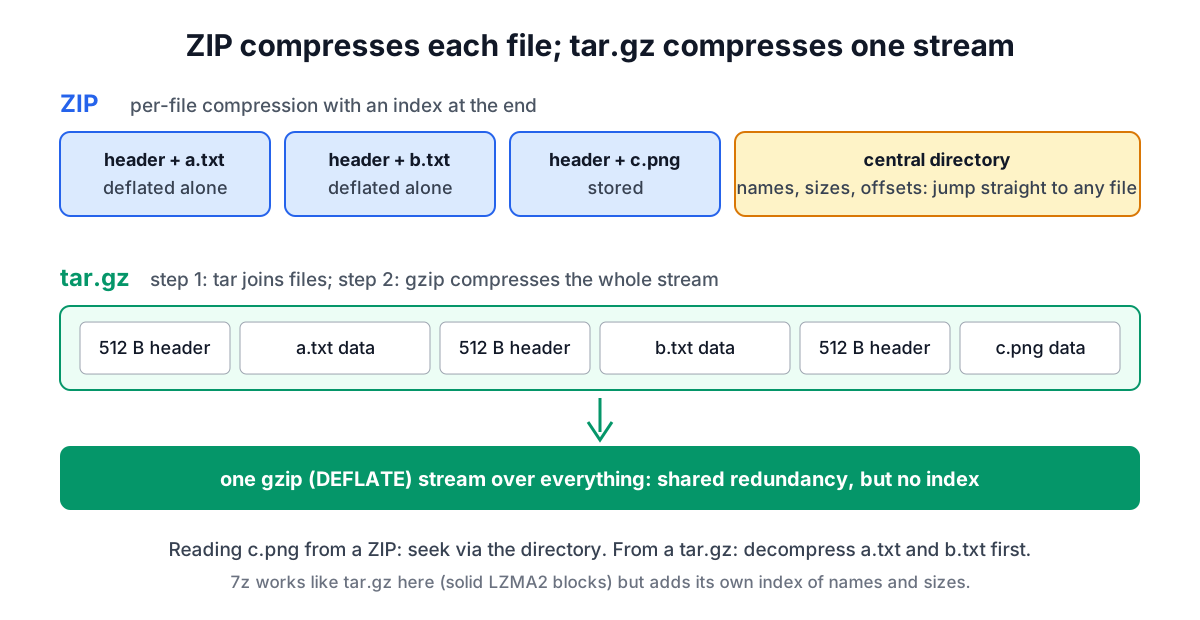
tar (tape archive) appeared in Seventh Edition Unix in 1979 to write files to magnetic tape. Its format is simple: for each file, a 512-byte header with the name, size, mode, owner and modification time, followed by the file's contents padded to a multiple of 512 bytes. Two empty blocks mark the end. There is no compression and no index, because tape is read from start to finish anyway.
The original header only had 100 bytes for a name. POSIX.1-1988 standardised the "ustar" variant, adding a 155-byte prefix field, and POSIX.1-2001 added "pax" extended headers that can carry paths and sizes of any length. Modern GNU tar, bsdtar (the tar on macOS and Windows) and 7-Zip all read pax.
Compression came separately. gzip was written by Jean-loup Gailly and Mark Adler in 1992 as a patent-free replacement for compress, and its file format is described in RFC 1952. gzip compresses exactly one stream of bytes. It has room for one original file name and nothing else. So the Unix habit became: tar the files into one stream, then gzip that stream. .tar.gz and .tgz are the same thing.
The same pattern applies to bzip2 (Julian Seward, 1996), which uses the Burrows-Wheeler transform and usually compresses text better than gzip but more slowly, and to xz (2009), which uses LZMA2 and typically beats both on size. A .bz2 or .xz on its own is a single compressed file; .tar.bz2 and .tar.xz are compressed tar archives.
The two-layer design has real benefits. The compressor sees all files as one stream, so redundancy between files is exploited, and you can swap compressors without changing the archive format. The cost is that there is no index: to list the contents or pull out the last file, you must decompress everything before it.
ZIP: per-file compression and an index
Phil Katz's PKWARE published ZIP in 1989, and its specification (APPNOTE.TXT) is still maintained. A ZIP stores every file as a local header followed by that file's compressed data, almost always DEFLATE, the same algorithm gzip uses. At the end sits the central directory, a table of every name, size, CRC32 and offset.
Because each file is compressed on its own and the directory says where it lives, an unzipper can extract one file from a 10 GB archive without touching the rest, and can list the contents instantly. The price is size: each file starts with an empty compression dictionary, so 400 source files that share the same licence header pay for that header 400 times.
ZIP's other advantage is reach. Windows File Explorer has opened ZIPs since Windows XP, macOS Archive Utility opens them with a double click, and every language has a library for them. When you do not know what the recipient runs, ZIP is the safe choice.
7z and solid compression
Igor Pavlov's 7-Zip introduced the 7z format around 2000. Its default method today is LZMA2, and by default it uses solid compression: many files are concatenated into one block and compressed together, much like tar.gz, but with a proper index of names and sizes stored in the archive.
Solid compression shines on many similar files. Source trees, logs and document folders often come out noticeably smaller than the same files in a ZIP. On a handful of already compressed files, such as JPEGs, videos or PDFs, there is little redundancy to find and both formats end up close to the original size. The Compression Tools page and the compression algorithms guide cover the algorithms themselves in more depth.
The downside is the same as tar.gz: getting one file out of a large solid block can mean decompressing much of the block first.
Encryption: what is actually protected
ZIP has two kinds of encryption. The original ZipCrypto is weak; known-plaintext attacks against it have been public since the 1990s, and tools that crack it are freely available. AES-256 encryption, as defined by WinZip's AE-2 extension, is strong, but Windows File Explorer and macOS Archive Utility cannot open AES ZIPs. Recipients need 7-Zip, WinRAR, Keka or similar. In both ZIP schemes the file names stay visible.
7z encrypts with AES-256 and can also encrypt the header (-mhe=on in 7-Zip), which hides the file names until the right password is entered. tar, gzip, bzip2 and xz have no encryption at all; people pair them with GPG or age instead.
Whatever the format, the password is the weak point. Use a long random one and send it through a different channel than the archive.
What opens where
| Format | Windows (built in) | macOS (built in) | Linux (typical) |
|---|---|---|---|
| ZIP | Yes | Yes | unzip |
| AES-encrypted ZIP | No | No | 7z |
| tar, tar.gz | Windows 11 (since 2023); tar.exe in Windows 10 | Yes | tar |
| tar.bz2, tar.xz | Windows 11 (since 2023) | tar in Terminal | tar |
| 7z | Windows 11 (since 2023) | No | 7z |
| RAR | Windows 11, extract only | No | unrar or 7z |
Microsoft added libarchive-based support for 7z, RAR and the tar family to Windows 11 File Explorer in a 2023 update; older Windows needs 7-Zip. RAR is a proprietary format: anyone may extract it using the freely licensed unRAR code, but only licensed WinRAR software may create RAR archives. That is why the Archive Converter extracts RAR but does not offer it as an output.
Zip-slip, zip bombs and links
Archives are input from someone else, and extractors have been tricked in three classic ways.
Zip-slip is an entry whose name contains ../ segments or an absolute path, such as ../../home/me/.bashrc. A naive extractor joins that name to the target folder and writes outside it. Snyk documented the pattern in 2018 across dozens of libraries in many languages. The fix is to normalise each path and refuse anything that would leave the destination. The Archive Converter rejects any entry with a .. segment, strips leading slashes and drive letters, and lists rejected entries rather than silently dropping them.
Zip bombs are tiny archives that expand to enormous sizes, either through extreme compression ratios or overlapping entries. A defensive extractor checks the declared sizes before decompressing and stops at a sane limit. ZIP stores sizes in its central directory and 7z in its header, so they can be checked up front; gzip only stores the size modulo 4 GB in its trailer, and bzip2 and xz store none, so for those the check has to happen during or after decompression.
Symbolic links inside tar archives can point outside the extraction folder, and a later entry can then write through the link. Extractors should either refuse links or resolve them carefully. The Archive Converter does not create links at all; it reports them as skipped.
Choosing a format
- Sending files to someone and unsure what they use: ZIP.
- Smallest size for many similar files, recipient has 7-Zip or Keka: 7z.
- Source releases, Linux servers, Docker build contexts: tar.gz for speed, tar.xz for size.
- One big file, such as a database dump or log: gzip, or xz if size matters more than time.
- Sensitive documents: 7z with AES-256 and encrypted names, or a tool like age on top of tar.
Whatever you choose, publish a checksum next to the archive so recipients can confirm it arrived intact. The Hash Generator computes SHA-256 or BLAKE3 for any file, and the Hash File Verifier checks one against a published value.