
Which Chart Should I Use? Bar, Line, Scatter, Histogram and Pie
Pick a chart from the question you are asking, not the data you have. Bar vs pie, line vs area, scatter, histogram bin counts, and the mistakes that mislead readers.
· 6 min read
Most bad charts are not ugly. They are the wrong chart: a pie with eleven slices nobody can compare, a line connecting categories that have no order, a bar chart of averages that hides the fact that half the values are zero. The fix is rarely better colours. It is starting from the question the chart is supposed to answer.
This guide maps common questions to chart types, explains why some charts are easier to read than others, and shows how to build each one from a CSV in the CSV Chart Maker. The same reasoning applies in any charting tool.
Start from the question
Before choosing a chart, write the question as a sentence. "Which product sold most in Q1?" is a comparison. "How did revenue change this year?" is a trend. "Do more expensive products get better ratings?" is a relationship. "What do our order values look like?" is a distribution. Each has a natural chart.
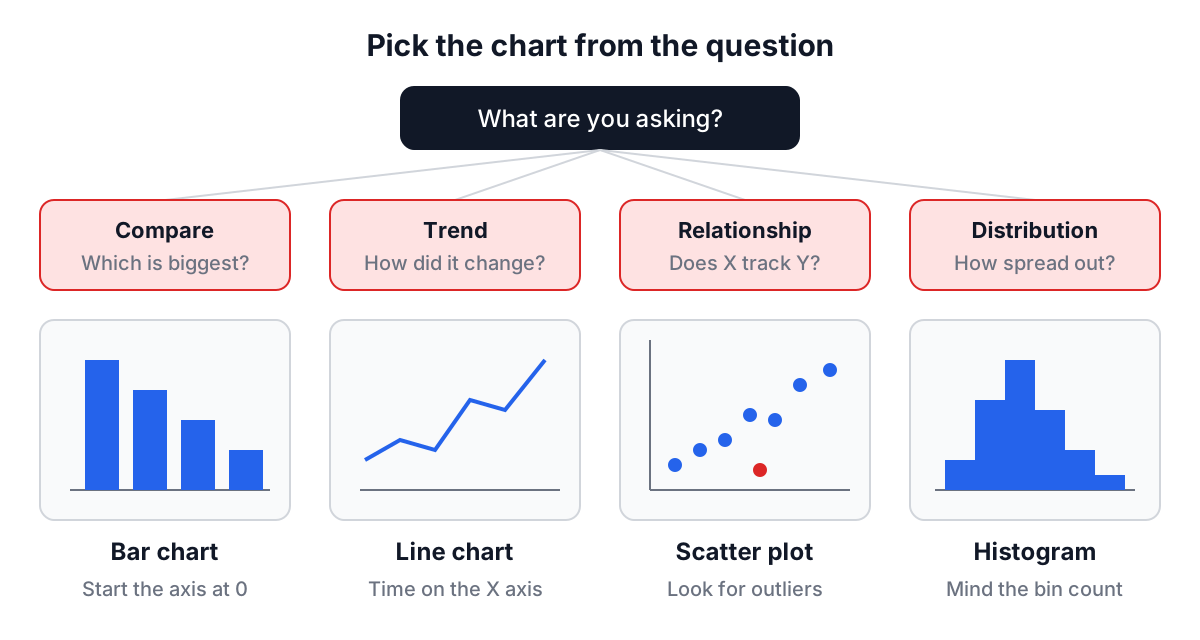
| Question | Data you need | Chart | Avoid |
|---|---|---|---|
| Compare categories | 1 text column, 1 number column | Bar | Pie with many slices |
| Change over time | Date column, number column | Line (or area) | Bar for long series |
| Part of a whole | Few categories that sum to 100% | Pie or stacked bar | Pie with negative values |
| Relationship | 2 number columns | Scatter | Line between unordered points |
| Distribution | 1 number column, many rows | Histogram | Bar chart of the mean only |
| Flow between groups | Source, target, value | Sankey or stacked bar | Pie per source |
Why bars usually beat pies
In 1984, William Cleveland and Robert McGill published "Graphical Perception" in the Journal of the American Statistical Association. They asked people to compare values encoded in different ways and measured the errors. Position along a common scale (the top of a bar against an axis) was judged most accurately. Length came next, then angle and slope, then area. Pie charts encode values as angle and area, near the bottom of that ranking.
In practice: with two or three slices, a pie is fine, because "about a quarter" is easy to see. With seven slices of similar size, nobody can tell 14% from 16%, and the legend forces the reader's eyes back and forth. The same data as a sorted bar chart is read in seconds.
To try it, load the Sales Data sample in the CSV Chart Maker, choose Product for the X axis and Q1_Sales for the Y axis, and switch between the Bar Chart and Pie Chart tabs. The bars make it obvious that Mouse outsold Keyboard; the pie makes you check the tooltip.
Rules for bar charts that save arguments later:
- Start the value axis at zero. A bar's length is the encoding. A truncated axis makes a 5% difference look like 300%.
- Sort bars by value unless the categories have a natural order (sizes, months, age bands).
- Use horizontal bars for long labels. Rotated text is slow to read.
Lines and areas for time
A line says "these points are connected in order". That is true for time and false for most categories, so use lines for time series and bars for categories.
The CSV Chart Maker reads a column like 2024-01-01 as text, not as the number 2024, so dates stay readable labels on the X axis. Load the Time Series Data sample, pick Date and Revenue, and use the Line Chart tab.
An area chart is a line with the space beneath it filled. It emphasises volume, which suits totals such as revenue or traffic. Two warnings:
- Areas, like bars, should start at zero, because the filled region is read as quantity.
- Overlapping areas hide each other. For several series, use lines.
For a line chart, the axis does not have to start at zero, since the reader is judging slope, not length. Say so in the axis labels so nobody assumes otherwise.
Scatter plots for relationships
When both columns are numbers and you want to know whether they move together, use a scatter plot: one dot per row, X from one column, Y from the other. The Correlation Data sample plots Price against Rating.
What to look for:
- Direction. Up and to the right means the two rise together.
- Shape. A curve is not a straight line; a correlation coefficient alone would miss it.
- Outliers. One dot far from the rest is often a data error worth checking before any analysis.
Do not connect scatter points with lines. Rows in a CSV have an order, but it is usually the order someone typed them, which means nothing.
Histograms for distributions
A histogram answers "what do the values look like?" It splits the range of one numeric column into equal-width bins and draws a bar for how many values fall in each.
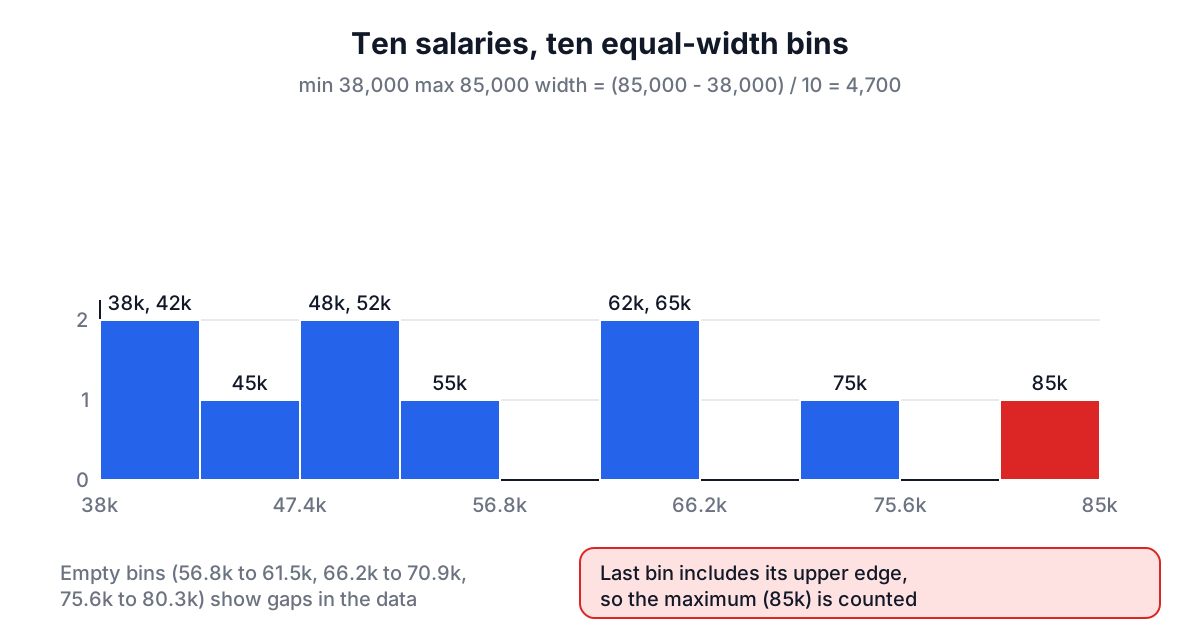
The CSV Chart Maker uses ten bins from the minimum to the maximum. The bin width is (max - min) / 10, and the last bin includes its upper edge so the largest value is counted. With the values 0, 5 and 10 the bins are 1 wide, and the three values land in the first, sixth and last bins.
Bin count matters. Too few bins hide the shape; too many turn it into noise. A classic starting point is Sturges' rule from 1926, k = ceil(log2(n)) + 1, which gives 8 bins for 100 values and 11 for 1,000. Ten is a reasonable default between those. With fewer than about 20 values, most bins are empty or hold one value, and a simple dot plot or sorted bar chart says more.
Why not just show the average? Because the same mean can come from very different data. Response times with a mean of 200 ms might be all near 200, or mostly 50 with a long tail at 2,000. Only the distribution shows which, and that difference decides whether you look at the median, the 95th percentile or a bug.
Flows, heat maps and the rest
Flows. When rows describe movement from a source to a target with a value (budget lines, traffic between pages, revenue to costs), a Sankey diagram shows it. The CSV Chart Maker's Sankey tab draws a stacked bar per source, split by target, plus a list of the flows. Use the Flow Data sample with Source, Value and Target selected.
Heat maps. The Heat Map view shades each row by its value, darkest for the largest, which is useful for scanning a ranked list. A true two-dimensional heat map (rows by columns) needs a matrix of values and a dedicated tool.
Common mistakes that mislead readers
- Truncated bar axes. Exaggerates differences. Start bars at zero.
- Pies with many slices. Use a sorted bar chart.
- Lines between categories. Implies an order and trend that do not exist.
- Dual Y axes. Two scales on one chart let you make any two series look correlated. Draw two charts.
- Averages without spread. Add a histogram or at least the median and a percentile.
- Numbers stored as text. Values like
1,200or$45are text to a parser. Clean them before charting.
From CSV to a chart in a minute
Paste the CSV, pick the chart that matches your question, set the X and Y columns, and click Download to save an SVG that stays sharp in slides and documents. If the data starts in a spreadsheet, the Excel to JSON Converter and CSV to JSON Converter help you check what the cells really contain first, and the data format comparison guide covers when CSV stops being the right container for your data at all.