
CSS Gradients, Box Shadows and Transforms: The Parts People Get Wrong
Gradient angles, why background-color ignores gradients, how blur and spread really behave, and why the order of transform functions changes where an element ends up.
· 8 min read
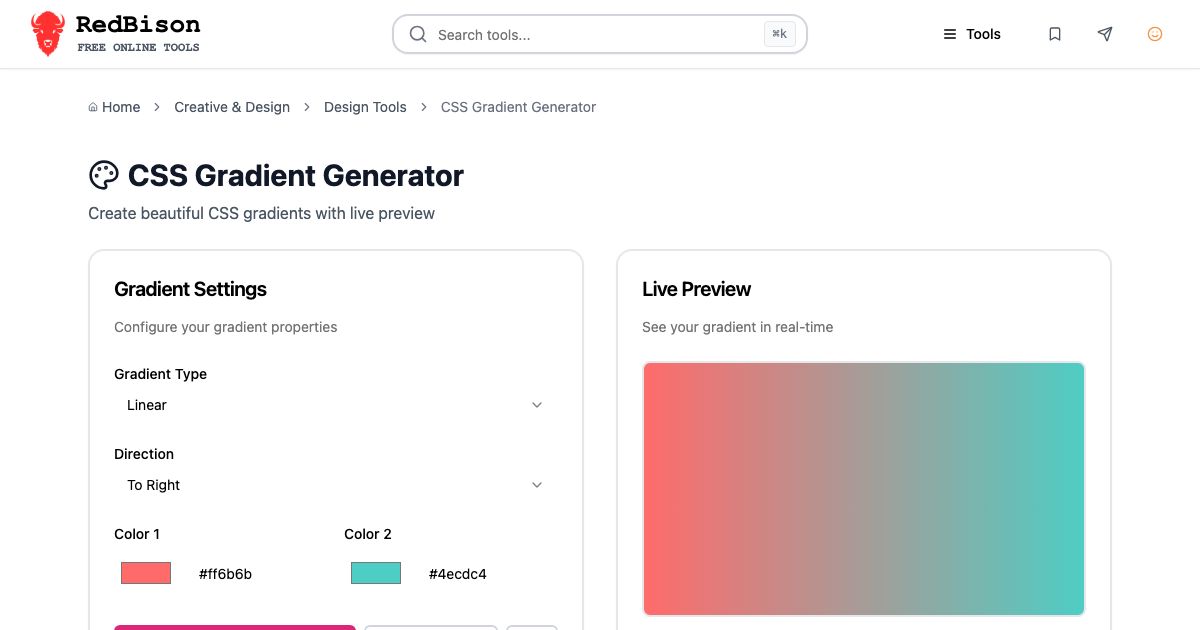
You paste linear-gradient(90deg, #ff6b6b, #4ecdc4) from a snippet site into background-color, and nothing happens. You copy a shadow from a design file and it looks twice as heavy in the browser. You add rotate(45deg) to a card that already slides in with translate, and it flies off diagonally. All three are normal CSS behaving exactly as specified, and all three are easier to understand once you see what the browser is doing.
This guide covers the three visual properties behind the CSS Gradient Generator, the Box Shadow Generator and the CSS Transform Generator: what each value means, which gotchas catch people, and how to read the CSS the tools produce.
Gradients are images, not colors
A gradient in CSS is a generated image. The CSS Images Module defines linear-gradient() and radial-gradient() as values of type <image>, which is why they work in background, background-image, border-image, mask-image and list-style-image, and why background-color: linear-gradient(...) is simply invalid and ignored.
The Gradient Generator writes a background shorthand for two colors:
background: linear-gradient(to right, #ff6b6b, #4ecdc4);
With no positions, the first color sits at 0% and the last at 100% of the gradient line. Add positions to control where the blend happens, or put two stops at the same position to get a hard edge:
/* Three stops, the middle one pinned at 50% */
background: linear-gradient(90deg, #ff6b6b, #ffd93d 50%, #4ecdc4);

/* Hard split: no blend at all */
background: linear-gradient(90deg, #ff6b6b 50%, #4ecdc4 50%);
The tool only generates two stops, so these are edits you make after copying.
Keywords versus angles
Directions come in two forms, and they do not mean the same thing.
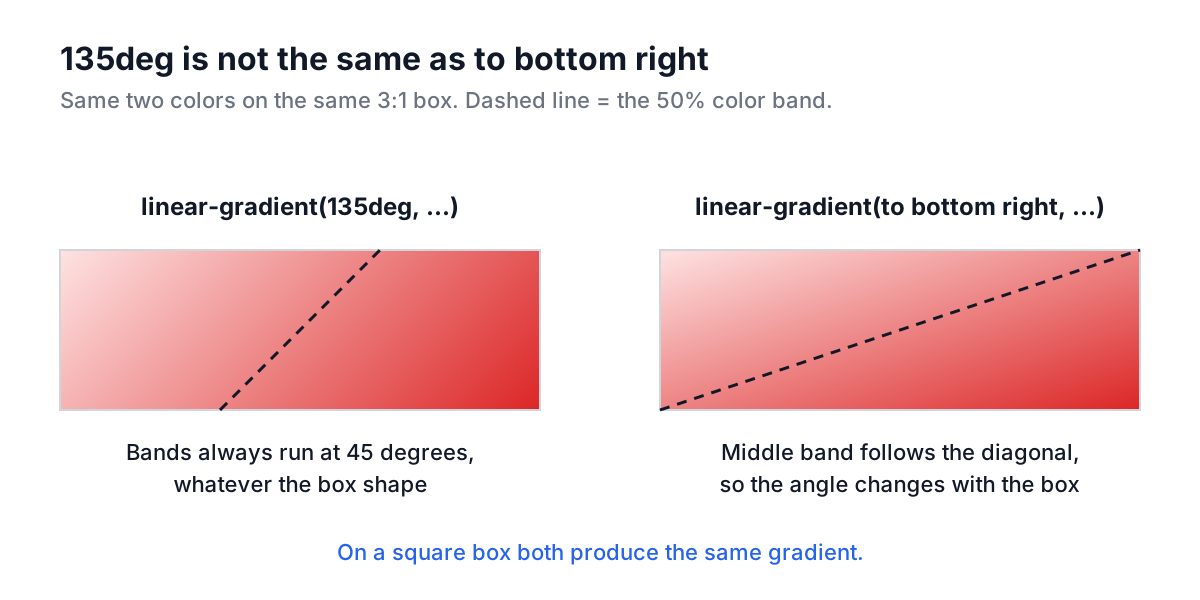
An angle is fixed. 0deg points up, 90deg points right, and angles go clockwise, so 180deg is the same as to bottom. A corner keyword like to bottom right is not 135deg. The spec picks the angle so that the 50% band runs through the other two corners, which means the angle depends on the element's aspect ratio. On a square the two are identical. On a 1200 by 300 banner, the to bottom right bands lie almost flat along the diagonal, while 135deg bands stay at 45 degrees.
Old code adds one more trap. The prefixed -webkit-linear-gradient syntax measured angles counter-clockwise from the right, so -webkit-linear-gradient(90deg, ...) points up while linear-gradient(90deg, ...) points right. If you inherit a stylesheet with both, expect directions to disagree.
Radial gradients and the grey middle
radial-gradient(circle, a, b) starts at the centre and, by default, sizes the circle so that 100% reaches the farthest corner. On a rectangle that means the outer color is only pure in the corners. Use closest-side if you want the outer color to reach the nearest edge.
A two-stop blend between saturated opposite colors, such as red and teal, often goes grey in the middle. Browsers interpolate in sRGB by default, and the halfway point between those two lands near neutral. Pick neighbouring hues, add a brighter middle stop, or, in browsers that support it, write linear-gradient(in oklch, ...) to interpolate in a perceptual color space.
Worked example: a hero background
In the Gradient Generator, set Gradient Type to Linear, Direction to Custom Angle, Angle to 135, Color 1 to #ff6b6b and Color 2 to #4ecdc4. The CSS Code box shows:
background: linear-gradient(135deg, #ff6b6b, #4ecdc4);
Click Download and you get gradient.css with that rule inside a .gradient class. If white text will sit on top, check it against both ends with the Color Contrast Checker: white on #ff6b6b is only 2.77:1, which fails for body text, while black on the same coral is 7.56:1. The WCAG contrast guide explains what those numbers mean.
Box shadows: offset, blur, spread, color
box-shadow takes two to four lengths and a color, plus an optional inset keyword:
box-shadow: [inset] <x> <y> [blur] [spread] <color>;
- x and y move the shadow. Positive values go right and down.
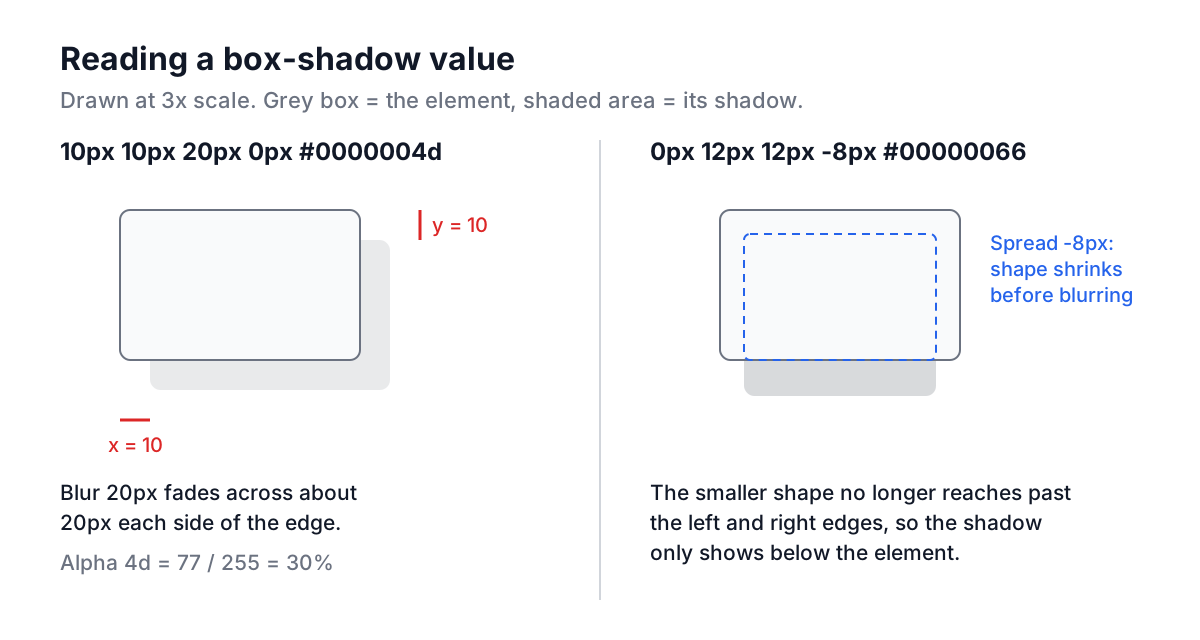
- blur softens the edge. The Backgrounds and Borders spec says the result should approximate a Gaussian blur with a standard deviation of half the blur radius, so a 20px blur fades over roughly 20px on each side of the shadow's edge.
- spread grows (positive) or shrinks (negative) the shadow shape before it is blurred.
- inset draws the shadow inside the border box instead of outside it.
The Box Shadow Generator's defaults produce:
box-shadow: 10px 10px 20px 0px #0000004d;
That color is 8-digit hex from CSS Color Level 4. The last two digits are alpha: 30% opacity is 0.3 times 255, which is 76.5, rounded to 77, or 4d. It is identical to rgba(0, 0, 0, 0.3). If you type shorthand like #000 into the Shadow Color field, the generator expands it to #000000 before adding the alpha, so the output is always valid.
Why design-tool shadows look heavier in the browser
Design tools describe shadows differently. Figma's drop shadow uses the same x, y, blur and spread model and maps fairly directly. Photoshop expresses offset as distance plus angle, its "size" plays the role of blur, and its "spread" is a percentage rather than a length. Convert to x and y first, then match blur by eye in the preview. And check the color: a shadow at 30% black over a light grey background reads heavier than the same shadow over white.
Recipes worth remembering
| Effect | CSS |
|---|---|
| Soft card lift | 0px 4px 12px 0px #0000001a |
| Shadow under the bottom edge only | 0px 12px 12px -8px #00000066 |
| Pressed input or well | inset 0px 2px 4px 0px #00000033 |
| Hairline ring without layout shift | 0px 0px 0px 1px #d1d5db |
Realistic elevation usually stacks two shadows in one declaration: a small, darker one for the contact shadow and a large, faint one for ambient light. Generate each in the tool and join them with a comma. The first one listed is painted on top.
Two practical warnings. An ancestor with overflow: hidden clips shadows, so cards in a carousel often lose their bottom shadow; add padding to the scroll container. And animating box-shadow repaints every frame. For hover effects on many cards, put the larger shadow on a ::after pseudo-element and animate its opacity instead.
Transforms: why order matters
transform takes a list of functions, and the browser multiplies them, left to right, into a single matrix. The effect is that the rightmost function is applied to the element first, and each function to its left works in the coordinate system the previous ones produced.
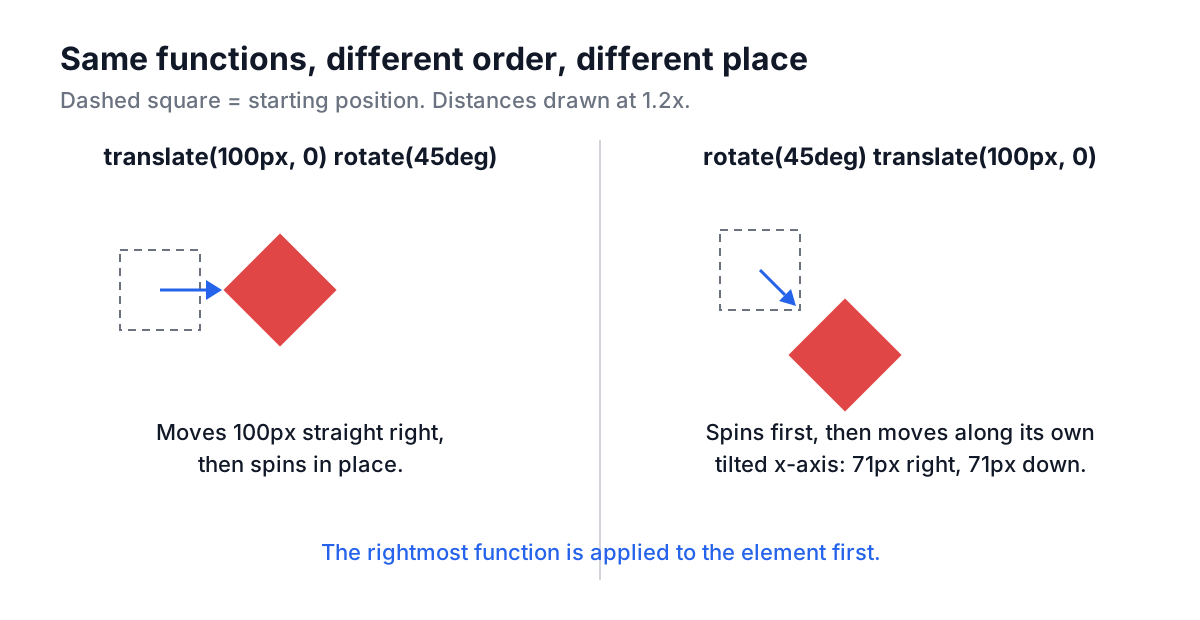
/* Moves 100px right, then spins in place */
transform: translate(100px, 0) rotate(45deg);

/* Spins first, then moves 100px along its own tilted x-axis:
   it ends up about 71px right and 71px down */
transform: rotate(45deg) translate(100px, 0);
The 71px is 100 times cos 45 degrees. Scale has the same effect: scale(2) translate(50px) moves the element 100px on screen, because the translation happens inside the scaled coordinate system.
The CSS Transform Generator avoids the surprise by always writing functions in the order translate, scale, rotate, skew, and only including the ones you have changed. With Translate X at 50, both Scale sliders at 1.5 and Rotate at 45, it produces:
transform: translate(50px, 0px) scale(1.5, 1.5) rotate(45deg);
Because translate comes first, the square moves exactly 50px to the right in page coordinates, whatever the other sliders say. If you want movement along the rotated axis, swap the functions in the copied rule.
transform-origin and layout
Rotation, scaling and skewing all happen around transform-origin, which defaults to the centre of the element (50% 50%). Set transform-origin: top left to pivot a dropdown from its corner, or bottom center for a bar that grows upward.
Transforms do not change layout. The element keeps its original box in the document flow, and its neighbours stay where they were, even if it is visually twice the size. That is a feature: because layout is not recalculated, browsers can animate transform (and opacity) on the compositor, which is why they are the two properties recommended for smooth animation.
The newer individual properties
CSS now also has separate translate, rotate and scale properties. They are combined in that fixed order, followed by the transform list, and they can be changed independently, so a hover rule that sets scale: 1.05 no longer wipes out a rotate set elsewhere. The generator writes the classic transform list, which works everywhere; convert by hand if your codebase prefers the individual properties.
Common mistakes across all three
- Putting a gradient in
background-color. Usebackgroundorbackground-image. - Assuming
to bottom rightequals135deg. It only does on a square. - Setting a second
transformin a hover rule and losing the first. The later declaration replaces the whole list. - Expecting a transformed element to push its neighbours. Transforms are visual only.
- Forgetting that shadows on hundreds of list items, especially with large blur, cost paint time on low-end phones.
- Using
box-shadowon a transparent PNG icon. It shadows the rectangle; usefilter: drop-shadow()to follow the visible pixels.
Putting it together
A typical card uses all three: a subtle gradient fill, a two-layer shadow for elevation, and a small translateY(-2px) on hover. Build each piece in its generator, paste them into one rule, and check the text on the gradient with the Color Contrast Checker. When you need a starting color, the Color Picker converts between hex, RGB and HSL so you can nudge lightness without changing hue.