
DOCX, ODT, RTF, HTML and Markdown: What Survives a Conversion
Why DOCX and ODT are zipped XML, what RTF and Markdown can and cannot hold, which formatting survives each conversion, and why Word to PDF in a browser rebuilds the layout.
· 8 min read
You paste a Word document into a wiki and lose every table. You open a colleague's ODT in Word and the numbered list restarts at 1 three times. You convert a report to PDF on a website and the page breaks land in the middle of headings. None of these are random bugs. Each format stores a different subset of what a "document" is, and a conversion can only carry across what both sides understand.
This guide explains what is actually inside the common document formats, what survives each conversion, and why converting Word to PDF in a browser has to rebuild the layout. The examples use the Document Converter and the Word to PDF Converter, which both run locally in the browser.
DOCX and ODT are zipped XML
Rename a .docx file to .zip and open it. You will find a folder of XML files defined by the Office Open XML standard (ECMA-376, also published as ISO/IEC 29500), introduced with Word 2007:
| Part | What it holds |
|---|---|
word/document.xml | The body: paragraphs (w:p), runs of text (w:r) and tables (w:tbl) |
word/styles.xml | Named styles such as Heading 1 and Normal |
word/numbering.xml | List definitions: bullet characters, number formats, indents |
word/media/ | Embedded pictures |
docProps/core.xml | Title, author and dates |
An OpenDocument Text file (.odt), the native format of LibreOffice Writer and an OASIS standard (ISO/IEC 26300), has the same shape with different names. The first entry is an uncompressed file called mimetype, the body is in content.xml, named styles are in styles.xml and pictures are in Pictures/.
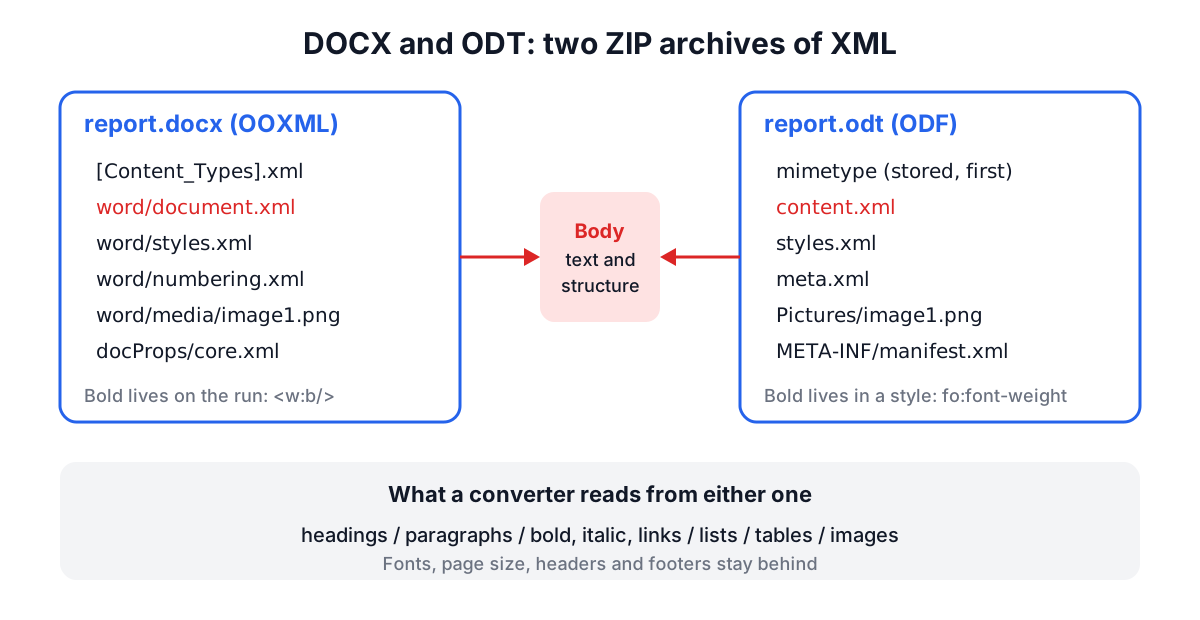
The important difference for conversion is where formatting lives. In DOCX, a run usually carries its own properties (<w:b/> for bold). In ODT, text points at a style (text:style-name="T1"), and the style says fo:font-weight="bold", possibly through a chain of parent styles. A converter that ignores styles will read an ODT as plain text. The Document Converter resolves each span through its style chain, and headings come from text:h outline levels.
The legacy .doc format from Word 97 to 2003 is different again: a binary Compound File with its own record structure. It is not XML and cannot be read by the same code, which is why browser converters ask you to save it as .docx first.
RTF, HTML and Markdown
RTF (Rich Text Format) is a plain text file of control words, introduced by Microsoft in 1987 and last revised as version 1.9.1 in 2008. A bold word looks like {\b bold}, a paragraph ends with \par, and non-ASCII characters are written as \u233? (the number is the Unicode code point, the ? a fallback for old readers). RTF can hold fonts, colours, tables and pictures, and nearly every word processor still reads it, which makes it a dependable exchange format between unrelated programs. Its weakness is complexity: real RTF from Word carries font tables, style sheets, list tables and revision data that simpler readers skip.
HTML describes structure well (h1 to h6, p, ul, ol, table, img, a) and leaves presentation to CSS. Converting a document to HTML keeps meaning and drops page size, margins and pagination entirely, because a web page has no pages.
Markdown, created by John Gruber in 2004 and specified as CommonMark, has even less: headings, emphasis, links, images, lists, code, quotes and, with the GitHub Flavored Markdown extension, pipe tables. It has no underline, no colours, no merged cells and no page layout. That is its strength for documentation kept in Git, where you want text that diffs cleanly.
What survives each conversion
A good mental model is to treat every conversion as two steps: read the source into a neutral list of blocks (headings, paragraphs, lists, tables, images), then write those blocks in the target syntax. Anything the neutral model has no slot for is lost, whatever the two formats share.
| Feature | DOCX | ODT | RTF | HTML | Markdown | Plain text |
|---|---|---|---|---|---|---|
| Headings | Yes | Yes | Outline levels | Yes | Yes | Text only |
| Bold, italic | Yes | Yes | Yes | Yes | Yes | No |
| Underline | Yes | Yes | Yes | Yes | No | No |
| Lists, nested | Yes | Yes | List text only | Yes | Yes | Markers only |
| Tables | Yes | Yes | Yes | Yes | Simple only | Tab separated |
| Merged cells | Yes | Yes | Yes | Yes | No | No |
| Images | Yes | Yes | PNG and JPEG | Yes | Yes | No |
| Fonts, colours | Yes | Yes | Yes | Via CSS | No | No |
| Headers, footers | Yes | Yes | Yes | No | No | No |
| Comments, tracked changes | Yes | Yes | Partly | No | No | No |
Three practical rules follow from the table:
- Use real heading styles. A line that is merely large and bold is a paragraph to every converter. Heading 1 in Word, Heading 1 in Writer,
#in Markdown and<h1>in HTML all map to each other. - Keep tables simple. Merged cells and nested tables have no equivalent in Markdown or plain text and are split or flattened.
- Expect presentation to reset. Fonts, colours and spacing are not structure. The target format applies its own defaults.
Why Word to PDF in a browser rebuilds the layout
When Word exports a PDF, its layout engine decides every line break using the exact metrics of the installed fonts, kerning, hyphenation rules, widow and orphan settings, section breaks, headers, footers, floating text boxes and anchored images. That engine is not available to a web page, and no JavaScript library reproduces it faithfully.
A browser-based converter therefore has two honest options. It can upload the file to a server running Word or LibreOffice (which is how most online converters work, and means your document leaves your machine), or it can read the structure and lay it out again. The Word to PDF Converter does the second:
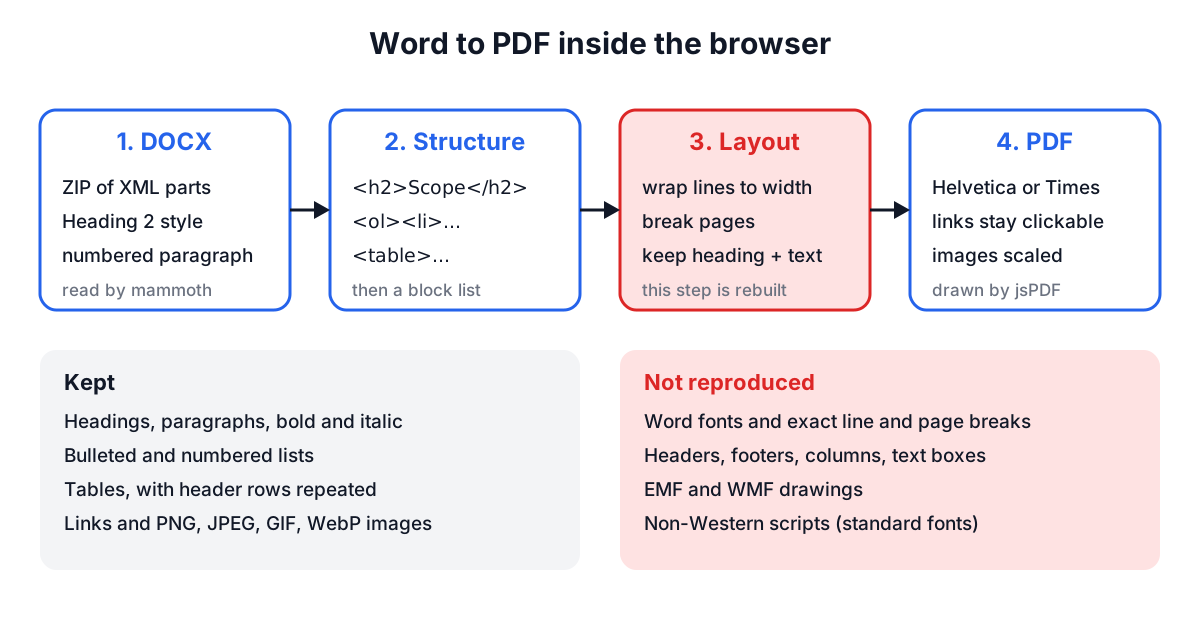
- mammoth reads
word/document.xmland maps Word styles to semantic HTML: Heading 2 becomesh2, a numbered paragraph becomes anliin anol. - The HTML becomes a neutral block list, the same one the Document Converter uses.
- A layout step wraps each paragraph to the text width, keeps headings with the next two lines, avoids a lone first line at a page bottom, repeats table header rows on new pages and scales images to fit.
- jsPDF draws the result with the PDF standard fonts.
The content is the same; the pagination is not. The standard PDF fonts (Helvetica, Times, Courier) cover the Windows-1252 character set, which is enough for English and Western European languages. Text in Greek, Cyrillic, CJK or Arabic scripts needs an embedded font, so the converter replaces those characters with ? and reports how many it replaced. For those documents, or whenever the PDF must match Word page for page, export from Word or LibreOffice directly.
A conversion checklist
Before converting an important document:
- Check the source format by content, not extension. A
.docthat is really RTF, or a.docxthat is really a renamed.doc, is common. The Document Converter sniffs the bytes (ZIP contents, the{\rtfheader, the OLE signature) before trusting the name. - Look at what was read. The converter's "What was read" tab shows the neutral content. If a heading appears as a paragraph there, fix the style in the source rather than the output.
- Embed images. HTML and Markdown often reference images by path. A converter that never fetches URLs, which is the private choice, can only keep embedded images.
- Decide what PDF is for. For sharing and archiving content, a rebuilt PDF is fine. For print production or legal filings where pagination matters, use the authoring application's export.
- Going from PDF back to an editable file is a different job. A PDF stores glyphs at coordinates, not paragraphs. Use the PDF to Word Converter to recover text, then convert that DOCX onwards.
Choosing a format
For collaborative editing, DOCX is the safe default because Word, Google Docs, LibreOffice and Pages all read it well. ODT is the better choice for long-term archives where an open, ISO-standard format matters. RTF is a fallback for very old or very simple systems. HTML is for publishing, Markdown is for documentation that lives next to code, and plain text is for anything a machine will read. When you need to move between them, convert structure, check the result, and expect presentation to be redone by the destination.