
How to Share or Embed Just Part of a YouTube Video
Start times in links, start and end in embeds, why quality follows the player size, privacy-enhanced mode, YouTube Clips, and what to do when a video will not embed.
· 8 min read
Most of the time you do not want to share a whole YouTube video. You want the forty seconds where the speaker answers the question, the one step of a tutorial, or the goal in a ninety-minute match. YouTube gives you three ways to point at part of a video, and they behave quite differently: a link with a start time, an embed with a start and an end, and YouTube's own Clips. This post explains what each one does, how to build them by hand, why the quality of an embedded clip depends on the player size, and what to do when a video refuses to play outside YouTube. The YouTube Clip Maker builds all of them from times you pick while watching the video.
Three ways to point at part of a video
The picture below shows what a viewer sees for each kind of link when the part you care about runs from 1:23 to 1:35 of a ten-minute video.
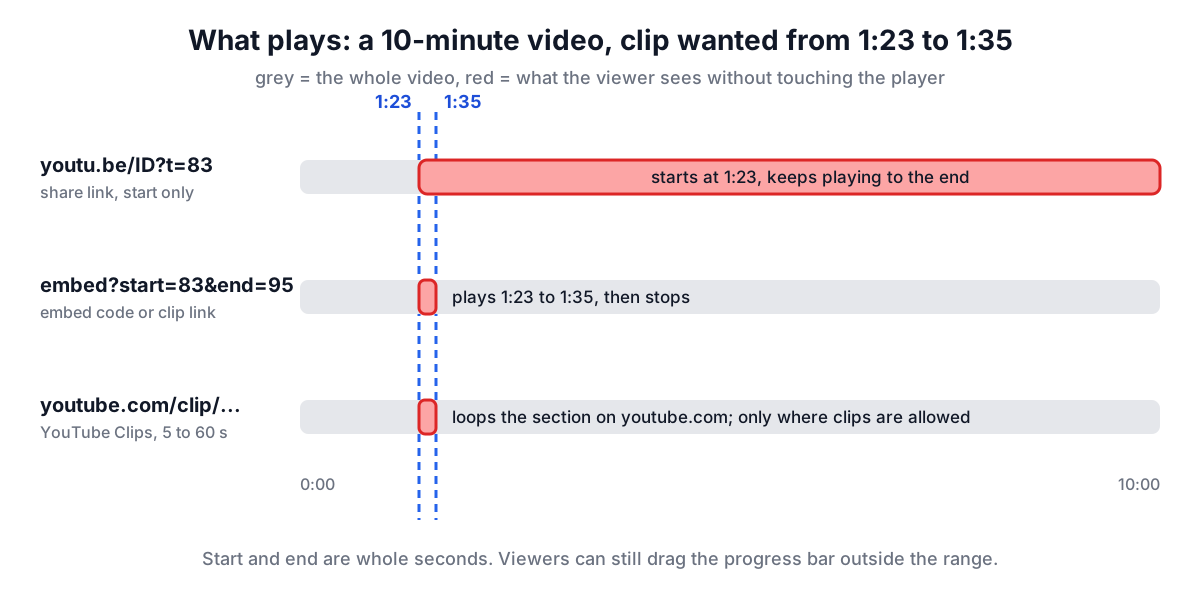
A link with a start time. The share link youtu.be/VIDEO_ID?t=83 opens the normal YouTube page and starts playback at 83 seconds. The same works on a full watch link as youtube.com/watch?v=VIDEO_ID&t=83. The time can be written as plain seconds (t=83) or with units (t=1m23s, t=1h2m3s). This is what YouTube's own Share button produces when you tick "Start at". It has no end time: the video keeps playing past your section until the viewer stops it.
An embed with a start and an end. YouTube's embedded player accepts two parameters, start and end, both counted in seconds from the very beginning of the video. The URL youtube.com/embed/VIDEO_ID?start=83&end=95 starts at 1:23 and stops at 1:35. Put that URL in an iframe and a web page shows just that section. You can also open the URL on its own in a browser tab, which gives you a shareable link that really does stop at the end time.
YouTube Clips. On many videos YouTube shows a Clip button that saves a 5 to 60 second section as a youtube.com/clip/ link, which loops the section on YouTube's site. Clips are tied to your YouTube account, are limited to a minute, and are only offered where the creator and the video type allow them. They are handy for social sharing but do not help when you need a longer section or a clip on your own page.
Building the embed code by hand
An embed is an iframe whose src points at the embed URL. A minimal version for the example above looks like this:
<iframe width="1280" height="720"
  src="https://www.youtube-nocookie.com/embed/VIDEO_ID?start=83&end=95&rel=0"
  title="Product demo (1:23 to 1:35)"
  allow="accelerometer; autoplay; clipboard-write; encrypted-media; gyroscope; picture-in-picture; web-share"
  referrerpolicy="strict-origin-when-cross-origin" allowfullscreen></iframe>
The parameters people use most:
| Parameter | Effect |
|---|---|
| start=83 | Begin playback 83 seconds into the video (whole seconds) |
| end=95 | Stop playback at 95 seconds, counted from the start of the video, not from start |
| autoplay=1 | Start playing when the page loads; browsers allow this only when muted |
| mute=1 | Start with the sound off |
| controls=0 | Hide the play bar and buttons |
| cc_load_policy=1 | Show captions by default when the video has them |
| rel=0 | At the end, suggest videos from the same channel instead of from anywhere |
Two details catch people out. First, end is an absolute time, so a clip from 1:23 to 1:35 is end=95, not end=12. Second, both values are whole seconds; a fraction such as 83.5 is not accepted, so round the start down and the end up if you want the clip to cover everything you picked. The Clip Maker does that rounding and shows the clip snapped to the second in its preview, so what you watch is exactly what the code will play.
To find the video id, take the 11 characters after v= in a watch link, after youtu.be/, or after /shorts/ or /embed/ in those links. Anything after a question mark that is not v or t, such as si= or feature=share, is tracking or interface state and can be dropped.
Quality, size and vertical video
Old embed codes sometimes carry a vq=hd720 parameter, and the player API once had a function to set quality. YouTube stopped honouring both. The player now chooses a stream itself, based mainly on how large the player is on screen and how fast the viewer's connection is. A 640 by 360 player will usually get 360p even on a fast connection, while a 1280 by 720 player lets YouTube pick 720p when the connection allows. Viewers can still pick a higher quality from the settings menu.
So the practical way to get a sharp clip is to make the player big enough. On a page with a fixed-width column, a responsive embed that fills the column is usually best: wrap the iframe in a box with aspect-ratio 16/9 and give the iframe 100% width and height, which is what the Clip Maker's responsive option produces. For Shorts and other vertical videos, use a 9:16 player such as 315 by 560, or the video sits as a narrow strip inside a wide black box.
Privacy-enhanced mode and other embed choices
YouTube offers a second domain for embeds, youtube-nocookie.com. YouTube calls this privacy-enhanced mode and says views of videos embedded this way are not used to personalise the viewer's YouTube browsing. The URL is otherwise identical, and start, end and the other parameters behave the same. Sites with a privacy policy that promises minimal tracking often use it by default, and the Clip Maker does too, with a switch to turn it off.
Think about autoplay before turning it on. Browsers block autoplay with sound, so an autoplaying embed starts muted, and a muted clip that starts by itself is easy to miss. For a clip that people should watch from the start, leave autoplay off and keep the controls visible.
Start and end are a convenience, not a lock. A viewer can drag the progress bar to any point in the video, and the full video is still on YouTube. If a section must not be seen, the only reliable approach is a separate upload of just the part you are allowed to share, made by the owner of the video.
When a video will not embed
Sometimes the preview shows "Video unavailable" or a message that playback on other websites has been disabled. YouTube's player reports this as error 101 or 150, and it means the owner has turned off embedding for that video. Music videos and some sports and film clips are often set this way. No embed code will work for them, on any site. A youtu.be link with a start time still works, because it plays on YouTube itself.
Other causes look similar. Private and removed videos report error 100. Age-restricted videos only play on youtube.com for signed-in viewers. Videos blocked in a country fail for viewers in that country only, so a clip can work for you and not for a colleague abroad.
What about downloading a clip?
A clip made with start and end is not a file. It is the original video, played by YouTube, with a start and stop point, which keeps the creator's view count, captions and quality. YouTube's Terms of Service do not allow downloading videos unless YouTube shows a download button or link for them, such as offline downloads in the YouTube app with YouTube Premium. If you own the video, you can download your own uploads from YouTube Studio.
When you already have the video file, for example your own recording or a download from Studio, the Video Trimmer cuts it in the browser without re-encoding, and How to Trim a Video Without Re-encoding explains why a lossless cut can start slightly early. To turn a short section of your own file into an animation, use Video to GIF.
A quick checklist
- Need people to land on a moment on YouTube? Use a youtu.be link with t=.
- Need a page to show only a section? Use an embed with start and end, in whole seconds from the beginning of the video.
- Want a link that stops? Share the embed URL itself.
- Want it sharp? Make the player large or responsive, and use 9:16 for Shorts.
- Seeing "playback on other websites has been disabled"? The owner has blocked embedding; link to YouTube instead.
Open the YouTube Clip Maker, paste a link, mark the start and end while you watch, preview the clip on a loop, and copy the code or link you need.