
How to Trim a Video Without Re-encoding (and When You Must)
Keyframes and GOPs, why a stream-copy cut snaps to a keyframe, when to re-encode for a frame-accurate cut, the ffmpeg commands behind both, and trimming phone videos in the browser.
· 10 min read

Most video trims are simple: chop the fumbling first seconds and the reach-for-the-button last seconds off a clip. That job should not cost quality or time, and with the right method it costs neither. A stream-copy trim keeps every frame exactly as the camera recorded it and finishes in seconds even for long files. The catch is that it can only start on a keyframe, which is why trimmed clips sometimes begin a little before the point you chose. This article explains keyframes, the two ways to cut, the ffmpeg commands behind each, and how to pick between them. The Video Trimmer does both in your browser without uploading anything.
Keyframes and groups of pictures
Video codecs such as H.264, HEVC (H.265), VP9 and AV1 do not store every frame as a full picture. That would make files ten or more times larger. Instead they store a complete picture now and then, called a keyframe or I-frame, and describe the frames in between as changes: P-frames refer to earlier frames, B-frames to frames on both sides. A keyframe plus the frames that depend on it is a group of pictures, or GOP.
GOP length varies a lot by source:
| Source | Typical keyframe spacing |
|---|---|
| Phone and consumer cameras | About 0.5 to 2 seconds |
| Professional intra-frame codecs (ProRes, DNxHR, All-I modes) | Every frame |
| Streaming and web delivery encodes | Often 2 seconds |
| Screen recorders and some webcams | Several seconds, sometimes 10 or more |
| Video meeting recordings | Varies; often long during static screens |
Those are common ranges, not rules; the only way to know a particular file is to inspect it. The spacing matters because a decoder cannot show a P- or B-frame on its own. It needs the keyframe before it, and every frame from there on.
Method 1: stream copy (fast and lossless)
A stream copy does not decode the video at all. It reads the compressed packets from the input and writes the ones inside your range to a new file, untouched. The Video Trimmer's fast mode runs this ffmpeg command, with your times filled in:
ffmpeg -ss 1.5 -i input.mp4 -t 2.5 -map 0:v:0? -map 0:a? -sn -dn -map_metadata 0 -c copy -avoid_negative_ts make_zero -movflags +faststart output.mp4
What each part does:
- -ss 1.5 before -i seeks in the input. Placed before the input, it jumps straight to the right part of the file instead of reading from the start, which is what makes long files quick.
- -t 2.5 limits the output to the length of your selection.
- -map 0:v:0? -map 0:a? takes the first video stream and all audio streams, if present. Subtitle and data streams are dropped (-sn, -dn) because they often cannot be copied into a different container cleanly.
- -c copy copies packets without re-encoding.
- -avoid_negative_ts make_zero shifts timestamps so the new file starts at zero, which keeps players and editors happy.
- -movflags +faststart moves the MP4 or MOV index to the front so the file starts playing before it has fully downloaded.
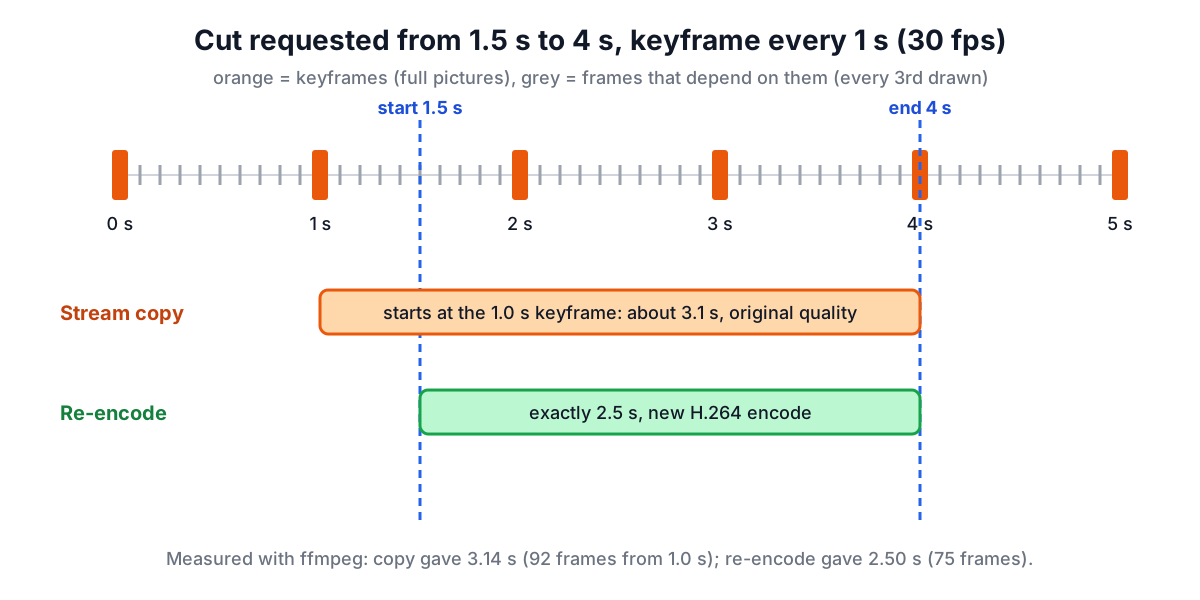
The ffmpeg documentation is explicit about the trade-off. As an input option, -ss seeks to the closest seek point before the requested position. When transcoding, ffmpeg decodes and discards the frames between that seek point and your time; when stream copying, it keeps them. So a stream-copy clip starts at the keyframe at or before your start time.
How much earlier depends on the GOP. In a test clip encoded with one keyframe per second, asking for 1.5 to 4 s produced a file 3.14 s long: the video began at the keyframe at 1.0 s, half a second early, and ran 92 frames at 30 fps. The same request on a clip with keyframes every 10 seconds behaves very differently. Asking for 12 to 17 s gave 7.07 s of video starting at the 10-second keyframe, two full seconds before the requested start. The end of a stream-copy trim is close to where you asked, because frames before the end time can always be decoded.
Stream copy also keeps the container and codecs. A MOV from an iPhone stays a MOV with its HEVC video; a WebM stays WebM with VP8 or VP9 and Opus. That is ideal for keeping quality and compatibility with whatever produced the file, but it cannot change format. If a container cannot hold the copied streams, the trimmer falls back to re-encoding automatically and tells you.
Method 2: re-encode (frame-accurate)
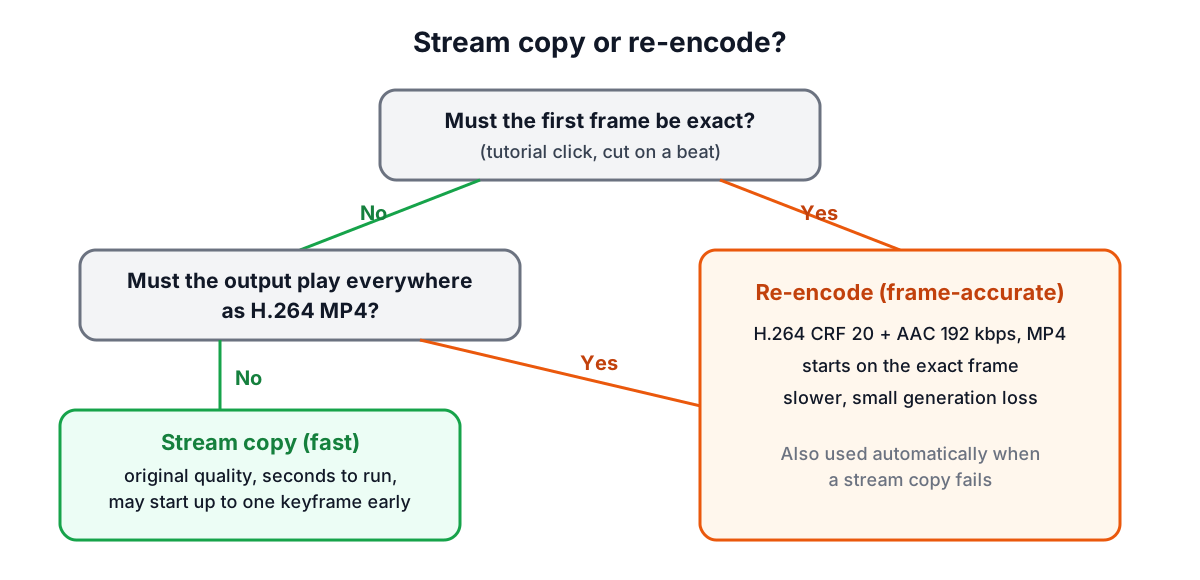
When the first frame has to be exact, for a tutorial that starts on a mouse click or a clip that must begin on a cut, the video has to be decoded and encoded again. The trimmer's frame-accurate mode runs:
ffmpeg -ss 1.5 -i input.mp4 -t 2.5 -map 0:v:0? -map 0:a? -sn -dn -map_metadata 0 -c:v libx264 -preset veryfast -crf 20 -pix_fmt yuv420p -vf scale=trunc(iw/2)*2:trunc(ih/2)*2 -c:a aac -b:a 192k -movflags +faststart output.mp4
ffmpeg still seeks to the keyframe before your start, but now it decodes forward, throws away the frames before 1.5 s and encodes from exactly that frame. In the test clip this gives exactly 2.5 s. The output is H.264 video at CRF 20 (a constant-quality setting where lower numbers mean higher quality; 18 to 23 is the usual range) and AAC audio at 192 kbps in an MP4, which plays almost everywhere. The scale filter only forces even dimensions, which H.264 with 4:2:0 colour requires.
Re-encoding costs two things. Time: every frame in the selection is decoded and encoded, which in a browser runs at a fraction of real time for HD and slower for 4K. And a small generation loss: CRF 20 is visually close to the source for most footage, but it is a new lossy encode, and repeating it several times compounds the loss.
Choosing between them
| Question | Stream copy | Re-encode |
|---|---|---|
| Quality | Identical to the original | Slightly lower (new lossy encode) |
| Speed | Seconds, limited by reading the file | Proportional to length and resolution |
| Start point | Keyframe at or before your time | Exact frame |
| Output format | Same container and codecs as input | H.264 and AAC in MP4 |
| Best for | Phone clips, long recordings, archiving | Tutorials, exact cuts, odd formats |
A practical routine: try fast mode first. If the clip starts acceptably close, you are done with zero quality loss. If it starts noticeably early, either nudge the start later (sometimes the next keyframe lands right where you want) or switch to frame-accurate mode for that clip.
Trimming in the browser
The Video Trimmer runs ffmpeg compiled to WebAssembly in your browser tab. The first trim downloads the engine, about 32 MB, from the jsDelivr CDN, once per visit. After that, your video is read from your disk into the tab, cut and handed back as a download. Nothing is sent to a server, which matters for private recordings and large files on slow connections.
The preview uses the browser's own video player, so MP4, MOV (on most systems) and WebM preview directly, and you can set the start and end at the playhead while watching. Formats browsers cannot play, such as many MKV and AVI files, can still be trimmed: the tool reads their length with ffmpeg and you type the times.
Memory is the practical limit. Browsers cap how much a tab can use, and phones cap it lower. Files up to a few hundred megabytes are comfortable on a desktop; over about 500 MB the tool warns you, and around 1.9 GB is beyond what the WebAssembly build can address. For very large files, desktop ffmpeg runs the same commands shown above.
Related jobs
- Make it smaller. Trim first, then use the Video Compressor so you do not spend bitrate on footage you are cutting anyway. The video bitrate guide explains how size follows from bitrate and length.
- Change the format. A stream copy keeps HEVC or VP9. For a universally playable file, run the trimmed clip through the Video Converter to H.264 MP4.
- Make a GIF or extract sound. Trim the moment you want, then use Video to GIF or MP4 to MP3.
Common problems
- The clip starts early. That is the keyframe rule. Use frame-accurate mode or move the start later.
- The first second is frozen or grey in some players. Some players handle the timestamps of a copied clip that starts before zero badly; the -avoid_negative_ts setting prevents most cases. Re-encoding removes it entirely.
- No audio in the result. Check that Remove audio is off, and that the source audio codec can live in the same container.
- The output will not play on a TV or old phone. It kept the original codec. Re-encode to H.264.
- The tab ran out of memory. Use a smaller file, close other tabs, or use desktop ffmpeg.
Sources
- ffmpeg documentation (ffmpeg.org), main options: -ss as an input option, accurate seeking when transcoding and its absence with stream copy, -t, -map, -c copy and -avoid_negative_ts.
- ffmpeg formats documentation, mov/mp4 muxer movflags faststart.
- ffmpeg H.264 encoding guide (trac.ffmpeg.org), CRF scale and presets for libx264.
- ITU-T Recommendation H.264, for I, P and B frame types.
Open the Video Trimmer to cut your own clip, and the Audio Trimmer for sound files.
Related searches
- trim video without re-encoding
- cut mp4 online
- ffmpeg trim video command
- why does my cut start early
- keyframe interval explained
- lossless video cut
- trim iphone video on computer
- ffmpeg ss before or after i
- video trimmer no upload