
How to Trim Audio Cleanly: Cuts, Fades and Formats
Trimming MP3, WAV and M4A without clicks, choosing fade lengths and shapes, why re-encoding MP3 loses a little quality, when to save WAV, and making ringtones and podcast clips.
· 10 min read
Trimming audio sounds trivial: pick a start, pick an end, save. Done carelessly it leaves a click at each cut, a fade that sounds chopped off, or a file that has lost quality for no reason. Done properly it takes the same thirty seconds. This article covers what happens when you cut a compressed file, how long fades should be, which format to save in, and a few specific jobs such as ringtones and podcast clips. The examples use the Audio Trimmer, which runs entirely in your browser, but the principles apply to any editor.
What happens when you open an MP3 or M4A
MP3, AAC (the audio inside M4A files), Ogg Vorbis and Opus are lossy formats. They store a compact description of the sound, not the samples themselves, and they group audio into frames of roughly 20 to 50 milliseconds. You cannot cut such a file at an arbitrary point without decoding it, because each frame depends on its neighbours.
So the first step in any precise trim is decoding: turning the file back into plain samples, the 44,100 or 48,000 numbers per second per channel that a sound card plays. The Audio Trimmer uses the browser's own decoder (the Web Audio API's decodeAudioData), which handles MP3, M4A and AAC, WAV, FLAC, Ogg Vorbis and Opus in current Chrome, Edge and Firefox; Safari handles most of these but not every Ogg file. The browser decodes at its audio context rate, usually 44.1 or 48 kHz, and the waveform on screen is drawn from those samples, showing the highest and lowest value in each slice of time.
Decoded audio is large. In the browser each sample is a 32-bit float, so a minute of stereo at 44.1 kHz takes about 21 MB of memory (44,100 × 2 channels × 4 bytes × 60). An hour is over 1.2 GB, which is why very long recordings are better trimmed on a computer with plenty of RAM than on a phone.
Why cuts click, and how fades fix it
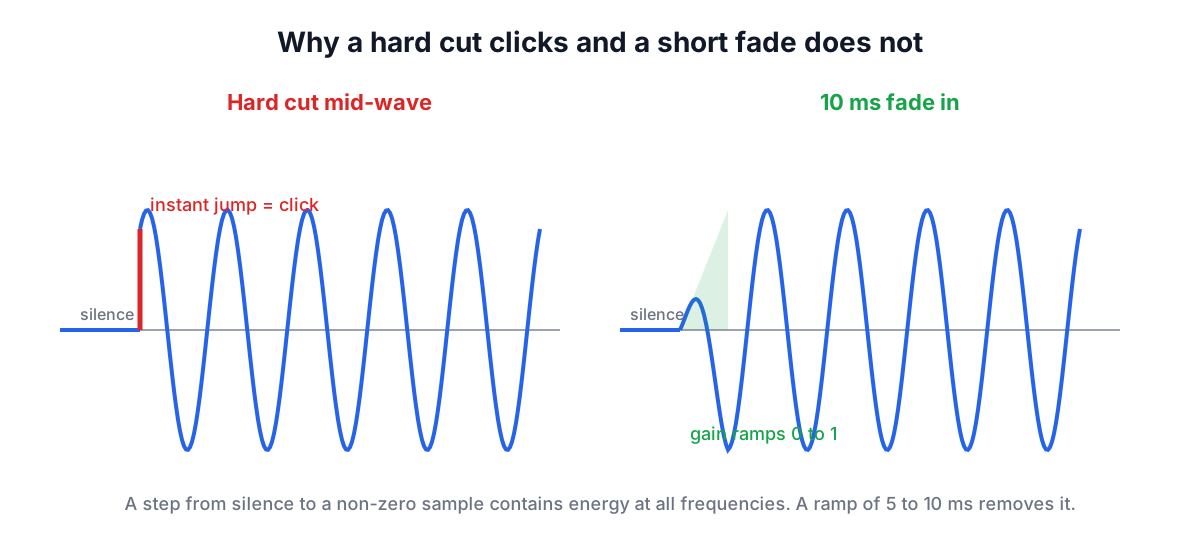
A sound wave swings above and below zero many times a second. If you cut where the wave is at, say, 60% of full scale, the output jumps from silence straight to that level in one sample. That instant step contains energy at every frequency, and you hear it as a click or pop. The same thing happens at the end of a clip that stops mid-wave.
There are two cures. One is to cut exactly where the wave crosses zero, which some editors do automatically. The other, which always works and is what the trimmer does, is a short fade: ramp the level from zero up to full over a few milliseconds at the start and back down at the end. Even 5 to 10 ms removes the click without being heard as a fade.
Longer fades are a creative choice:
| Purpose | Fade in | Fade out | Shape |
|---|---|---|---|
| Hide a cut in speech | 5 to 20 ms | 10 to 50 ms | Linear |
| Clean start of a sound effect | 2 to 10 ms | 50 to 300 ms | Linear |
| Ringtone or alert from a song | 0.2 to 0.5 s | 1 to 2 s | Quadratic |
| Music excerpt or teaser | 0.5 to 1 s | 2 to 5 s | Quadratic |
| Background bed under a voice | 1 to 3 s | 3 to 6 s | Quadratic |
The shape matters for long fades. A linear fade lowers the gain by equal steps, but hearing is roughly logarithmic, so a linear fade-out seems to hang at nearly full volume and then drop away at the end. The trimmer's quadratic shape (gain = x², ffmpeg's "qua" curve) falls faster early on and eases into silence, which sounds more natural over several seconds. For a 5 ms anti-click fade the shape makes no audible difference.
If the fade-in and fade-out together are longer than the selection, the trimmer shortens both in proportion so they meet in the middle rather than overlapping.
Choosing the output format
The trimmer offers three outputs, and the right one depends on what happens next.
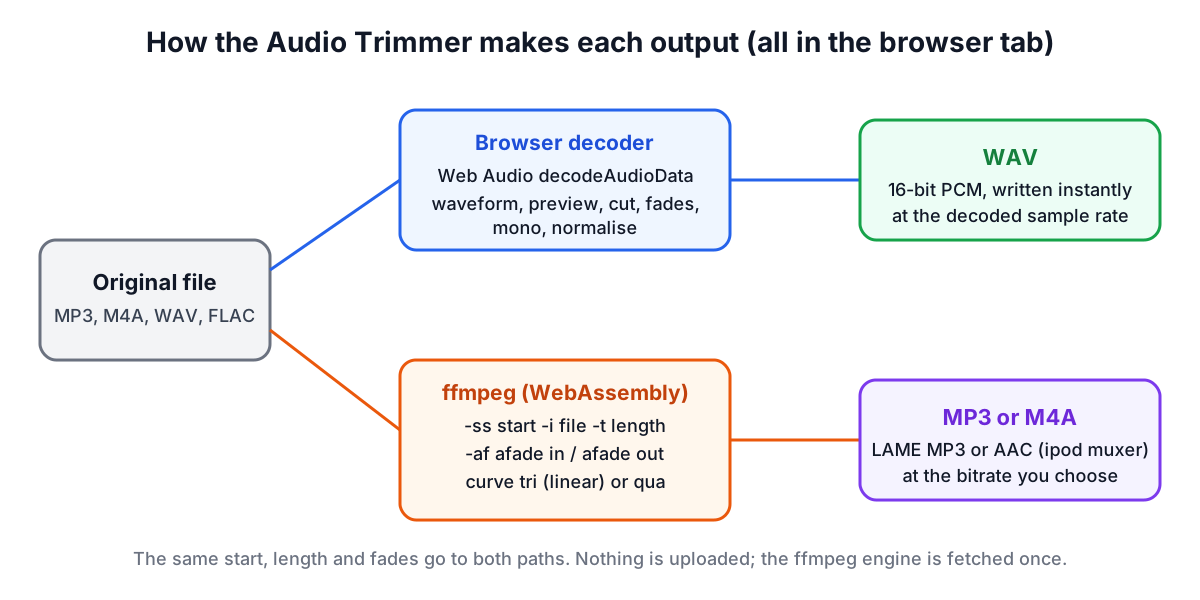
WAV is uncompressed 16-bit PCM, written directly in the page from the decoded samples. It is instant, adds no further lossy step, and is the right choice if you will edit the clip again, drop it into a video editor or DAW, or send it to someone who will. The cost is size: about 10.6 MB per minute for 44.1 kHz stereo. Mixing to mono halves that. WAV export can also normalise the peak to −1 dBFS, raising the whole clip so its loudest moment sits just under full scale without clipping.
MP3 and M4A (AAC) are encoded by ffmpeg, running as WebAssembly in the same browser tab. They are encoded from your original file rather than the decoded copy: ffmpeg seeks to the start time, takes the selected length, applies the fades with its afade filter and encodes with the LAME MP3 encoder or ffmpeg's AAC encoder. The engine is about 32 MB and downloads once per visit; your audio still never leaves your device.
| Output | Bitrate | Size per minute | Use it for |
|---|---|---|---|
| WAV, 44.1 kHz stereo | 1,411 kbps | 10.6 MB | Further editing, archiving |
| WAV, 44.1 kHz mono | 706 kbps | 5.3 MB | Voice for editing |
| MP3 | 128 kbps | 0.96 MB | Voice, small files |
| MP3 | 192 kbps | 1.44 MB | General music |
| MP3 | 320 kbps | 2.4 MB | Highest-bitrate MP3 |
| M4A (AAC) | 160 kbps | 1.2 MB | Apple devices, good quality per bit |
Saving MP3 or M4A from an MP3 or M4A source is a second generation of lossy compression. At 192 kbps or more from a good source the loss is usually inaudible, but it is real, and it cannot be undone: re-encoding a 128 kbps MP3 at 320 kbps only makes the file bigger. If a clip will be edited further, keep it as WAV until the last step. For format background, the audio formats guide compares the common codecs.
Worked examples
A ringtone from a song. Load the MP3 and select 0:45.00 to 1:15.00, a 30-second hook. Set fade in to 0.5 s and fade out to 2 s with the quadratic shape, and save as MP3 at 192 kbps: 192,000 × 30 ÷ 8 = 720,000 bytes, about 720 KB. For an iPhone, save as M4A instead; iOS ringtones are AAC files with an .m4r extension and a 40-second maximum, and the Audio Format Converter can write M4R directly.
A voice memo before sending. The memo has three seconds of fumbling at the start and five seconds of silence at the end. Drag the handles past them, set both fades to 0.01 s (10 ms) so the cuts are clean but not audible, turn on mono and save as WAV. A two-minute clip at 44.1 kHz mono is about 10.6 MB; as M4A at 96 to 128 kbps it would be about 1.4 to 1.9 MB.
A podcast teaser. Select 45 seconds of the best exchange, fade in over 1 s, fade out over 3 s quadratic, turn on normalise and save as WAV. The normalised clip has its highest peak at −1 dBFS, ready to drop into a video editor for a social post. Normalising sets the peak, not perceived loudness, so a clip with one sharp laugh may still sound quieter than another; loudness matching needs an LUFS meter in an editor.
Audio from a video. If you only need the soundtrack, the trimmer can open many MP4 and WebM files directly when your browser can decode their audio. For other containers, extract the audio first with MP4 to MP3, then trim.
Setting accurate start and end points
Dragging handles on a waveform is quick; typing times is precise. The trimmer accepts seconds (12.5) or minutes and seconds (1:02.5), shows times to the hundredth of a second, and keeps the selection at least 0.05 s long. A few habits help:
- Look for gaps. Speech has visible dips between words and sentences. Cut in a dip, not in the middle of a syllable.
- Cut music on the beat. A downbeat usually shows as a tall spike. Start a few milliseconds before it, with a very short fade in, so the attack is kept.
- Preview with fades on. The trimmer's Play selection button plays the clip with fades applied, so what you hear is what you will save.
- Leave a little air. Ending a voice clip 0.2 to 0.3 s after the last word sounds natural; cutting tight to the consonant sounds clipped.
MP3 and AAC encoders add a short padding of silence at the very start of the stream for technical reasons, and some players do not remove it. For sample-accurate loops, save WAV.
Common problems
- A click at the start or end. Add a fade of at least 5 ms.
- The fade-out sounds sudden. Lengthen it or switch to the quadratic shape.
- The file will not open. The browser could not decode it. Convert it to WAV or MP3 first, or try another browser.
- The output is larger than the input. WAV is uncompressed; choose MP3 or M4A for a small file.
- Quality dropped. You probably re-encoded at a lower bitrate than the source. Match or exceed the original, or save WAV.
Sources
- W3C Web Audio API specification, decodeAudioData and AudioBuffer (32-bit float samples).
- ffmpeg filters documentation, afade (curve options including tri and qua) and the -ss and -t options.
- Microsoft and IBM RIFF WAVE format specification (PCM header fields used for the 16-bit export).
Open the Audio Trimmer to cut your own file; nothing is uploaded. If the clip came from a video, the Video Trimmer cuts the video itself without re-encoding.
Related searches
- trim mp3 online
- cut audio file
- audio trimmer with fade
- how to remove click at start of audio
- fade in fade out length
- wav vs mp3 for editing
- make a ringtone from a song
- trim audio without uploading
- zero crossing cut