
Resize, Convert, Compress: A Practical Order for Web Images
Why resizing comes first, how fit-inside aspect ratio maths works, when to use JPEG, PNG or WebP, what JPEG quality really changes, and when Base64 or PDF is the right package.
· 7 min read
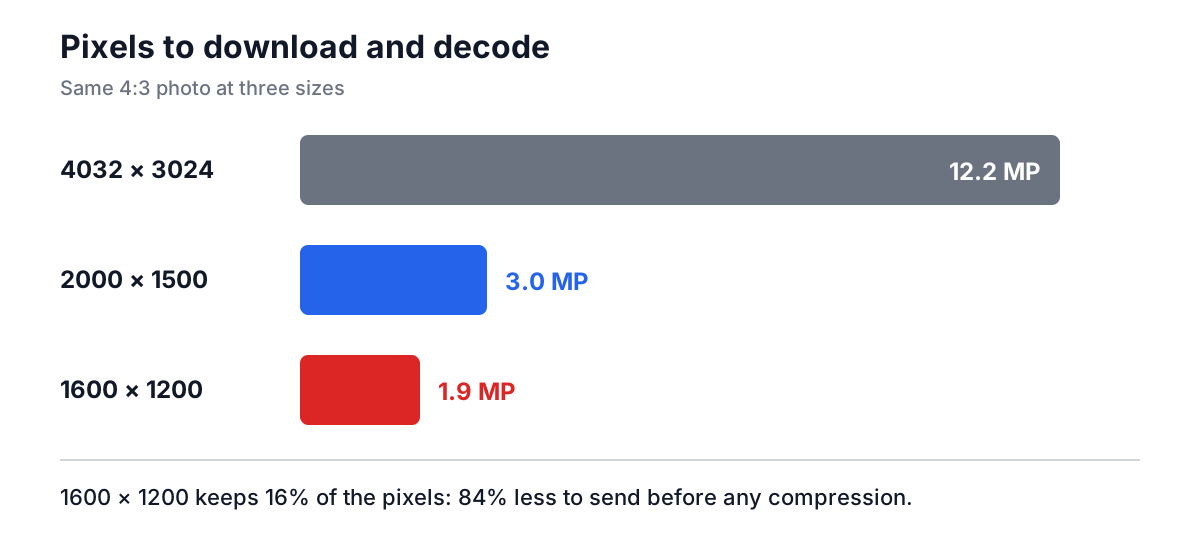
A 4032 × 3024 photo straight off a phone holds 12.2 million pixels. The blog column it ends up in is maybe 800 pixels wide. On a high-density screen that needs 1600 pixels across, or about 1.9 million pixels for a 4:3 image. Everything else is downloaded, decoded and thrown away, on every visit, on every phone.
Most image problems on the web and in email come down to doing four things in the wrong order or not at all: resizing, choosing a format, compressing, and packaging. This guide walks through each step with the browser tools on this site, the maths behind them, and the mistakes that cost the most.
The order that works
The steps compound, so order matters:
- Resize to the largest size the image will actually be shown at.
- Pick the format that suits the content: photo, graphic, or something that needs transparency.
- Compress at a quality you have checked by eye.
- Package the result for where it is going: a file, a data URI, or a PDF.
Resizing first is the big one. File size tracks pixel count, and pixel count goes with the square of the dimensions. No quality slider comes close.
Resizing without distortion
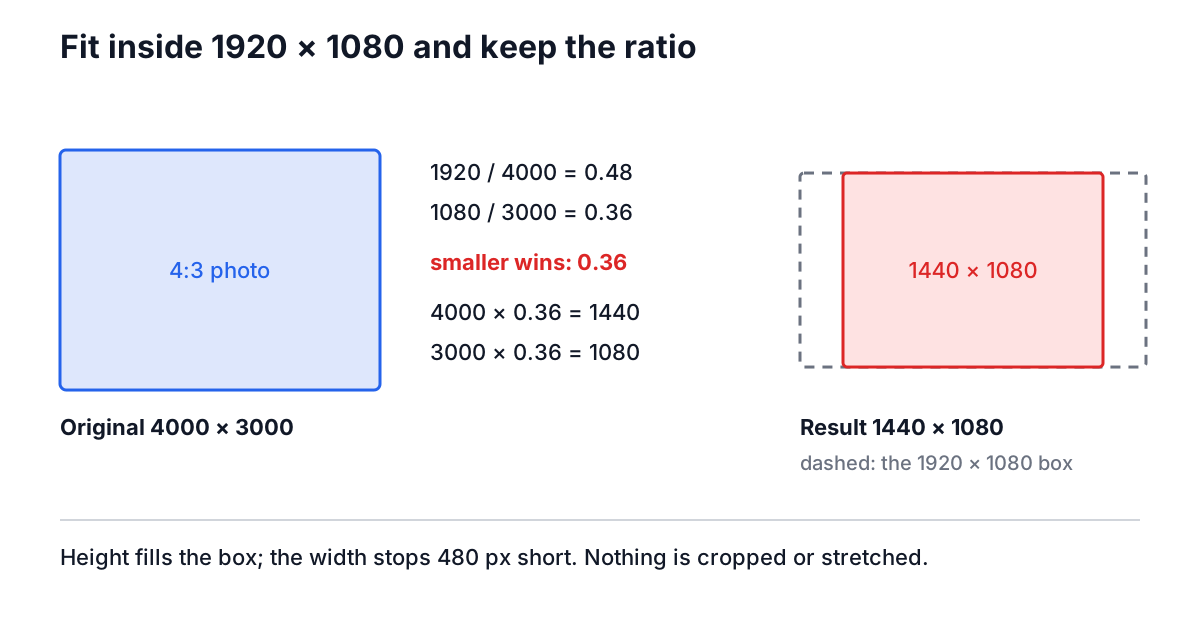
The Image Resizer takes a width and a height. With Maintain aspect ratio on, it fits the image inside that box the way CSS object-fit: contain does. The scale factor is the smaller of the two ratios:
scale  = min(targetWidth / width, targetHeight / height)
output = round(width × scale) × round(height × scale)
Worked through for a few common cases:
| Original | Box | Scale | Result |
|---|---|---|---|
| 4000 × 3000 | 1920 × 1080 | min(0.48, 0.36) = 0.36 | 1440 × 1080 |
| 3000 × 4000 | 1920 × 1080 | min(0.64, 0.27) = 0.27 | 810 × 1080 |
| 4000 × 3000 | 800 × 800 | min(0.2, 0.267) = 0.2 | 800 × 600 |
| 1001 × 333 | 50% | 0.5 | 501 × 167 |
Two things catch people out. First, fitting is not cropping: a landscape photo in a square box comes out 800 × 600, not 800 × 800. If you need an exact square, crop first. Second, with the aspect switch off, the image is stretched to exactly the numbers you typed, which is how faces end up looking wide.
Enlarging is allowed but rarely useful. A 400-pixel logo scaled to 1600 has the same detail spread over more pixels, so it looks soft. For icons and logos, a vector format is the real answer.
Picking a format
The Image Format Converter writes PNG, JPEG or WebP, the three formats a browser canvas can encode.
| Format | Compression | Transparency | Best for |
|---|---|---|---|
| JPEG | Lossy | No | Photos, maximum compatibility |
| PNG | Lossless | Yes | Screenshots, UI, diagrams, logos |
| WebP | Lossy or lossless | Yes | Photos and graphics on the web |
| SVG | Vector (text) | Yes | Icons, logos, simple illustrations |
Some rules of thumb that hold up:
- A photo saved as PNG is often three to five times bigger than the same photo as a good JPEG, with no visible gain.
- A screenshot of text saved as JPEG gets fuzzy halos around the letters and may not even be smaller.
- Converting JPEG to PNG never restores quality. It stores the existing artefacts losslessly, and the file grows.
- JPEG has no alpha channel. Transparent pixels have to become some colour; this site's tools fill them white, because left alone a canvas encodes them as black.
If a browser cannot encode the format you asked for, canvas.toDataURL quietly returns PNG instead. Safari was in that position for WebP for a long time. The converter checks the bytes it got back and names the file to match, so you do not end up with a PNG wearing a .webp extension. For a fuller comparison including AVIF, see the Image Format Comparison, and for WebP with a quality control, the Image to WebP Converter.
Compressing: what the quality slider does
The Image Compressor re-encodes to JPEG at the quality you choose, from 10% to 100%. Inside the encoder, the image is cut into 8 × 8 blocks, each block is transformed into frequency components, and those components are divided by a quantisation table and rounded. The quality setting scales that table. Lower quality means bigger divisors, more values rounded to zero, and fewer bytes.
The visible result is predictable once you know where to look. Fine texture and smooth gradients go first: blue skies show banding, and edges between flat colours grow faint ringing. Between about 70% and 85% most photos look the same as the original at normal viewing size.
Three practical points:
- Quality numbers are not portable. 80 in a browser, in Photoshop and in MozJPEG are three different settings. Judge the output, not the number.
- Compression can make files bigger. A small, flat PNG logo often grows as JPEG. The compressor says so ("125.0% larger than the original") rather than showing a negative saving.
- Never compress a compressed copy. Each JPEG pass loses a little more. Go back to the original every time.
There is also a side benefit. Canvas re-encoding does not copy metadata, so compressed files have no EXIF, which means no GPS coordinates or camera serial numbers. The EXIF metadata guide covers why that matters.
Inlining small images as Base64
Sometimes the destination is not a file at all. A tiny icon in CSS, an image in a JSON fixture or an email template can travel as a data URI:
data:image/png;base64,iVBORw0KGgoAAAANSUhEUgAAAAEAAAABCAYAAAAfFcSJ...
The Base64 Image Converter turns an uploaded file into that string, or turns a pasted string back into an image you can see and download. The cost is fixed by the encoding: every 3 bytes become 4 characters, so the payload is about 33% bigger than the file. The 1 × 1 PNG above is 70 bytes and 96 characters of Base64.
That overhead is fine for a 500-byte icon and wasteful for a 200 KB photo, which also loses its own cache entry once inlined. Vite, for example, inlines assets under 4 KB by default and links everything else. The other trap is the prefix. Code that labels every blob image/png works by luck for JPEG and GIF because browsers sniff those, but breaks for SVG. The converter reads the file signature (89 50 4E 47 for PNG, FF D8 FF for JPEG, GIF8 for GIF) and builds the correct prefix. For how Base64 works bit by bit, see the Base64 encoding guide.
Packaging images as a PDF
When the destination is a person rather than a web page (an expense claim, a visa form, a set of scanned pages), a single PDF is often what is asked for. The Image to PDF Converter places one image per page, scaled to fit inside the margins and centred.
PDF pages are measured in points, 1/72 of an inch. A4 is 595.28 × 841.89 points, US Letter 612 × 792. What decides print sharpness is how many image pixels land on each inch of paper. A 4000 × 3000 photo across an A4 page with 20-point margins is 555 points (7.7 inches) wide, which gives about 519 pixels per inch, comfortably above the 300 a print shop expects. A 640 × 480 screenshot on the same page gives about 83, which looks soft.
Images are embedded at full resolution and re-encoded as JPEG at the quality you set, so transparency becomes white and file size adds up quickly with phone photos. For a PDF that has to go by email, resize to around 2000 pixels on the long side first. Pick the orientation that matches most of your images: a landscape photo on a landscape A4 page covers about 78% more paper than on a portrait one.
Mistakes that cost the most
- Uploading originals and letting CSS shrink them. The browser still downloads every pixel. Resize to the display size (or twice it for high-density screens).
- Saving screenshots as JPEG. Keep them PNG or lossless WebP.
- Assuming conversion improves quality. It only changes the container and, for lossy targets, loses a little more.
- Inlining large images. Data URIs above a few kilobytes make pages slower, not faster.
- Forgetting metadata. Original photos can carry GPS coordinates. Re-encoded copies do not.
- Recompressing repeatedly. Generation loss is cumulative. Keep a master copy.
A short routine
For a typical batch of photos headed to a website: run them through the Image Resizer at 1600 or 2000 pixels on the long side, then the Image Compressor at 75 to 85%, and spot-check skies and faces at 100% zoom. For graphics, skip the compressor and use the Image Format Converter to PNG or WebP. For an email attachment, resize, then bundle with the Image to PDF Converter. Each step runs in your browser, so the originals never leave your machine.