
Markdown Tables: Syntax, Alignment, Escaping and Limits
How GitHub Flavored Markdown tables work, column alignment, escaping pipes, line breaks with <br>, what tables cannot do, and moving data in from CSV and spreadsheets.
· 9 min read

Tables are the one part of Markdown that almost everybody looks up. The syntax is short, but it is fussy: a missing delimiter row turns the table into a paragraph, a stray pipe shifts every column, and a line break ends the row. This guide explains how Markdown tables work in GitHub Flavored Markdown, how to align columns, how to escape the characters that break them, what tables cannot do, and how to move data in from spreadsheets and CSV files. You can follow along in the Markdown Table Generator, which writes the syntax for you.
Where table syntax comes from
John Gruber's original Markdown (2004) had no tables, and neither does CommonMark, the strict specification of core Markdown. Tables come from an extension. The version almost everyone follows today is the tables extension in the GitHub Flavored Markdown (GFM) specification, which GitHub published as a formal superset of CommonMark. GitLab, Docusaurus, Obsidian, VS Code's preview, and most static site generators (through plugins such as remark-gfm or markdown-it's built-in table rule) implement the same rules, and Pandoc supports them as "pipe tables". Write tables the GFM way and they render nearly everywhere Markdown is rendered.
The basic shape
| Plan | Price | Users |
| ---- | ----- | ----- |
| Free | $0    | 1     |
| Team | $12   | 10    |
A table has three parts:
- A header row. Required. GFM has no headerless tables, although header cells may be empty.
- A delimiter row directly below it, with one cell of hyphens for each header cell. Without it there is no table, only a paragraph full of pipes.
- Body rows, as many as you like. The table ends at a blank line or at a line that starts another block, such as a heading.
Cells are separated by |. The pipes at the start and end of each row are optional, and so is lining the columns up. This renders the same table:
Plan | Price | Users
--- | --- | ---
Free | $0 | 1
Team | $12 | 10
Lining up columns only helps people reading the raw file, which matters in READMEs that are edited by hand and reviewed in diffs. The generator pads cells by default and counts Chinese, Japanese and Korean characters as two columns wide, so the pipes line up in a monospaced editor.
Column alignment
Alignment is set by colons in the delimiter row:
| Delimiter | Alignment |
|---|---|
--- | Renderer default, usually left |
:--- | Left |
:---: | Center |
---: | Right |
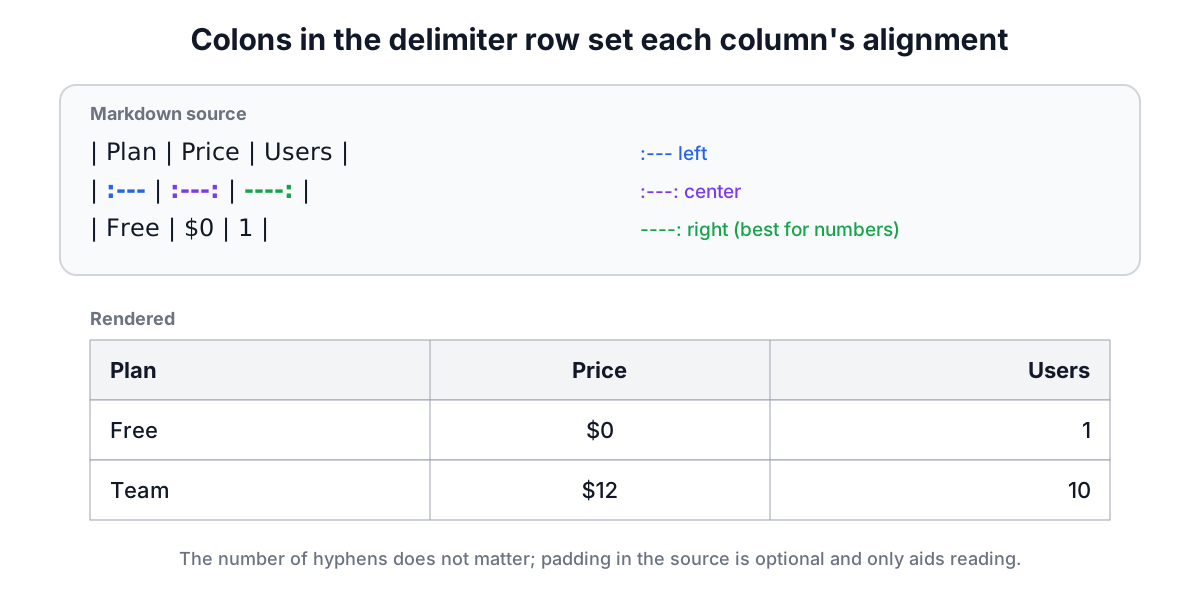
Right alignment is the one to remember. Numbers, prices and durations compare much more easily when their digits line up on the right:
| Plan | Price | Users |
| ---: | ----: | ----: |
| Free |    $0 |     1 |
| Team |   $12 |    10 |
The number of hyphens does not matter; the GFM spec needs at least one per cell, and three is the common convention.
Escaping and special characters
Pipes. A | inside a cell starts a new cell. Escape it as \|. The GFM spec is explicit that this applies even inside inline code, so a cell containing the shell pipeline `ls \| wc -l` needs the backslash, and the renderer removes it before display. Forgetting this is the most common reason a table suddenly has an extra column.
Line breaks. Each line of a table is one row, so a cell cannot contain a real newline. GitHub, GitLab and most renderers accept the HTML <br> tag instead:
| Step | Notes |
| ---- | ----- |
| 1 | Install<br>Then restart |
When you import CSV with multi-line cells, the generator converts the line breaks to <br> for you.
Inline formatting works. Bold, italics, code, links and images are all allowed in cells. Block elements are not: you cannot put a list, a heading, a code block or a blockquote inside a cell. For a list, <br>-separated lines with a bullet character are a common workaround.
Leading and trailing spaces in a cell are trimmed, so padding never changes the content.
Ragged rows and other edge cases
GFM is forgiving about row length. A body row with fewer cells than the header gets empty cells at the end, and a row with more cells has the extras ignored. The header and delimiter rows, however, must have exactly the same number of cells, or the block is not recognised as a table at all. The generator always writes the same number of cells in every row, padding short imported rows.
A table must be preceded by a blank line when it follows a paragraph in some renderers, so leaving a blank line before and after a table is a good habit.
What Markdown tables cannot do
- No merged cells. There is no colspan or rowspan.
- No captions or footers, and no multi-row headers.
- No column widths. The renderer sizes columns from their content.
- No block content in cells, as above.
When you need any of these, write an HTML <table>. GitHub renders basic HTML tables inside Markdown files (with some attributes and styles stripped for security), and so do most documentation tools. Keep Markdown tables for the simple grid they are designed for.
From spreadsheets and CSV
Most tables start life in a spreadsheet. There are three ways in, and they behave slightly differently.
Copy and paste cells. When you select a range in Excel, Google Sheets, LibreOffice or Numbers and copy it, the clipboard receives tab-separated text: one line per row, a tab between cells. Paste it into the generator's import box and the tabs are detected. This is the most reliable route because tabs almost never occur inside cell text, while commas often do.
CSV files. CSV separates cells with commas and wraps a cell in double quotes when it contains a comma, a quote or a line break, as described in RFC 4180. A naive split on commas breaks on "Smith, John". The generator parses CSV with Papa Parse, which handles quoting, escaped quotes ("") and multi-line cells, and it also detects semicolon-separated files, which Excel produces in locales that use a comma as the decimal separator.
Spreadsheet files. XLSX, XLS and ODS files are read with SheetJS in the browser. The generator takes the first sheet and uses the displayed values, so a date formatted as 29 Oct 2026 or a price shown as $1,200.00 arrives exactly as it looks.
In every case the first row becomes the header. If your sheet has a title row above the real headers, delete it first, or remove the extra row in the grid after importing.
Editing an existing table
Hand-editing a large Markdown table, for example adding a column to a feature matrix in a README, is tedious: every row needs a new cell and the padding has to be redone. Paste the existing table into the import box instead. The generator reads the header, the alignment from the delimiter row and every body row (unescaping \| and turning <br> back into line breaks), gives you the grid to edit, and writes the table back out aligned. Copy as CSV goes the other way, back to a spreadsheet.
Style tips for readable tables
- Put the column people scan first on the left, usually a name or identifier.
- Right-align numbers and keep units in the header (
Size (MB)) rather than in every cell. - Keep cells short. Long prose belongs in a paragraph or a footnote under the table.
- Use the same number of decimal places down a numeric column.
- Prefer several small tables to one very wide one; wide tables scroll sideways on GitHub and are hard to read on phones.
- Use a hyphen or "n/a" consistently for missing values, or leave the cell empty, but do not mix.
Quick reference
| Left | Center | Right |
| :--- | :----: | ----: |
| a    |   b    |     c |
| pipe \| inside | line<br>break | `code` |
For the rest of Markdown's syntax, see the Markdown syntax guide, and preview whole documents with the Markdown Viewer. To turn spreadsheet data into JSON instead, use the CSV to JSON Converter.
Related searches
- markdown table syntax
- markdown table alignment
- escape pipe in markdown table
- markdown table line break
- csv to markdown table
- github flavored markdown tables
- markdown table colspan
- excel to markdown table