
PDF Page Numbers and Bates Numbering: Formats, Placement, Rules
Where page numbers go and why, skipping a cover page, Page X of Y, Roman numerals for front matter, mirrored numbers for duplex printing, and how Bates numbering is used in legal discovery.
· 10 min read
Page numbers are the cheapest navigation aid a document can have. They let a reader say "see page 14" on a call, let a printer check that nothing went missing, and in legal work they become the identifier for every page produced in a case. Adding them to a finished PDF is easy; adding them well means choosing where they go, which page counts as page 1, what the total should be, and whether a plain number or a Bates number is needed. This guide works through those choices with the Add Page Numbers to PDF tool and explains Bates numbering for anyone preparing documents for a lawyer.
Printed numbers versus page labels
A PDF can carry page numbers in two unrelated ways, and they are easy to confuse.
Printed numbers are text drawn on the page, like any other text. They show in every reader, print on paper and can be searched. This is what the tool adds.
Page labels are a document-level number tree (ISO 32000-1, section 12.4.2) that tells the reader what to show in its page box and thumbnail panel. A label range has a style (/D decimal, /R upper Roman, /r lower Roman, /A and /a letters), an optional prefix (/P) and a start value (/St). Labels never appear on paper. A book PDF might have labels i to xii for the front matter and 1 to 300 for the body while the reader's internal page index runs from 1 to 312.
When the two disagree, people get confused: the reader says "page 15" while the paper says 3. If your PDF has page labels, set the printed numbers to match (for example start at i for the front matter), or ignore the labels and tell readers to use the printed numbers.
Position: where numbers go and why
The tool offers six positions: top or bottom, left, centre or right. Bottom centre is the most common for reports and letters because it is equally visible on left and right pages. Bottom right (or top right) suits single-sided documents that are flipped like a notepad. Legal productions conventionally put Bates numbers at the bottom right, away from text.
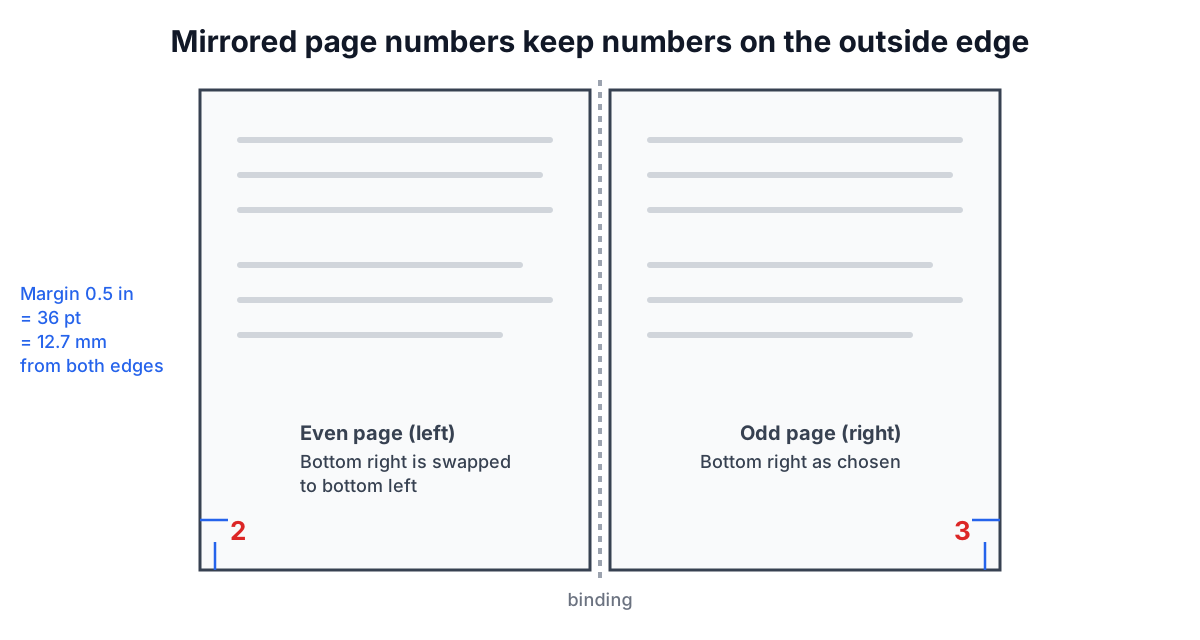
Margin is measured from the page edge to the number. The default is 0.5 in, which is 36 points or 12.7 mm. For a bottom position the text baseline sits that far above the bottom edge; for a top position the top of the capital letters sits that far below the top edge. Many desktop printers leave a narrow unprintable strip, often a few millimetres, around the paper edge, so stay at 0.3 in or more if the file will be printed. If the document already has a footer at the bottom, move the numbers to the top or increase the margin until the preview shows no overlap.
Mirroring swaps left and right on even pages, so that in a double-sided print every number sits on the outside edge, away from the binding. Choose bottom right with mirroring on, and page 1 (a right-hand page in a bound document) has its number on the right while page 2 has it on the left.
Formats
| Format | Page 3 of a 12-page run looks like | Typical use |
|---|---|---|
| 1 | 3 | Books, manuals, anything with a table of contents |
| Page 1 | Page 3 | Letters and forms |
| Page 1 of 10 | Page 3 of 12 | Contracts, policies, faxed or emailed documents |
| 1 of 10 | 3 of 12 | Compact version of the above |
| 1 / 10 | 3 / 12 | Slides and handouts |
| - 1 - | - 3 - | Traditional typeset style |
| i, ii, iii | iii | Front matter: preface, contents |
| I, II, III | III | Appendices, legal schedules |
| Bates | ACME000003 | Legal discovery and productions |
"Page X of Y" is worth using for anything that may be printed and separated, because a reader can tell at once whether a page is missing. In the tool, Y is the last number printed, not necessarily the number of pages in the file. That matters when you skip a cover: a 10-page file numbered from page 2 shows "Page 1 of 9" on page 2 and "Page 9 of 9" on page 10, which is what a reader expects.
Any format can take text before and after the number, such as "Exhibit A, page " before or " (draft)" after. As with every tool that uses the standard PDF fonts, the text must be Latin script (WinAnsiEncoding, ISO 32000-1 Annex D); the tool flags characters it cannot draw.
Starting number, page range and skipped pages
Three settings decide which page shows which number.
- Pages to number is a range such as 2- (from page 2 to the end) or 3-20. Pages outside it get no number.
- First number is what the first numbered page shows. It can be 0 or anything higher, which is handy when a file is part 2 of a larger set and should continue from 41.
- Count skipped pages controls gaps inside the range. With the range 1-3, 6-8 and the switch off, the numbers run on: 1, 2, 3, 4, 5, 6. With it on, the skipped pages 4 and 5 still advance the counter, so the pages show 1, 2, 3, 6, 7, 8. Use "on" when the skipped pages are inserts (fold-out maps, blank separators) that still count in the physical document.
Worked example: a 40-page report with a cover, three pages of front matter and 36 pages of body. Run the tool twice. First pass: pages 2-4, format i, ii, iii, first number 1. Download, open the result and run again: pages 5-, format "Page 1 of 10", first number 1. The body shows Page 1 of 36 to Page 36 of 36, and the cover stays clean.
The summary under the settings states the first and last label ("page 2 gets Page 1 of 9, page 10 gets Page 9 of 9"), and the preview shows the real output for any page, rendered from the same code that writes the file.
Bates numbering
Bates numbering gives every page in a legal case a unique, sequential identifier, usually a short prefix for the producing party followed by a zero-padded number: ACME000001, ACME000002 and so on. It takes its name from the Bates numbering machine, a hand stamp that printed a number and advanced it with each impression, used for decades before digital tools.
The purpose is unambiguous reference. In US civil litigation, documents are exchanged under Federal Rule of Civil Procedure 34, and electronically stored information is often produced as PDF or image files. A deposition can then refer to "ACME000417" and every lawyer, witness and judge finds the same page, no matter how the files are arranged. The numbers continue across documents, so each production picks up where the previous one ended.
Conventions to settle before numbering (check any agreed protocol or court order first):
| Choice | Common practice | In the tool |
|---|---|---|
| Prefix | Party or client abbreviation, sometimes with a volume | Text before, e.g. ACME or ACME-VOL2- |
| Digits | 6 to 8, enough for the whole case | Digits field, 1 to 12 (default 6) |
| Start | Continue from the last number produced | First number |
| Position | Bottom right, clear of text | Bottom right |
| Confidentiality legend | Separate stamp such as CONFIDENTIAL | Use the Watermark tool |
Worked example: the first production was ACME000001 to ACME000250. The next file, 80 pages, gets prefix ACME, 6 digits, first number 251: its pages run ACME000251 to ACME000330. Zero padding keeps the numbers the same length so they sort correctly in file lists and review software.
When several files form one production, either number each with the right starting value, or merge them first with Merge PDF and number once. Add any CONFIDENTIAL legend with Watermark PDF at the top or as a light diagonal so it does not collide with the Bates number.
Rotated pages and odd sizes
Page numbers have to land at the bottom of the page as the reader sees it. Many PDFs, especially scans, contain landscape pages stored as portrait pages with a /Rotate value of 90 or 270 (ISO 32000-1, section 7.7.3.3), and some have a CropBox that shows only part of the MediaBox. The tool calculates the position on the displayed page, then maps it back into the page's own coordinates and turns the text by the page rotation. The result is tested by reading the output back with pdf.js: on portrait, 90° and 270° pages alike, the number sits 36 points above the visible bottom edge and is centred horizontally. Mixed page sizes are fine too, because each page is measured on its own.
Tips
- Number last. Reorder, delete and merge pages first; numbering is the final step. If you need to change the order later, use Organize PDF Pages on the un-numbered original and number again.
- Size 9 to 11 pt is readable without competing with body text. Bates numbers are often 10 pt.
- Check the first and last page in the preview, especially the total in Page X of Y.
- The numbers are real text, so they are searchable and selectable. Nothing is uploaded; the file is processed in the browser.
Sources
- ISO 32000-1:2008, PDF 1.7. Section 7.7.3.3 (page objects, /Rotate, /CropBox), 9.6.2.2 (standard 14 fonts), 12.4.2 (page labels), Annex D (WinAnsiEncoding).
- ISO 32000-2:2020, PDF 2.0, corresponding sections.
- Federal Rules of Civil Procedure, Rule 34 (producing documents and electronically stored information), including Rule 34(b)(2)(E) on the form of production.
Related searches
- add page numbers to pdf
- page x of y pdf
- skip cover page numbering pdf
- bates numbering pdf
- what is bates numbering
- roman numeral page numbers front matter
- page numbers for double sided printing
- page number margin
- number pdf starting at 2