
Rotate, Flip and Straighten Photos Without Surprises
How EXIF orientation makes photos appear sideways, why 90° turns are exact but 3° turns resample, the maths of the canvas you need after rotating, and when mirroring a photo is wrong.
· 9 min read

Rotating a photo should be trivial, yet "my picture uploads sideways" is one of the most common image complaints on the web. The cause is a small piece of metadata, and once you know how it works the fix is easy. This guide covers that orientation tag, the difference between exact quarter turns and fractional straightening, the geometry of the canvas you need after rotating, and when to mirror rather than rotate. The Rotate and Flip Image tool applies everything described here, to one file or a whole batch.
Why photos appear sideways
A camera sensor is a fixed rectangle. When you hold a phone upright, the sensor is still read out in its landscape orientation. Rather than rearranging millions of pixels, most cameras store them as captured and write an Orientation tag into the Exif metadata saying how the viewer should turn them.
The tag (number 274, or 0x0112) is defined in the Exif standard maintained by CIPA and JEITA. It has eight values:
| Value | Meaning for the viewer |
|---|---|
| 1 | Show as stored |
| 2 | Mirror horizontally |
| 3 | Rotate 180° |
| 4 | Mirror vertically |
| 5 | Mirror horizontally, then rotate 270° clockwise |
| 6 | Rotate 90° clockwise |
| 7 | Mirror horizontally, then rotate 90° clockwise |
| 8 | Rotate 270° clockwise (90° anticlockwise) |
Values 6 and 8 are the common ones for portrait phone photos. A viewer that reads the tag shows the photo upright; one that ignores it shows the raw sideways pixels. Browsers apply the tag by default since the CSS image-orientation: from-image behaviour became standard around 2020, which is why the same file can look right in a browser tab and wrong in an older desktop program, a PDF tool or an upload form that strips metadata before displaying.
The reliable fix is to bake the orientation into the pixels. When the Rotate and Flip Image tool decodes a photo, the browser has already applied the tag, so you see it upright. Any turn you add is on top of that, and the saved file contains upright pixels and no orientation tag at all, so every program shows it the same way.
Quarter turns are exact
Rotating by 90°, 180° or 270° moves each pixel to a new position without changing its value. For a clockwise 90° turn of a W x H image, the pixel at column x and row y lands at column H - 1 - y and row x, and the output is H x W. No interpolation happens and no detail is lost.
That is why the tool reports "exact quarter turn, no resampling" for these angles. The only way to lose quality is the encoder: saving as JPEG or WebP re-compresses the image. Save as PNG when you need a pixel-perfect copy.
Straightening by a few degrees
A crooked horizon or a photographed document might need 1.5° or -2.3°. At those angles, output pixels fall between source pixels, so the browser interpolates: each new pixel is a weighted blend of its neighbours. This softens very fine detail slightly. It is unavoidable, so use the smallest correction that looks level.
Positive angles in the tool turn clockwise, and the slider moves in 0.5° steps; type an exact value for finer control. A good method is to find a line that should be horizontal (the horizon, a table edge, a line of text) and adjust until it runs parallel to the frame.
What happens to the corners
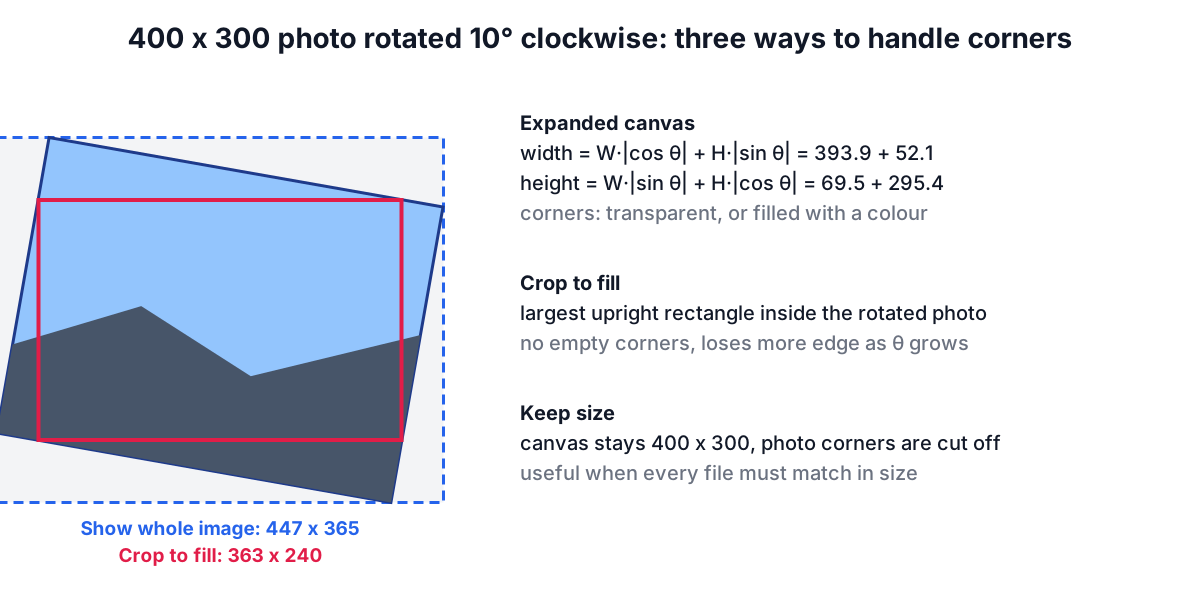
Rotating a rectangle by any angle that is not a multiple of 90° makes its corners stick out. You have three choices, and the tool offers all of them.
Show whole image. The canvas grows to fit the rotated picture. For an angle θ the new size is
- width = W·|cos θ| + H·|sin θ|
- height = W·|sin θ| + H·|cos θ|
A 400 x 300 image at 10° needs 447 x 365 pixels; at 30° it needs 497 x 460, and a 100 x 100 square at 45° needs 142 x 142. The four triangles in the corners are filled with transparency (PNG or WebP) or a colour of your choice. JPEG cannot store transparency, so the tool fills them white.
Crop to fill. The output is the largest upright rectangle that lies entirely inside the rotated photo, so there are no empty corners. There is a closed-form solution for the maximum-area rectangle: for the 400 x 300 image at 10° it is 363 x 240, and for a square at 45° it is the side divided by √2, about 70.7% of the width. The tool's tests check, for many sizes and angles, that the corners of this rectangle really fall inside the rotated image.
Keep size. The canvas stays at the original dimensions and the rotated photo is centred in it. The corners of the photo are cut off and small empty triangles appear at the edges. This is handy when every image in a set must keep the same dimensions.
| 400 x 300 at | Show whole image | Crop to fill |
|---|---|---|
| 2° | 411 x 314 | 390 x 286 |
| 10° | 447 x 365 | 363 x 240 |
| 30° | 497 x 460 | 300 x 173 |
| 45° | 495 x 495 | 212 x 212 |
The table makes the trade-off clear: a small correction costs little, while large angles leave very little of the frame after cropping.
Flip or rotate?
A horizontal flip (mirror) swaps left and right. A vertical flip swaps top and bottom. A 180° rotation is the same as doing both flips, but a single flip produces something no rotation can: a mirror image, in which text reads backwards.
That makes the choice easy:
- The photo is upside down but text reads correctly once you turn your head: rotate 180°.
- Text in the photo reads backwards: mirror (horizontal flip). Front-facing phone cameras and many webcams mirror the preview, and some save the mirrored version, so a T-shirt slogan or a whiteboard in a selfie comes out reversed.
- You want a product or person to face into the page in a layout: mirror, but check for text, logos, watches and buttons on shirts (which sit on different sides for men's and women's garments), since they give the flip away.
The tool applies flips before rotation: Mirror plus Right 90° mirrors the original and then turns the result clockwise.
Batch rotation
When you load several files, every one gets the same angle, flips and corner handling. That suits a folder of scans that all came out sideways, or product shots from a camera mounted at a slight tilt. The preview shows one image at a time; pick another from the list to check it. Download all encodes each picture and packs them into one ZIP archive, with file names such as photo_rot90.png or scan_rotm2.5_fliph.jpg so you can tell what was done.
If some images need a different correction, remove them from the list, process the rest, then load the others separately.
Worked example
You scanned twelve receipts on a phone app and they all came out turned 90° anticlockwise, and two are also tilted.
- Load all twelve in Rotate and Flip Image. Press Right 90°. Every receipt is now upright and the result panel shows width and height swapped.
- Choose PNG to keep the text crisp, then Download all.
- Load the two tilted ones again. Type 91.5 in the exact angle field (the 90° turn plus 1.5° of straightening) and choose Crop to fill so no white corners appear.
- If the files are large, shrink them with the Image Resizer or convert them into one PDF with Image to PDF.
Privacy note
The rotated file is created from pixels on a canvas, so it does not carry the original Exif block: no GPS position, camera serial or timestamps. To see what a photo contains before or after, open it in the Image Metadata Viewer. For cropping after a rotation, the Crop Image tool and the guide on cropping for social media pick up where this leaves off.
Sources
- CIPA DC-008 / JEITA CP-3451, Exchangeable image file format (Exif), Orientation tag 0x0112.
- W3C CSS Images Module Level 3,
image-orientationproperty; WHATWG HTML canvasdrawImageand transformation matrix. - Maximal-area rectangle inscribed in a rotated rectangle: standard closed-form result, verified numerically in the tool's tests.
Related searches
- why is my photo sideways after upload
- exif orientation tag explained
- straighten a crooked horizon
- rotate image by any angle
- flip vs rotate 180 degrees
- mirror selfie text backwards
- rotate many images at once
- crop after rotating to remove corners