
Recording Your Screen as a GIF in the Browser: Permissions, Limits and Size
How getDisplayMedia works, why the browser asks every time, which browsers support it, and how to keep a screen-recorded GIF small enough to share.
· 7 min read
A bug report that says "the dropdown flickers when you tab out of the field" gets a shrug. The same report with a six-second loop of the flicker gets fixed. GIF is still the format that plays inline in GitHub issues, Jira tickets, Slack threads and README files without anyone pressing play, which is why recording a short GIF of the screen is such a common chore. You no longer need to install anything to do it: every desktop browser can capture the screen through a standard API.
This guide explains how that API works, why the browser keeps asking for permission, which browsers support it, and how to keep the resulting GIF small enough to attach.
How a web page records the screen
Browsers expose screen capture through the Screen Capture API, one function call:
const stream = await navigator.mediaDevices.getDisplayMedia({
  video: { width: { ideal: 1920 }, height: { ideal: 1080 } },
  audio: false,
});
That call opens the browser's own share dialog. The page cannot see your screens or windows before you choose; it gets back a MediaStream only after you pick a screen, a window or (in Chromium browsers) a single tab and click Share. From there a recorder draws the stream into a hidden video element, copies frames onto a canvas at a fixed interval, and later encodes those frames as a GIF.
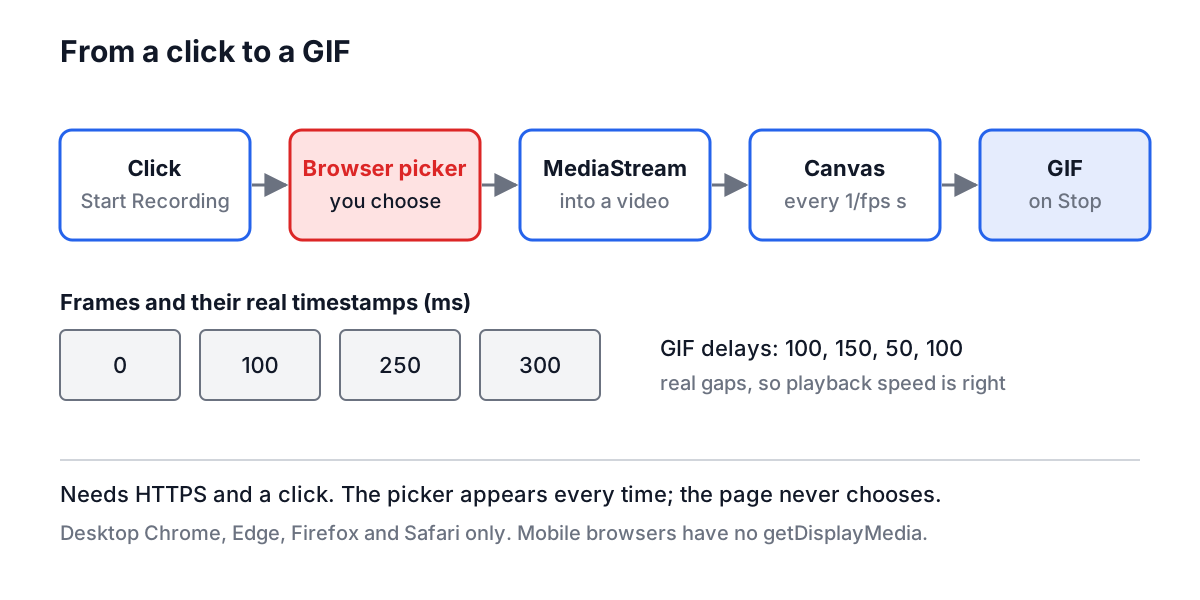
Screen Capture to GIF follows exactly that path. Frames are stored as PNG images in memory while you record, and each one is stamped with the time it was really taken. When you stop, the frames go to a GIF encoder running in a background worker, and nothing leaves your machine.
The permission rules, and why they exist
Screen capture can expose passwords, private messages and anything else on your display, so browsers wrap it in rules a page cannot get around:
- HTTPS only. The API is not available on plain HTTP pages, apart from localhost during development.
- A click starts it. The call must come from a user action such as pressing a button. A page cannot start recording on load or on a timer.
- The picker appears every time. There is no "always allow" for screen capture, unlike camera or microphone permissions. Each recording starts with a fresh choice.
- You choose, not the page. The page can suggest a preference but cannot pre-select a window or hide options.
- The browser shows that sharing is active. A banner or icon stays visible with a Stop sharing button, and stopping from there ends the stream.
macOS adds one more layer. Since macOS 10.15 Catalina, every app that captures the screen needs Screen Recording permission in System Settings, under Privacy and Security. If the share dialog fails at once or shares a blank image, that permission is usually missing, and the browser needs a restart after you grant it.
Browser support
| Browser | Supported since | What you can share |
|---|---|---|
| Chrome, Edge, Opera (desktop) | Chrome 72 (2019) | Screen, window or tab |
| Firefox (desktop) | 66 (2019) | Screen or window |
| Safari (macOS) | 13 (2019) | Screen or window |
| Any mobile browser | Not available | Nothing |
The mobile row surprises people. Neither iOS Safari nor Chrome on Android implements getDisplayMedia, so a web recorder cannot work on phones and tablets. Use the phone's built-in screen recorder there. Screen Capture to GIF checks for the API before showing its Start Recording button and explains what is missing instead of failing with a vague error.
A worked example
You want a short loop of a new settings panel for a pull request.
- Open the page you want to record in its own browser window, sized to about 1280 x 720. In the tool you can type the URL and click Open in New Window.
- In Adjust Settings, set Frames Per Second to 10, Max Duration to 15 seconds, and Frame Type to Browser Window if you want a window frame drawn around the result.
- Click Start Recording, pick that window in the dialog, and click Share.
- Click through the panel slowly. Pause if you need to set something up; paused time is cut from the GIF.
- Click Stop. The tool converts the frames and shows the GIF with a Download button.
At 10 frames per second for 12 seconds of actual recording, that is about 120 frames. If your laptop could only capture 8 frames a second while also running the app, the tool uses the real gaps between frames as the GIF delays, so the loop still lasts 12 seconds instead of playing back too fast.
Why screen GIFs get big, and how to shrink them
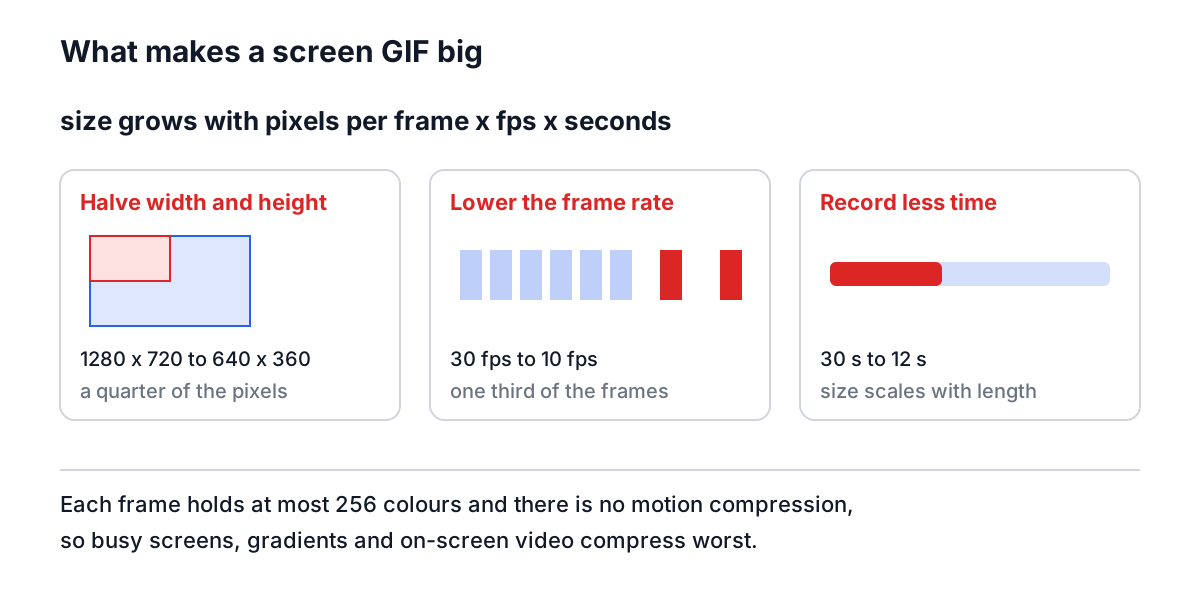
GIF compresses each frame with LZW, an algorithm from 1984, and stores at most 256 colours per frame. It has no motion compensation, the trick that lets video formats store only what changed between frames. Some quick arithmetic shows the scale of the problem: a 1280 x 720 frame is 921,600 pixels, and 120 frames is about 110 million palette entries before compression. LZW does well on flat UI, but a busy screen or a video playing in the corner defeats it.
The levers, in order of impact:
- Capture less area. Share one window or tab instead of a whole 4K screen. Halving width and height cuts pixels to a quarter.
- Lower the frame rate. UI demos look fine at 8 to 12 frames per second. Going from 30 to 10 cuts the frame count by two thirds.
- Keep it short. Record the one interaction that matters, not the setup around it. Use Pause.
- Avoid photos and video on screen. Gradients and moving footage use the whole palette and compress badly.
- Skip decorative frames when size matters. A browser or device skin adds pixels to every frame.
The Colour sampling setting controls how carefully the encoder chooses each frame's 256 colours: 1 is best and slowest, 30 is fastest. It affects quality and encoding time much more than file size.
If the result is still several megabytes, a GIF may be the wrong format. An MP4 or WebM of the same clip is typically far smaller and most issue trackers play it inline. Keep GIF for loops of a few seconds that must autoplay everywhere.
Common problems
The share dialog never appears. The page is not on HTTPS, or the recording was not started by a click. Some browser extensions also block it.
The recording is black or empty. On macOS, grant Screen Recording permission and restart the browser. Some apps with protected video (streaming services) are blacked out on purpose.
The embedded preview is blank. Many sites forbid being shown inside another page with X-Frame-Options or a Content Security Policy frame-ancestors rule. Open the site in its own window and record that window instead.
The GIF plays too fast. Older recorders assume every frame was captured exactly on schedule. Ones that use real timestamps, as this tool does, avoid that.
There is no sound. GIF has no audio track. Use a video recorder when narration matters.
For still steps rather than live motion, it is often clearer to take four or five screenshots and turn them into a GIF with the GIF Creator, which adds per-frame timing and transitions; the GIF Creator guide walks through that workflow. Resizing screenshots first with the Image Resizer keeps those GIFs small too, and the image formats guide covers when an animated WebP or video beats GIF.
Record the smallest window that shows the problem, at 10 frames per second, for as few seconds as it takes. That habit alone keeps most screen GIFs under a couple of megabytes.