
JPEG, PNG, WebP, AVIF and JPEG XL: What Each Image Format Is For
How each image format compresses, what it supports (alpha, animation, HDR), where it displays today, and when converting to WebP is worth it.
· 7 min read
Take one screenshot of a code editor and save it four ways. As a PNG it might be 180 KB and pixel-perfect. As a JPEG at quality 70 it might drop to 90 KB, with grey halos around every character. Take a phone photo of a street and the result flips: the PNG is several megabytes and the JPEG a few hundred kilobytes that look the same. Neither format is better. They are built for different kinds of pictures, and the newer formats, WebP, AVIF and JPEG XL, are attempts to be good at both.
This guide explains how each format compresses, what each one supports, where each one displays today, and when converting existing images to WebP is worth the effort.
Two ways to make an image smaller
Every raster format is a grid of pixels plus a strategy for storing that grid in fewer bytes. There are two families of strategy.
Lossless formats store the exact pixels. PNG, standardised by the W3C in 1996, runs a simple predictor on each row (for example "this pixel minus the one to its left") and compresses the result with DEFLATE, the algorithm inside zip files. Flat areas and repeated patterns produce long runs of zeros, which compress to almost nothing. Camera noise produces random differences, which barely compress at all.
Lossy formats decide which detail you will not miss and throw it away. JPEG (ITU T.81, 1992) converts the image to one brightness channel and two colour channels, usually stores the colour channels at half resolution, cuts the picture into 8 x 8 blocks, turns each block into frequencies with a discrete cosine transform, and rounds the high frequencies coarsely. The quality setting controls how coarse that rounding is. Photos survive it well. Sharp edges do not, which is where the ringing around text comes from.
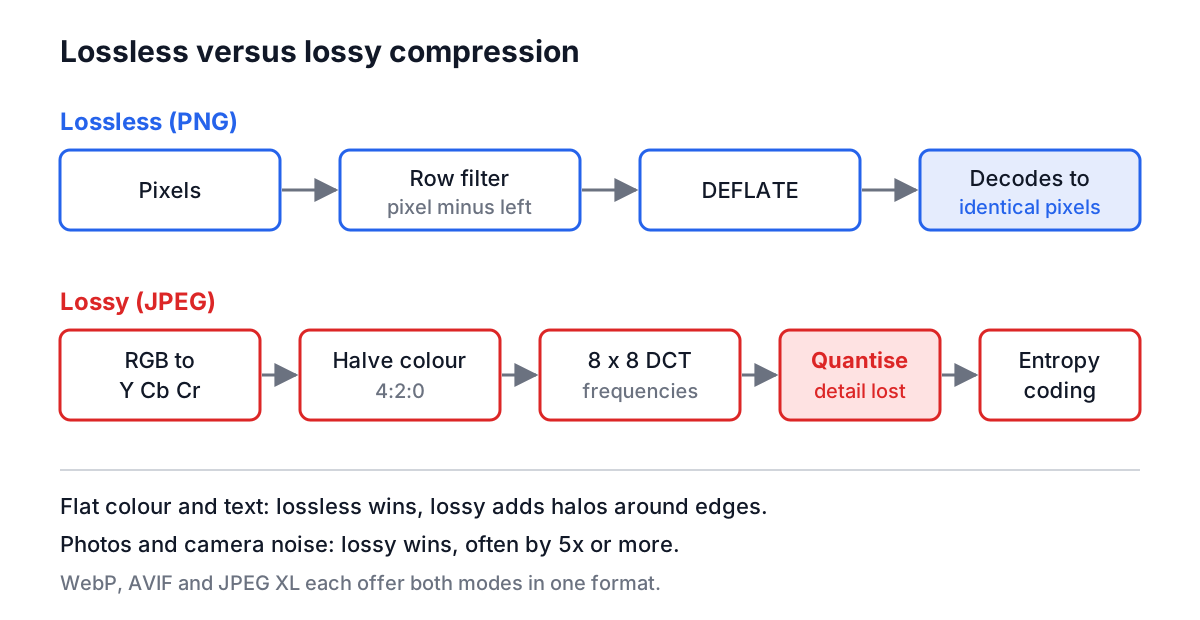
The newer formats use both strategies. WebP, AVIF and JPEG XL each have a lossy mode and a lossless mode in one format, plus transparency, so you no longer have to choose between "small" and "has alpha".
What each format supports
| Format | Year | Compression | Alpha | Animation | Displays in |
|---|---|---|---|---|---|
| GIF | 1987/89 | Lossless, 256 colours | 1-bit | Yes | Everywhere |
| JPEG | 1992 | Lossy | No | No | Everywhere |
| PNG | 1996 | Lossless | Full | Yes (APNG) | Everywhere |
| WebP | 2010 | Both | Full | Yes | All current browsers; Safari since 14 |
| AVIF | 2019 | Both | Full | Yes | Chrome, Edge, Firefox, Safari 16+ |
| JPEG XL | 2022 | Both | Full | Yes | Safari 17+; Chromium and Firefox have changed course several times |
| SVG | 2001 | Vector (text) | Yes | Yes | Everywhere |
A few rows need explanation. GIF's "lossless" only applies if your image already has 256 colours or fewer; anything richer is reduced to a palette first, which is why photos in GIF look posterised. Animated PNG (APNG) started as a Mozilla extension and is now part of the PNG specification's third edition, published in 2025. AVIF is a still-image wrapper around the AV1 video codec from the Alliance for Open Media, and supports 10- and 12-bit colour for HDR. JPEG XL (ISO/IEC 18181) has a party trick no other format has: it can repack an existing JPEG losslessly about 20% smaller and give back the original JPEG bytes on demand.
Browser support for JPEG XL is the least settled fact in the table. Chrome shipped an experimental decoder and removed it in version 110 in 2023, then Chromium signalled in late 2025 that it would accept a new implementation. Check current data on caniuse.com before you serve it, and always provide a fallback.
Measuring instead of guessing
Format advice is full of numbers like "WebP is 25 to 34% smaller than JPEG". Those come from specific test sets and encoder settings. Your images and your encoder will give different numbers, so measure.
The Image Format Comparison encodes one image as PNG, JPEG at quality 90 and 70, and WebP at quality 80, using your browser's own encoders, and reports the exact byte size of each against the original file. A typical run on a 1600 x 1067 photo looks like this:
| Output | Result |
|---|---|
| PNG | Several times larger than the original JPEG |
| JPEG 90 | Close to the original |
| JPEG 70 | Clearly smaller, still clean at normal zoom |
| WebP 80 | Usually the smallest, similar look to JPEG 90 |
Run the same comparison on a screenshot of a settings page and PNG often wins or comes close, while the lossy outputs show blurred edges in the Visual Comparison tabs. That flip is the whole lesson: decide by content type, then confirm with your own file.
The tool can only measure what a canvas can export, which means PNG, JPEG and (outside older Safari) WebP. No mainstream browser exports AVIF or JPEG XL from a canvas, so for those use a command-line encoder such as avifenc or cjxl, or an app like Squoosh.
Converting to WebP: when it pays off
WebP is the practical default for web images today: every current browser displays it, it has alpha and animation, and its lossy mode generally beats JPEG on photos. Converting is worth it when:
- You serve many photos and your CMS or image CDN does not already convert them on the fly.
- You have large transparent PNG illustrations. Lossy WebP with alpha is often a fraction of the PNG size.
- You want to strip metadata. Re-encoding writes pixels only, so EXIF and GPS data go away.
It is not worth it, or needs care, when:
- The image is a small, already optimised PNG of flat graphics. WebP can come out bigger.
- The image has small coloured text. Lossy WebP always halves colour resolution (4:2:0), which smears thin red and blue strokes.
- Your source is already a heavily compressed JPEG. You keep all of its artefacts and add a second round of loss.
The Image to WebP Converter converts one image with a quality slider and shows the real size change, including when the file grows. Start at quality 80 for photos, look at the preview at full size, and adjust. If your browser cannot encode WebP from a canvas, the tool says so instead of saving a PNG with a .webp name.
Serving modern formats with a fallback
If you need to support something that cannot show your preferred format, let the browser choose:
<picture>
  <source srcset="/hero.avif" type="image/avif">
  <source srcset="/hero.webp" type="image/webp">
  <img src="/hero.jpg" width="1600" height="1067" alt="Street at dusk">
</picture>
The browser takes the first source whose type it supports and falls back to the img. Keep width and height on the img so the layout does not jump while the image loads.
Common mistakes
Converting JPEG to PNG to "improve quality". Lossless storage of a lossy image keeps every artefact and makes the file bigger.
Comparing at a zoomed-out preview. Artefacts hide at 25% zoom. Look at 100%, on the areas that matter: faces, text, gradients in skies.
Using one quality number across formats. JPEG 80, WebP 80 and AVIF 80 are not the same quality. Each encoder maps the number differently.
Shipping 4000 px images to 800 px slots. Format choice saves tens of percent; resizing often saves 90%. Resize first, as the image optimisation guide explains, then compress with the Image Compressor.
Forgetting about metadata. Photos can carry GPS coordinates. The EXIF metadata guide shows what is in there and why canvas-based tools drop it.
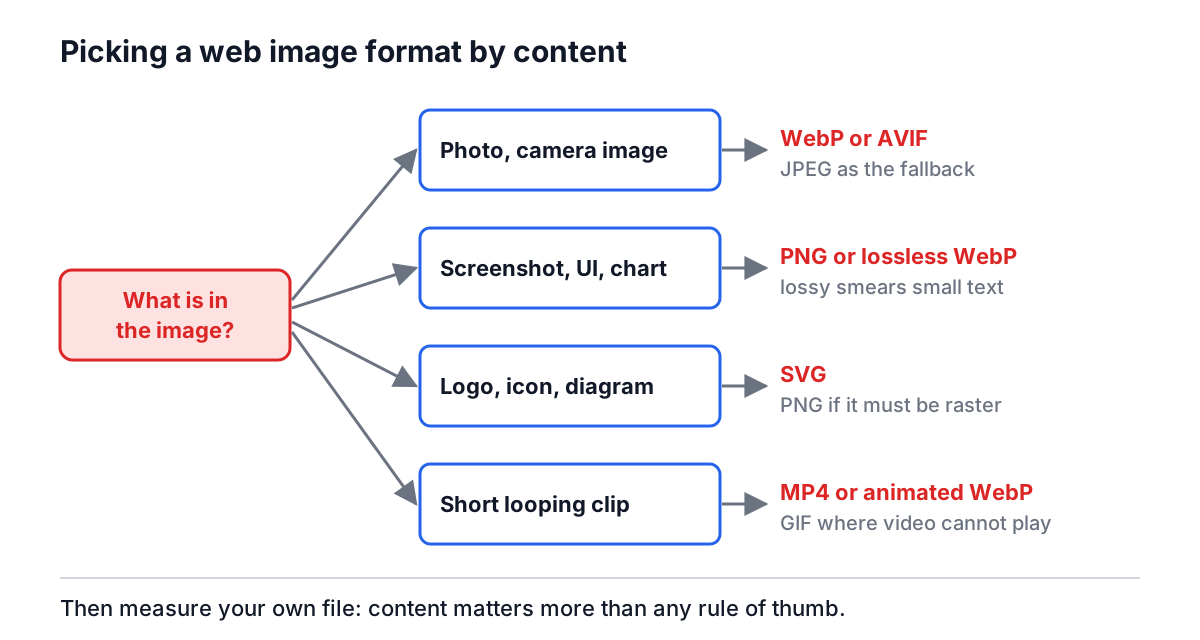
For most sites the working rule is simple: photos as WebP (with AVIF if your pipeline can make it), screenshots and flat graphics as PNG or lossless WebP, logos as SVG, and a quick measurement on your own image whenever the rule feels wrong.