
XLSX vs XLS vs ODS vs CSV: Choosing and Converting Spreadsheet Formats
How XLSX, XLS, ODS, CSV and TSV differ, why Excel mangles CSV files (encodings, semicolons, leading zeros, dates), and how to convert without losing data.
· 8 min read
A customer list goes out as CSV, someone double-clicks it in Excel, saves it, and sends it back. The ZIP codes in New England have lost their leading zeros, every accented surname reads like "Müller", the order IDs end in 000, and a product code called MARCH1 is now a date. Nobody edited those cells. Excel guessed, and the guesses were saved.
Spreadsheet formats differ far more than their shared grid suggests. This guide covers what XLSX, XLS, ODS, CSV and TSV can store, where Excel's CSV handling goes wrong, and how to convert between them with the Spreadsheet Converter without losing data.
Workbook formats: XLSX, XLS and ODS
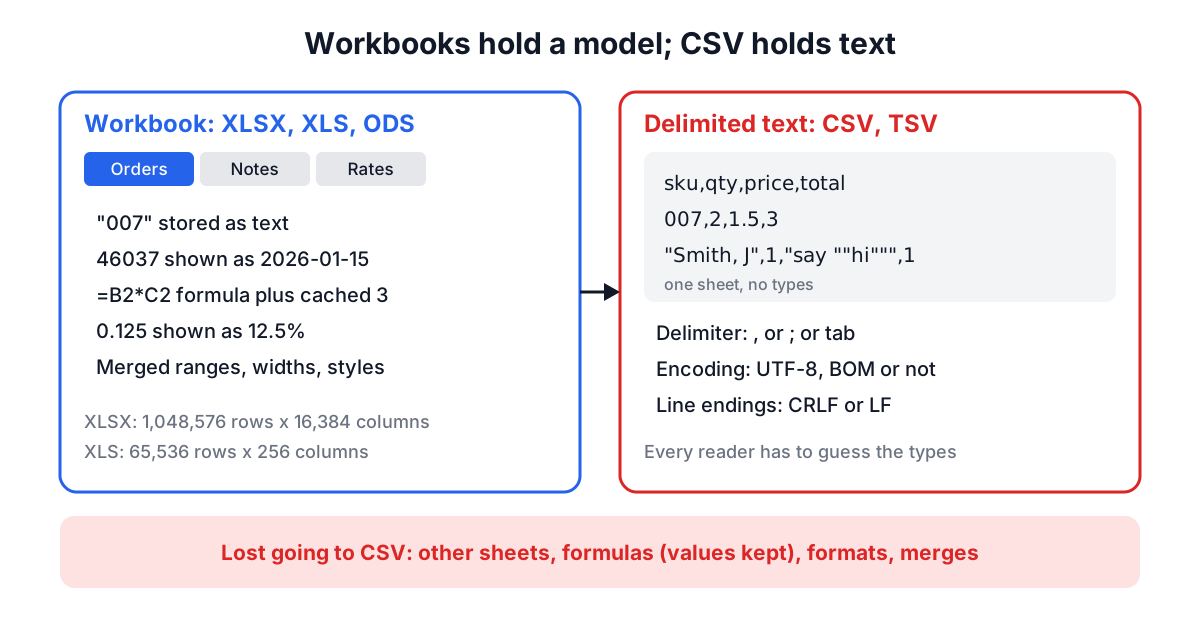
XLSX is the Office Open XML spreadsheet format introduced with Excel 2007. Like DOCX, it is a ZIP archive of XML parts: xl/workbook.xml lists the sheets, each sheet is an XML file of cells, shared strings live in one table, and styles (including number formats) are referenced by index. A sheet holds up to 1,048,576 rows and 16,384 columns.
XLS is the binary BIFF8 format used by Excel 97 to 2003. It stores the same concepts (sheets, cells, formulas, formats) in a Compound File, with a limit of 65,536 rows and 256 columns per sheet. It is still common in legacy exports and government data portals.
ODS is the OpenDocument spreadsheet format, native to LibreOffice Calc and an ISO standard (ISO/IEC 26300). Excel and Google Sheets both open and save it.
All three are workbooks: several sheets, typed cells, formulas with cached results, number formats, merged ranges, column widths, comments and charts. Converting between them keeps the data model, but each application writes its own extras. The Spreadsheet Converter, built on the SheetJS library, carries values, formulas, merged cells and sheet names between XLSX and ODS, and number formats when writing XLSX or XLS. It does not carry fonts, fills, borders, conditional formatting, charts or images; ODS output also drops number formats, so dates show as day numbers until the column is formatted again; and when writing .xls it stores calculated values rather than formulas.
CSV and TSV are only text
CSV has no types, no formulas, no formats and exactly one sheet. RFC 4180 (2005) is the closest thing to a specification:
- Records end with CRLF.
- Fields are separated by commas.
- A field containing a comma, a double quote or a line break is wrapped in double quotes.
- A double quote inside a quoted field is written twice.
id,name,note
1,"Smith, Jane","Said ""hello"""
2,Lee,"Two
lines"
TSV, registered with IANA as text/tab-separated-values, uses tabs instead of commas. In its strict IANA definition there is no quoting at all, so a field simply cannot contain a tab or a newline. That makes TSV easy to parse with split('\t'), and it is why many databases and bioinformatics tools prefer it. In practice, tools such as Excel and Python's csv module still apply CSV-style quoting to TSV when a field needs it.
Because the text carries no types, every program that opens a CSV has to guess what each field is. That guessing is where data gets damaged.
Excel's CSV quirks
Encoding. Excel on Windows opens a CSV without a byte order mark using the system's legacy code page (Windows-1252 in Western Europe and the Americas). A UTF-8 file therefore shows "café" as "café". The fix is to write UTF-8 with a BOM, the three bytes EF BB BF at the start of the file, which Excel uses to detect UTF-8. UTF-16 LE with a BOM also works and is a common choice for TSV. The Spreadsheet Converter writes UTF-8 with a BOM by default and offers both alternatives.
Delimiters and regions. Excel uses the list separator from the operating system's region settings. Where the comma is the decimal separator (Germany, France, Brazil and much of Europe), that separator is a semicolon, so Excel there saves "CSV" files with semicolons and opens comma files as a single column. When producing a file for those users, choose the semicolon. When reading their files, let the converter detect it. Excel also recognises a first line of sep=;, but other tools treat that line as data, so it is better avoided.
Leading zeros. A field such as 00123 is read as the number 123. ZIP codes, phone numbers, product codes and employee IDs all suffer.
Long numbers. Excel stores numbers as 64-bit floating point and shows 15 significant digits. A 16-digit card number or an 18-digit order ID becomes 1.23457E+17, and saving writes the rounded value back.
Dates. Text that looks date-like (1-2, 3/4, MARCH1, SEPT2) is converted to a date using the regional day-month order. This was common enough in genetics that the HUGO Gene Nomenclature Committee renamed genes such as SEPT1 and MARCH1 in 2020 to stop it.
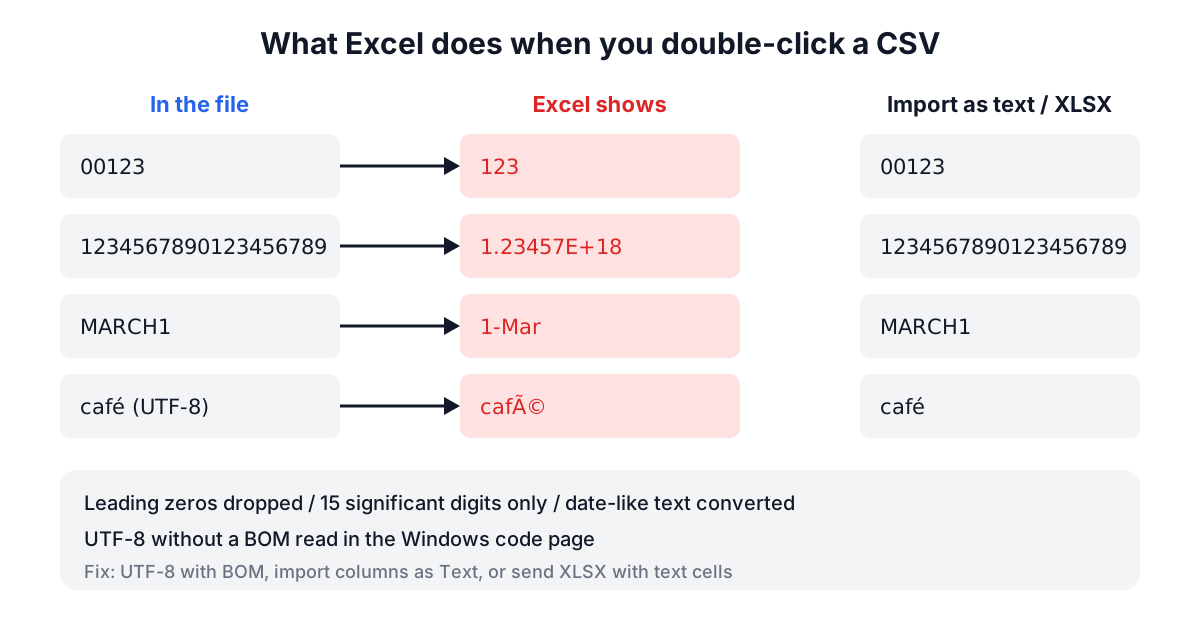
The safe ways around all four are the same: import through Excel's Data > From Text/CSV and set the sensitive columns to Text, or convert the CSV to XLSX with a tool that does not guess. The Spreadsheet Converter only turns a field into a number when that loses nothing: no leading zero, no leading plus sign, at most 15 significant digits. Everything else stays text, and dates are never inferred from text.
Dates and numbers in workbooks
Inside a workbook, a date is a number with a date format. Excel counts days from the start of 1900 (with the famous fake 29 February 1900 kept for Lotus 1-2-3 compatibility), so 15 January 2026 is stored as 46037. Workbooks from early Mac Excel count from 1904 instead. Times are fractions of a day.
That affects exports. Writing a date cell's raw value to CSV gives 46037, which is meaningless outside Excel. The Spreadsheet Converter always writes date cells as they are displayed, and lets you choose for other numbers:
| Cell shows | Raw value | "As displayed" | "Raw values" |
|---|---|---|---|
| 12.5% | 0.125 | 12.5% | 0.125 |
| 1,200.00 | 1200 | 1,200.00 | 1200 |
| 2026-01-15 | 46037 | 2026-01-15 | 2026-01-15 |
Use "as displayed" for files people will read and "raw values" for files a program will parse. For JSON output with typed values and ISO dates, the Excel to JSON Converter goes further, and the CSV to JSON Converter handles the reverse direction for APIs. The Excel to JSON guide covers the date serial details.
Converting without losing data
A short checklist for each direction:
- Workbook to CSV or TSV: export one sheet at a time, and remember formulas become their last saved values. If the workbook was edited in a tool that does not recalculate, those values may be stale; open and save it in Excel or Calc first.
- CSV to workbook: check the detected delimiter and encoding in the preview before converting. If columns look merged or split, the delimiter is wrong; if accents look broken, the encoding is.
- Anything to XLS: check the row count. Over 65,536 rows will not fit, and formulas are stored as values.
- XLSX to ODS and back: values, formulas and merged cells survive; reapply date and percentage formats in the ODS, and review fonts and colours afterwards.
- Sharing a CSV: state the delimiter, the encoding and the line ending in your hand-off note. Most broken CSV exchanges come down to one of those three.
Which format to use
Keep working files in XLSX or ODS so types, formulas and formatting stay intact. Use CSV for exchange with databases, scripts and other systems, with UTF-8 and a header row, and TSV when fields contain commas and never contain tabs. Reach for XLS only when a legacy system demands it. And when a CSV has to be opened in Excel by someone else, send an XLSX instead: it is the only way to be sure that what they see is what you sent.