
Standups, Retrospectives and Project Dashboards: Running the Scrum Ceremonies
How to keep a daily standup inside 15 minutes, run Start/Stop/Continue or 4Ls on a three-column retro board, and read a project dashboard's progress numbers honestly.
· 8 min read
Six engineers, two minutes each, and the standup still runs 25 minutes. Speaking time is rarely the problem. The overrun comes from the conversations that start halfway through someone's update: a bug that needs three people, a design question, a dependency nobody owns. The fix is old and boring. Put a clock on each speaker, write down every side topic, and deal with those topics after everyone has spoken.
This guide covers three small tools built around that idea: the Daily Standup Timer for the daily meeting, the Sprint Retrospective Board for the end of the sprint, and the Project Dashboard Generator for the status view between them. Each one is described as it actually works, limits included.
What the Scrum Guide asks for
The Scrum Guide is short, and it is more flexible than many teams think. Three points matter here.
- The Daily Scrum is timeboxed to 15 minutes. That is the whole meeting, not a target for each person.
- The three questions are no longer required. "What did I do yesterday, what will I do today, what is blocking me" was the suggested format for years. The 2020 revision of the Scrum Guide dropped it. The team can use any structure that helps it inspect progress toward the Sprint Goal.
- The Sprint Retrospective is timeboxed to at most three hours for a one-month sprint, and is usually shorter for shorter sprints. Its purpose is to plan ways to improve quality and effectiveness.
For retrospectives, many facilitators also open with Norm Kerth's Prime Directive from his 2001 book Project Retrospectives: "Regardless of what we discover, we understand and truly believe that everyone did the best job they could, given what they knew at the time, their skills and abilities, the resources available, and the situation at hand." It moves the discussion from who to what.
Running the daily standup with a timer
The Daily Standup Timer runs one meeting in four phases: setup, speakers, parking lot and summary.
Setup. Type an optional team name, set Time Per Team Member in seconds (120 by default), and add each person. Every member gets their own time slot, so you can give the person coming back from leave three minutes and everyone else ninety seconds. Parking lot topics you already know about can be added here too.
Speakers. Start Standup shuffles the order randomly. A fixed order means the same person always waits through everyone else, and people stop listening once they have spoken. The current speaker's countdown starts at their slot. When it reaches zero it does not stop: it keeps counting into overtime, so you can see that someone is 40 seconds over instead of only knowing they are "over". There is a pause button for interruptions, Next Member to move on, and on the last speaker the button changes to Start Post Scrum.
Parking lot. While people speak, anyone can add a topic to the parking lot, tagged with the team member who raised it. This is the most useful habit in the tool. When a side conversation starts, the facilitator says "parking lot" and types one line, and the update carries on.
Summary. After the parking lot discussion, the tool shows how long each person actually spoke and lets you download a Markdown summary named standup-summary-YYYY-MM-DD.md, with participants and their times, parking lot topics marked done or not, and your notes.
Two limits are worth knowing before you rely on it. Nothing is saved between visits: close the tab and the meeting is gone, so download the summary first. Share Config copies a link containing the team name, the members and the default time slot, which is handy for bookmarking your team setup, but parking lot items are not part of that link.
Worked example: does the timebox fit?
A team of six with the default slot:
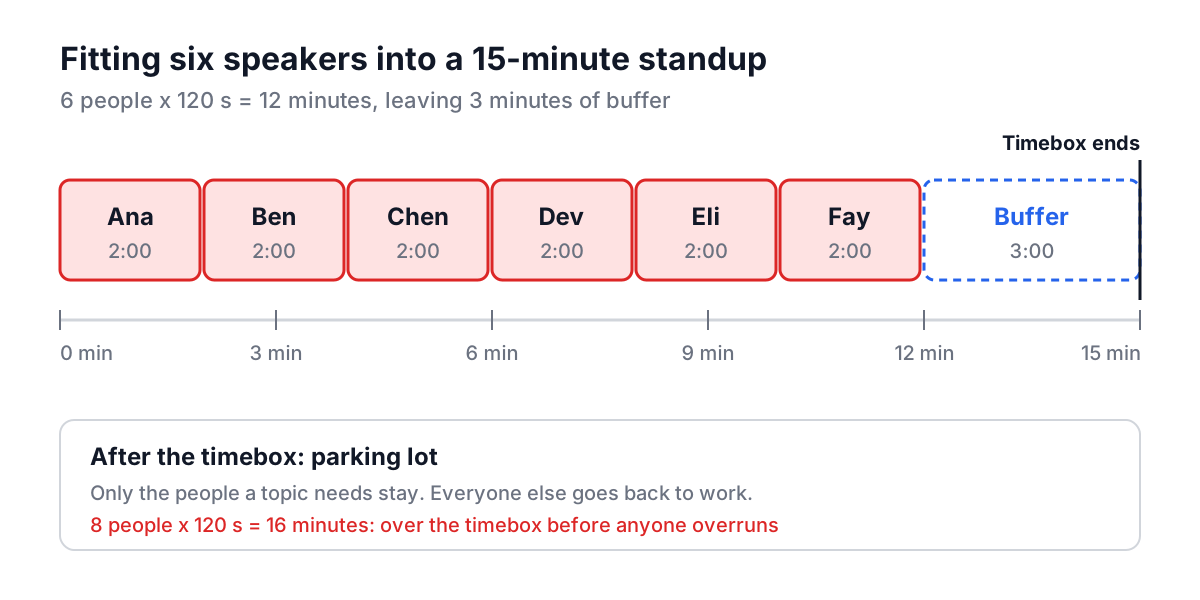
6 people x 120 s = 720 s = 12 minutes
15-minute Daily Scrum - 12 minutes = 3 minutes left
Three minutes is not enough to resolve parking lot topics in the same meeting, and that is fine. The Scrum Guide's 15 minutes is for the Daily Scrum itself; the people who need a parking lot topic stay on afterwards, and everyone else leaves. With eight people the arithmetic is 16 minutes, already over the timebox before anyone overruns, so drop the slot to 90 seconds (12 minutes) or split the team.
Running a retrospective on a three-column board
The Sprint Retrospective Board has three fixed columns: What Went Well, What to Improve and Action Items. Add a team name and sprint number, add your team members (two placeholders, Team Member 1 and Team Member 2, are there to start), then add items by choosing a category, an author and typing the text. Each item has a thumbs-up button for voting and a delete button. Votes are unlimited, and each column sorts by votes, so the topics with most support rise to the top. Download Summary exports the board as Markdown, with items sorted by votes and an Additional Notes section; Reset clears the items and notes.
Like the standup timer, the board keeps nothing between visits, so export before you close the tab.
Mapping popular formats onto three columns
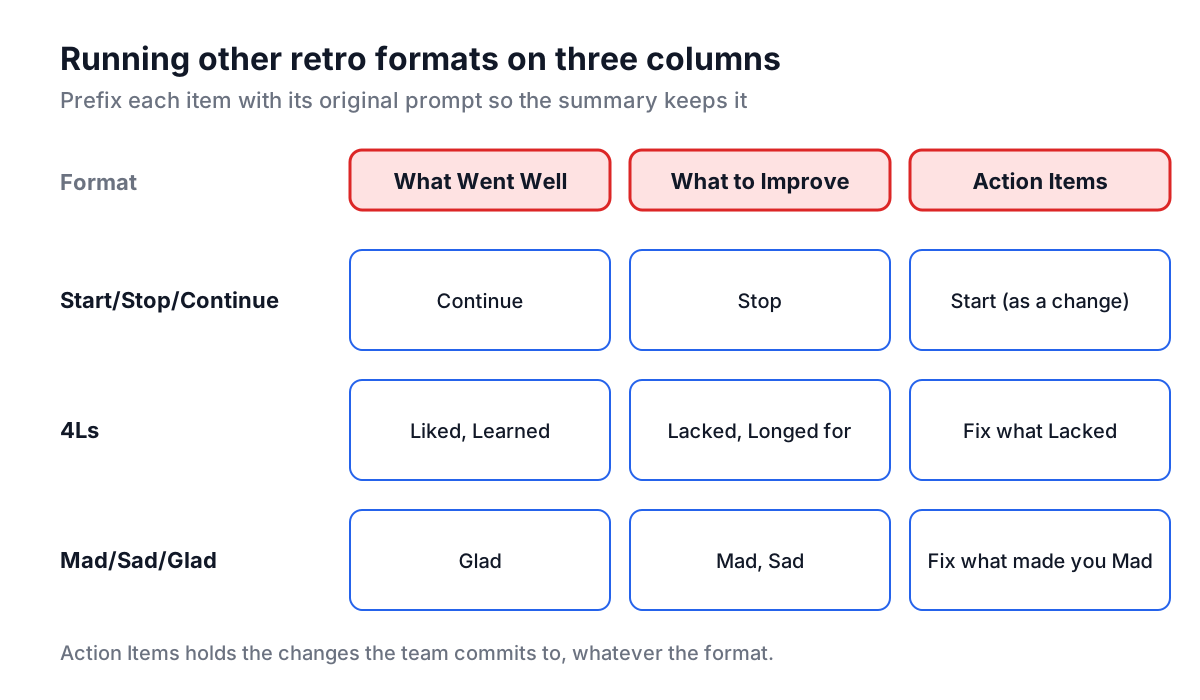
The board does not ship templates for Start/Stop/Continue, 4Ls or Mad/Sad/Glad. You can still run those formats on it, because each one comes down to "keep", "change" and "do". Prefix the item text with the original label so the summary keeps the distinction.
| Format | Original prompts | Where to put them on the board |
|---|---|---|
| Went well / improve / actions | The three columns as named | Direct fit |
| Start, Stop, Continue | Start doing, stop doing, continue doing | Continue in What Went Well; Stop in What to Improve; Start in Action Items, written as a concrete change |
| 4Ls | Liked, Learned, Lacked, Longed for | Liked and Learned in What Went Well; Lacked and Longed for in What to Improve |
| Mad, Sad, Glad | Feelings about the sprint | Glad in What Went Well; Mad and Sad in What to Improve |
The honest trade-off: the original formats exist because different prompts surface different things. "Longed for" gets at wishes that "what to improve" never draws out. If you use the board for those formats, read the prompts out loud at the start so people write to them, and then use the columns only for sorting.
Turning votes into actions
Votes tell you what to talk about, not what to do. A sensible flow is: five minutes silent writing, a few minutes of reading and voting, then discuss the top two or three items in What to Improve and write one action for each in Action Items. An action needs an owner and a date, so write them into the text, for example "Add flaky-test report to CI (Priya, by Thursday)". At the next retro, start by checking last sprint's actions. If you used the same three actions three sprints in a row, the retro is not the problem.
Tracking the project between ceremonies
Standups are about today and retrospectives about the last sprint. The Project Dashboard Generator is for the question managers ask in between: where are we?
You give it a project name, dates and a description, then add team members, tasks and milestones. Each task has an assignee, a priority (Low, Medium, High or Critical), a status (Not Started, In Progress, Completed or Blocked), start and end dates and a completion percentage. Milestones have a date and a status you set yourself: Upcoming, Completed or Overdue. The tool does not change milestone status automatically, so update it as you go.
The dashboard computes four headline numbers, and it pays to know exactly what each one means:
| Metric | How it is calculated |
|---|---|
| Overall Progress | Completed tasks divided by total tasks |
| Tasks Completed | Count of tasks with status Completed, out of all tasks |
| Avg Task Completion | Mean of every task's completion percentage |
| Overdue Tasks | Tasks not Completed whose end date is before today; a task due today is not overdue yet |
Worked example with six tasks, two Completed, one at 75 percent, one at 60 percent and two at 0:
Overall Progress    = 2 / 6                         = 33%
Avg Task Completion = (100+100+75+60+0+0) / 6       = 56%
The two numbers disagree, and both are right. Overall Progress only counts finished work, which is the conservative view. Average completion credits partial work, which is the optimistic one. When the gap is large, lots of work is started and little is finished, and that is often the most useful thing a status report can say.
Below the metrics you get a team workload chart, a task priority chart, a Gantt-style timeline with bars scaled to the project's date range and filled to each task's completion, upcoming deadlines and the milestone list. Filters by team member, priority and status narrow the task views. Export saves the project and metrics as JSON. The project is kept in your browser's localStorage, and the share link encodes the whole project in a ?project= URL parameter, so anyone with the link sees the same data. Treat that link as you would the data itself.
Common mistakes
- Letting the timer become the boss. Overtime on the clock is information, not a rule violation. Someone explaining a production incident gets the time.
- Solving problems in the standup. Every solution discussion is a parking lot topic. Only the people involved stay.
- Retros without actions, or actions without owners. A list of complaints is a vent session. One owned, dated action per sprint beats five vague ones.
- Reading the dashboard's percentage as schedule health. 33 percent of tasks done says nothing about whether the remaining tasks are the long ones. Look at the Gantt view and overdue count together.
- Forgetting to export. The standup timer and retro board are session tools. Download the Markdown before closing the tab.
For decisions that come out of a retro, such as choosing between two tooling options, a scored comparison in the Decision Maker keeps the discussion on criteria rather than volume. And when a parking lot topic needs a follow-up later in the day, a Reminder Tool alert in a pinned tab does the job.
Start small: next standup, set 90 or 120 seconds per person, appoint someone to type parking lot topics, and download the summary at the end. After a week you will have five Markdown files showing who overruns and which topics keep coming back, which is exactly what your next retrospective needs.