
Text to Speech and Speech Recognition in the Browser: What Really Happens
Which browser voices run locally, why Chrome sends your dictation to Google, why the voice list starts empty, and what the Web Speech API cannot do.
· 7 min read
Open the voice menu on a text to speech page in Chrome on a Mac and you see dozens of voices, many of them with names like "Google UK English Female". Open the same page in Firefox on the same Mac and you see a different list. Dictate a sentence into a speech to text page in Chrome, pull the network cable, and recognition stops with a "network" error. None of this is the web page's doing. Both features come from the Web Speech API, and the browser and operating system decide almost everything about how they behave.
This guide explains what happens underneath the Text to Speech and Speech to Text tools, where your text and audio actually go, and the quirks that catch people out.
Two APIs under one name
The Web Speech API was written up by a W3C Community Group in 2012. It has two halves that share almost nothing except the name:
| speechSynthesis (text to speech) | SpeechRecognition (speech to text) | |
|---|---|---|
| What it does | Reads text aloud | Turns microphone audio into text |
| Chrome, Edge | Yes | Yes (webkitSpeechRecognition) |
| Safari | Yes | Yes (webkitSpeechRecognition) |
| Firefox | Yes | No |
| Where processing happens | Local or cloud, per voice | Usually the vendor's cloud |
| Can the page get the audio? | No | No (only the text) |
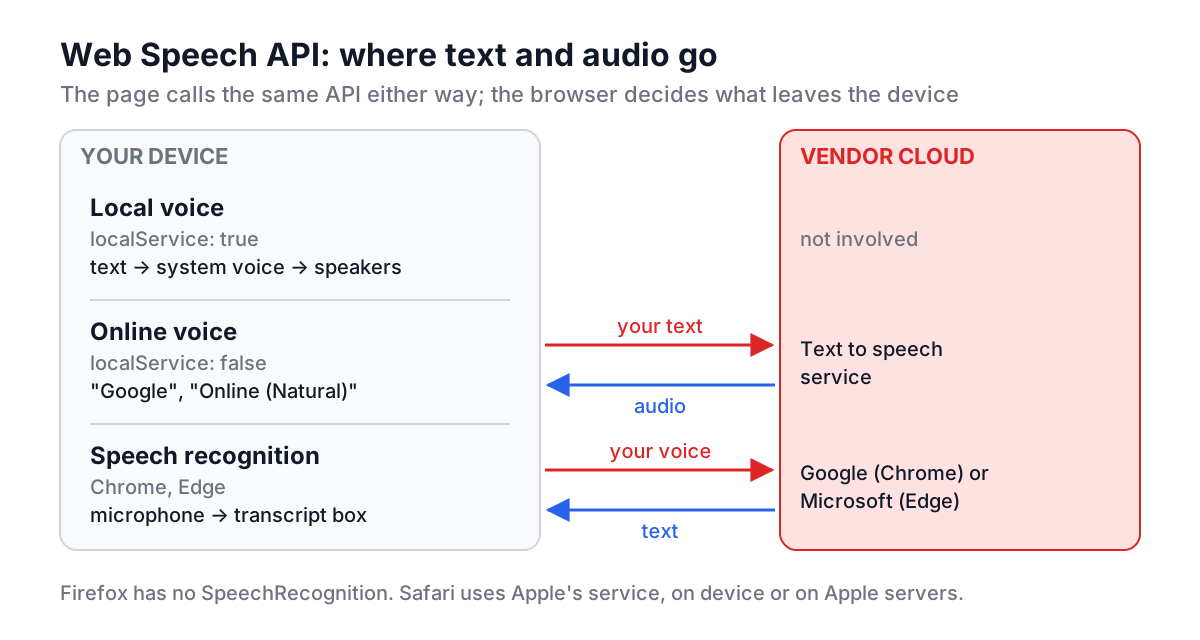
The table hides an important asymmetry. Speech synthesis is mostly local and works offline with system voices. Speech recognition in Chrome and Edge is a thin client for a cloud service.
Text to speech: voices, and where they live
A page speaks by creating an utterance and handing it to the browser:
const u = new SpeechSynthesisUtterance('Deploy finished in 4 minutes.');
u.voice = speechSynthesis.getVoices().find(v => v.lang === 'en-GB') ?? null;
u.rate = 1.1;   // 0.1 to 10 in the spec; most voices only honour about 0.5 to 2
u.pitch = 1;    // 0 to 2
u.volume = 1;   // 0 to 1
speechSynthesis.speak(u);
The voice list is whatever the platform offers. Windows contributes Microsoft voices such as David and Zira, macOS and iOS contribute Apple voices such as Samantha and Daniel, Android contributes Google's engine, and Linux browsers usually go through speech-dispatcher. Chrome adds a handful of its own "Google" voices on desktop, and Edge adds Microsoft's "Online (Natural)" neural voices.
Each SpeechSynthesisVoice has a localService flag. When it is false, the voice is synthesized on a server: your text is sent to Google or Microsoft and audio comes back. The neural online voices sound better, which is why people pick them, but they are not private. The Text to Speech tool marks them "online voice" in the dropdown so you can choose.
Why the voice list is empty at first
speechSynthesis.getVoices() is synchronous, but the list behind it is not. Chrome usually returns an empty array on the first call and fires a voiceschanged event when the voices arrive a few milliseconds later. Code that reads the list once on page load gets nothing:
function loadVoices() {
  const voices = speechSynthesis.getVoices();
  if (voices.length) render(voices);
}
loadVoices();
speechSynthesis.addEventListener('voiceschanged', loadVoices);
Safari tends to return the list straight away, so this bug often ships unnoticed from a Mac.
The 15-second cut-off and other quirks
- Long text stops early. Chrome's online Google voices are known to stop in the middle of long utterances, often after about 15 seconds of speech. Local voices do not. Splitting text at sentence boundaries and queueing several utterances works around it.
- Settings apply per utterance. Rate and pitch are read when speaking starts. Moving a slider mid-sentence does nothing until you play again.
- Pause is per page, not per utterance.
speechSynthesis.pause()pauses the whole queue. A page that loses track of whether it is paused ends up with a Stop button that cannot stop, which was a real bug in an earlier version of this tool. - Speech outlives the page. If a page does not call
speechSynthesis.cancel()when it unmounts, some browsers keep reading after you navigate away within a single-page app. - No audio file. The API plays straight to the output device. There is no way to get an MP3 from it. The only route is recording system audio while it plays.
Speech to text: a cloud service with a JavaScript face
Recognition looks just as simple:
const Rec = window.SpeechRecognition || window.webkitSpeechRecognition;
const rec = new Rec();
rec.lang = 'en-US';
rec.continuous = true;      // keep listening across sentences
rec.interimResults = true;  // show guesses before they are final
rec.onresult = (e) => {
  for (let i = e.resultIndex; i < e.results.length; i++) {
    const r = e.results[i];
    console.log(r.isFinal ? 'final:' : 'interim:', r[0].transcript);
  }
};
rec.start();
What the snippet does not show is where the audio goes. In Chrome the microphone stream is sent to Google's speech servers and the results come back over the network. That is why recognition fails offline with a network error, why it needs no model download, and why accuracy is good. Edge sends audio to Microsoft's service. Safari uses Apple's speech recognition, which may run on Apple's servers or on device depending on the platform and language. Firefox ships no recognizer at all, so feature detection returns undefined and the Speech to Text tool shows a notice instead of a microphone.
The practical rule: treat browser dictation like any cloud transcription service. It is fine for emails and notes, and wrong for passwords, patient data or anything under an NDA.
Interim and final results
With interimResults on, you receive a stream of guesses that the recognizer keeps revising. Say "schedule the deploy for nine thirty" and you might see "schedule the deep" flicker past before the final result arrives. Only results with isFinal set should be appended to a transcript; interim text belongs in a separate, replaceable line. The tool shows the interim guess in grey under the transcript for exactly this reason.
Why recognition stops on its own
Even with continuous = true, the service decides when a session is over. Chrome typically ends it after several seconds of silence, fires onend, and the page has to call start() again. A tool that keeps a separate microphone recording must stop that recorder in onend too, or the microphone indicator stays on after recognition has ended.
Recording alongside recognition
The recognizer never gives the page the audio, so a tool that offers "download recording" captures the microphone a second time with getUserMedia and MediaRecorder. MediaRecorder only writes compressed containers: WebM with Opus in Chrome, Edge and Firefox, Ogg in Firefox, MP4 with AAC in Safari. Asking it for audio/wav or audio/mpeg throws NotSupportedError. The safe pattern is to ask the browser what it can do:
const type = ['audio/webm', 'audio/ogg', 'audio/mp4']
  .find(t => MediaRecorder.isTypeSupported(t));
const recorder = new MediaRecorder(stream, { mimeType: type });
If you need WAV for an editor or a transcription model, convert the downloaded file with the Audio to WAV Converter. The audio formats guide explains the size trade-off.
Worked example: proofreading a release note by ear
- Paste the draft into Text to Speech: "The the new release fixes three bugs and adds dark mode."
- Pick a local English voice (no "online voice" label) and set Speed to 1.2.
- Press Play. The doubled "the" is obvious when heard, though most people read straight past it.
- Fix it, then switch to Speech to Text in Chrome and read the corrected sentence aloud. If the recognizer writes "dark mood", your diction is the problem, not the text.
Hearing text and having it heard back are two cheap checks that catch errors your eyes have learned to skip.
Common mistakes
- Promising "private, in-browser" speech recognition. In Chrome and Edge it is not. Say so on the page.
- Reading voices once at load. Listen for
voiceschanged. - Offering WAV or MP3 recording. MediaRecorder cannot produce them; check
isTypeSupportedand label the download with the format you actually recorded. - Offering file upload for transcription. The Web Speech API only listens to a live microphone. A button that accepts a file and then says "not supported" is a dead control.
- Ignoring
onend. Recognition stops on its own; plan for restarting it and for cleaning up any parallel recording.
If you only remember one thing, make it the localService flag and the Chrome recognition caveat: the API looks local, but your words may be crossing the network. Pick local voices for private text, keep dictation for content you would be comfortable emailing, and use the Audio to WAV Converter when another program needs the recording.