
Favicon Sizes and Formats: What Browsers and Phones Actually Use
favicon.ico, 32 px PNGs, the 180 px Apple touch icon and 192/512 manifest icons: which files you need, the tags that link them, and why old icons stick around.
· 7 min read
Open your server logs on a site with no favicon and count the requests for /favicon.ico. There will be one for almost every new visitor, all of them 404s, because browsers still look for that file by default, a habit that dates back to Internet Explorer 5 in 1999. Then save the site to an iPhone home screen and you get a blurry screenshot of the page instead of your logo. Two small files fix both problems, and a couple more make the site installable as an app.
This guide covers which icon files a site needs today, what sizes they should be, the HTML that links them, and the mistakes that make a favicon look wrong or refuse to update.
The short list
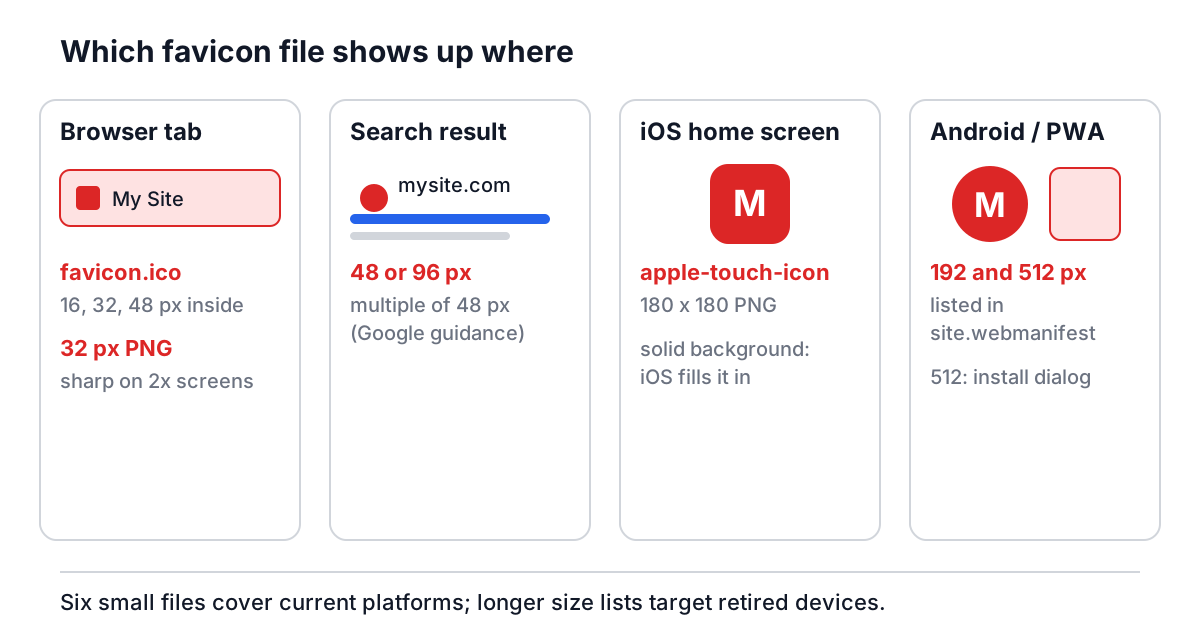
Icon advice online often lists twenty or thirty sizes. Most of those were for platforms that no longer matter: Windows 8 tiles, old iPad home screens, Opera Coast. For a site in 2026 this set covers every place an icon actually shows up:
| File | Size | Used by |
|---|---|---|
| favicon.ico | 16, 32 and 48 px inside one file | Browser tabs, bookmarks, the automatic /favicon.ico request |
| favicon-32x32.png | 32 x 32 | Browser tabs on high-density screens |
| favicon-48x48.png or 96x96 | 48 or 96 | Search results, desktop shortcuts |
| apple-touch-icon.png | 180 x 180 | iPhone and iPad home screen, Safari favourites |
| web-app-manifest-192x192.png | 192 x 192 | Android home screen, installed web apps |
| web-app-manifest-512x512.png | 512 x 512 | Install dialogs, Android splash screens |
The 48 px entry is there because Google's Search documentation asks for a square site icon whose size is a multiple of 48 px. A 16 px icon can technically be used but will look soft next to everyone else's.
The tags that link them
Put the files in the site root and add these lines to every page's head:
<link rel="icon" href="/favicon.ico" sizes="any">
<link rel="icon" type="image/png" sizes="32x32" href="/favicon-32x32.png">
<link rel="icon" type="image/png" sizes="48x48" href="/favicon-48x48.png">
<link rel="apple-touch-icon" href="/apple-touch-icon.png">
<link rel="manifest" href="/site.webmanifest">
The 192 and 512 px images are not linked from HTML. They live in the manifest, a small JSON file:
{
  "name": "My Site",
  "short_name": "Site",
  "icons": [
    { "src": "/web-app-manifest-192x192.png", "sizes": "192x192", "type": "image/png" },
    { "src": "/web-app-manifest-512x512.png", "sizes": "512x512", "type": "image/png" }
  ],
  "theme_color": "#ffffff",
  "background_color": "#ffffff",
  "display": "standalone"
}
Chrome uses those two sizes when it decides whether a site can be installed and what to show in the install prompt. If you never want the site installed, you can drop the manifest, but the 192 px icon still helps when someone adds the page to an Android home screen.
You can also add an SVG favicon with <link rel="icon" href="/icon.svg" type="image/svg+xml">. Chromium and Firefox support it, and it can even switch colours for dark mode with a media query inside the SVG. Safari has been slower to use SVG for tab icons, so keep the PNG and ICO files as well.
What is inside an ICO file
ICO is a Microsoft container, not an image format of its own. It starts with a 6-byte header (two reserved bytes, a type of 1 for icons, and the number of images), followed by a 16-byte directory entry per image that records its width, height, colour depth, byte length and where its data starts. Then come the images themselves.
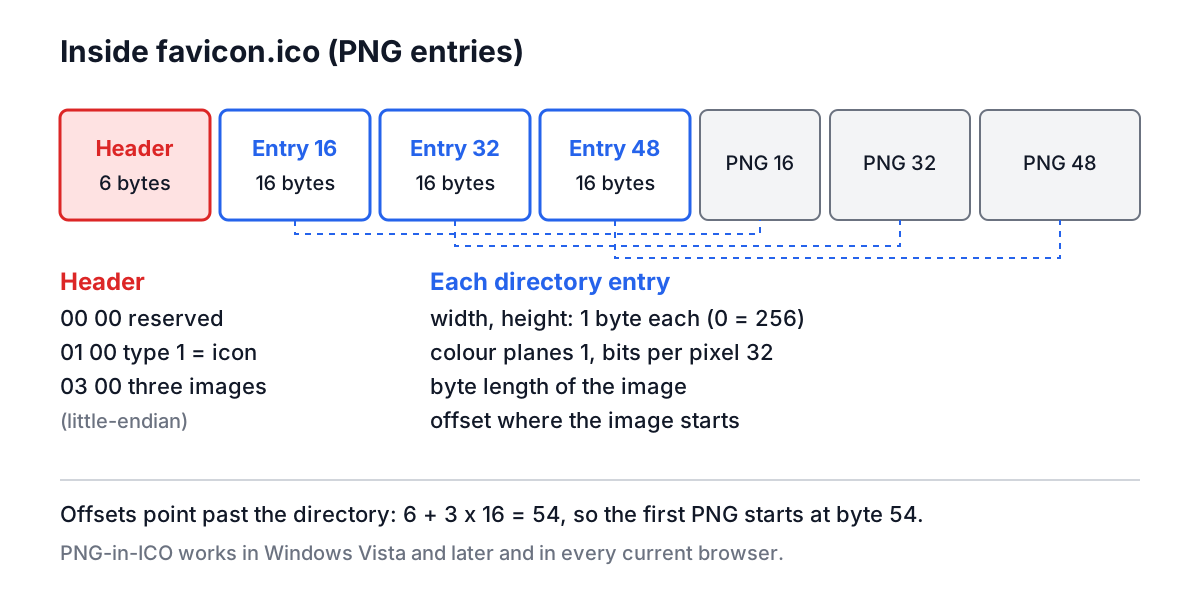
Originally every image was a Windows bitmap. Since Windows Vista, an entry can hold a complete PNG file instead, and every current browser reads that variant. PNG entries are much smaller, which matters for a file that almost every visitor downloads. One quirk survives from the old format: width and height are single bytes, so a 256 px image is written as 0.
The Favicon Generator writes exactly this layout. It draws your image at 16, 32 and 48 px, encodes each as PNG, and packs them into favicon.ico next to the separate PNG files.
A worked example
Say the source is a 1024 x 1024 PNG logo: a white letter on a red rounded square, with a transparent background around the square.
- Upload it to the Favicon Generator and leave the default sizes selected: 16, 32, 48, 180, 192 and 512.
- Leave Transparent Background off and set the background to the same red as the logo. This matters most for the Apple icon, because iOS does not keep transparency in touch icons and would fill the corners in.
- Set Padding to about 10%. Android and iOS both apply their own masks and rounding, and a little padding keeps the letter from touching the edge.
- Leave Corner Radius at 0%. The platforms round home-screen icons themselves, and pre-rounded corners plus their mask can leave a visible double edge.
- Generate, check the 16 px preview, and download the files plus site.webmanifest.
Corner radius in the tool is a percentage of the icon size, so 25% means a 4 px radius at 16 px and a 128 px radius at 512 px. A fixed pixel radius would make the small icons nearly circular and the large ones nearly square.
If the 16 px preview turns into a smudge, the answer is a different source image, not different settings. Many brands keep a simplified mark for small sizes: one letter, a thick symbol, no thin strokes or small text.
Mistakes that make favicons look wrong
The icon never updates. Browsers cache favicons separately from pages and keep them for a long time. Deploying a new file with the same name often shows the old icon for days. Rename the file, or add a version to the href (/favicon-32x32.png?v=2), and the browser will fetch it again.
PNG files named .ico. Some generators save a PNG with an .ico extension and declare it as image/x-icon. Browsers often cope, but tools that read real ICO files do not. A real ICO has the header described above; you can check by opening it in a hex viewer and looking for 00 00 01 00 at the start.
Stretched logos. A wide wordmark forced into a square canvas comes out squashed. Fit the image inside the square and keep its ratio, or better, crop to the symbol before you start.
Invisible icons in dark mode. A black logo on a transparent background disappears on a dark browser tab. Either give it a background or make sure the artwork has enough contrast on both light and dark.
Huge files. A 512 px PNG of a photo can be hundreds of kilobytes. Icons should be flat artwork; if yours is large, run it through the Image Compressor or simplify the design.
Only one size. A single 16 px favicon gets upscaled on high-density screens and in search results and looks blurry. The extra files are tiny.
Checking the result
After deploying, open the site in a private window so no cached icon interferes. Look at the tab, add a bookmark, and on a phone use Add to Home Screen. Chrome DevTools has a Manifest panel under Application that shows whether the manifest loaded and which icons it found. A request for /favicon.ico in the Network panel should return 200, not 404.
For the source artwork itself, an SVG is the best starting point because it scales cleanly to every size. The SVG Viewer helps check that it has a sensible viewBox and dimensions before you rasterise it, and the SVG viewBox guide explains why an SVG with no width and height can come out at the wrong size. For general resizing and compression of the PNGs, the image optimisation guide covers the details.
Make the icon set once, keep the source file and the generated files together in the repository, and bump the version query in the link tags whenever you change them. That is the whole maintenance routine.