
Raster to Vector: How Image Tracing Works and When to Redraw Instead
Pixels versus paths, the stages inside an image tracer, the settings that control detail and file size, and when a logo deserves a proper redraw.
· 8 min read
Someone sends you their company logo for a banner, and the only file they can find is a 400 pixel PNG pulled from the website footer. Scale it to banner size and the edges turn to mush. What you need is the vector version, and since nobody has it, the next idea is to "convert" the PNG to SVG. That works surprisingly well for some images and badly for others, and the difference comes down to how tracing works.
This guide covers what separates raster and vector images, what an image tracer actually does step by step, which settings matter, why traced photos make enormous files, and when it is better to redraw a graphic than to trace it.
Raster and vector: pixels versus instructions
A raster image, such as a PNG, JPEG or WebP, is a grid of pixels. Each pixel has a colour, and that is all the file records. Scale it up and the software has to invent pixels in between, which is why enlarged rasters look soft or blocky.
A vector image, such as SVG, PDF artwork or an Illustrator file, is a list of drawing instructions: move here, draw a line to there, curve through these control points, fill with this colour. The renderer draws the shapes fresh at whatever size you ask for, so a vector logo is as sharp on a billboard as on a favicon. Vectors are also editable: change one shape's colour and only that shape changes.
Turning vector into raster is exact and happens every time a browser displays an SVG. Turning raster into vector is the hard direction. The pixels do not say where the designer meant an edge to be, whether a slightly rounded corner was meant to be sharp, or whether two areas of almost the same blue are one colour or two. A tracer has to guess.
How an image tracer works
Colour tracers, including imagetracerjs, which the Image to SVG Converter uses, follow roughly the same pipeline.
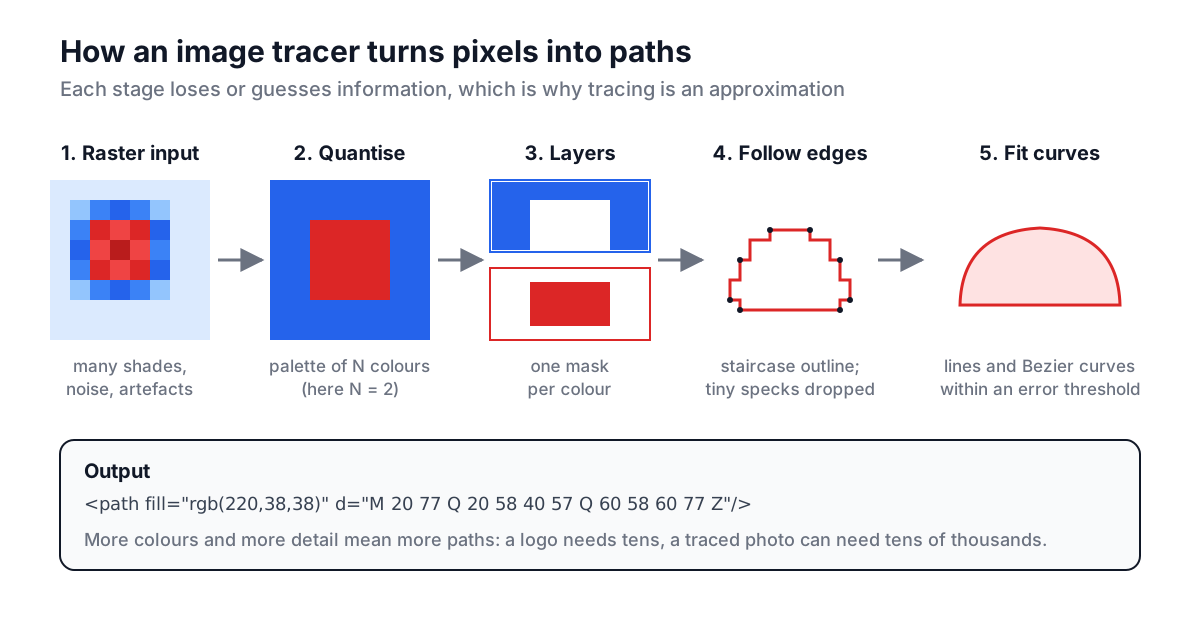
- Optional blur. A selective blur smooths noise, scanner grain and JPEG artefacts while trying to keep strong edges. Without it, every stray pixel becomes its own tiny shape.
- Colour quantisation. The image is reduced to a palette of a few colours, or a few dozen. Every pixel is assigned to its nearest palette entry. This is the step that makes photos look posterised, and the palette size is the biggest single control over the result.
- Layer separation. Each palette colour becomes a separate black and white layer: "is this pixel this colour or not".
- Edge following. On each layer, the tracer walks around the boundary of every connected area and records it as a closed outline of pixel-corner points. Holes inside shapes become outlines too. Outlines shorter than a minimum length are discarded as specks.
- Curve fitting. The jagged staircase outlines are replaced by straight segments and quadratic Bezier curves that stay within an error threshold of the original points. A small threshold follows every step; a large one smooths over them.
- SVG output. Each outline becomes a
<path>element with a fill colour, and all paths are wrapped in an<svg>with a viewBox matching the traced size.
The best-known monochrome tracer, Potrace by Peter Selinger (2001), uses the same idea for black and white images with a more sophisticated curve optimiser. It is what Inkscape's Trace Bitmap uses, and it explains why tracing in a desktop editor gives similar results to a good browser tool.
The settings that matter
| Setting | What it changes | Turn it up when | Turn it down when |
|---|---|---|---|
| Colours | Palette size | Gradients or shading are being lost | The SVG is too large or noisy |
| Detail | Curve error threshold and speck filter | Small features and corners disappear | Edges look wobbly or the file is too big |
| Smoothing | Blur before tracing | A JPG source produces fuzzy specks | Thin lines start to vanish |
| Trace resolution | Pixel size traced | Fine detail is lost at the current size | Tracing is slow or the file is huge |
In the Image to SVG Converter, the Logo preset uses 4 colours, high detail and no smoothing, which suits flat artwork with crisp edges. The Poster preset uses 8 colours with some smoothing for illustrations. The Photo preset uses 24 colours at a lower trace resolution, because a full-resolution photo trace would produce hundreds of thousands of paths.
Two habits make the biggest difference. Start from the largest, cleanest source you can find, since tracing cannot recover detail that the pixels do not hold. And use the fewest colours that still look right: a logo with two brand colours plus white should be traced with three colours, not sixteen.
Why traced photos make huge SVGs
An SVG path is text. A shape described by forty curve segments takes roughly a few hundred bytes, and that is before the fill colour and other attributes. A logo might produce twenty such shapes: a few kilobytes in total, smaller than the PNG it came from.
A photo is different. With 24 colours, every patch of sky, every leaf and every shadow edge becomes its own path, and a 600 pixel trace of a busy street scene can produce tens of thousands of them. The SVG then runs to several megabytes, often five or ten times the JPEG, and it renders slowly because the browser has to fill every path.
The converter shows the SVG size next to the original file size and warns when the SVG is bigger. Treat that warning as a signal that you probably want a raster format. For photographs on the web, WebP or AVIF will be smaller and look better; the image formats guide compares them. If you need a different raster format, the Image Format Converter handles that.
The exception is deliberate stylisation. A photo traced with 4 to 8 colours makes a flat, screen-print style illustration, and that look can be the point. Keep the colour count low and accept the file size.
When to trace and when to redraw
Tracing is a good fit when:
- The artwork is flat: solid colours, clear edges, no gradients or photographic texture.
- The source is reasonably large, ideally 500 pixels or more across for a simple logo.
- You need a usable vector quickly, for a cutting machine, a large print or an icon, and small imperfections are acceptable.
- The image is a scan of line art, a signature or a stamp, where the exact geometry was never precise to begin with.
Redraw instead when:
- The graphic is a brand logo that will be used for years. Traced corners come out slightly rounded, circles slightly lumpy, and straight lines slightly bent. A designer redrawing in a vector editor uses true circles, straight lines and exact alignment.
- The image contains text. Traced letters are shapes, not text, and small type traces badly. Identify the font and retype it.
- The source is tiny or heavily compressed. A 64 pixel icon has too little information to trace well.
- The graphic uses gradients, soft shadows or transparency effects. Tracing turns gradients into bands.
A common middle path is to trace first, then clean up. Open the traced SVG in Inkscape, Illustrator or Figma, delete stray fragments, merge shapes, replace near-circles with real circles and retype text. That is often faster than drawing from scratch.
Checking and using the result
Before you hand a traced SVG to anyone, open it in the SVG Viewer to confirm its width, height and viewBox and to count the elements. The SVG viewBox guide explains how those attributes control scaling, which matters when the SVG must fit a fixed slot on a page.
For icons, a clean trace at a few colours can feed the Favicon Generator for a full set of PNG and ICO sizes. For cutting machines and laser engravers, trace with two colours so you get clean outlines, then check in the machine's software for tiny fragments that would turn into extra cuts.
Tracing will never read the designer's mind. It turns pixels into the closest set of shapes it can find, and for flat graphics that is usually close enough. Knowing which images fall into that group, and which settings to reach for, saves a lot of time spent fighting a tracer on an image it was never going to get right.