
Rotate PDF Pages Permanently: How /Rotate Works and Why Views Reset
Why rotating in a viewer does not stick, how the PDF /Rotate entry turns pages in 90 degree steps, fixing sideways scans, odd and even page rotation, and what rotation does to text and printing.
· 8 min read
A scanned contract with every second page upside down, a report with one sideways table, a phone scan that came out at 90 degrees: rotating pages is one of the most common PDF fixes. It is also one where people repeat the same step several times, because turning the page in a viewer often does not stick. This guide explains why, how rotation is stored inside a PDF, and how to rotate exactly the pages you need with the Rotate PDF tool, which edits the file in your browser so it is never uploaded.
Why rotating in a viewer does not save
Most PDF readers have a "Rotate view" or "Rotate clockwise" command. In many of them, including browser PDF viewers, that command only changes how the page is shown in the current window. Close the file, open it again or send it to someone, and the page is sideways once more, because nothing in the file changed. Some desktop editors do write the change when you save, but a plain reader cannot.
To fix a page for everyone, the rotation has to be recorded in the PDF itself. That is what Rotate PDF does: it changes the page's rotation entry and saves a new file, so every reader, printer and upload portal shows the page the right way up.
How the /Rotate entry works
ISO 32000, the PDF standard, gives each page object an optional /Rotate entry (section 7.7.3.3). It is "the number of degrees by which the page shall be rotated clockwise when displayed or printed", and it must be a multiple of 90. If a page has no /Rotate of its own it inherits one from its parent node in the page tree, and if none is set anywhere it is 0.
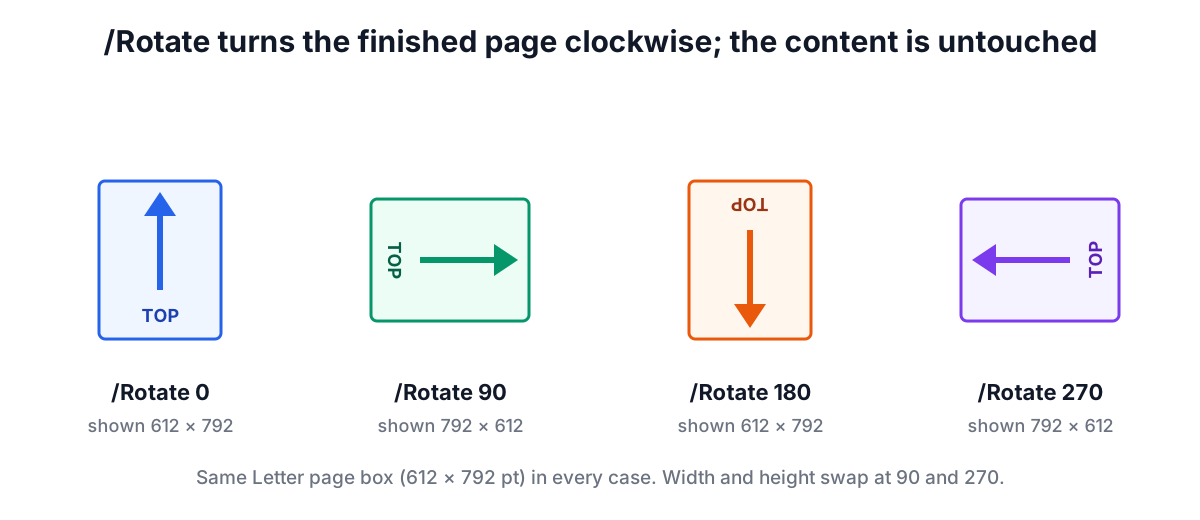
The important point is that /Rotate does not touch the page's content. The text, images and drawing instructions stay exactly as they were. The viewer simply turns the finished page before showing it. That has useful consequences:
- Rotation is lossless. No re-rendering, no quality change, and text stays selectable and searchable.
- Rotation is reversible. Rotating a page 90° right and then 90° left gives back the original value.
- The file barely changes in size, because only a number in a few page dictionaries is different.
The displayed size swaps when the rotation is 90 or 270:
| Page box (points) | /Rotate | Shown as | Typical cause |
|---|---|---|---|
| 612 × 792 (Letter portrait) | 0 | 612 × 792 portrait | Normal page |
| 612 × 792 | 90 | 792 × 612 landscape, top of the content on the right | Wide table set on a portrait page |
| 612 × 792 | 180 | 612 × 792 upside down | Back sides fed the wrong way into a scanner |
| 612 × 792 | 270 | 792 × 612 landscape, top of the content on the left | Phone photo taken sideways |
How the tool adds rotation
Rotate PDF works in steps of 90 degrees and adds your turn to whatever rotation each page already has. If a page already has /Rotate 90 and you rotate it 90° right, it is saved as 180. A turn of 90° left is stored as adding 270, and every result is normalised to 0, 90, 180 or 270, so values such as 450 or −90 never end up in the file.
Under each thumbnail you see the page number, the turn you have added (for example +90°) and the final rotation that will be written. The thumbnails are drawn with pdf.js including the page's existing rotation, and your added turn is shown by rotating the preview, so what you see is what the saved file will look like.
The rest of the file is left alone. The tool loads the PDF with pdf-lib, sets the rotation on the pages you changed and saves it, so bookmarks, form fields, links, the document title and other metadata are all kept. The only other difference is that pdf-lib writes objects into compressed object streams (section 7.5.7), which can make the file a little smaller.
Choosing which pages to rotate
The buttons at the top (90° right, 90° left, 180°) apply to the selected pages, or to every page when nothing is selected. There are four ways to select:
- Click thumbnails to select or deselect individual pages.
- Odd and Even select pages 1, 3, 5... or 2, 4, 6...
- Landscape and Portrait select pages by their current displayed shape, which is handy in a mixed document.
- By range: type
2-4, 7and click Select.
Each thumbnail also has its own small rotate buttons for one-off fixes, and Reset clears every change before you save.
Worked examples
Duplex scan with upside-down backs. You scanned a 12-page double-sided form on a sheet-fed scanner and the back of every sheet came out upside down. The backs are the even pages. Click Even, then 180°. Pages 2, 4, 6, 8, 10 and 12 show +180°, and the save button reads "Save PDF with 6 pages rotated".
One sideways table. Page 9 of a report is a wide table that was placed on a portrait page and reads bottom to top. Use the small rotate-right button under page 9. If the text then reads top to bottom, rotate it twice more, or once to the left from the start. Only that page changes.
A whole phone scan at 90 degrees. With nothing selected, click 90° left once. Every page turns.
Mixed landscape slides inside a portrait handout. Click Landscape to select only the wide pages, then rotate them if you want the handout to print all portrait. Remember that turning a landscape page to portrait makes its content run sideways, which suits binding but not reading on screen.
Rotation, printing and other tools
Printers honour /Rotate, but print dialogs also have their own "auto-rotate and centre" options that pick the paper orientation for each page. If a rotated page prints small or off-centre, check that option before blaming the file.
Rotation also interacts with other edits. Watermarks, page numbers and signatures added by the other RedBison PDF tools are placed relative to the page as it is displayed, taking /Rotate into account, so a page number set to "bottom centre" lands at the visual bottom even on a rotated page. It still makes sense to fix rotation first, because that is how you will judge where things should go. To reorder pages as well as turn them, Organize PDF Pages lets you rotate, move, duplicate and delete in one pass, although it rebuilds the document and so does not keep bookmarks. If you need to rotate by an angle that is not a multiple of 90, such as straightening a slightly crooked scan, /Rotate cannot do it; the page content itself has to be redrawn.
Limits
- Encrypted PDFs cannot be edited here, including files that open without a password but restrict changes. Print to a new PDF first.
- Rotation is in 90 degree steps only, as the standard requires.
- Thumbnails are rendered for up to 400 pages; larger files can still be rotated by range.
Sources
- ISO 32000-1:2008, Portable document format, Part 1: PDF 1.7, section 7.7.3.3 (page objects, /Rotate and inheritable attributes), section 7.7.3.4 (inheritance of page attributes) and section 7.5.7 (object streams). ISO 32000-2:2020 keeps the same definition.
- pdf-lib documentation,
PDFPage.setRotationandPDFPage.getRotation(pdf-lib.js.org). - Mozilla pdf.js documentation,
PDFPageProxy.getViewport, which applies the page's rotation when rendering.
Related searches
- rotate pdf and save
- rotate pdf permanently
- rotate only one page in pdf
- pdf upside down after scanning
- rotate even pages pdf
- why pdf rotation does not save
- pdf rotate entry
- landscape page in portrait pdf
- rotate pdf 90 degrees clockwise