
Video Formats Explained: Containers, Codecs, Bitrate and CRF
MP4 vs MKV vs MOV, what H.264, HEVC, VP9 and AV1 actually are, why MOV to MP4 is often a remux, how to hit a file size, and when a GIF is the wrong format.
· 9 min read
An iPhone recording called IMG_0412.MOV will not import into some Windows editor, so you convert it to MP4. One tool takes four minutes and hands back a slightly softer video. Another takes four seconds and the result is identical to the original. Both did "MOV to MP4". The difference is whether they touched the video itself or only the box around it, and that distinction explains most of what is confusing about video formats.
This guide covers containers and codecs, the four codecs that matter today, when a conversion can be a fast remux, how to aim for a file size or a quality level, and why GIF is usually the wrong answer for anything longer than a few seconds. The examples use the browser tools on this site: the Video Converter, the Video Compressor and the Video to GIF Converter.
Containers and codecs are separate layers
A video file has two layers. The container is the file format named by the extension: it interleaves the streams, stores timestamps so sound and picture stay in sync, and carries metadata such as rotation, chapters and subtitles. The codec is how each stream inside was compressed. One container can hold many different codecs, and one codec can live in many containers.
| Container | Extension | Typical video codecs | Typical audio | Notes |
|---|---|---|---|---|
| MPEG-4 Part 14 | .mp4, .m4v | H.264, HEVC, AV1 | AAC | The safe default for sharing |
| QuickTime | .mov | H.264, HEVC, ProRes | AAC, PCM | MP4's parent; iPhones and Macs write it |
| Matroska | .mkv | Almost anything | Almost anything | Multiple audio and subtitle tracks |
| WebM | .webm | VP8, VP9, AV1 | Opus, Vorbis | A restricted Matroska for the web |
| AVI | .avi | MPEG-4 Part 2 (Xvid, DivX), MJPEG | MP3, PCM | Microsoft, 1992; no modern features |
| Flash Video | .flv | Sorenson H.263, H.264 | MP3, AAC | Flash Player reached end of life in 2020 |
| ASF | .wmv | WMV 7, 8, 9 | WMA | Windows Media |
| MPEG program stream | .mpg, .mpeg | MPEG-1, MPEG-2 | MP2, AC-3 | DVD and broadcast heritage |
| 3GPP / 3GPP2 | .3gp, .3g2 | H.263, H.264 | AMR, AAC | Feature phones of the 2000s |
| Ogg | .ogv | Theora | Vorbis | Xiph.org's free stack |
When a player says "unsupported format", the codec is usually the problem, not the container. An MKV that holds H.264 and AAC plays almost everywhere once it is rewrapped as MP4; an AVI that holds an obscure 1990s codec will not play anywhere new, whatever you rename it to. Renaming a file never converts it.
The codecs that matter: H.264, HEVC, VP9 and AV1
H.264 (AVC), standardised by the ITU-T and ISO in 2003, is the universal codec. Every phone, browser, TV, console and editor decodes it, most in hardware. If you are not sure what to pick, pick H.264 in MP4. It is what the Video Compressor writes, and what the Video Converter writes for MP4, MOV, MKV, FLV and 3GP.
H.265 (HEVC), from 2013, reaches similar quality at a substantially lower bitrate, commonly quoted as up to half. iPhones record it by default in their "High Efficiency" camera setting. The catch is licensing and playback: Apple devices play it everywhere, but support in Windows, Android and especially in web browsers depends on hardware decoders and installed extensions. HEVC is a fine archive format and a risky sharing format.
VP9, Google's royalty-free codec from 2013, is roughly in HEVC's class and is what YouTube streams to most browsers. It usually travels in WebM.
AV1, released by the Alliance for Open Media in 2018, is royalty-free and more efficient again, but encoding it is slow and older devices lack hardware decoding. Streaming services use it where they can; for files you send to people, it is still early.
A practical note on the browser tool: it runs ffmpeg compiled to WebAssembly, single-threaded, in your tab. The VP9 encoder in that build crashes, so WebM output from the Video Converter is VP8 with Opus audio. VP8 plays wherever WebM plays, but at the same quality the files are larger than VP9 would make. For HEVC, VP9 or AV1 output, desktop ffmpeg or HandBrake is the right tool.
Why MOV to MP4 is often a remux
MOV and MP4 come from the same family: the MP4 format was based on QuickTime's file structure. An iPhone MOV usually contains H.264 or HEVC video and AAC audio, and MP4 is allowed to carry all three. So the conversion does not need to decode a single frame. It can copy the compressed streams into a new container, which is called remuxing.
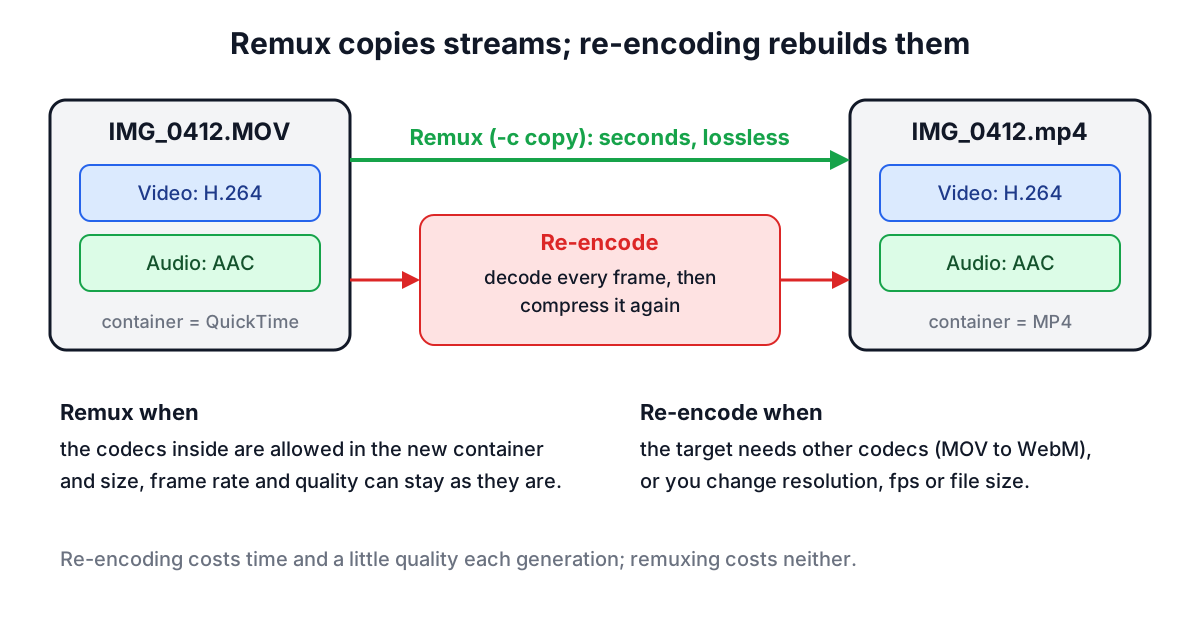
In ffmpeg terms, remuxing is ffmpeg -i IMG_0412.MOV -c copy IMG_0412.mp4. In the Video Converter it is the "Fast remux" switch. It is lossless, and it is as fast as your disk can read. It works whenever the codecs in the source are allowed in the target:
- MOV or MKV with H.264 and AAC to MP4: remux.
- MP4 to MKV: remux, since Matroska takes almost anything.
- MOV with ProRes to MP4: re-encode, because MP4 players do not expect ProRes.
- Anything to WebM: re-encode, because WebM only allows VP8, VP9 or AV1 with Opus or Vorbis.
- Any change of resolution, frame rate or file size: re-encode, by definition.
One limitation of remuxing is trimming. Compressed video stores a full picture only at keyframes, every couple of seconds, and the frames in between depend on them. A remux can only start cleanly at a keyframe, so a trim may begin a moment earlier than you asked. Re-encoding trims to the exact frame.
Bitrate versus CRF: two ways to control size
There are two honest ways to control a video encoder, and they answer different questions.
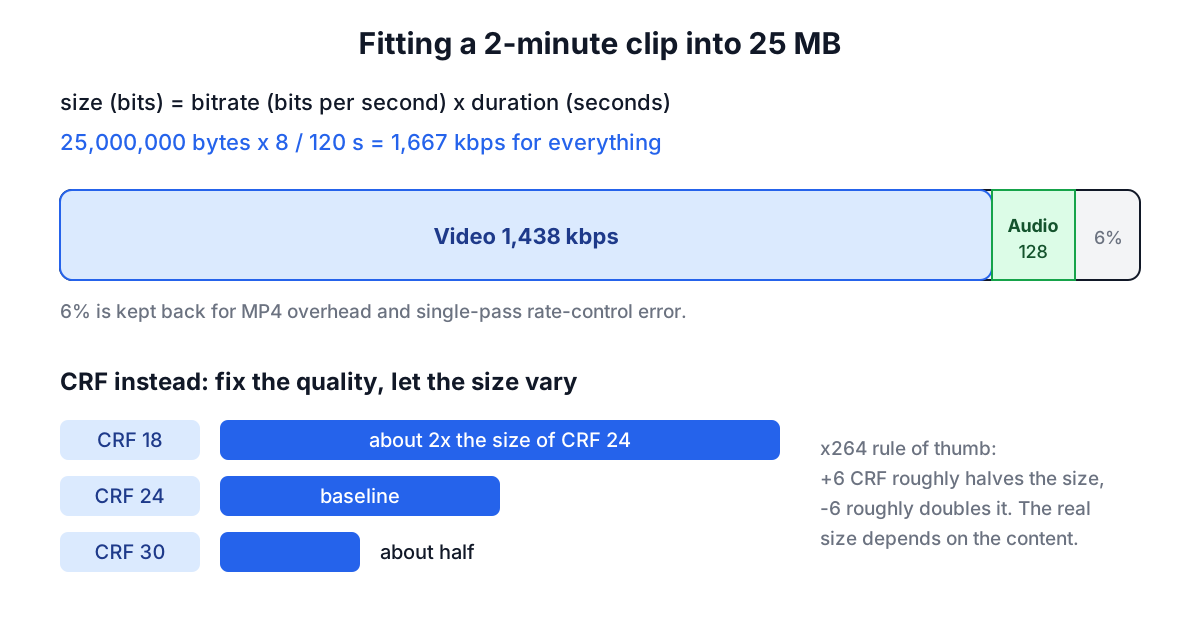
Bitrate answers "how big?". File size is bitrate multiplied by duration, so a target size gives you a bitrate directly. For a 2-minute clip that must fit in 25 MB: 25,000,000 bytes x 8 / 120 seconds is about 1,667 kbps for everything. Keep a few percent back for container overhead and rate-control error, subtract the audio, and the remainder is the video bitrate.
The weakness of a fixed bitrate is that it spends the same bits on a static slide as on a confetti explosion. Professional encoders handle this with two passes: the first pass measures where the difficult scenes are, the second distributes the budget. The Video Compressor uses a single capped pass instead, because a second pass would double an already slow job in a single-threaded browser engine. It then checks the result, and if a short or busy clip came out over the target, it re-encodes once at a bitrate corrected by the measured overshoot.
CRF (constant rate factor) answers "how good?". You choose a quality level and the encoder spends whatever bits each scene needs to reach it. For x264, CRF runs from 0 (lossless) to 51, with 23 as the default. The x264 rule of thumb is that each step of 6 roughly halves or doubles the file. Around 18 to 20 is visually close to the source, 23 to 26 is a good everyday range, and above 30 softness and blocking become obvious.
Use a target size when a limit is fixed: a chat app, a form upload, an email attachment cap such as Gmail's 25 MB. Use CRF for everything else, because it gives the best quality for the size the content actually needs. Two further levers are often more effective than either:
- Lower the resolution. A 1080p picture at 600 kbps looks worse than a 720p picture at the same bitrate, because the encoder has 2.25 times as many pixels to describe.
- Look at the audio. At 128 kbps, stereo AAC is about 1 MB per minute. For speech, 64 kbps is enough, and a silent screen recording needs no audio track at all. If all you want is the sound, the MP4 to MP3 Converter extracts it and the audio formats guide explains the bitrates.
GIF: when it helps and where it falls apart
GIF is from 1987, and the 1989 GIF89a revision added the frame delays that made animation possible. It survives because it autoplays, loops and embeds anywhere an image does: GitHub READMEs, issue trackers, email, slides. For anything longer than a few seconds, though, it is the wrong format.
- 256 colours per frame. Each frame indexes a palette of at most 256 colours. Camera footage has thousands, so gradients band unless you dither.
- Weak compression. GIF uses LZW, which is good at flat colour and poor at noise. A clip that is 1 MB as MP4 is often 5 to 10 MB as GIF.
- Coarse timing. Frame delays are stored in hundredths of a second, so 10, 20 and 25 fps are exact and other rates alternate. Browsers slow down delays of 0 or 1 hundredth to about a tenth of a second, so very high frame rates play slower than requested.
- No sound. There is no audio in GIF at all.
The Video to GIF Converter works around the colour limit with ffmpeg's two-step palette: palettegen studies the exact clip and picks the 256 colours that matter most in it, then paletteuse maps each frame onto that palette with error-diffusion or patterned dithering. It also only re-encodes the changed rectangle of each frame, which keeps screen recordings small. Even so, the settings that move the size most are blunt ones: width (halving it roughly quarters the file), frame rate, and length. Ten to fifteen frames per second at 480 pixels wide for a few seconds is the comfortable zone.
If you are capturing your own screen rather than starting from a video, the screen recording to GIF guide covers that workflow. If the clip is long, has sound, or needs to look good, keep it as video: a short MP4 or WebM from the Video Converter will be smaller and sharper.
Converting in the browser: what to expect
All three video tools here run the same engine: ffmpeg 5.1 compiled to WebAssembly. The page downloads it, about 32 MB, from the jsDelivr CDN the first time you convert, and then your files are read from disk into that engine inside the tab. Nothing is uploaded, which matters for private recordings, but there are trade-offs:
- Speed. The build is single-threaded and has no hand-written assembly, so it runs several times slower than native ffmpeg. 1080p H.264 encodes at roughly real time or slower on a laptop; 480p is much quicker.
- Memory. The engine works in browser memory. Files of a few hundred megabytes are fine on a desktop; above about 500 MB phones in particular may run out, and around 2 GB is a hard ceiling.
- Codec choice. H.264, VP8, Theora, MPEG-2, MPEG-4 Part 2, WMV 2 and Motion JPEG are available for output. For HEVC, VP9 or AV1 output, or for very long files, HandBrake and desktop ffmpeg are the better tools.
A sensible routine: remux when you only need a different container, re-encode to H.264 MP4 at CRF 23 when you need compatibility, use a target size only when a hard limit forces you to, and reach for GIF only when nothing else will autoplay.