
Modular Type Scales: Picking a Ratio and Making It Fluid
How a base size and a ratio make a set of font sizes, what the musical interval names mean, choosing a ratio, and making the scale fluid with clamp().
· 10 min read
Most sites end up with a dozen font sizes chosen one at a time: 13 px here because the sidebar felt crowded, 22 px there because 24 looked too big. A modular type scale replaces that with two decisions, a base size and a ratio, and generates every other size from them. The sizes then relate to each other the same way at every step, which is most of what makes a typographic hierarchy look deliberate. This post covers how the scale is built, what the interval names mean, how to pick a ratio and how to make the whole scale fluid with clamp(), with numbers you can reproduce in the Type Scale Calculator.
How a base and a ratio make a scale
A modular scale is a geometric sequence. Pick a base size, usually the body text, and a ratio r. Step n of the scale is
size(n) = base x r^n
Positive steps multiply by the ratio for headings; negative steps divide by it for captions and fine print. Because every step is the previous one times r, the visual jump from caption to body is the same proportion as from h2 to h1.
The idea was popularised for the web by Tim Brown's 2011 A List Apart article "More Meaningful Typography", which built scales outward from a 16 px body size, and his Modular Scale tool. It is older than the web in spirit: metal type was cast in a traditional series of sizes (6, 7, 8, 9, 10, 11, 12, 14, 16, 18, 21, 24, 36, 48, 60, 72 points, as Robert Bringhurst lists in The Elements of Typographic Style) that grows roughly geometrically.
Worked example: a major third scale from 16 px
With a 16 px base and the major third ratio of 1.25, two steps down and five up:
step -2   16 / 1.25²   = 10.24 px   0.64 rem
step -1   16 / 1.25    = 12.8 px    0.8 rem
step  0   16           = 16 px      1 rem
step  1   16 x 1.25    = 20 px      1.25 rem
step  2   16 x 1.25²   = 25 px      1.5625 rem
step  3   16 x 1.25³   = 31.25 px   1.9531 rem
step  4   16 x 1.25⁴   = 39.06 px   2.4414 rem
step  5   16 x 1.25⁵   = 48.83 px   3.0518 rem
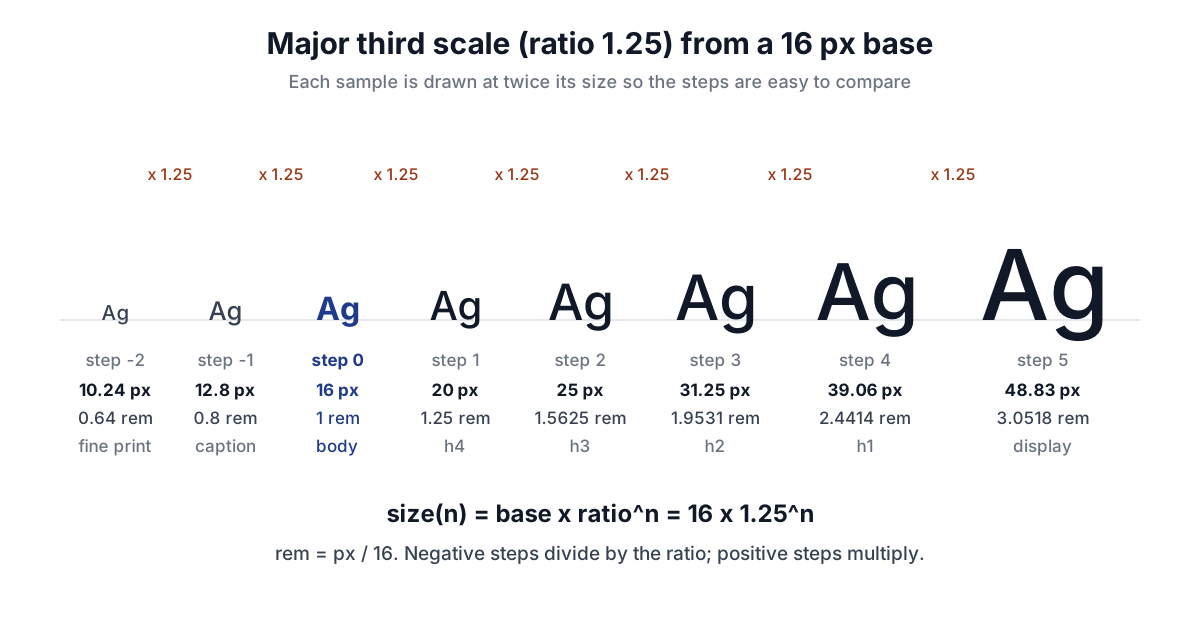
Rem values divide by the root font size, 16 px by default; the px vs rem vs em guide explains why sizes should be written in rem so they follow the reader's browser setting, and the PX to REM Converter converts any odd value. The calculator outputs the scale as CSS custom properties:
:root {
  --step--2: 0.64rem;
  --step--1: 0.8rem;
  --step-0: 1rem;
  --step-1: 1.25rem;
  --step-2: 1.5625rem;
  --step-3: 1.9531rem;
  --step-4: 2.4414rem;
  --step-5: 3.0518rem;
}
Naming steps by number rather than by element (--h1) keeps the scale reusable: a card title can use step 2 without pretending to be an h3.
Swap in the perfect fourth (1.333) and the same base gives 9, 12, 16, 21.33, 28.43, 37.9, 50.52 and 67.34 px. Five steps up is now 67 px instead of 49, a clear sign of how quickly the ratio compounds.
What the interval names mean
The preset names come from music, where an interval between two notes is a ratio of their frequencies. In just intonation a perfect fifth is 3 : 2, a perfect fourth 4 : 3, a major third 5 : 4 and a minor third 6 : 5. The type scale presets borrow those ratios:
| Name | Ratio | Musical origin |
|---|---|---|
| Minor second | 1.067 | 16 : 15 |
| Major second | 1.125 | 9 : 8 |
| Minor third | 1.2 | 6 : 5 |
| Major third | 1.25 | 5 : 4 |
| Perfect fourth | 1.333 | 4 : 3 |
| Augmented fourth | 1.414 | √2, the equal-tempered tritone |
| Perfect fifth | 1.5 | 3 : 2 |
| Golden ratio | 1.618 | not musical; see the golden ratio guide |
The musical names are a convenient vocabulary, not a claim that harmonious sounds make harmonious type. What matters is the size of the ratio.
Choosing a ratio
The ratio sets how many distinct sizes fit between body text and the largest heading.
- Dense interfaces, dashboards, admin tools: 1.125 to 1.2. Small steps let you have five or six heading levels without the top one becoming huge, and screens full of tables and forms rarely need a dramatic hierarchy. A minor third from 16 px reaches 39.81 px at step 5.
- General websites and documentation: 1.2 to 1.25. The major third gives clear contrast between levels while keeping h1 below 50 px at step 5.
- Editorial pages, marketing, landing pages: 1.333 to 1.5. Large jumps produce strong contrast with fewer levels. A perfect fifth reaches 121.5 px at step 5, which is a display size, not a heading.
- Golden ratio, 1.618. 16, 25.89, 41.89, 67.77 px: three steps already cover body to display. Good for posters, too coarse for most interfaces.
Two practical checks help more than the ratio's name. First, the smallest step you will use for real text should stay readable; 10.24 px for fine print is about the limit, and anything that carries meaning should be larger. Second, small screens need a smaller ratio than large ones, because a 49 px heading on a 360 px phone wraps every two words. That leads to fluid scales.
Making the scale fluid with clamp()
Instead of switching ratios at breakpoints, a fluid scale interpolates between a small-screen scale and a large-screen scale. This is the approach popularised by the Utopia project. Choose a minimum viewport width with its base and ratio, and a maximum viewport with its own:
at 360 px viewport:  base 16 px, ratio 1.2   (minor third)
at 1280 px viewport: base 20 px, ratio 1.25  (major third)
For each step, the size moves linearly from its small value to its large value across that range and is held constant outside it. For the body step (16 px to 20 px):
slope     = (20 - 16) / (1280 - 360)   = 0.0043478 px per px of viewport
intercept = 16 - 0.0043478 x 360       = 14.4348 px = 0.9022 rem
preferred = 0.9022rem + 0.4348vw       (slope x 100 gives vw)

font-size: clamp(1rem, 0.9022rem + 0.4348vw, 1.25rem);
At an 820 px viewport, halfway across, the size is 14.4348 + 0.0043478 x 820 = 18 px, halfway between 16 and 20, as it should be. For step 5 the endpoints are 16 x 1.2⁵ = 39.81 px and 20 x 1.25⁵ = 61.04 px:
font-size: clamp(2.4883rem, 1.9693rem + 2.3067vw, 3.8147rem);
Because the two ratios differ, headings grow faster than body text as the screen widens: body text grows by 25% across the range, step 5 by 53%. That is exactly the behaviour you want: hierarchy compresses on phones and opens up on desktops.
The rem term in the preferred value matters. A pure vw size ignores the reader's default font size entirely, and the rem part keeps some of that preference.
Common mistakes
- Rounding every step to whole pixels. 39.06 px rounded to 39 is harmless, but rounding a whole scale changes the ratios between neighbours. Keep four decimal places in rem and let the browser handle sub-pixel sizes.
- Using too many steps. Two down and four or five up covers most sites. A scale generates sizes; it does not oblige you to use them all.
- Applying one line height to every step. Body text at 1.5 is comfortable; a 49 px heading at 1.5 looks loose. Reduce line height as the step increases, roughly toward 1.1 to 1.2 for display sizes.
- Mixing viewport ranges. Every fluid step must use the same minimum and maximum viewport, or the steps cross over at some widths.
- Forgetting zoom. Fluid type responds to browser zoom less than fixed type does, covered below.
When the simple model breaks down
A geometric scale is uniform in size, but type is not perceived uniformly. Fonts with a large x-height look bigger at the same pixel size, so a scale tuned for one typeface can feel off with another; adjust the base, not individual steps. All caps and bold weights read larger than their size.
Fluid type has a specific accessibility catch. Zooming a desktop browser to 200% halves the viewport width in CSS pixels, so the vw term shrinks as the zoom grows. For the body clamp above on a 1280 px window, 200% zoom makes the viewport 640 px, the computed size drops to 14.4348 + 0.0043478 x 640 = 17.22 px, and the text ends up 172% of its original 20 px on screen rather than 200%. WCAG 2.1 Success Criterion 1.4.4 Resize Text requires that text can reach 200% without loss of content, so test fluid scales at 200% zoom and with an enlarged browser default font. Keeping the max size within a modest multiple of the min, as here, keeps the shortfall small, and readers can still zoom further.
Finally, a type scale handles size only. Readability also depends on colour contrast, which the Contrast Checker measures against WCAG, and on the device: the pixel density guide and PPI Calculator explain why the same 16 px can look crisp on one screen and soft on another.