
How OCR Works and How to Get Accurate Text From Images
What an OCR engine like Tesseract actually does, why resolution and preprocessing matter more than settings, how to read confidence scores, and where OCR still fails.
· 8 min read
Optical character recognition looks like magic when it works and like a broken typewriter when it does not. The difference is rarely the engine. It is almost always the image: its resolution, contrast, angle and how cluttered it is. Once you know what an OCR engine does with a picture, you can predict which images will read cleanly and fix the ones that will not.
This guide uses Tesseract, the open-source engine behind the Image to Text (OCR) tool on this site, as the running example. Most of it applies to any OCR system.
How OCR works
Tesseract was developed at Hewlett-Packard between 1985 and 1994, released as open source in 2005, and developed for years afterwards with Google's sponsorship. Version 4, released in 2018, added a recognition engine based on an LSTM (long short-term memory) neural network. The browser version used here, tesseract.js, is the same C++ engine compiled to WebAssembly.
Recognition happens in stages.
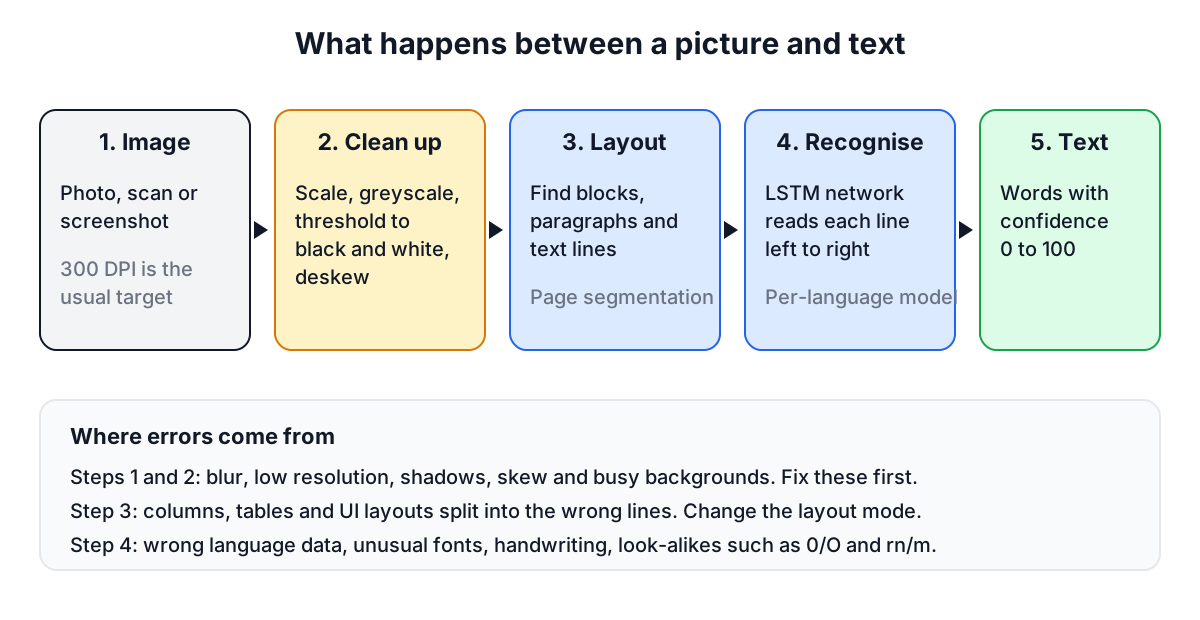
- Clean-up. The image is converted to greyscale and then thresholded into black text on a white background. Tesseract uses Otsu's method, which picks one global threshold. Uneven lighting defeats it: a shadow across half a page turns into a black smear.
- Layout analysis. The engine finds text blocks, splits them into paragraphs and lines, and decides the reading order. This is called page segmentation, and it is where columns, tables and screenshots of user interfaces cause trouble.
- Line recognition. Each line image is fed to the LSTM, which reads it as a sequence and outputs the most likely characters. The model was trained per language, which is why the language setting matters.
- Word decisions. Dictionary and language data help choose between close alternatives, and each word gets a confidence value.
Older OCR engines matched individual character shapes. Line-level neural recognition is much better at touching letters, ligatures and ordinary print, but it still depends on a clean, legible line image.
Preprocessing and resolution
Tesseract's own documentation is blunt: it works best on images of at least 300 DPI, and accuracy drops when lower-case letters are under about 10 pixels high. DPI only makes sense for scans, so think in pixels instead. Body text on a printed page scanned at 300 DPI has an x-height of roughly 20 to 25 pixels, comfortably above the limit. A phone screenshot of 13 pixel interface text has an x-height of about 6 to 7 pixels, below it.
That is why the Image to Text tool enlarges small images by two or three times before recognition, and why it renders scanned PDF pages at 300 DPI. Enlarging does not add detail, but it gives the thresholding and the network enough pixels per stroke to work with.
The other preprocessing steps that matter, roughly in order of impact:
- Contrast and lighting. Dark text on a plain light background is ideal. Photograph pages in even light, away from your own shadow. Avoid glossy paper reflections.
- Skew and perspective. Tesseract tolerates a slight tilt, but a page photographed at an angle has lines that are neither straight nor parallel. Shoot straight on, or use a scanning app that corrects perspective.
- Cropping. Remove photos, logos, borders and table rules near the text. They confuse layout analysis and sometimes come out as stray characters.
- Inverted text. Light text on a dark background, common in dark-mode screenshots, usually reads better after inverting the colours.
- Noise. JPEG artefacts, halftone dots from newspapers and paper texture all compete with the letters. A higher-quality source beats any filter.
Page layout modes
Tesseract's page segmentation mode (PSM) tells it what kind of image to expect. The tool offers the four that matter most:
| Mode | PSM | Use it for |
|---|---|---|
| Automatic page layout | 3 | Normal documents, letters, book pages |
| One column, lines of varying size | 4 | Receipts, single-column lists with mixed sizes |
| One uniform block of text | 6 | A cropped paragraph or code block |
| Sparse text | 11 | Screenshots, forms, labels, text scattered across an image |
If automatic layout merges a sidebar into the main text or reads a two-column page across both columns, crop each column separately. If a UI screenshot comes back with words in a strange order or missing, sparse text mode usually fixes it.
Languages and scripts
Each language has its own trained data: the recognition model plus word lists and character sets. English data does not know ß, ł or ğ, and will force them into the nearest English shapes. Pick the language the text is written in.
When a document mixes languages, load both. A French invoice that contains English product names reads best with French and English together. Each additional language adds a download and makes recognition slower, and loading languages that are not on the page can cause odd substitutions, so add only what is there.
Scripts other than Latin work too. The tool includes Cyrillic (Russian, Ukrainian), Arabic, Devanagari (Hindi), and Chinese, Japanese and Korean. Accuracy on these depends even more on resolution, because the characters have more strokes in the same space. Vertical Japanese or Chinese text needs its own vertical models, which the tool does not include.
In the browser, the engine and every language file are downloaded the first time they are used, a few megabytes each, from the jsDelivr CDN. The browser caches them afterwards. Your images are not part of that traffic; they are processed on your device.
Accuracy and confidence scores
On a clean 300 DPI scan of a printed page, modern Tesseract usually gets well over 95% of characters right. On a skewed phone photo of a crumpled receipt, it can fall to the point where retyping is faster. There is no single accuracy number; it depends on the image.
Every recognised word carries a confidence from 0 to 100. The tool reports a weighted average and how many words scored under 60. As a working rule:
- 90 and above: usually clean. Still check numbers.
- 70 to 90: expect a handful of errors per page. Proofread.
- Below 70: the image is the problem. Rescan, crop, enlarge or change the layout mode before proofreading.
Confidence is the engine's own estimate, not a measurement. Tesseract can be confident and wrong, and the most dangerous errors are plausible ones: 0 and O, 1 and l and I, 5 and S, rn and m, a dropped decimal point. Any number that matters, such as an amount, an account number, a date or a dosage, deserves a manual check against the original.
Handwriting and other hard cases
Tesseract is trained on printed and typed text. Handwriting is outside what it was built for: neat block capitals occasionally come out readable, but cursive and everyday handwriting produce little more than noise. Handwriting recognition needs models trained specifically on handwriting.
Other cases that defeat general OCR:
- Stylised text in logos, posters and memes, especially with outlines, gradients or distortion.
- Text on photos, like street signs at an angle or labels on curved bottles.
- Tables, where the words are recognised but the structure is lost; you get rows in reading order, not cells.
- Maths and chemical formulas, which need specialised engines.
- Very old print, such as blackletter, which needs dedicated models.
When you don't need OCR at all
If a PDF lets you select text in a viewer, it already has a text layer, and extracting it directly is exact while OCR is a guess. Use the PDF to Word Converter for those. OCR is for images and for PDFs whose pages are pictures. If you need page images first, for example to crop one region before recognising it, the PDF to JPG Converter renders them at the resolution you choose. The PDF conversion guide explains how to tell the two kinds of PDF apart.