
PDF to Image and PDF to Word: What Survives the Conversion
How a PDF stores text and layout, why PDF to Word cannot be exact, which DPI to pick when rendering pages as images, and what to do about fonts and scanned pages.
· 8 min read
Someone sends you a PDF and asks for "the Word version", or a slide deck needs page 4 as a picture. Both requests sound like simple format swaps. They are not, because a PDF is closer to a print job than to a document. Knowing what a PDF actually stores tells you what any converter can and cannot give back, and which settings matter.
This guide covers how PDFs store text and layout, why PDF to Word is always a reconstruction, how to choose a resolution when turning pages into images, and what happens with missing fonts and scanned pages. The tools it refers to are the PDF to JPG and PNG Converter, the PDF to Word Converter, the Image to PDF Converter for the opposite direction, and Image to Text (OCR) for scans.
How a PDF stores text and layout
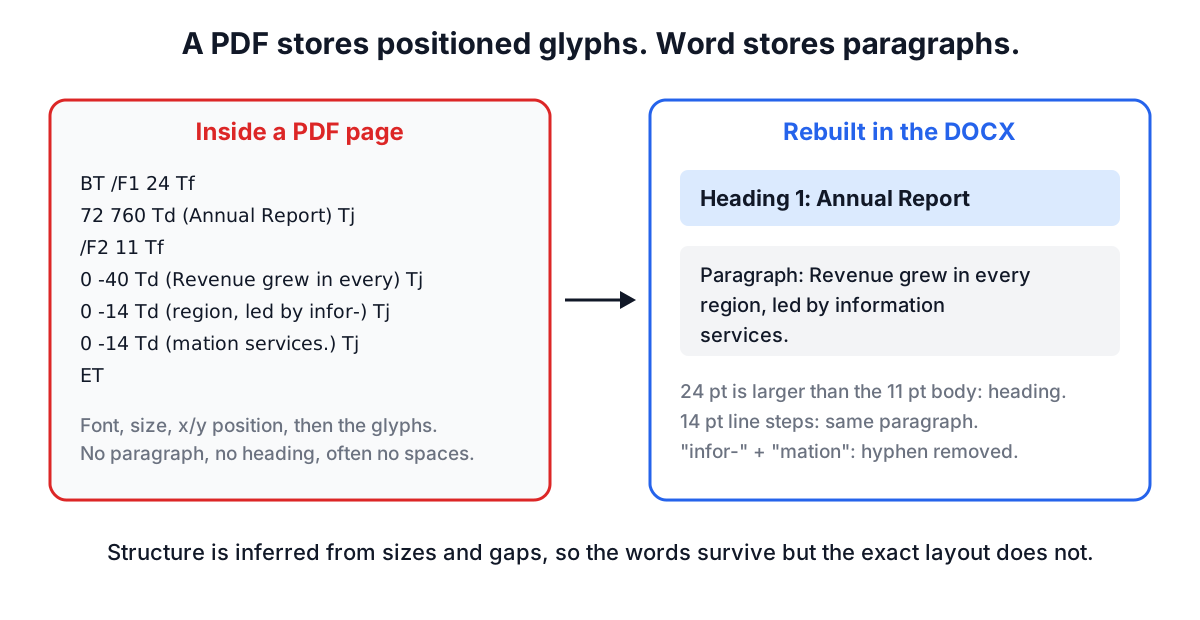
PDF, standardised as ISO 32000, describes each page as a list of drawing instructions in a content stream. For text, the instructions say: use this font at this size, move to this coordinate, show these glyphs. Coordinates are in points, 1/72 of an inch, measured from the bottom-left corner of the page. A heading is not marked as a heading; it is just text drawn in a larger font near the top.
Several details make extraction harder than it looks:
- No paragraphs. Each line is drawn separately. Whether two lines belong to the same paragraph is something a reader infers from spacing.
- Often no spaces. Many PDF generators position each word, or even each letter, individually and never draw a space character. Extractors insert spaces by measuring gaps.
- Order is not guaranteed. The content stream draws things in whatever order the generating program chose. Usually that matches reading order, but headers, footnotes and sidebars can appear anywhere.
- Glyphs are not always characters. A font can map glyph codes to Unicode through a ToUnicode table. If that table is missing or wrong, a perfectly readable page extracts as gibberish.
Tagged PDF, the accessibility layer, can add real structure (headings, paragraphs, lists, reading order). It helps when present, but a large share of real-world PDFs are untagged or tagged poorly, so converters cannot rely on it.
Why PDF to Word can't be exact
A Word document is the opposite model: a flow of paragraphs with styles, and the layout is computed when the document is opened. Going from PDF to Word means inferring the flow from positions. Every converter does this with heuristics, and the honest question is what to keep.
There are two strategies. The first recreates the look by placing each line or block in a positioned text box or frame. The result resembles the PDF but is miserable to edit: add a sentence and nothing reflows. The second, which the PDF to Word Converter uses, rebuilds a normal flowing document:
- Text runs on the same baseline are joined into lines, with spaces inserted where the gap is wider than a sliver of the font size.
- Consecutive lines become one paragraph when the distance between baselines matches the page's usual line spacing. A noticeably larger gap, a change of font size, or a jump back up the page (a new column) starts a new block.
- The font size that covers the most characters is taken as body text. Sizes at least 15% larger become headings, the largest mapped to Heading 1.
- Lines starting with a bullet character or a marker such as
1.ora)become list items, and words hyphenated across a line break are rejoined.
What you get is the words, the reading order and the outline, in Word's built-in heading styles, so the Navigation pane and a table of contents work. What you lose is everything visual: fonts, colours, columns, table grids, exact positions. Running headers and page numbers come through as ordinary short paragraphs because, to the PDF, they are just more text. If you need to see the original alongside, the converter can insert a picture of each page after its text.
Raster DPI choices for PDF to image
Turning a page into a JPG or PNG means choosing a resolution, because the page itself has none. The maths is simple: pixels = points × DPI ÷ 72.
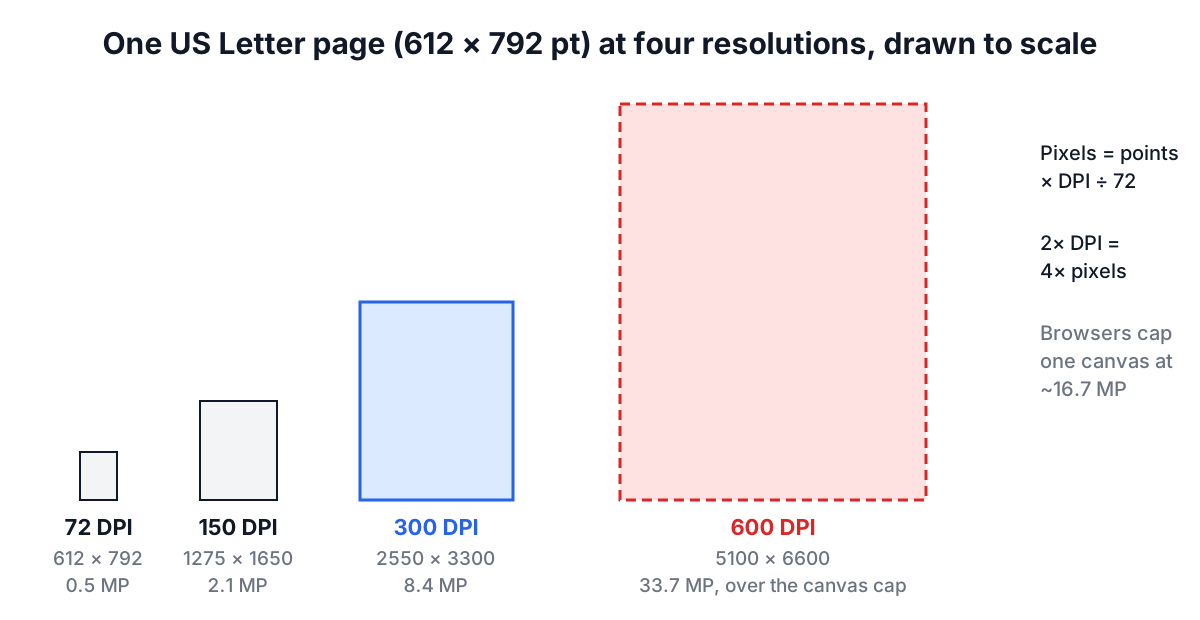
| DPI | Letter page in pixels | Good for |
|---|---|---|
| 72 to 96 | 612 × 792 to 816 × 1056 | Thumbnails, previews, web listings |
| 150 | 1275 × 1650 | Reading on screen, chat, slides |
| 200 | 1700 × 2200 | Sharp small print on high-density screens |
| 300 | 2550 × 3300 | Printing at original size, OCR |
| 600 | 5100 × 6600 | Archival scans of fine detail (often capped in browsers) |
Doubling DPI quadruples the pixel count, and roughly quadruples memory use and file size. Browsers also limit how large a single canvas can be; Safari and iOS stop at 16,777,216 pixels. The PDF to JPG Converter lowers the scale to fit when a page would exceed that and tells you it did.
The format matters as much as the DPI. PNG is lossless: thin rules, small type and flat colours stay exact, which suits text pages, diagrams and slides. JPEG discards detail the eye is less sensitive to and can leave faint ringing around sharp letter edges, but it is far smaller for scans and photographs. A quality of 85 to 90 is usually indistinguishable from the original for those.
Going the other way, the Image to PDF Converter wraps images in pages. It does not make the text searchable; the result is a PDF of pictures, which is exactly the "scanned PDF" situation described below.
Fonts, missing glyphs and rendering differences
PDFs usually embed the fonts they use, often as subsets containing only the glyphs on the page. When a PDF does not embed a font, the viewer substitutes one. The 14 standard PDF fonts (Times, Helvetica, Courier, Symbol and ZapfDingbats in their variants) are expected to be available to every viewer; pdf.js supplies metric-compatible replacements and, in the PDF tools on this site, fetches them from the pdf.js package on jsDelivr only when a document needs them. Your PDF is still processed locally. CJK documents can similarly need character map files, fetched the same way.
Font problems show up differently in each conversion:
- To image, a missing font changes how the page looks: different letter widths, occasionally overlapping text.
- To Word, the text is usually fine as long as the ToUnicode mapping is present, because the converter needs the characters, not the shapes. If a PDF copies as nonsense when you select text in a viewer, it will convert as nonsense too. OCR is then the fallback.
Scanned pages have no text layer
A scanner or phone camera produces a picture of a page. Saved as a PDF, each page holds one image and no characters at all. PDF to Word finds nothing to extract, and PDF to JPG simply gives you the scan back as an image.
The PDF to Word Converter counts the characters it finds on each page and warns you when a page has almost none. For those pages, the route is optical character recognition: the Image to Text (OCR) tool renders scanned PDF pages at 300 DPI and recognises the letters. The OCR guide explains how that works and how to get clean results.
Some PDFs are hybrids: a scanned image with an invisible OCR text layer on top, produced by scanner software or Acrobat. These convert to Word like normal PDFs, but the text quality is whatever that earlier OCR produced.
A quick decision checklist
- Need to edit the words? Convert to Word, then fix headers, footers and any tables by hand.
- Need it to look identical? Keep the PDF, or convert pages to PNG at 150 to 300 DPI.
- Need a page in slides or chat? PNG for text and diagrams, JPG at 85 to 90 for scans and photos, 150 DPI.
- Need to print an image of a page? 300 DPI.
- Selecting text in a viewer does nothing? It is a scan. Use OCR.