
How to Reorder, Delete and Duplicate PDF Pages
Rearranging a PDF page tree, fixing one-sided duplex scans by interleaving, removing blank and duplicate pages, and what reordering does to bookmarks, links and page labels.
· 8 min read
A PDF that arrives in the wrong order is one of the most common office annoyances: a scanner fed the pages back to front, an appendix that belongs in the middle, a signature page that was printed twice, a blank sheet the feeder picked up. None of these need the original Word file or a print and rescan. A PDF keeps its pages in a list, and changing the list is a quick, lossless edit. This guide explains how that list works, how the Organize PDF Pages tool rebuilds it, how to fix a one-sided duplex scan in one click, and what a rearranged file keeps and loses.
How a PDF stores its pages
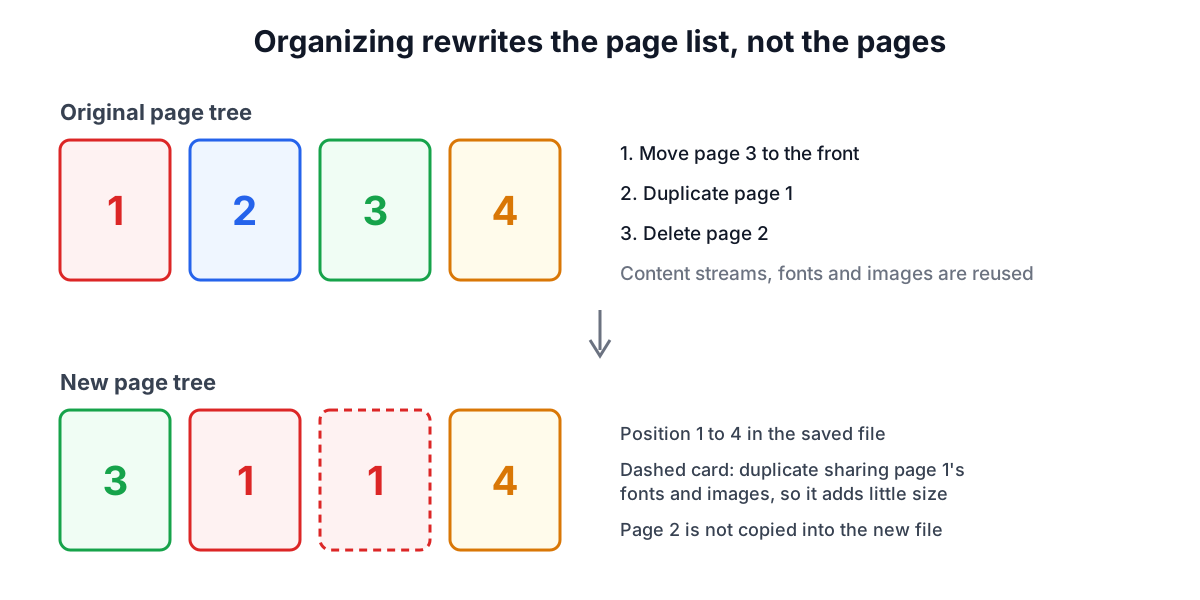
Every PDF has a catalog object at its root, and the catalog points to a page tree (ISO 32000-1, section 7.7.3). The page tree is a set of /Pages nodes with a /Kids array; the leaves are /Page objects. The order of the leaves, read depth first, is the page order. Each page object holds its own size (/MediaBox and optionally /CropBox), its rotation (/Rotate), the resources it needs (fonts, images) and one or more content streams with the drawing instructions.
Because each page is self-contained, reordering pages does not touch the content of any page. The text stays text, images stay at their original resolution and nothing is recompressed. That is the key difference from printing to PDF or "Save as PDF" again, which re-renders and can change fonts or image quality.
Three operations cover almost everything:
- Move: change a page's position in the list.
- Delete: leave a page out of the list.
- Duplicate: list the same page twice. Both copies share the same fonts and images, so a duplicate adds very little to the file size.
Using the Organize PDF Pages tool
Open the PDF and every page appears as a thumbnail rendered by pdf.js, in its current order. The large number on each card is the position in the new file; the small "orig. p" label is the page it came from in the original, so you can always tell a moved or duplicated page apart.
- Drag a thumbnail to a new position on a desktop browser. On a phone or tablet, where drag and drop is unreliable, use the left and right arrow buttons on each card to move a page one place at a time.
- Rotate a single page in 90 degree steps with its rotate button. The thumbnail turns so you can check the result before saving.
- Duplicate a page with the copy button; the copy appears right after it and can be moved like any other.
- Delete a page with the bin button. The tool keeps at least one page, because a PDF with no pages is not valid.
- Use Reverse order for a stack scanned last page first, Interleave duplex scan for one-sided scans of double-sided originals, and Reset to go back to the original order.
- Click Save and download the rearranged PDF. The file is built in your browser with pdf-lib; nothing is uploaded.
For a long document where you only want to take some pages out into a separate file, the Split PDF tool is faster, and to rotate many pages at once while keeping bookmarks, use Rotate PDF.
Fixing a one-sided duplex scan
Many sheet-fed scanners only scan one side. The usual workaround for a double-sided document is to scan the stack once for the fronts, flip the whole stack over and scan it again for the backs. The second pass comes out in reverse, because the last sheet is now on top. With 3 sheets the scanned file looks like this:
| Scan position | 1 | 2 | 3 | 4 | 5 | 6 |
|---|---|---|---|---|---|---|
| Holds | Sheet 1 front | Sheet 2 front | Sheet 3 front | Sheet 3 back | Sheet 2 back | Sheet 1 back |
| Reading page | 1 | 3 | 5 | 6 | 4 | 2 |
The reading order is front 1, back 1, front 2, back 2 and so on, which means taking scan pages 1, 6, 2, 5, 3, 4. In general, with k sheets the order is 1, 2k, 2, 2k − 1, 3, 2k − 2 and so on. The Interleave duplex scan button does exactly this: it splits the list in half (fronts first), reverses the second half and alternates them. With an odd page count, for example when the last sheet's back was blank and you deleted it before scanning, the extra front page goes last.
Two checks before you interleave: delete any stray pages first (a feeder double-pick changes every later position), and make sure the backs really were scanned in reverse. If your scanner can flip the stack itself, it already produces reading order and you do not need this step.
Deleting pages safely
Deleting a page from the list really removes it from the saved file. The tool builds a fresh document and copies only the pages that remain, so the content of a deleted page is not carried along as hidden data. That matters when you remove a page with personal details before sending a file.
It is not a redaction tool, though. If a page you keep contains text you want hidden, covering it with a black box (or a watermark) leaves the original text underneath, selectable and searchable. Proper redaction removes the text from the content stream. One blunt but reliable alternative is to convert the affected page to an image with PDF to JPG, black out the area in the image and convert it back.
Blank pages from a scanner are worth removing for a second reason: a blank scanned page is still a full-page image, often tens of kilobytes or more, so deleting them can shrink the file noticeably.
What a rearranged file keeps and loses
The tool copies pages into a new document, which is the cleanest way to get a file that contains only what you see. The trade-off is that objects attached to the document as a whole, rather than to individual pages, do not come along.
| Feature | Kept? | Why |
|---|---|---|
| Text, fonts, vector graphics, images | Yes | They live in each page's content and resources |
| Page size and existing rotation | Yes | Stored on the page object |
| Comments and web links on a page | Yes | Page annotations are copied with the page |
| Document title | Yes | Copied to the new file's metadata |
| Bookmarks (outline) | No | The outline is a document-level tree (12.3.3) pointing at the old pages |
| Interactive form fields | Partly | The widgets still show, but the AcroForm that makes them fillable is document level |
| Links that jump to another page | No | Internal destinations point at the old page objects |
| Page labels such as i, ii, iii | No | Labels are a document-level number tree (12.4.2) |
If bookmarks matter, rearrange first and add bookmarks last in a desktop editor, or keep the original and only rotate pages with Rotate PDF, which edits the file in place and keeps the outline. If you need visible page numbers that match the new order, add them after rearranging with Add Page Numbers to PDF.
Worked example: assembling a contract pack
A 12-page scanned contract pack comes back from a client with three problems: the signature page (page 12) should follow the terms (page 8), page 5 is a blank sheet, and page 2 (the cover letter) needs to appear twice, once for each party's copy.
- Delete page 5. The list is now 1, 2, 3, 4, 6, 7, 8, 9, 10, 11, 12 (11 pages).
- Drag page 12 so it sits right after page 8: 1, 2, 3, 4, 6, 7, 8, 12, 9, 10, 11.
- Duplicate page 2: 1, 2, 2, 3, 4, 6, 7, 8, 12, 9, 10, 11 (12 pages).
- Save. The file has 12 pages, the blank image page is gone and the duplicated cover letter adds almost nothing because it reuses the same image.
The thumbnails show "orig. p12" on the eighth card, so it is easy to confirm the result before downloading.
Tips
- Work on a copy and keep the original. Saving produces a new file; the original on your device is never changed.
- Fix rotation in the same pass. A sideways landscape page can be turned while you reorder.
- Very large files (hundreds of pages or big scans) take longer to render thumbnails. Pages still render one at a time, so you can start arranging the first pages while the rest load.
- Password-protected PDFs cannot be rearranged until the protection is removed, because pdf-lib cannot decrypt them. Open the file in a reader that knows the password and save an unprotected copy.
- Merging and organizing together: combine files with Merge PDF, then open the merged file here to put pages from different sources in their final order.
Sources
- ISO 32000-1:2008, Document management: Portable document format, Part 1: PDF 1.7. Section 7.7.2 (document catalog), 7.7.3 (page tree and page objects), 12.3.3 (document outline), 12.4.2 (page labels), 12.7 (interactive forms).
- ISO 32000-2:2020, PDF 2.0, same sections in the updated edition.
- pdf-lib documentation, PDFDocument.copyPages and addPage (the library the tool uses to build the output).
- Mozilla pdf.js project documentation (used for the page thumbnails).
Related searches
- reorder pdf pages
- delete pages from pdf
- rearrange pdf pages drag and drop
- duplicate a page in pdf
- interleave front and back scans
- collate duplex scan pdf
- remove blank pages from scan
- move page to end of pdf
- reverse page order pdf