
HEIC Photos Explained: Why iPhone Images Will Not Open and What to Do
What HEIF and HEIC are, why HEVC licensing keeps them out of Windows and most browsers, the iPhone settings that avoid them, and how converting trades size for reach.
· 8 min read
You email a photo from your iPhone to a colleague on Windows, and they reply with a screenshot of an error: the file is called IMG_4521.HEIC and nothing on their machine will open it. Or you try to upload the same photo to a job portal and the form rejects it as an unsupported type. The photo is fine. The problem is the container it lives in, and the video codec inside that container.
This guide explains what HEIF and HEIC are, why so much software still cannot read them, which iPhone settings avoid the problem, and what you gain and lose when you convert to JPEG.
HEIF, HEIC and HEVC: three names, two layers
HEIF (High Efficiency Image File Format) is a container standard, ISO/IEC 23008-12, published by the MPEG group in 2015. Like MP4, it is built on the ISO base media file format: a file is a series of boxes, starting with an ftyp box that names the "brands" the file follows. HEIF can hold one image or many, plus thumbnails, metadata, depth maps, alpha planes and image sequences.
HEVC (High Efficiency Video Coding, also called H.265) is the compression method. It was designed for video, published as ITU-T H.265 in 2013, and its intra-frame mode makes an excellent still-image codec.
HEIC is what people call a HEIF file whose images are compressed with HEVC. The brand in the ftyp box is usually heic, and the file extension is .heic. A HEIF file can also carry other codecs: AVIF is the same container with AV1 inside, which is why some tools detect both formats with the same code and then have to check the brand.
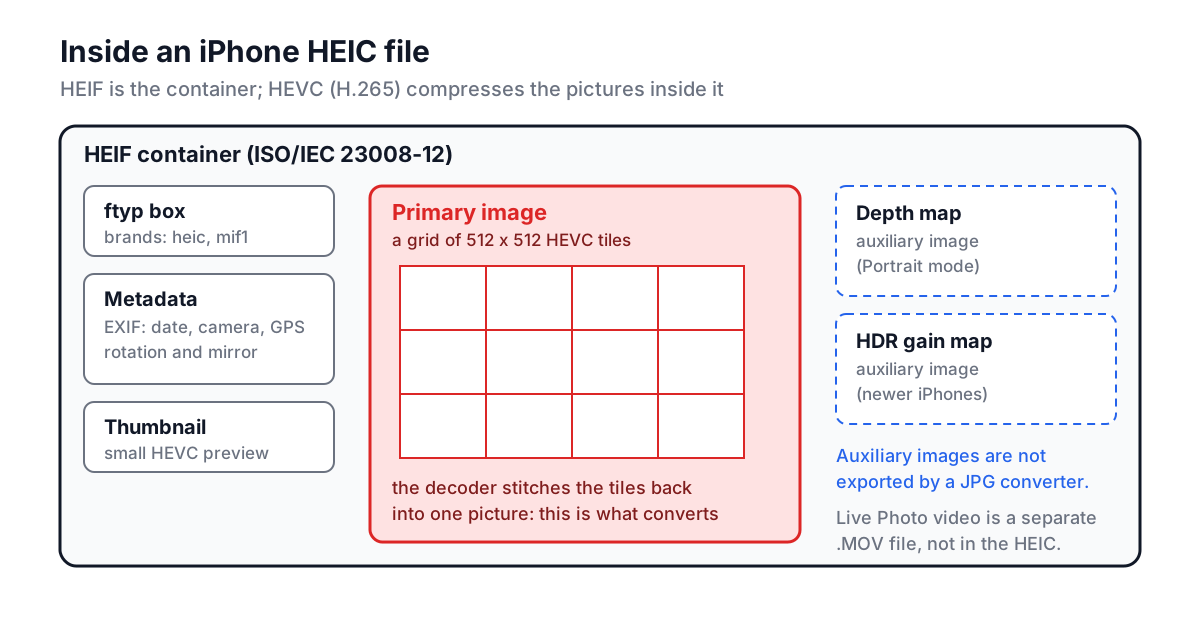
Apple switched the iPhone camera to HEIC in iOS 11 in 2017. A typical iPhone photo inside the file is not one big HEVC frame. It is a grid of 512 by 512 pixel tiles, each coded separately, which the decoder places side by side to rebuild the full picture. That is invisible when everything works, but it is one reason that a simple "HEVC decoder" is not enough to read the file: you need the HEIF layer too.
Why Windows and most browsers struggle
HEVC is covered by a large number of patents, and those patents are licensed through several separate pools as well as by individual companies. Shipping an HEVC decoder in a free product means working out who to pay and how much, and many vendors have decided not to.
The practical result in 2026:
| Platform | Opens HEIC out of the box? |
|---|---|
| iPhone, iPad, Mac | Yes |
| Safari 17 and later | Yes, in web pages too |
| Chrome, Edge, Firefox | No |
| Windows 10 and 11 | Only after installing HEIF Image Extensions and an HEVC codec from the Microsoft Store |
| Android | Many recent phones can view HEIC, but apps and upload forms vary |
The Windows HEVC codec has historically been a paid add-on, which is why "just install the extension" is not a satisfying answer for someone receiving one photo. Web forms are the other common failure: a server that only accepts image/jpeg and image/png will refuse a .heic file even if your browser could display it.
The iPhone settings that avoid HEIC
If you control the phone, two settings remove most of the friction.
Settings > Camera > Formats. "High Efficiency" saves photos as HEIC and videos as HEVC. "Most Compatible" saves photos as JPEG and videos as H.264. Switching to Most Compatible affects new photos only; existing ones stay HEIC.
Settings > Photos > Transfer to Mac or PC. "Automatic" converts photos to JPEG when you copy them to a computer over USB. "Keep Originals" copies the HEIC files as they are. Automatic is the right choice if the computer runs Windows.
Sharing from the Photos app to other apps and services often converts to JPEG on the way out as well, but it depends on the receiving app, so do not rely on it for anything important. AirDrop between Apple devices keeps HEIC.
The trade-off is storage. Apple's reason for HEIC was that an HEVC-coded photo needs roughly half the space of a JPEG at similar visual quality. On a phone with thousands of photos, that is a lot of gigabytes, so many people keep High Efficiency on and convert only what they share.
Converting HEIC to JPEG: what changes
The HEIC to JPG Converter decodes each file with libheif, the open-source HEIF library, compiled to JavaScript and running in your browser. It then encodes the pixels as JPEG at the quality you choose, or as PNG. Nothing is uploaded. If you need other targets, such as WebP, TIFF or BMP, the Image Format Converter reads HEIC as input too.
A few things change in the process, and it helps to know them before you delete originals.
File size usually goes up. Because HEVC compresses about twice as well as JPEG, the same photo at similar quality needs more bytes as a JPEG. A 2 MB HEIC often becomes a 3 to 4 MB JPEG at quality 90. Quality 80 is usually still clean for sharing and closer to the original size. PNG is lossless and much bigger again; use it only if you will edit the image further.
Metadata is not copied. The converter decodes to raw pixels and encodes fresh, so EXIF data (date taken, camera model, lens, GPS coordinates) does not come along. That is a privacy win when you post the photo publicly, as the EXIF metadata guide explains, but it means photo libraries may sort converted files by file date. You can confirm what a file contains with the EXIF Metadata Viewer.
Orientation is applied, not recorded. HEIF stores rotation and mirroring as properties of the image item. The decoder applies them, so the pixels in the JPEG are already the right way up and the JPEG needs no orientation tag.
Colour can shift slightly. iPhones capture in the Display P3 colour space, which is wider than sRGB. A browser canvas works in sRGB and the converter does not embed a colour profile, so strongly saturated reds, oranges and greens can look a little muted compared with the Photos app. For most snapshots the difference is hard to spot.
Multi-image files, Live Photos and bursts
HEIF was designed to carry collections, which raises a fair question: what comes out when one file holds several pictures?
- Ordinary photos have one primary image. Portrait mode adds a depth map and newer iPhones add an HDR gain map, but those are auxiliary images attached to the primary one. Converters export the primary image only.
- Live Photos are two files: a HEIC still and a short
.MOVvideo with the same base name. The HEIC on its own contains just the still frame, so converting it gives you one JPEG. The motion is in the MOV. - Burst shots are saved by iOS as separate photos, each its own HEIC, grouped in the Photos app. Converting a burst means converting each file.
- True multi-image HEIF files, such as image collections or sequences made by other software, can hold several top-level images. The HEIC to JPG Converter exports every one of them and numbers the outputs, so
sequence.heicbecomessequence-1.jpg,sequence-2.jpgand so on.
Quality settings and when to keep HEIC
| Goal | Suggested output |
|---|---|
| Send to someone on Windows or Android | JPG at 85 to 90 |
| Upload to a web form with a size limit | JPG at 75 to 85, resized if needed |
| Edit in an image editor | PNG, then export the final result |
| Keep on an Apple device or Mac | Leave as HEIC |
| Publish on a website | WebP or AVIF from the original, with JPEG fallback |
For web publishing, size matters more than anything else. Resize first with the Image Resizer, then compress, as the image optimisation guide recommends. For a broader comparison of JPEG, PNG, WebP, AVIF and JPEG XL, see the image formats guide.
When conversion fails
Most iPhone files decode without trouble, but HEIF is a large specification and no decoder implements every corner of it. If a file fails:
- Check it is really a HEIC file. Some apps save JPEGs with a
.heicname, and some "HEIC" downloads are actually AVIF. When libheif rejects a file, the converter hands it to the browser's own decoder, so a misnamed JPEG or AVIF usually still converts. - Try Safari 17 or later. It has its own HEIC decoder, which the converter falls back to automatically.
- On a Mac, open the file in Preview and use File > Export to save as JPEG.
- If several files fail in the same way, they may come from a camera or app that uses a HEIF feature the decoder does not support. Converting on the original device is the most reliable route then.
HEIC is a sensible format for a phone that stores thousands of photos. It is just not yet a format for sharing. Converting the photos that leave your device, and keeping the originals where they were taken, gives you both small storage and files that open anywhere.